
7.12 How Students Edit Their Profile Details
You edit your profile details from My Profile in the student sidebar: update your basic info, academic goals, and official coursework, then click Save Changes.
Open your profile
In the left sidebar, click My Profile.
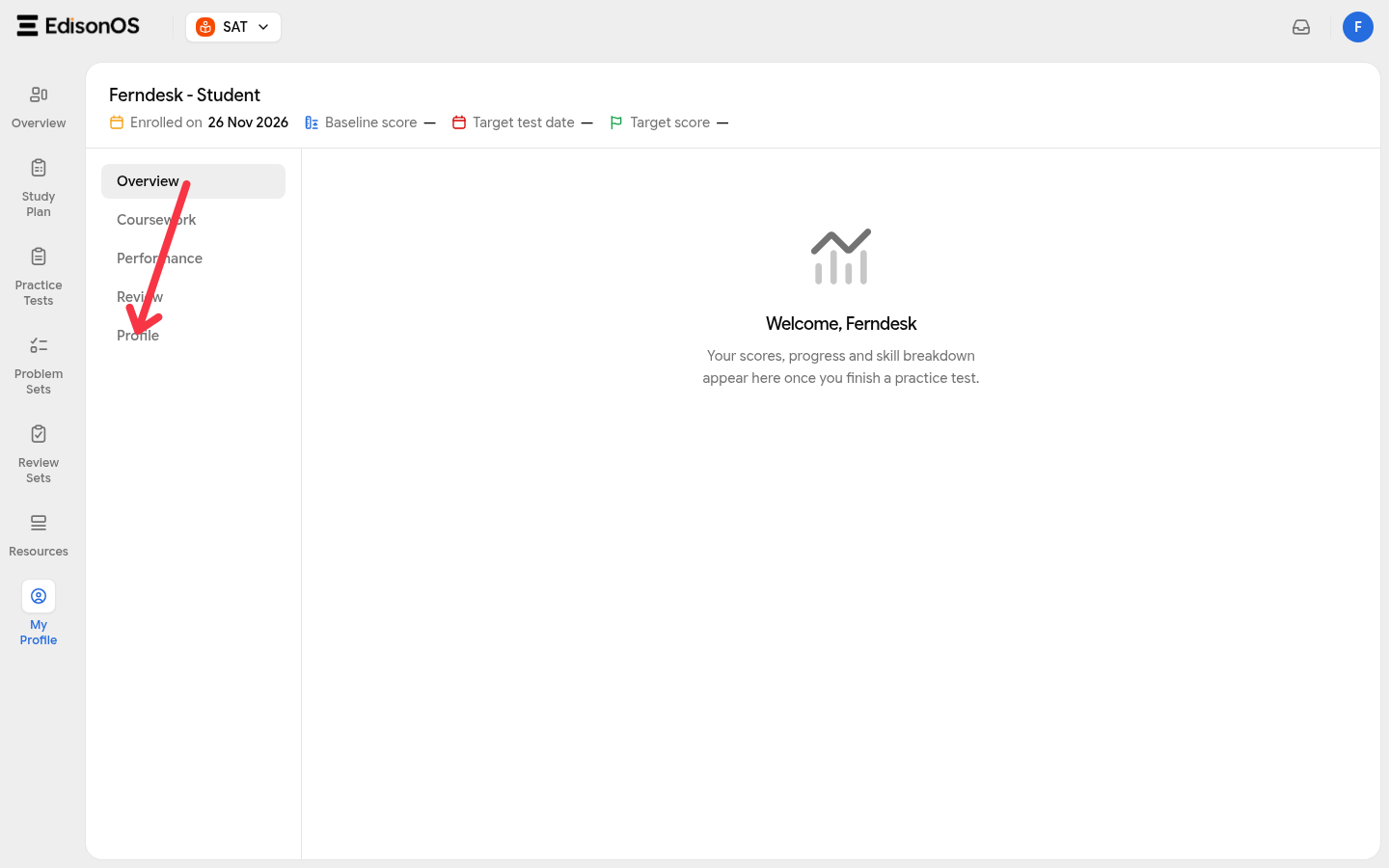
On the Overview page, select Profile in the student detail sections. On a small screen, use the student detail sections picker and select Profile.
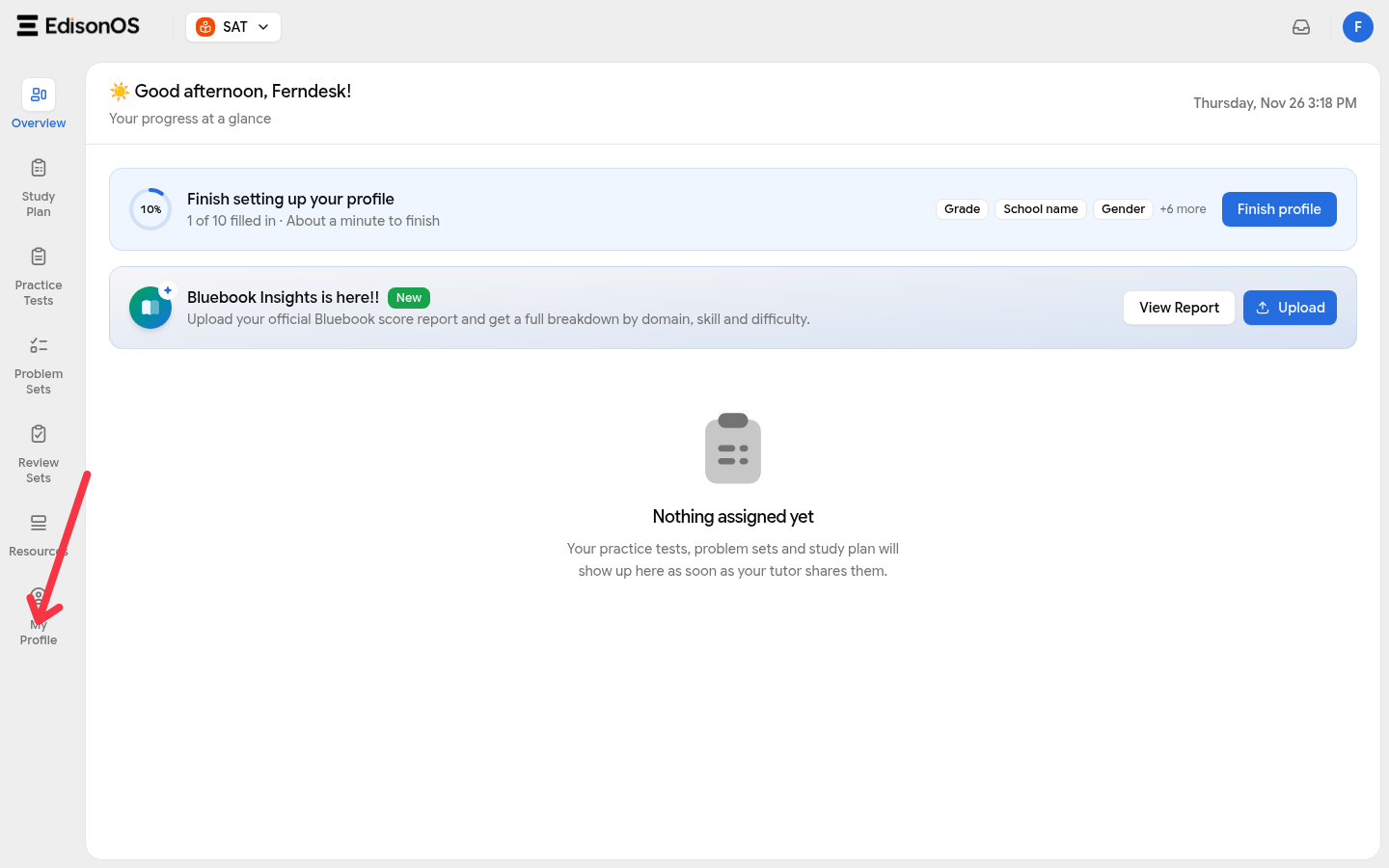
If your profile is mostly empty, the Overview page also shows a banner asking you to finish setting up your profile.
What you can edit
The profile form has three sections.
Basic Info: Full Name, Mobile Number, Parent's Email, Gender, Race, School Name, Language Spoken, Grade, and whether you are from a Hispanic ethnicity.
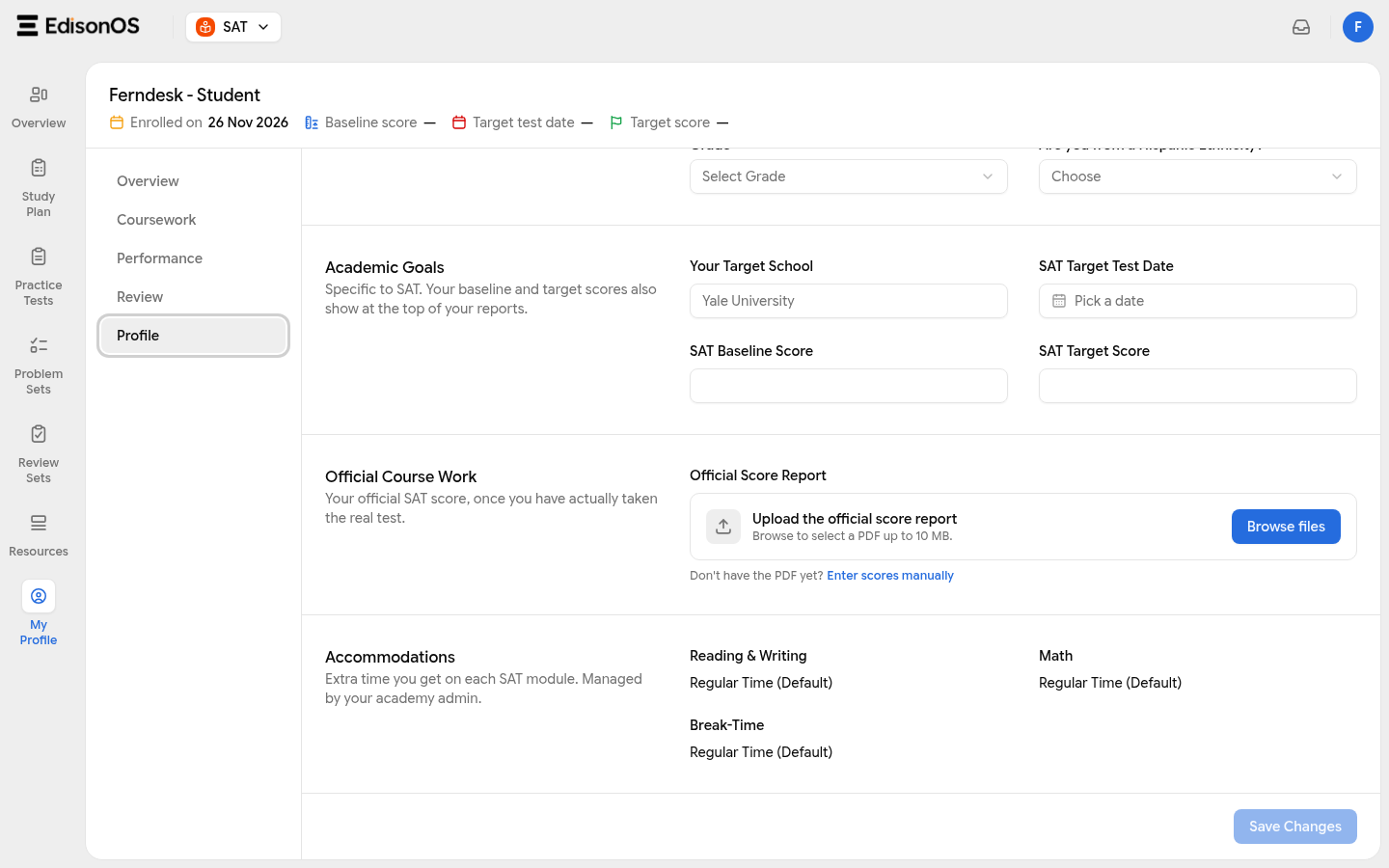
Academic Goals: Your Target School, the Target Test Date for your program, your Baseline Score, and your Target Score. Your baseline and target scores also show at the top of your reports.
Official Course Work: your official test score and the applicable module scores. In SAT programs you can upload the official score report as a PDF up to 10 MB, or follow the link below the upload box to enter the scores manually if you don't have the PDF yet.
Field rules
Full Name is required.
The mobile number must be valid for the selected country.
You can't pick a Target Test Date in the past. Select Clear date to remove a date you set.
Scores must be whole numbers within your program's configured range, and the Target Score must be higher than the Baseline Score.
Save your changes
Click Save Changes at the bottom of the form. The button stays disabled until you change something, and it reads Saving… while your changes save. When the save succeeds, you see Profile updated successfully.
Two things you can't change here: your Email is read-only, and Accommodations (the extra time you get on each module) are managed by your academy admin.