
8.1 Creating & Managing Groups
Updated last week
A group is the link between a tutor and their students. It defines who a tutor can see and work with on the platform.
This is the key thing to understand about groups in EdisonOS:
A group exists for a tutor and the students enrolled in it.
A tutor can only see the students who share a group with them, plus themselves as the tutor of that group.
If a tutor has no group, or has a group with no students enrolled, that tutor will not see any students on the platform.
In other words, visibility follows group membership. A tutor never sees the full academy roster, only the students assigned to them through a group.
Why groups work this way
Groups keep each tutor's view focused and private:
Tutors see only their own students, not everyone in the academy.
Students are organized under the tutor responsible for them.
Admins stay in control of who teaches whom by managing group membership.
Creating a group
Groups live inside a program. Open the program first, then its Groups page.
Select a program from the Programs selector at the top of the sidebar.
In the program sidebar, click Groups. The Groups page lists every group in the program with its tutor count, student count, and creation date.
Click Create Group.
Enter a Name for the group, for example a batch or subject name.
Optionally add a Description, Tags, a Grade, and Start date and End date. The dates are for grouping only, such as an academic year, and don't affect the study plan.
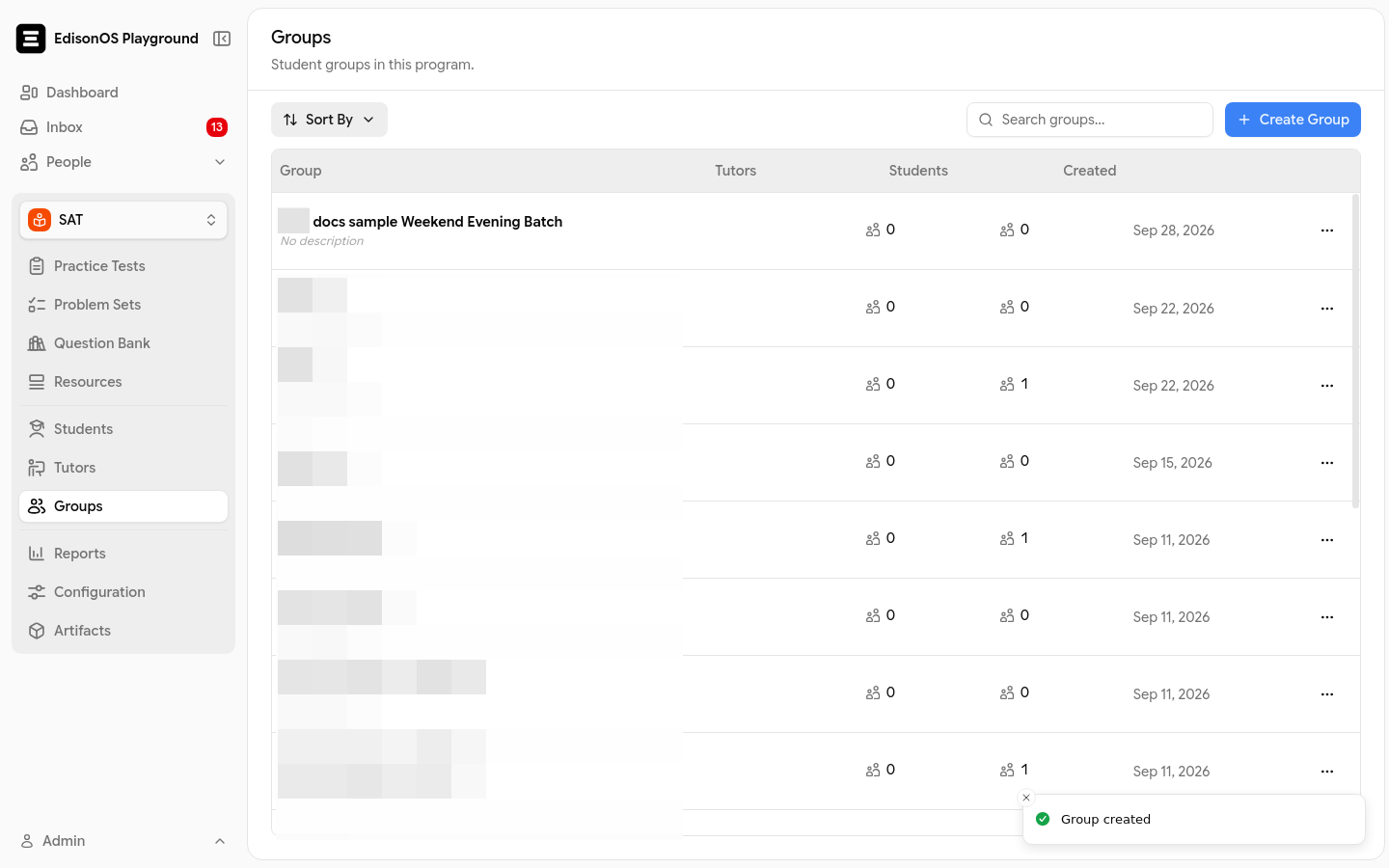
Click Create Group. A confirmation appears and the group is added to the list.
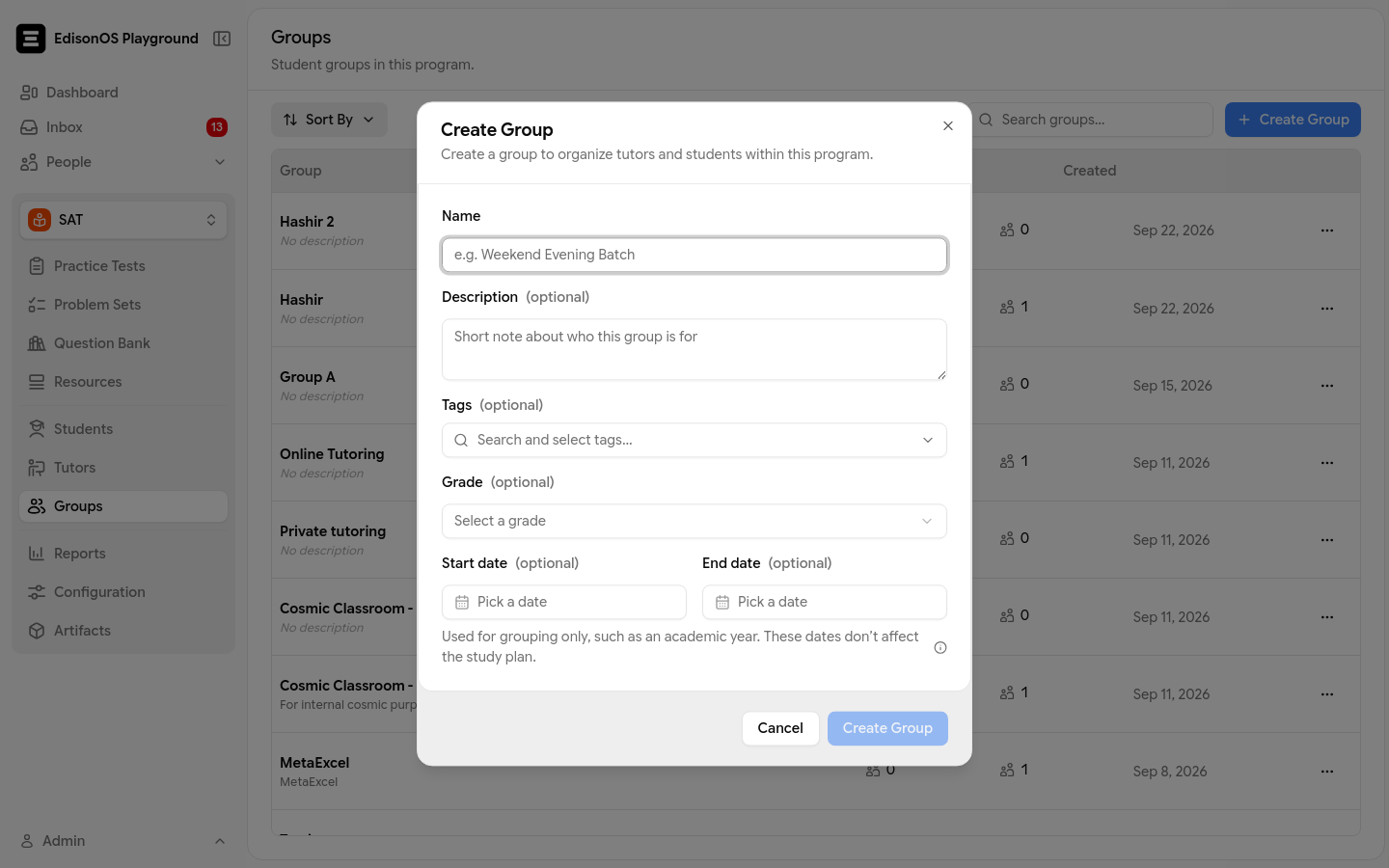
The create form has no tutor field. Assign tutors after the group is created.
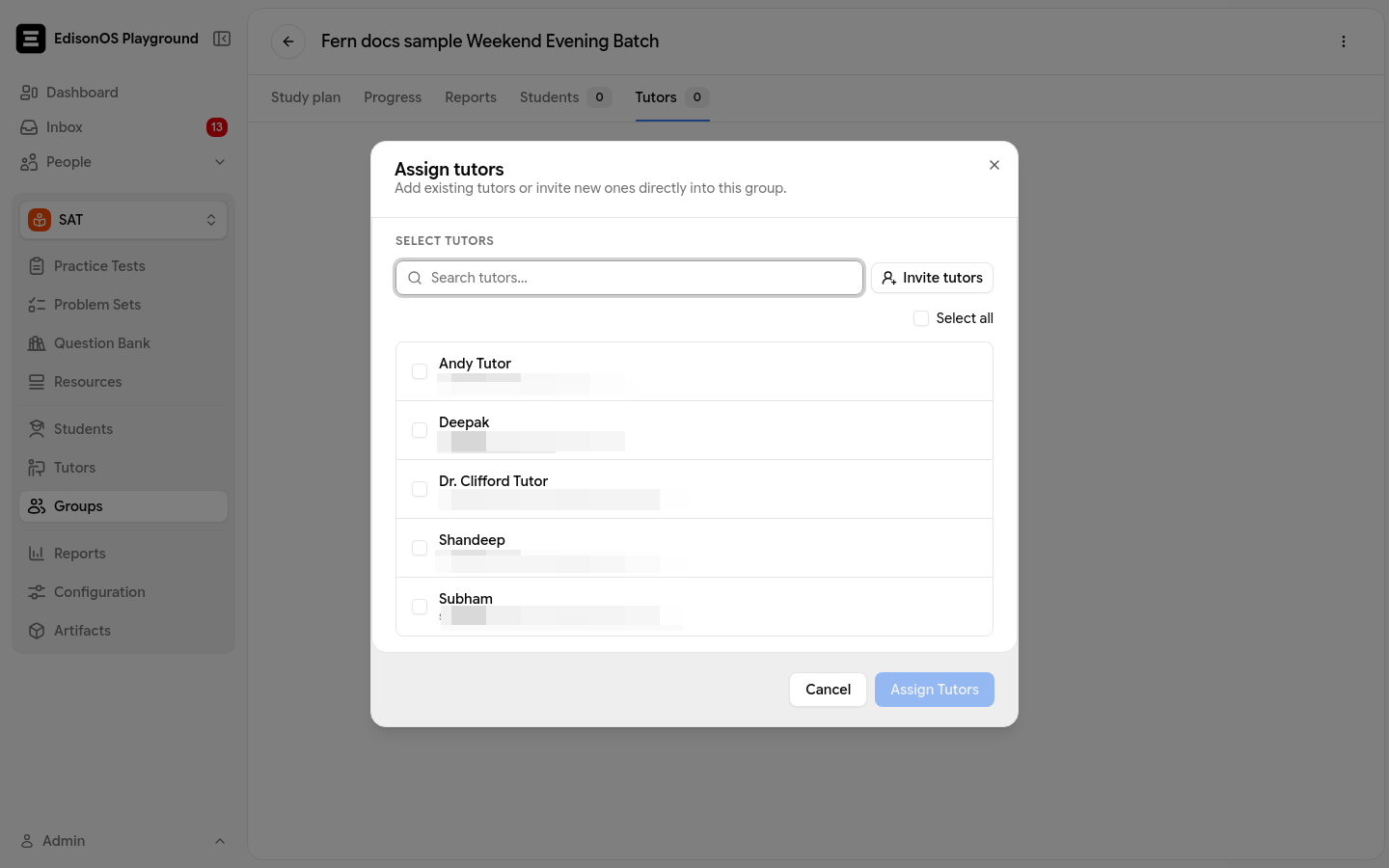
Assigning tutors to a group
Tutors are assigned from the group's detail page, not from the create form.
Click the group's name in the Groups list to open it.
Select the Tutors tab.
Click Assign tutors.
Search for and select the tutors to add, then click Assign Tutors. You can also invite new tutors directly from this dialog.
To remove a tutor, open the tutor's row actions and select Remove from group, then confirm. The tutor is unassigned from the group but keeps their program enrollment.
Assigning students to a group
Students are assigned from the group's detail page.
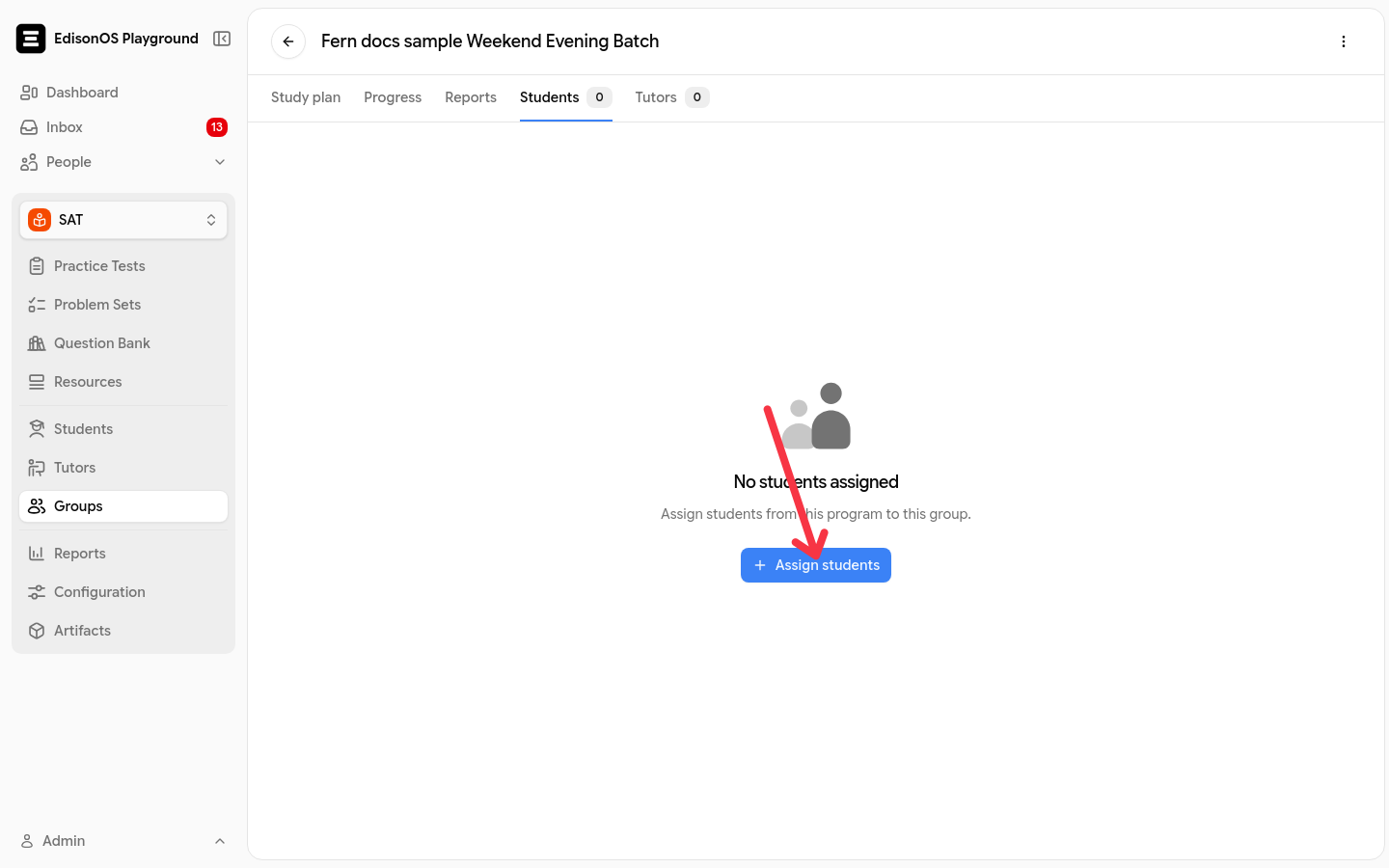
Open the group and select the Students tab.
Click Assign students.
Search for and select the students to add, then click Assign Students. You can also invite new students directly from this dialog.
To remove a student, open the student's row actions and select Remove from group, then confirm. The student is unassigned from the group but keeps their program enrollment.
For the full enrollment workflow, see 8.2 Assigning Students to Groups.
Managing a group
From any existing group you can edit its details, change who is in it, or delete it. Editing and deleting are available from the three-dot Row actions menu on the Groups list, or from the More actions menu in the group's header.
Editing a group
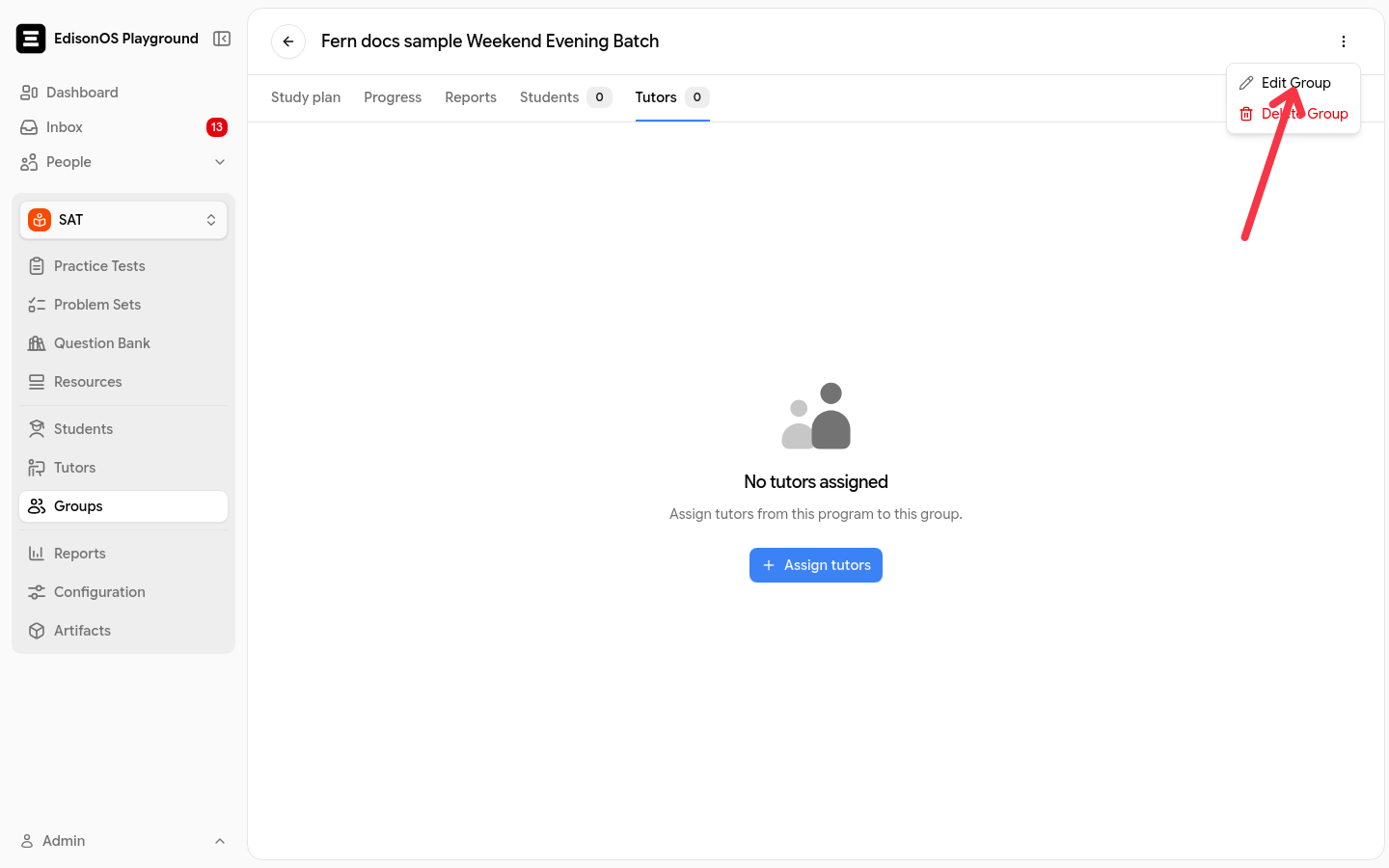
Select Edit Group.
Update the name, description, tags, grade, or dates.
Click Save Changes.
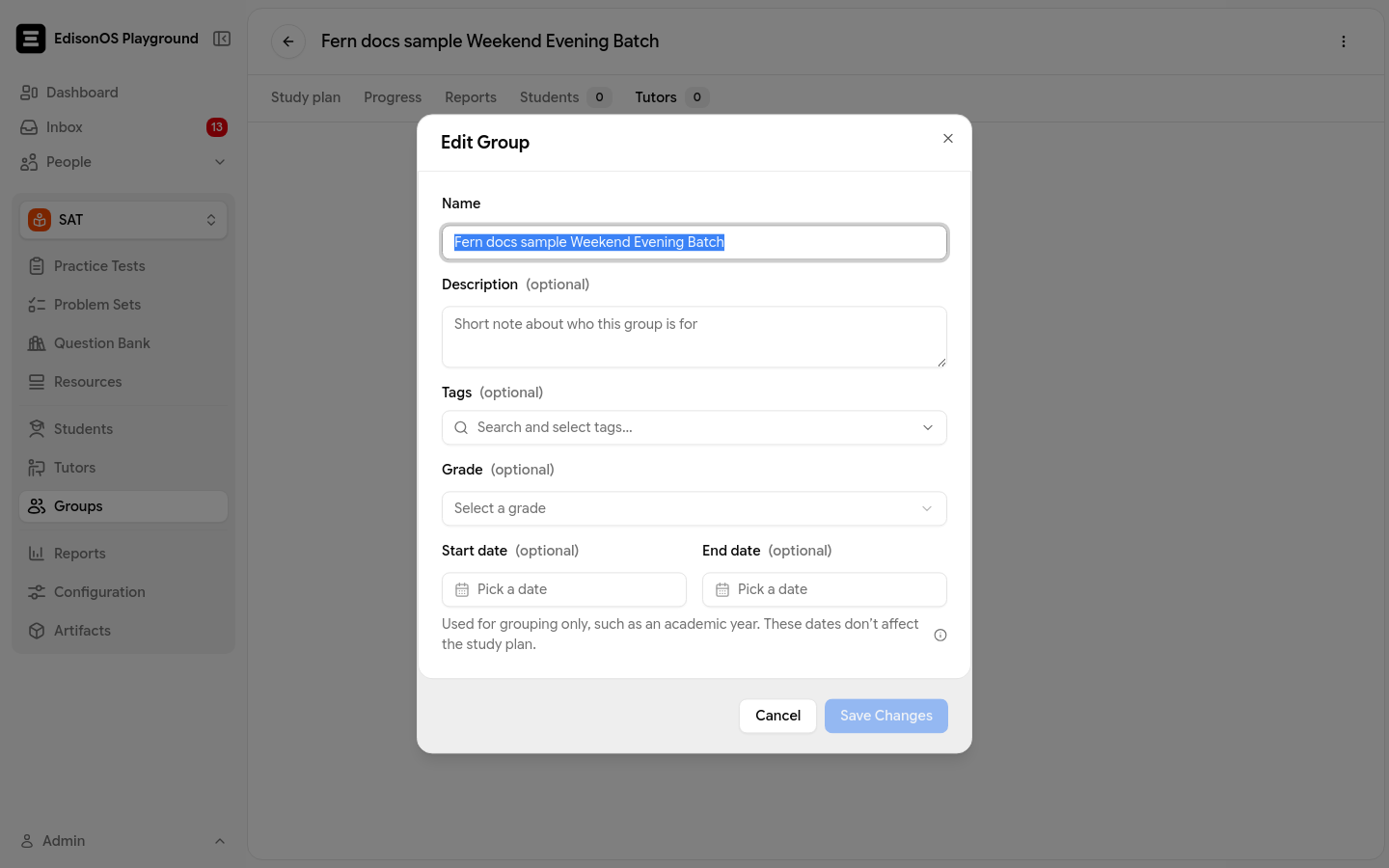
To change who teaches a group, assign or remove tutors on the Tutors tab as described above. For tutor enrollment and program access, see 8.3 Managing Tutors.
Deleting a group
Deleting a group unassigns its members but deletes no accounts.
Select Delete Group.
Confirm with Delete Group.
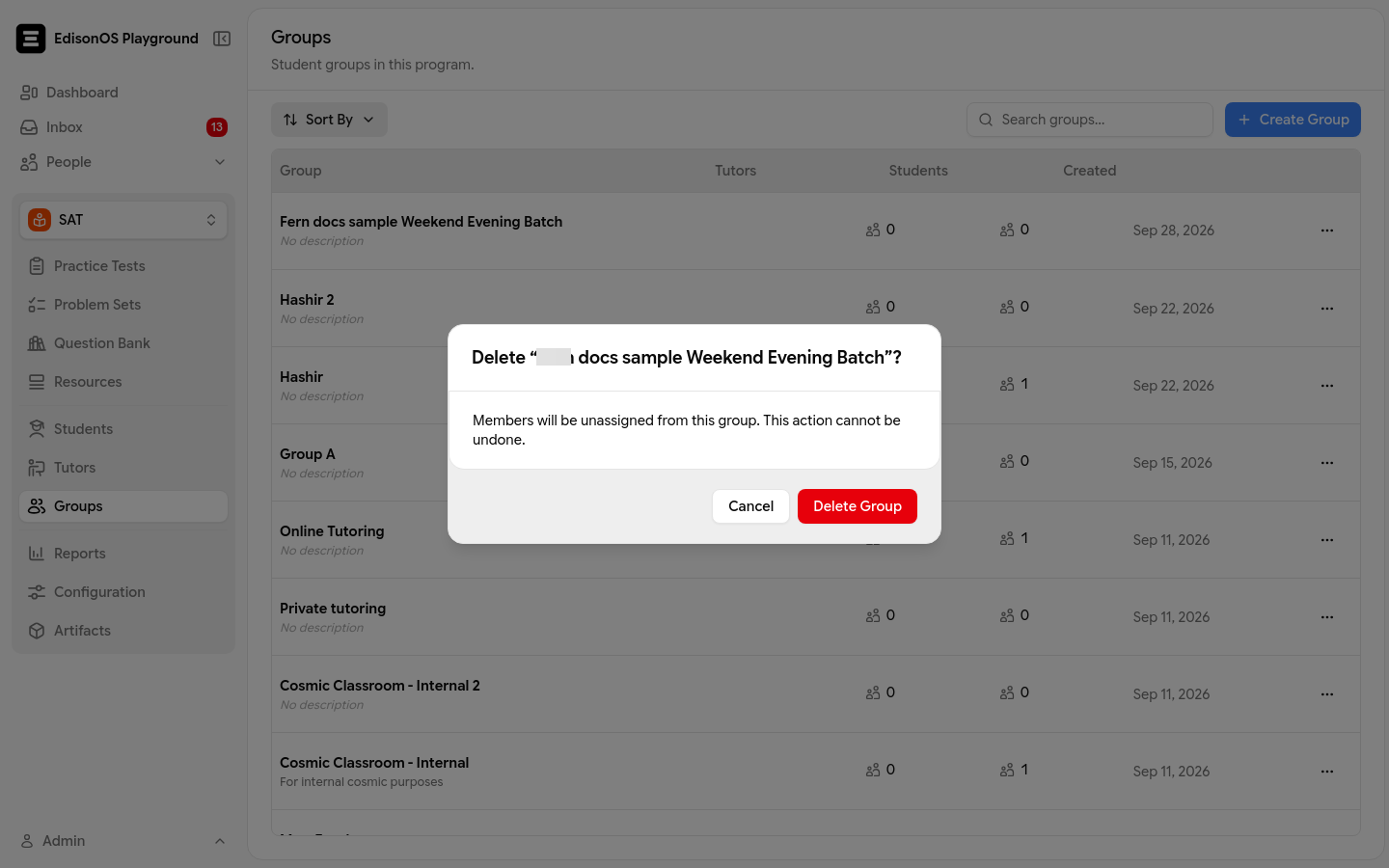
The confirmation warns that members will be unassigned from the group and that the action cannot be undone. Tutors and students keep their program enrollment.
Changing who is in a group directly changes what the assigned tutor can see.
Quick summary
A group connects one tutor to their students.
Tutors only see students who share a group with them.
No group or an empty group means the tutor sees no students.
Admins manage visibility by managing group membership.
FAQs
Why can't my tutor see any students? Because the tutor either has no group, or their group has no students enrolled. Add the tutor to a group and enroll students in it.
Can a tutor see the whole academy roster? No. Tutors only see students in groups they're assigned to, never the full academy.
Can a tutor be in more than one group? Yes. A tutor sees the combined students across all groups they're assigned to.