
6.7 Creating a Problem Set from the Question Bank
Updated 3 days ago
You can turn a Question Bank folder straight into a Problem Set: open the folder in My Library, click Create problem set in the folder header, and the dialog is already scoped to that folder. This folder shortcut skips the general builder entirely.
The Create problem set button appears only on active custom folders in My Library. It is not shown for All Questions, archived folders, or folders in the EdisonOS Library.
Build the quiz
Open your program's Question Bank and switch to My Library in the left panel.
Open the folder that holds the questions for the problem set.
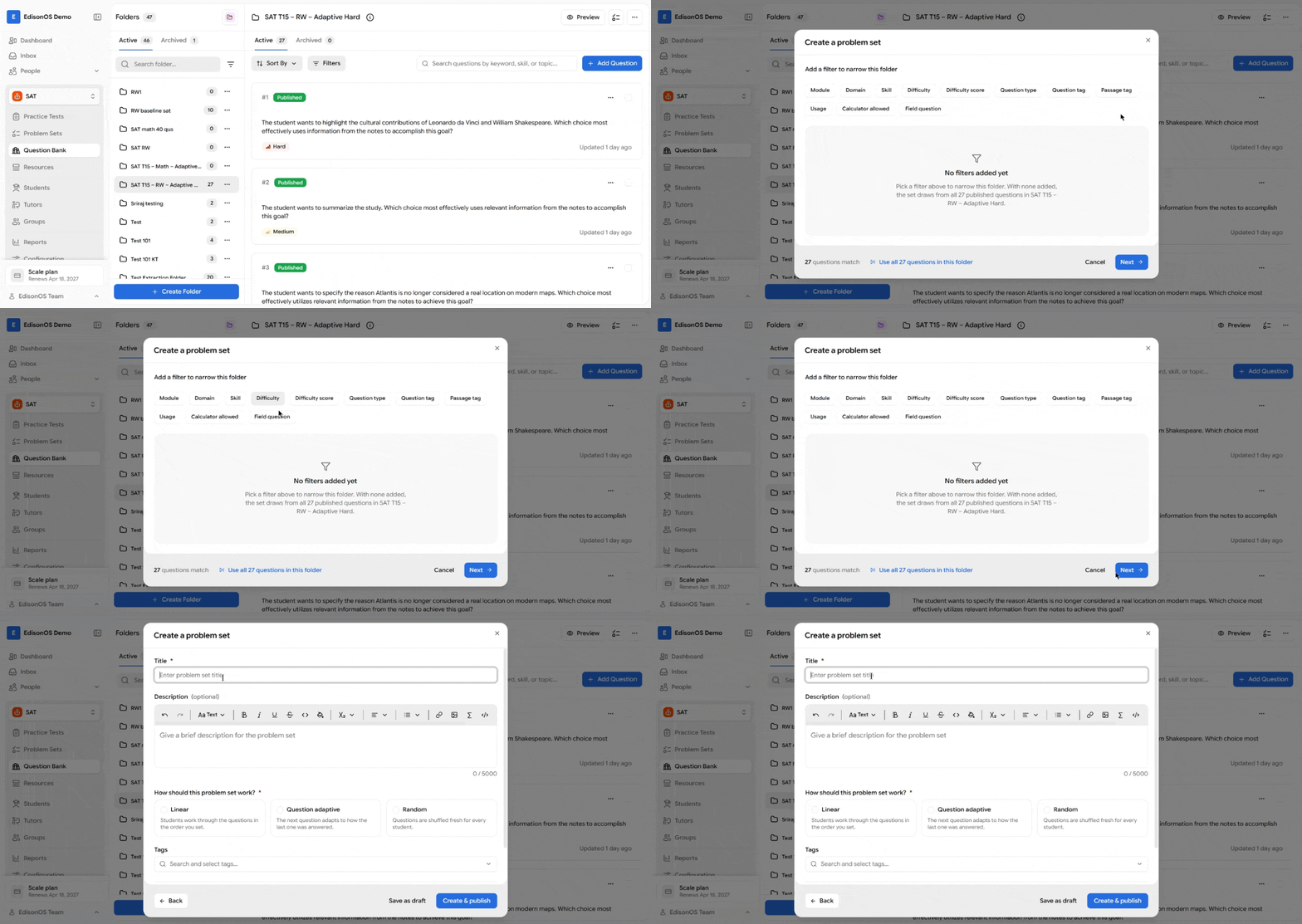
Click Create problem set in the folder header. The Create a problem set dialog opens, scoped to this folder, so you never pick a folder again.
Choose which questions go in. Apply filters such as Module, Domain, Skill, Difficulty, Question type, Question tag, Passage tag, Usage, Calculator allowed, and Field question, or click Use all questions in this folder to take everything. Click Next when the question count looks right.
Enter the quiz Title, and add a Description and tags if you use them.
Choose the Problem Set Type: Linear, Question adaptive, or Random.
Set How many questions in this set? The count must be between 1 and 30 and cannot exceed the questions that matched your filters. For Question adaptive, the count is based on auto-graded questions, so it can differ from the raw match.
Click Save as draft or Create & publish. The dialog confirms Problem set created, and View problem set opens it (returning to this folder when you go back), while Continue browsing questions closes the dialog and keeps you in the folder.
The question count covers published questions only. Draft questions in the folder are not counted, and a zero match blocks Next.