12.4 Purchase Guide — Test Credits, Licenses, and AI Credits
Updated yesterday
Purchasing Test Credits
About Test Credits
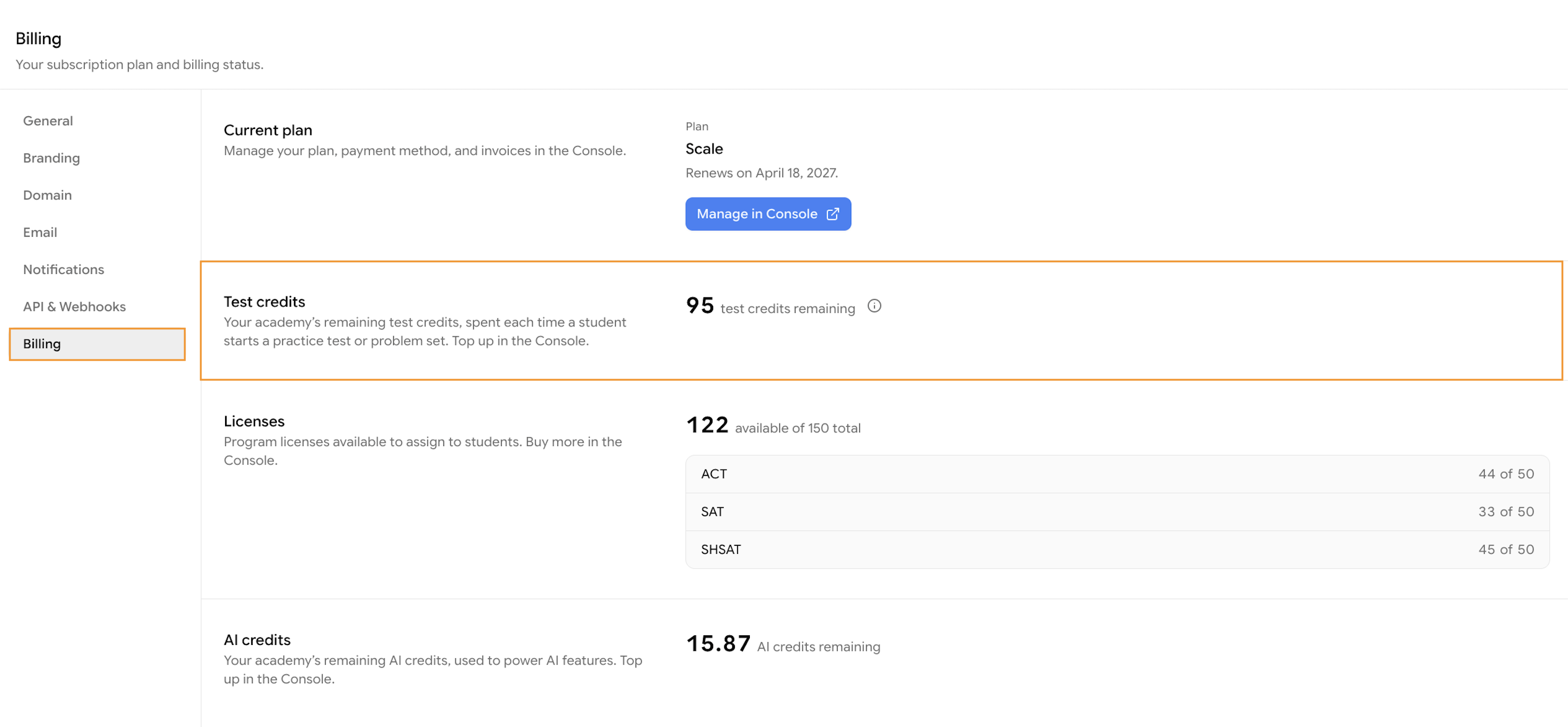
Test Credits are required for students to attempt tests (if they are not covered by a license). You can purchase Test Credits at any time from the Console App based on your academy's requirements.
Steps to Purchase Test Credits
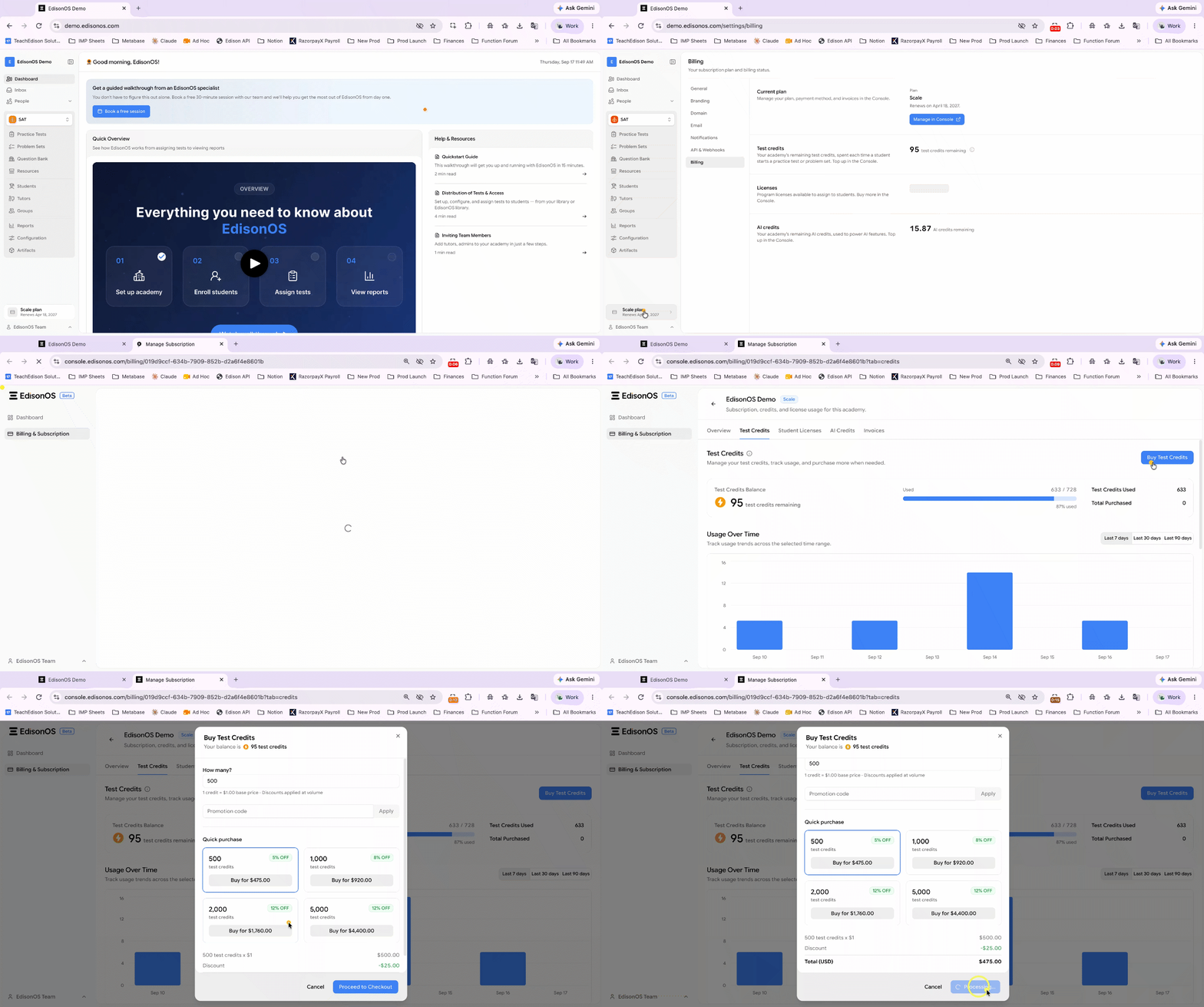
From your academy dashboard, navigate to Academy Settings.
Click Billing, and then select Manage in Console to open the Console App.
In the Console App, navigate to Billing & Subscription and open the Test Credits tab.
Click Buy Test Credits in the top-right corner of the page.
In the Buy Test Credits window, enter the number of test credits you want to purchase in the How many? field, or choose one of the available Quick Purchase options.
If you have a Promotion Code, enter it in the provided field and click Apply to redeem the discount.
Review the purchase summary, including the number of test credits, any applicable discounts, and the total amount.
Click Proceed to Checkout to complete your purchase.
What Happens Now?
Once the purchase is completed, the newly purchased test credits will be added to your academy's Test Credits Balance.
Purchasing Licenses
About Licenses
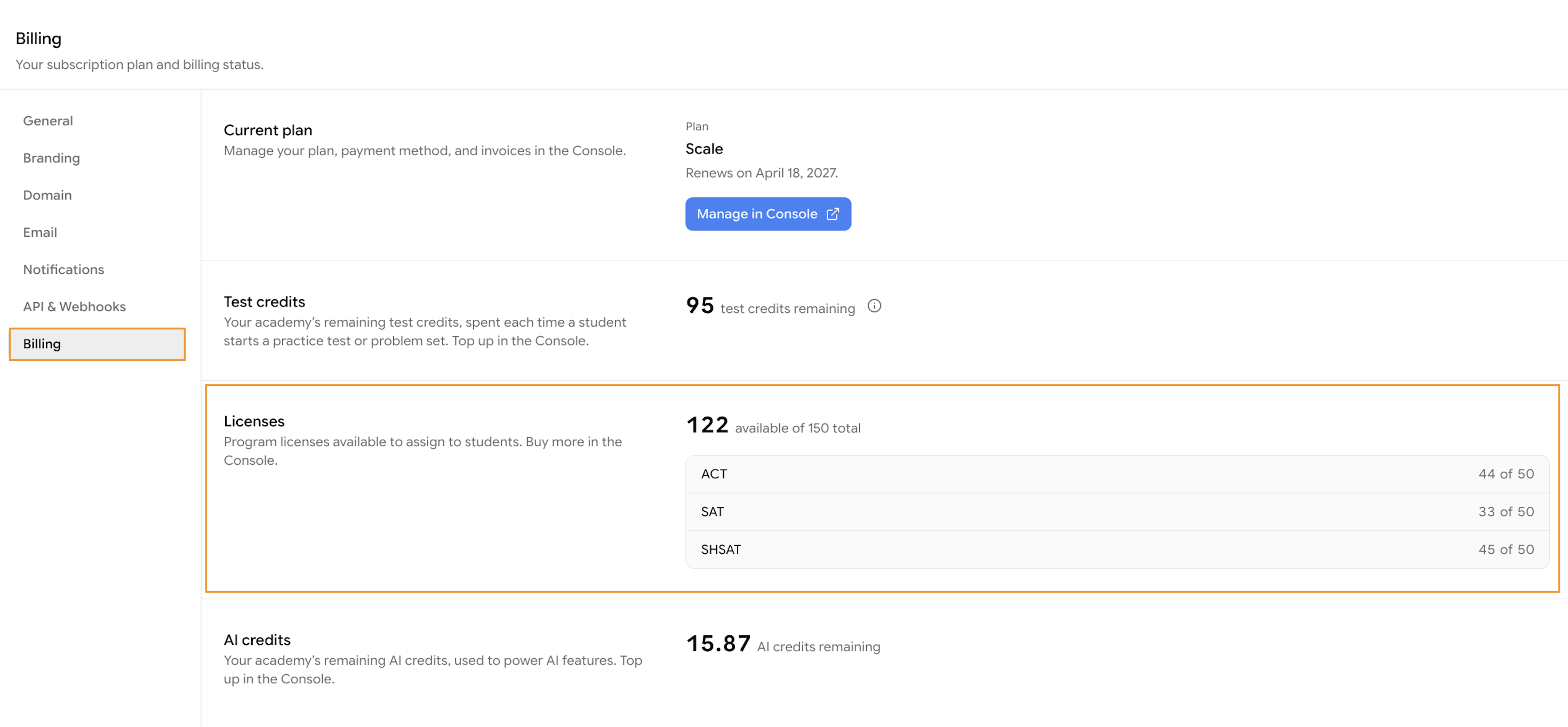
A license gives a single student unlimited credit access to the assigned practice tests and problem sets within a specific program for the license duration.
Steps to Purchase Licenses
From your academy dashboard, navigate to Academy Settings.
Click Billing, and then select Manage in Console to access the Console App.
In the Console App, navigate to Billing & Subscription, and then click the Student Licenses tab.
Enter the required number of licenses based on your academy's needs and complete the purchase.
Purchasing a license does not activate it. The license becomes active only after it is assigned to a student.
What Happens Now?
Once the purchase is completed, the newly purchased licenses will be added to your academy's Licenses Balance.
Purchasing AI Credits
About AI Credits
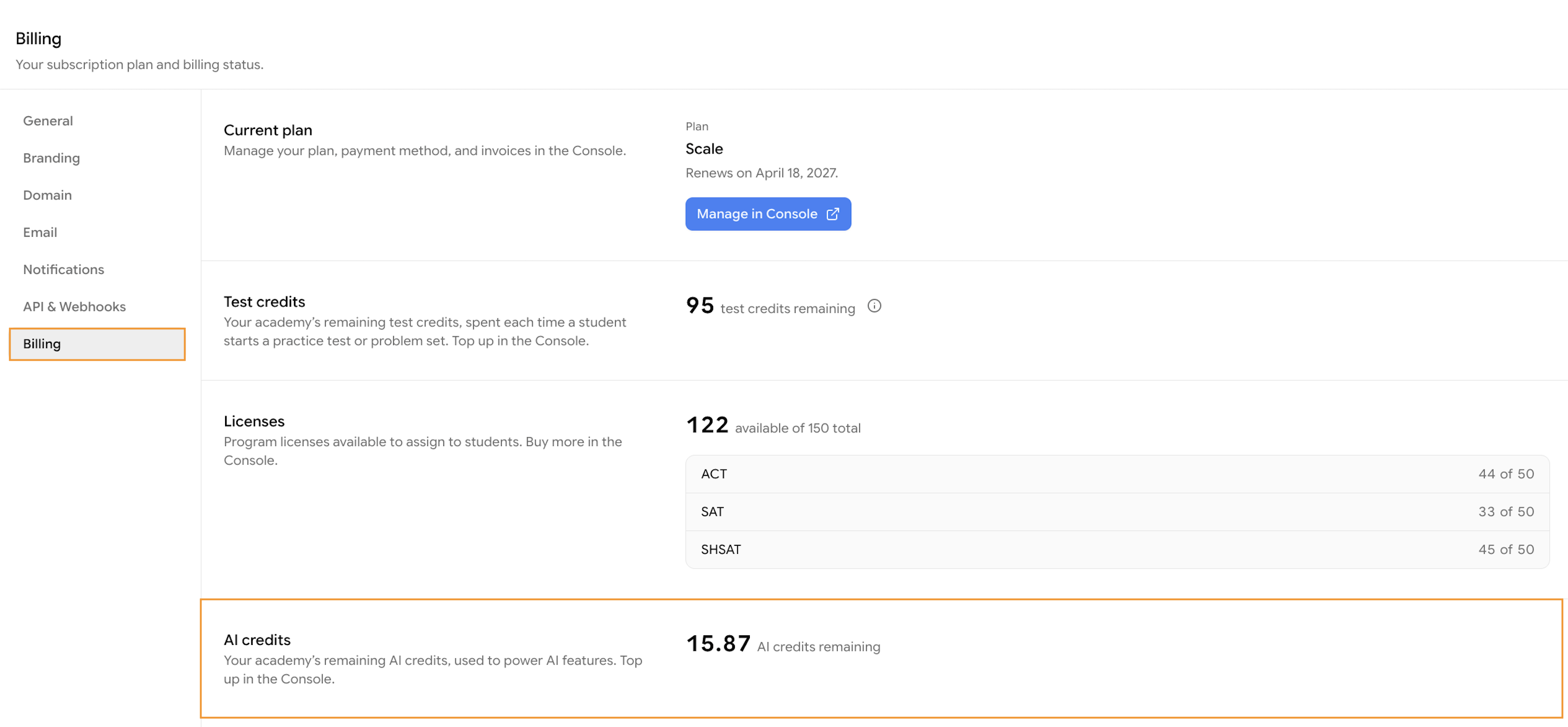
AI credits pay for AI Question Extractor runs in a program's Artifacts.
Steps to purchase AI Credits
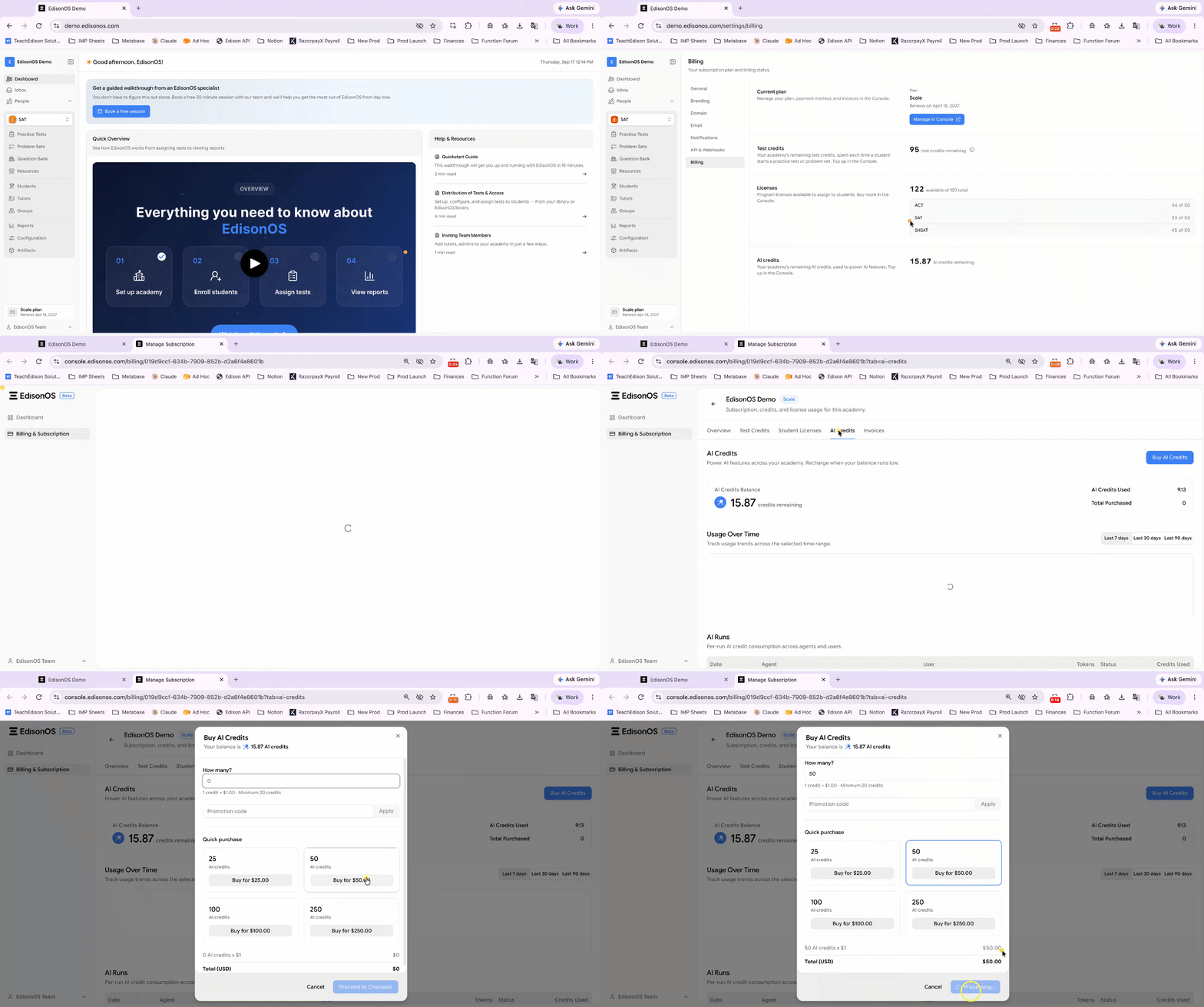
From your academy dashboard, navigate to Academy Settings.
Click Billing, then click Manage in Console under your current plan to open the Console App. Depending on your subscription status, this button may read Update in Console or Open Console.
In the Console App, navigate to Billing & Subscription and open the AI credits tab.
Click Buy AI credits in the top-right corner of the page.
In the Buy AI Credits window, enter the number of credits you want in the How many? field, or choose a Quick purchase option: 25 AI credits for $25.00, 50 for $50.00, 100 for $100.00, or 250 for $250.00.
If you have a promotion code, click Add a promotion code, enter the code, and click Apply.
Review the purchase summary, then click Proceed to Checkout to complete your purchase.
What Happens Now?
Once the purchase is completed, the newly purchased AI credits will be added to your academy's balance. For the full walkthrough, read How to Buy AI Credits?.