
Assign a test to users
Updated 2 weeks ago
You assign a test to users from the test's Assign button. EdisonOS offers two ways: assign directly to your students (one at a time or a whole group at once), or share an invitation link the recipient uses to open the test.
Assign directly to students
Direct assignment gives the test to enrolled students you pick, either individually or as a whole group in one step. For direct assignment, the student must already be enrolled.
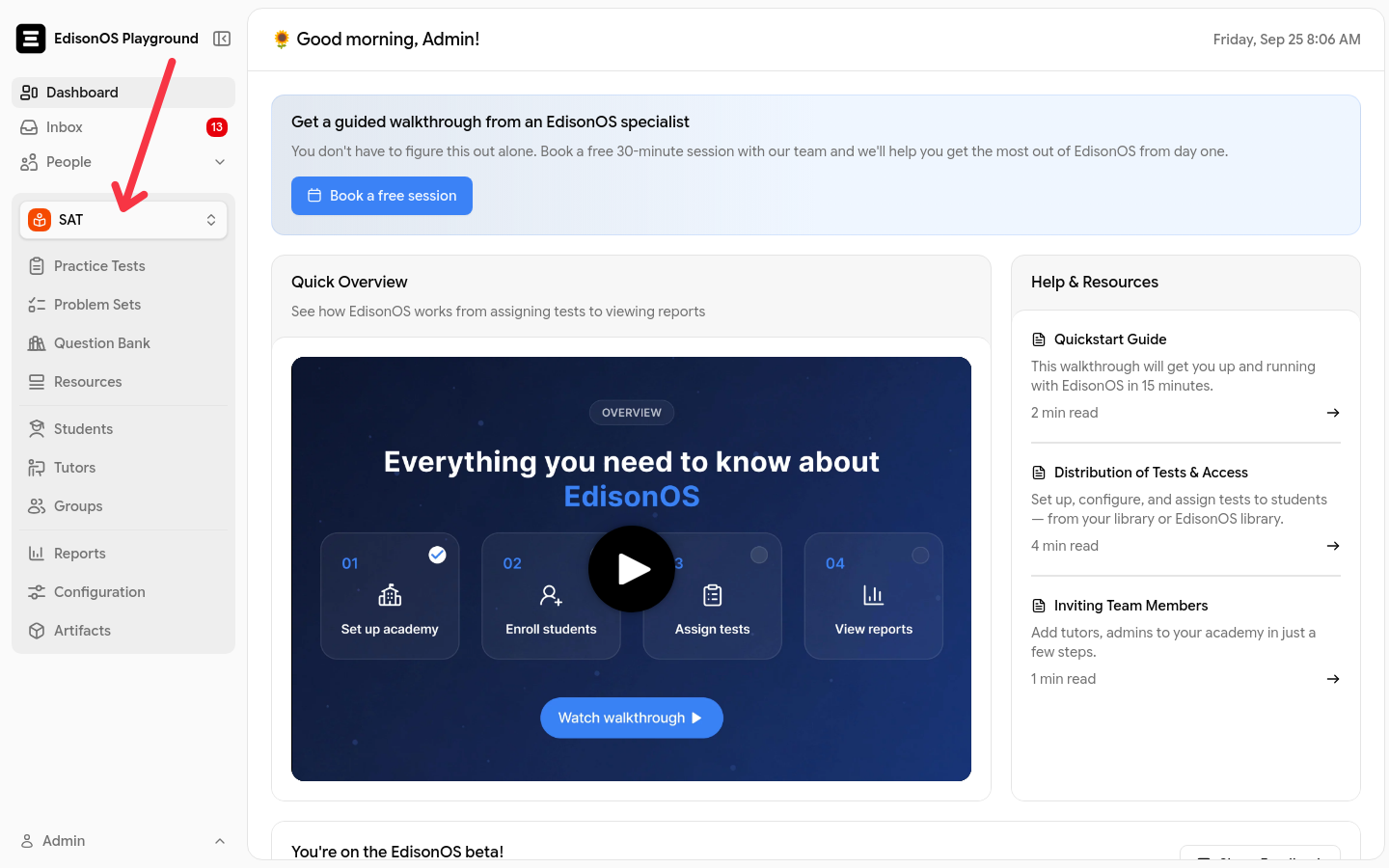
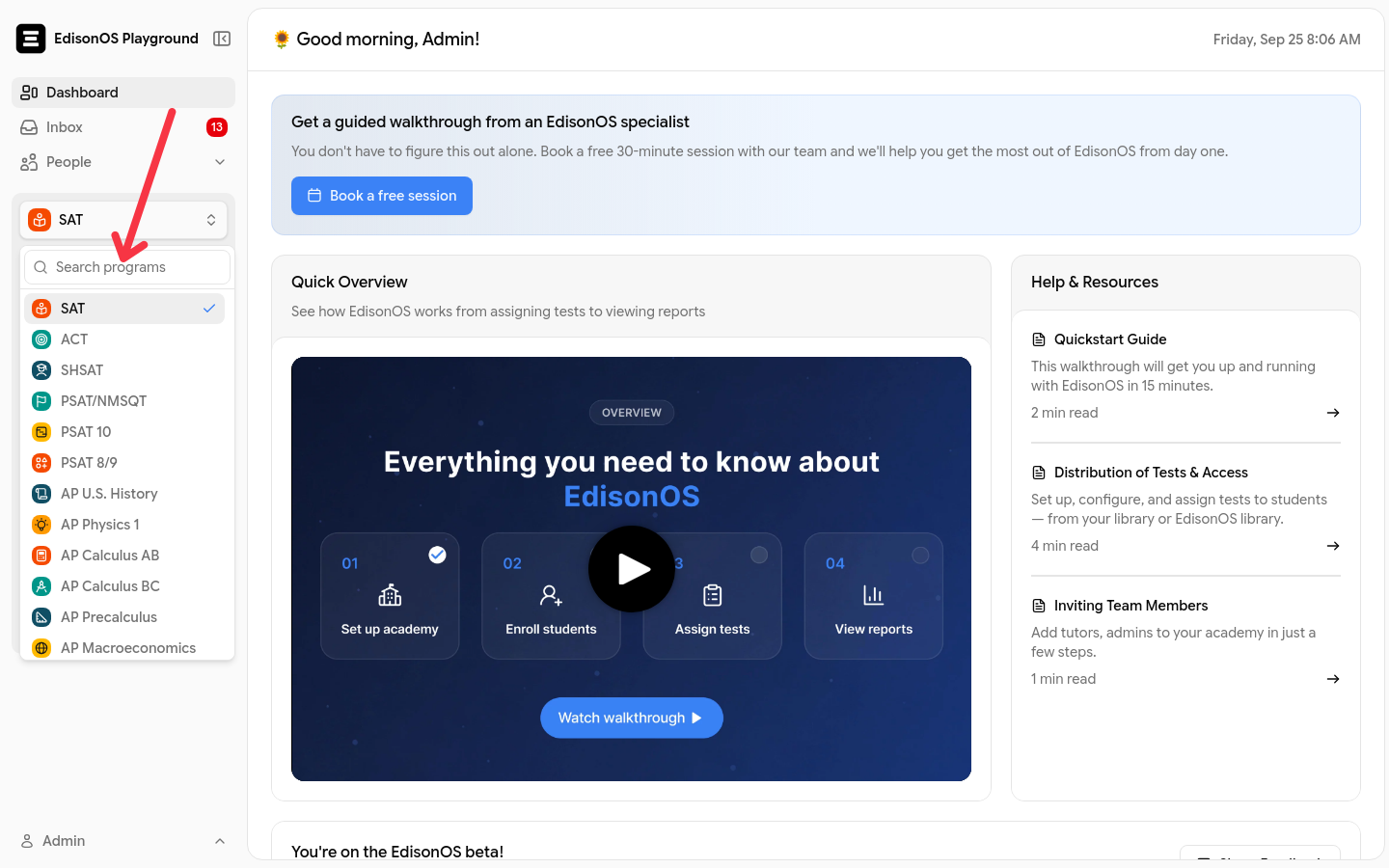
In the left menu, select the program the test belongs to, such as SAT or ACT.
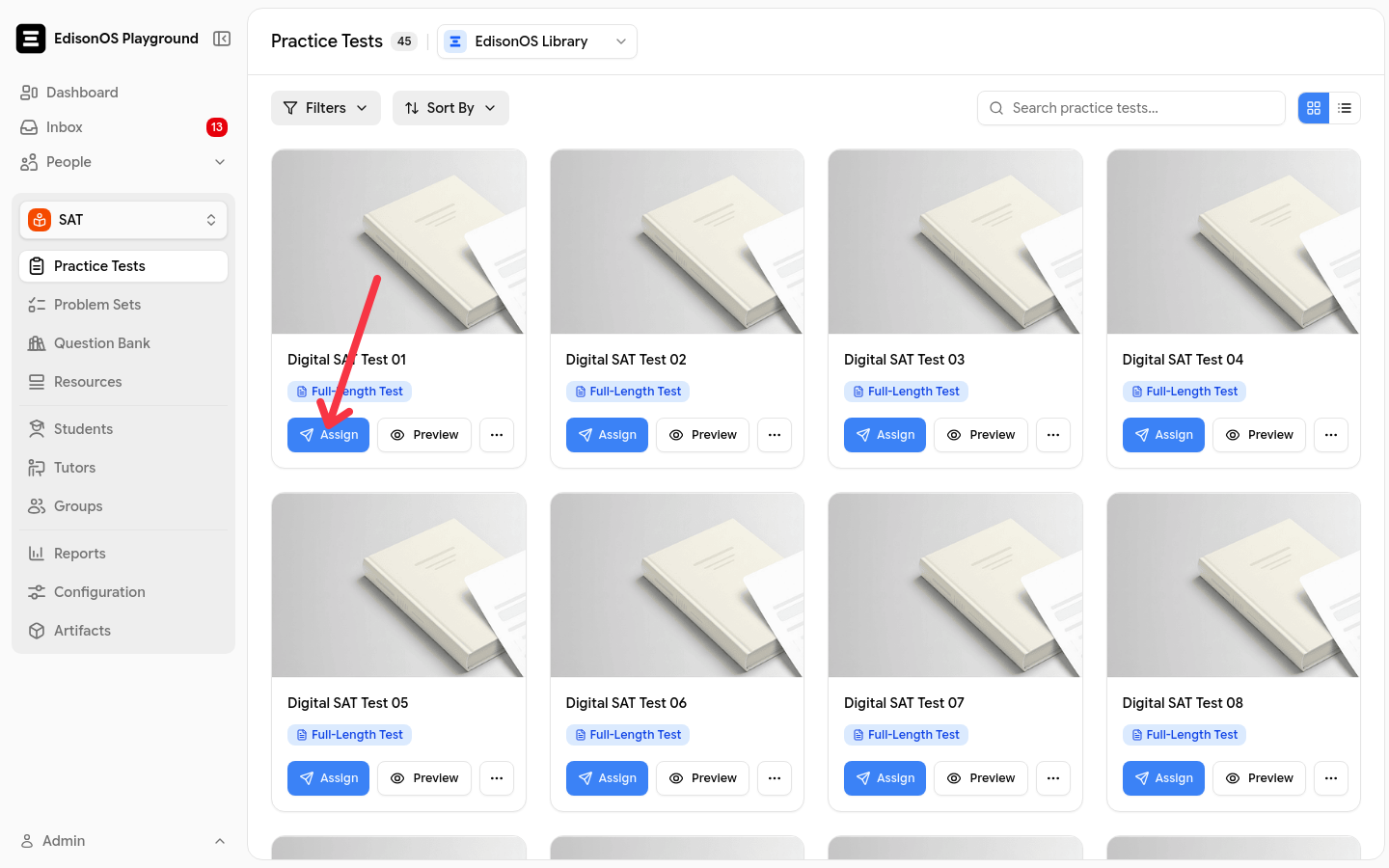
Click Practice Tests.
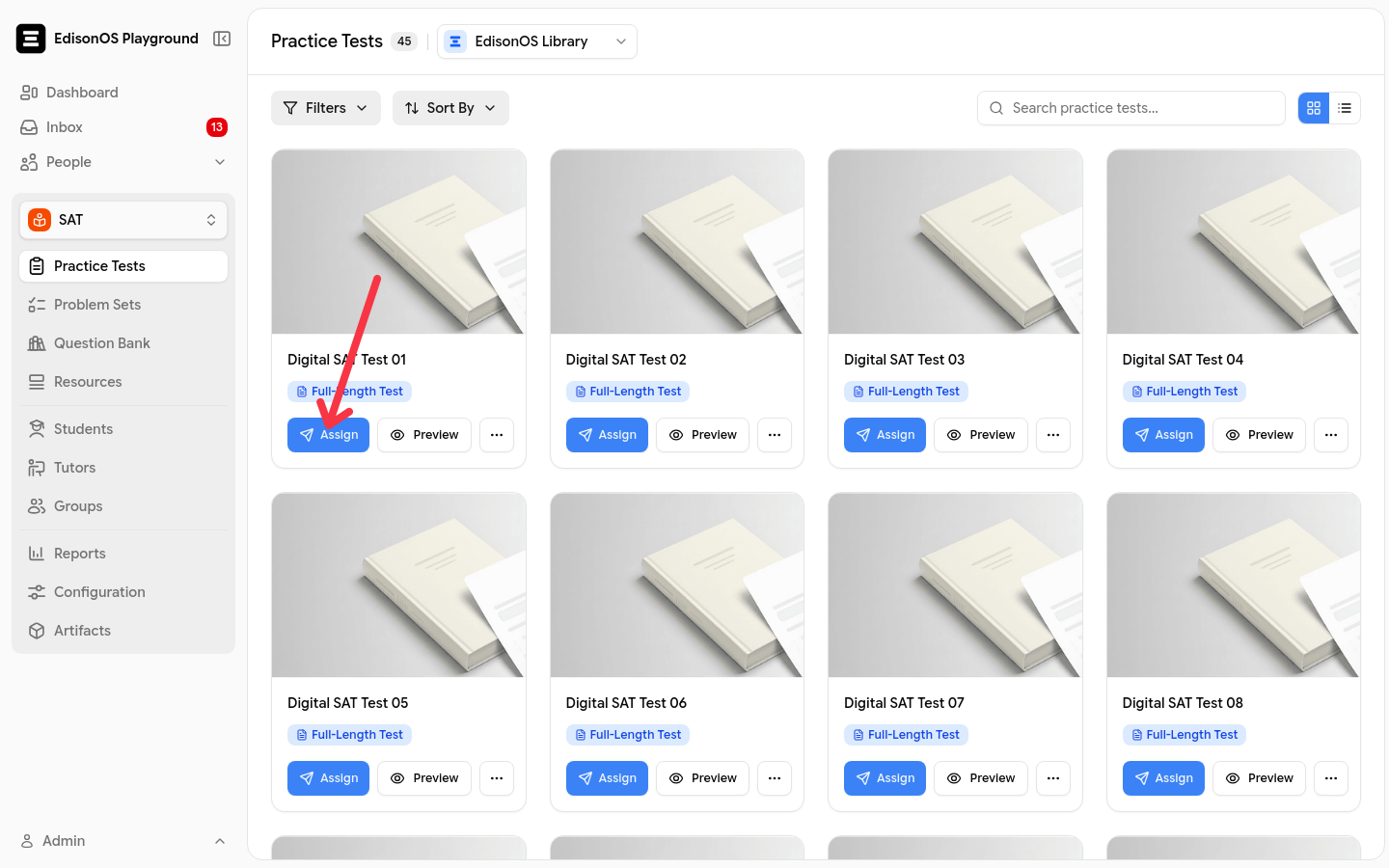
Find the test and click Assign.
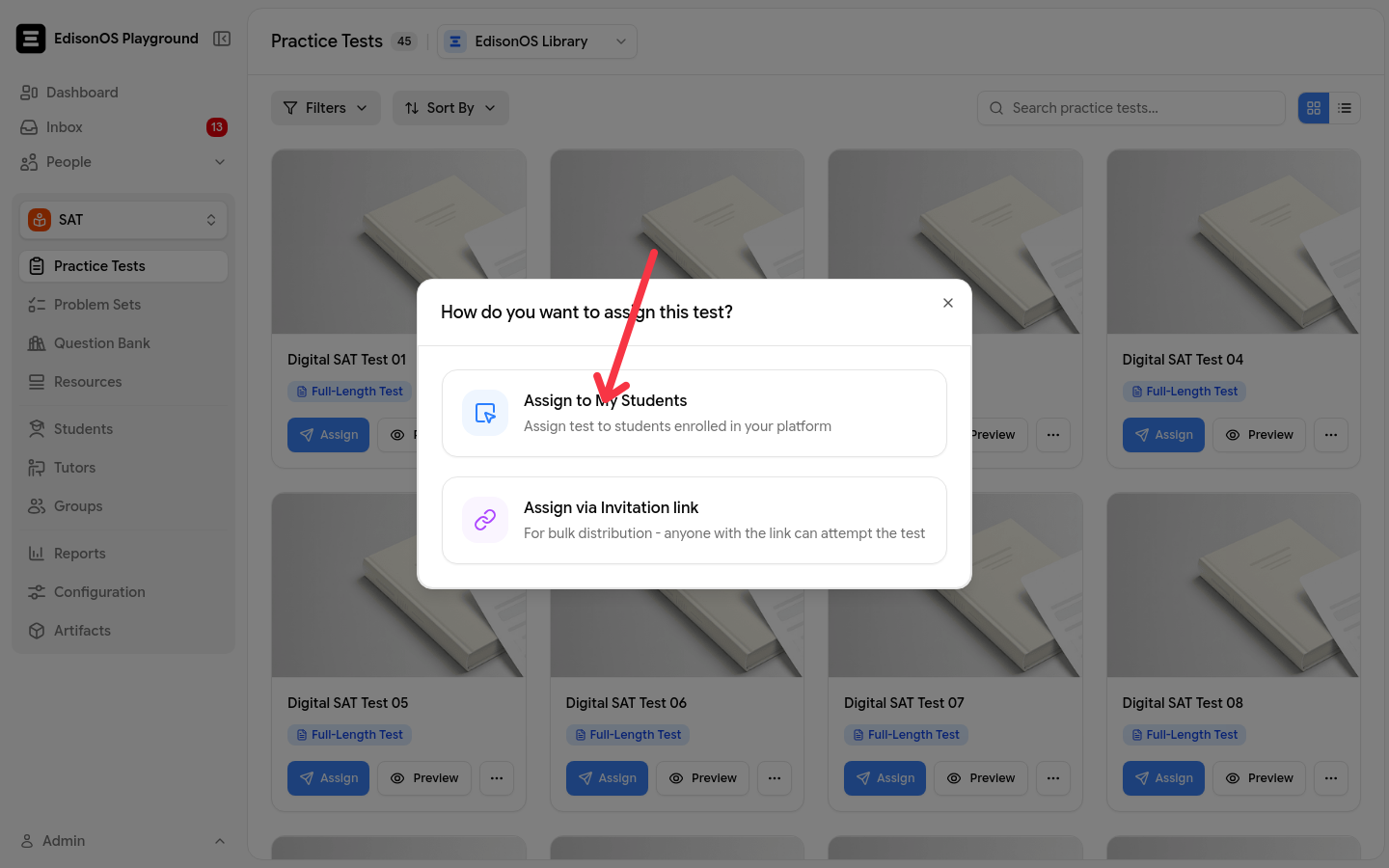
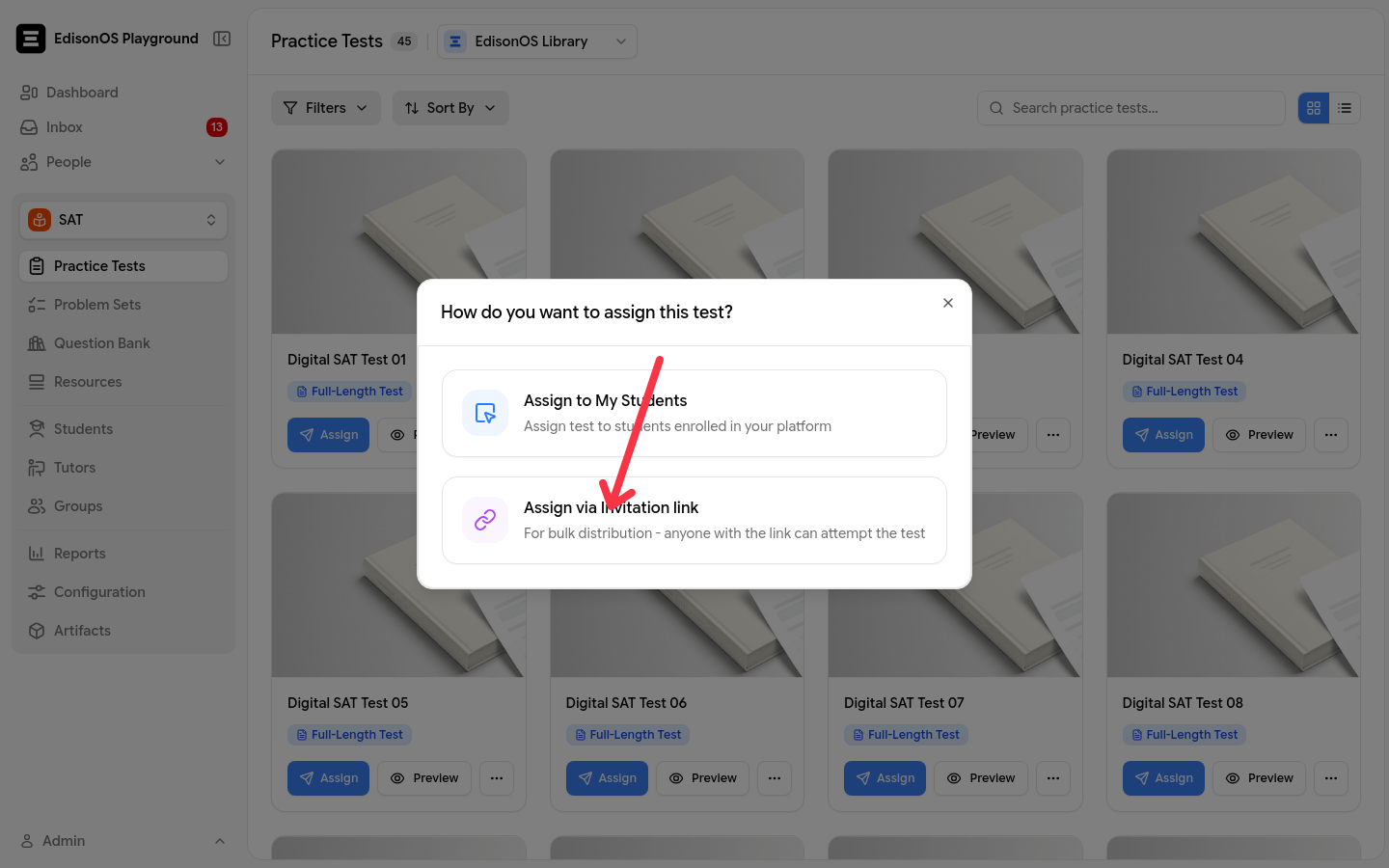
Select Assign to My Students.
Choose an individual student, or pick a whole group to assign the test to everyone in it at once.
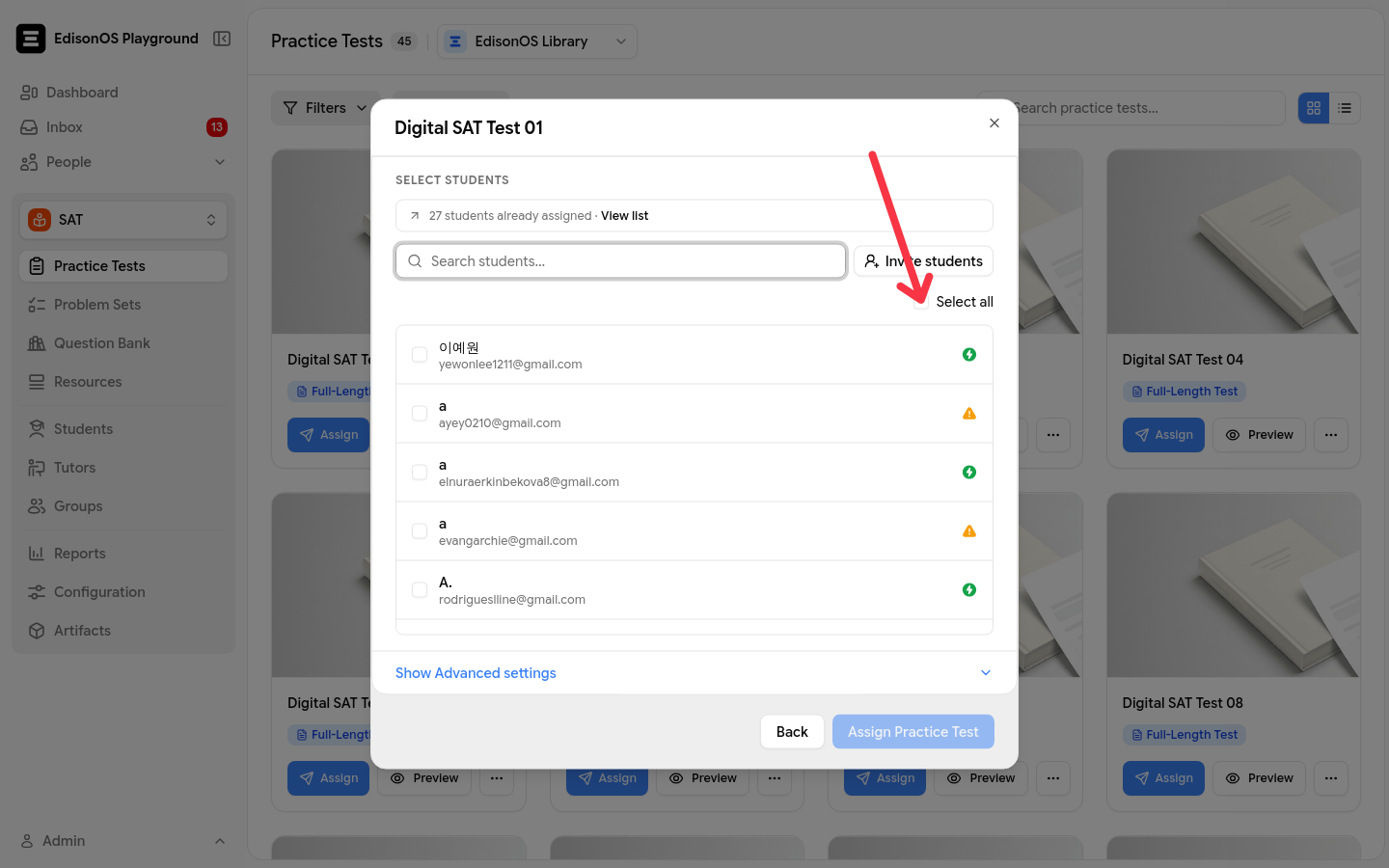
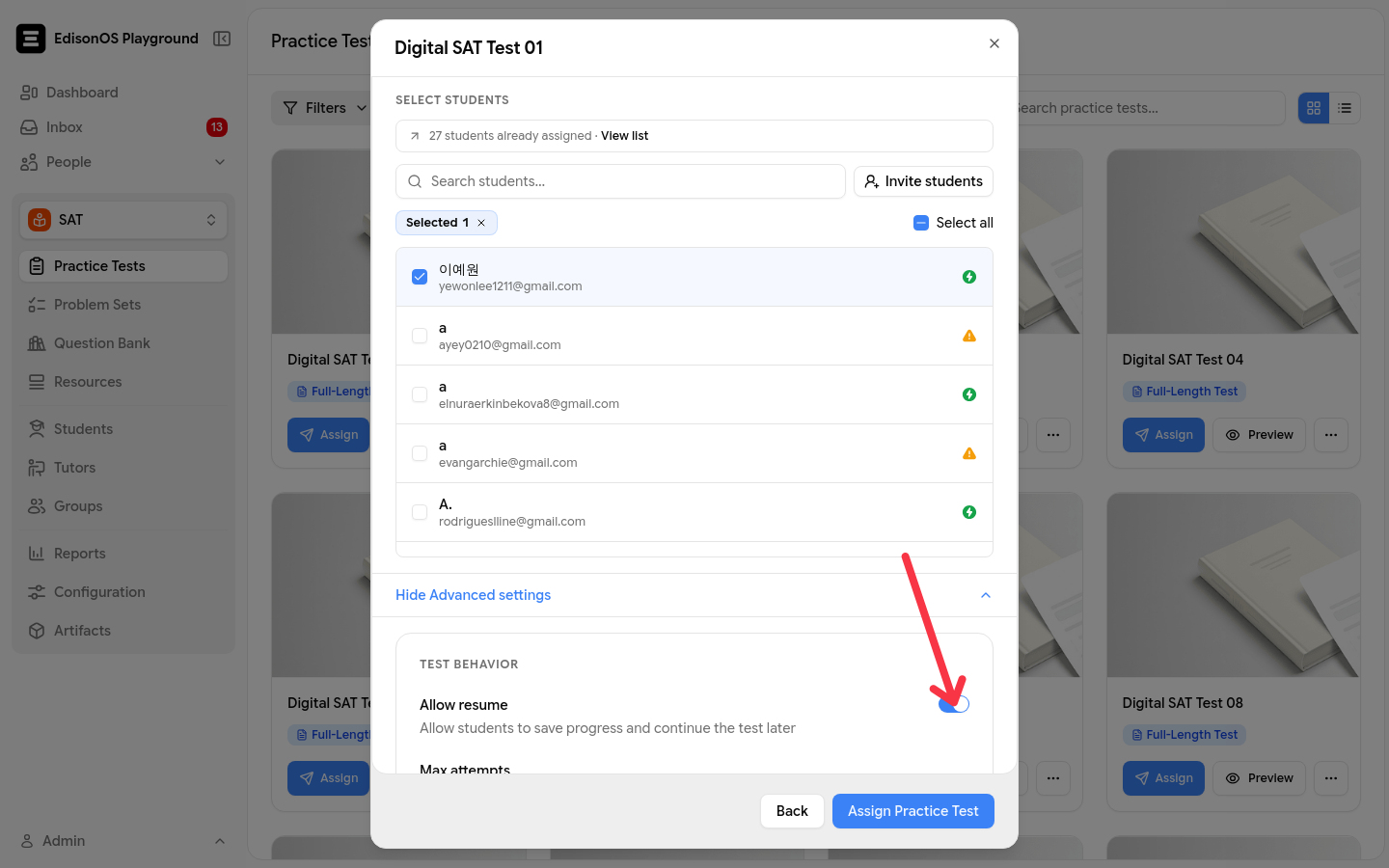
Configure any assignment settings you need.
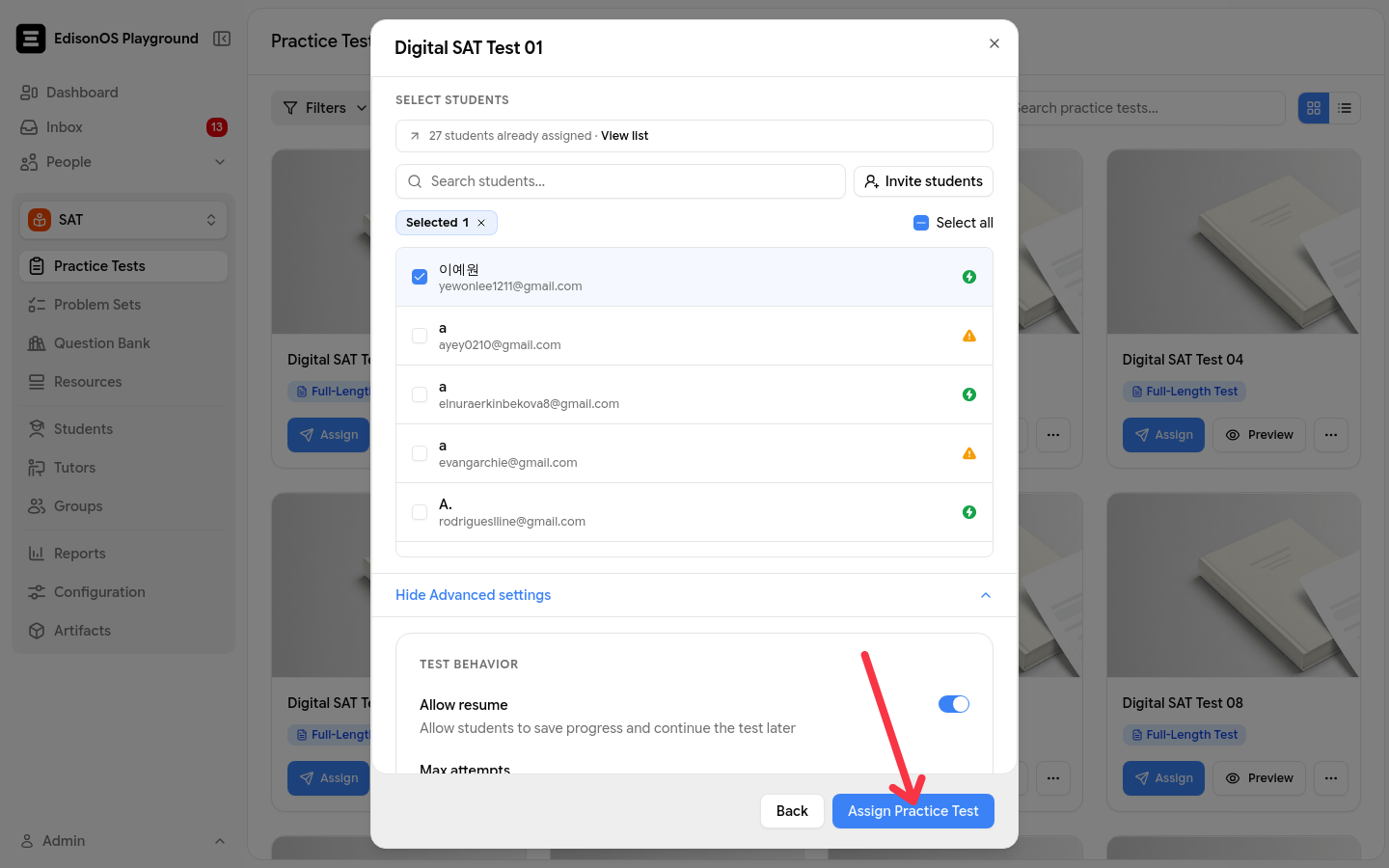
Click Assign Practice Test.
Assign with an invitation link
Use an invitation link when you want to share a test directly with someone instead of selecting them from your student list.
The invitation-link form does not require the recipient’s email address, making it especially useful for lead generation or for conducting diagnostic tests with prospective students whose email addresses you don’t have yet.
Open Practice Tests in the program and click Assign for the test.
Select Assign via Invitation Link.
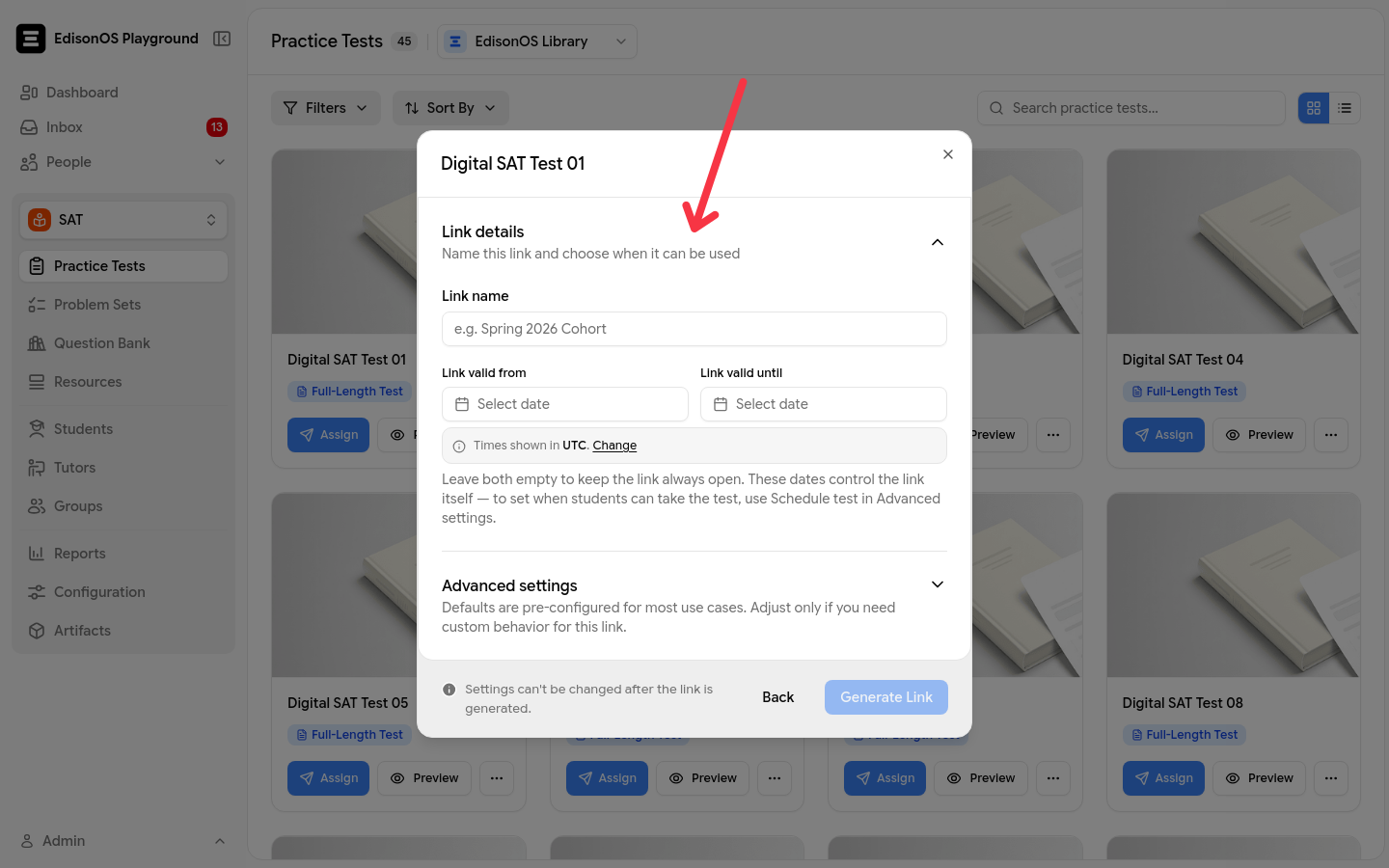
Configure the link and its settings.
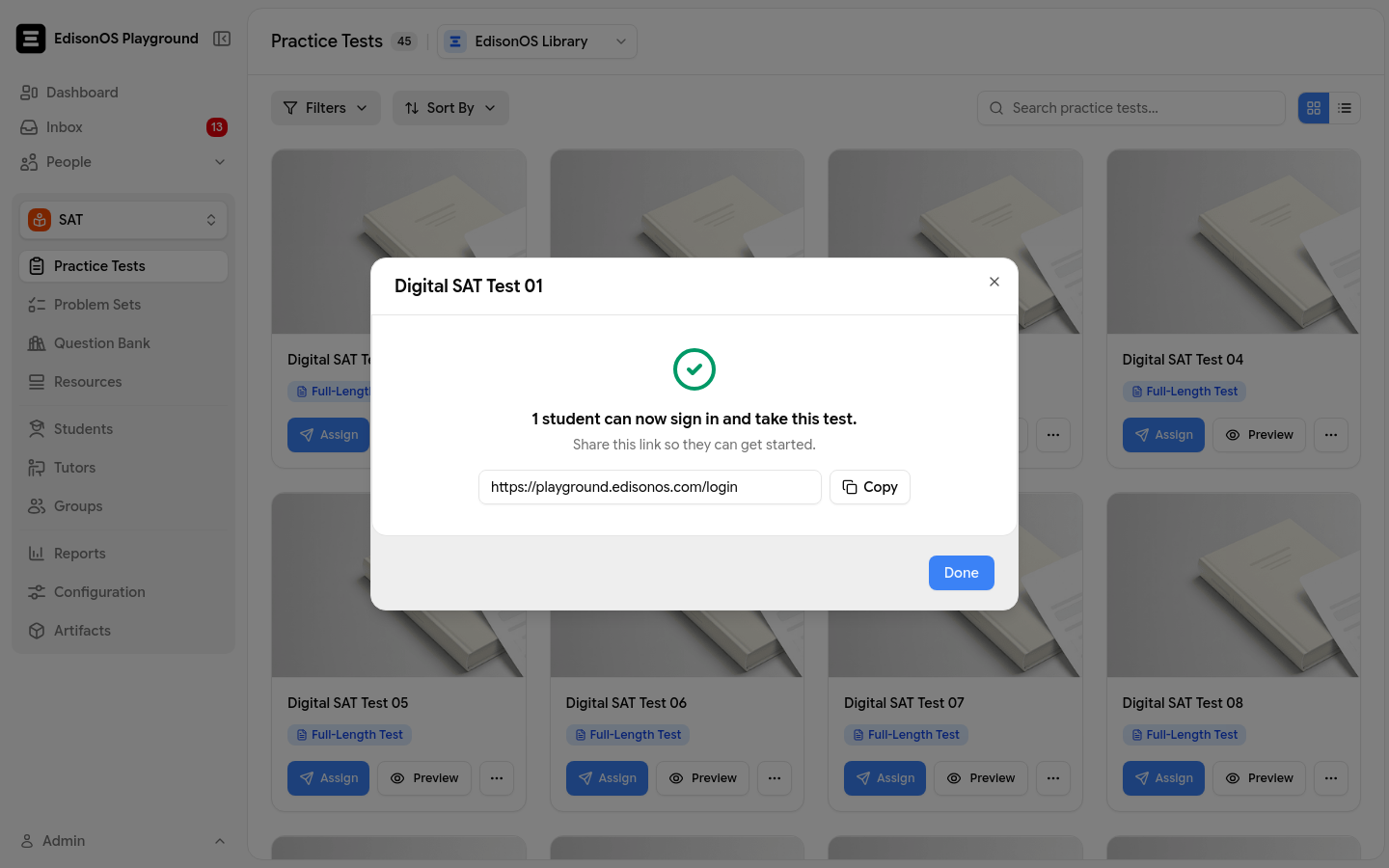
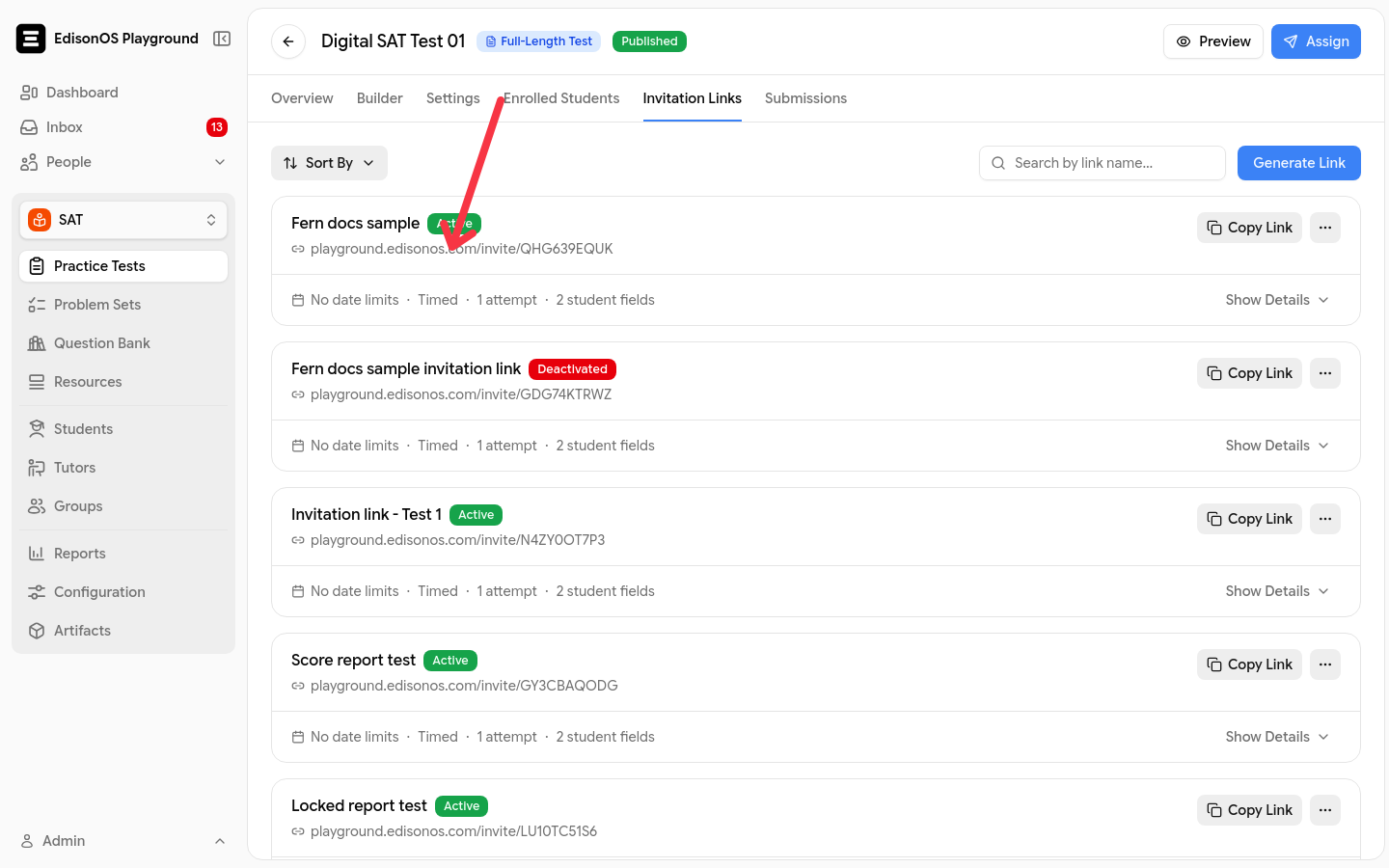
Share the generated link with the student.
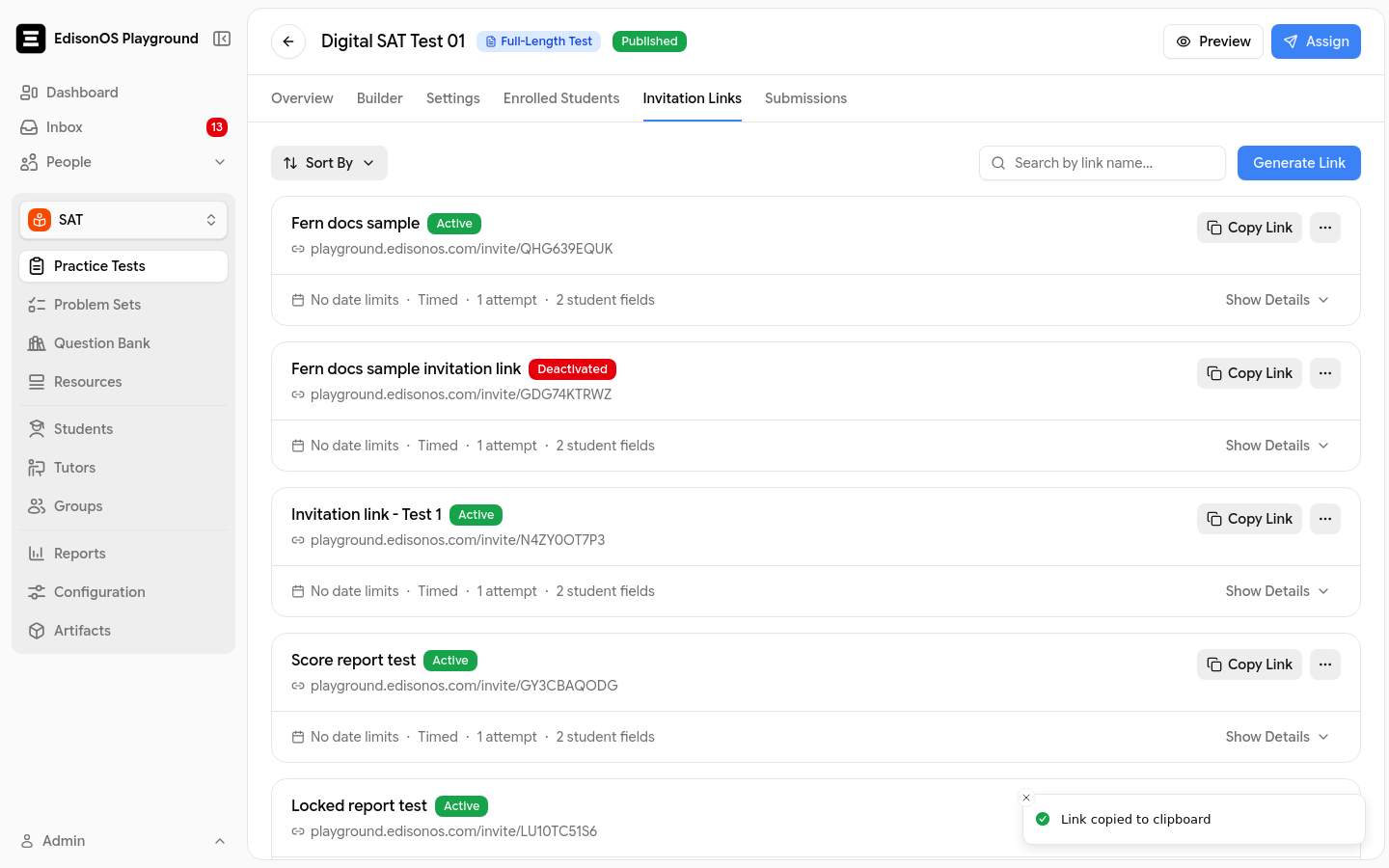
The recipient opens the link, enters their name and email address, and starts the test. If they use the email address of an existing EdisonOS account, the report is added to that account's existing assessment history.
Assignment settings
Both assignment methods open Advanced Settings. Under Test Behavior, enable Allow Resume to let students save and exit a test and resume it later. Without it, an interrupted test cannot be resumed.
Invitation links can also carry their own configuration, such as timed or untimed behavior, a validity window, accommodations, and a post-test redirect, so the same test can behave differently depending on the link used.
Credits and licenses
A credit is consumed when a student starts a test, not when you assign it. A student license is a separate mechanism: students with an assigned license can take unlimited Practice Tests and Problem Sets during the license period without consuming test credits.
Assigning one test gives access to that test only. For ongoing access to unlimited practice material, look at student licenses.