
The page shows: There is no account for this Google email in your academy name. Ask your academy for an invite, or sign in with an email code. Your Google email has no active membership in the academy. Ask your academy to invite that email, or use the email-code form on the login page with the email your academy has on file.
11.6 Google SSO
Updated yesterday
Google SSO lets your academy's members sign in with their Google account instead of an email code. You connect it in Settings → Integrations → Google SSO: setup is Owner-only and requires a paid plan. Members then use the Sign in with Google button on your academy's login page.
Google sign-in is available on any paid plan. On Trial or Free, the Google SSO page shows an Upgrade your plan prompt instead of the setup form.
Connect the Google client (Owner)
You need Owner access, a paid plan, and a Google account your academy owns to complete the connection. The setup page walks you through creating a Google OAuth client and pasting its credentials into EdisonOS.
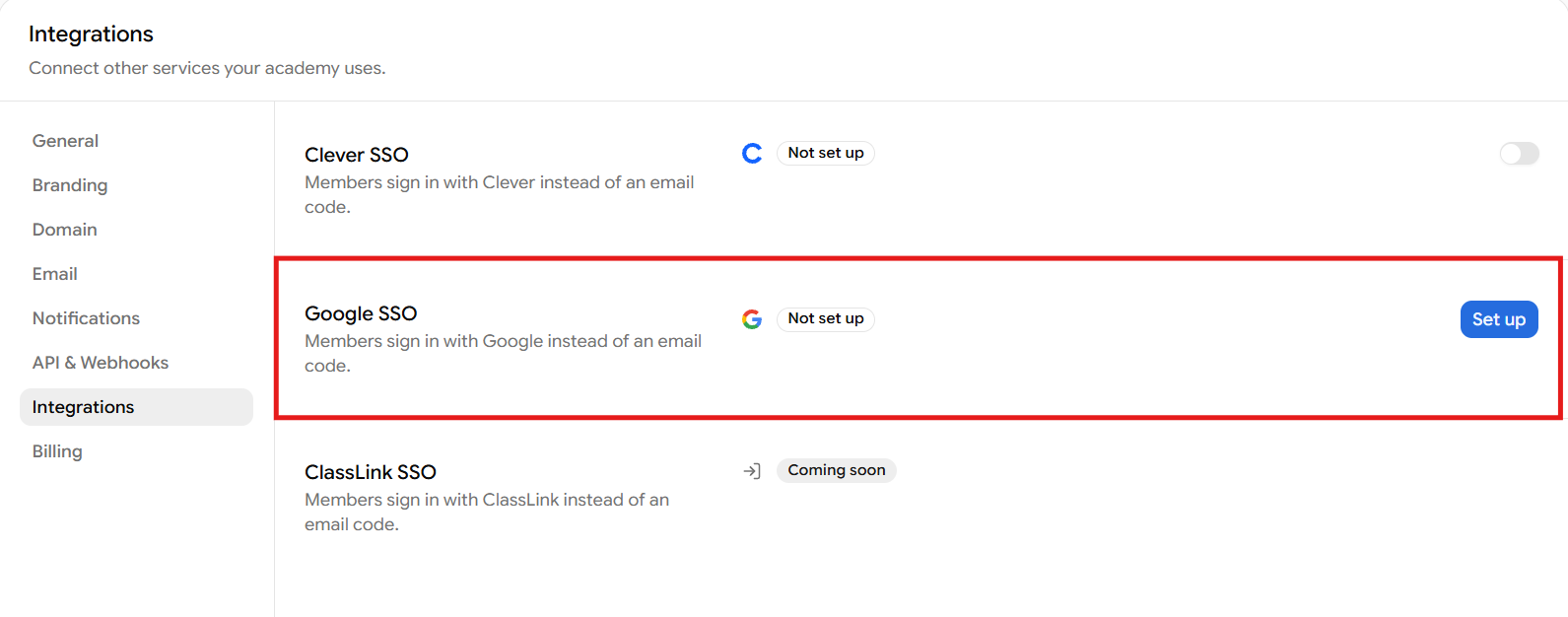
In Academy Settings → Integrations, click Set up on the Google SSO entry. The setup page shows a redirect URL and fields for Client ID and Client secret.
Copy the redirect URI shown on the page. It is for your academy's main host and ends in
/oauth/google/callback.In Google Cloud, open Google Auth Platform and click Get started.
Enter your academy name and support email, choose External for Audience, and add a contact email.
Under Clients, create a Web application client and add the copied URL under Authorized redirect URIs. Google can take 5 minutes to a few hours before it uses a new redirect URL.
Back in EdisonOS, paste the Client ID and Client secret from the Google client and save. Both fields are required, and EdisonOS checks them with Google before saving. The secret is stored encrypted and is not returned in full after saving.
Optionally click Test sign-in. This is an Owner test on your academy's main host, not a member login. Success shows It works: Google signed you in.
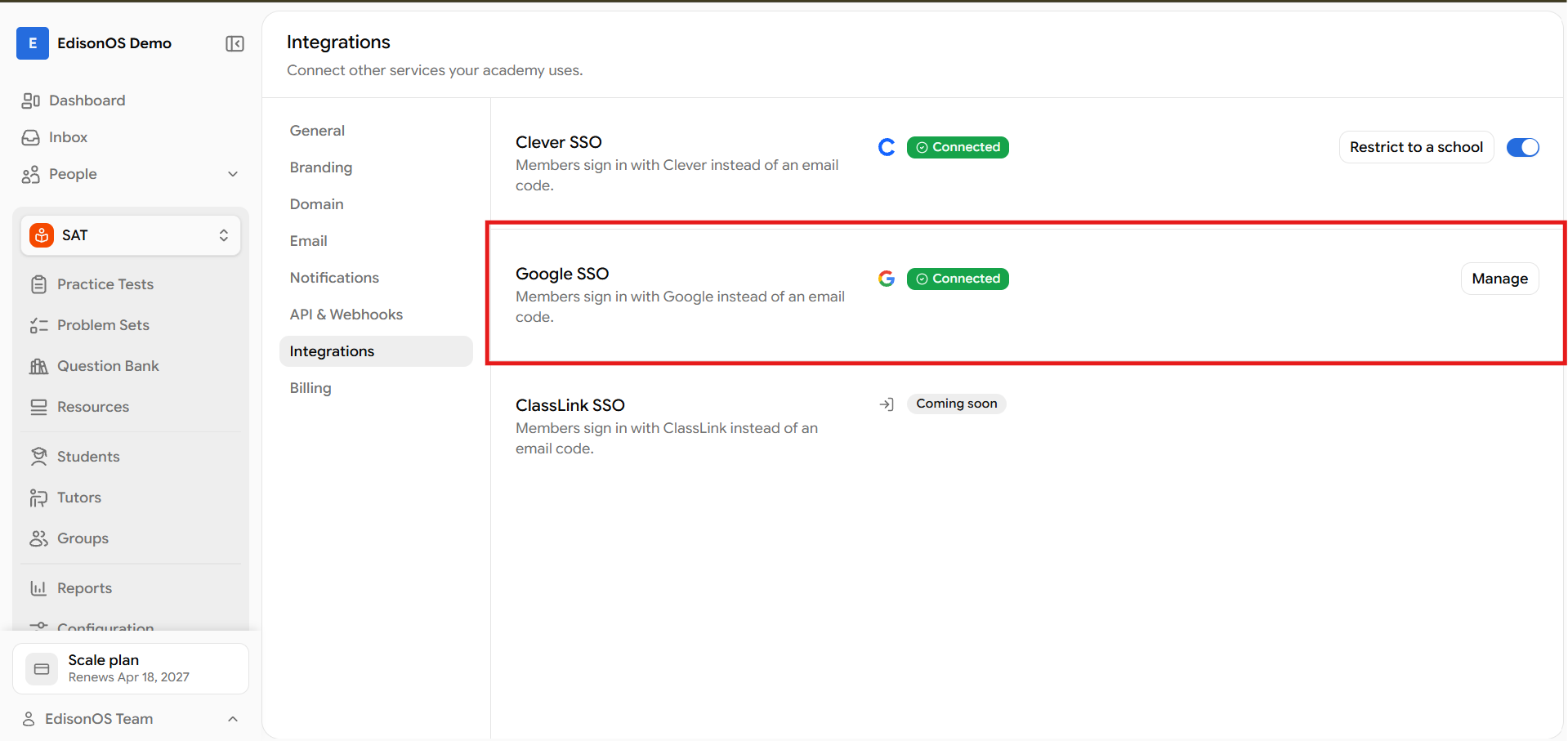
Once connected, the Integrations list shows Manage instead of Set up. A connection is not enough on its own: member Google sign-in also requires paid-feature access and your academy's current main host to match the host the client was set up for.
Sign in with Google (members)
Members sign in from your academy's login page, at /login. The heading is Sign in to your academy name, and the Sign in with Google button appears when Google sign-in is available.
Open your academy's login page.
Click Sign in with Google and choose the Google account your academy knows you by.
If Google can verify your identity, you are signed in. Otherwise the page asks you to verify a code sent to the email on your academy account.
How your account is matched
Google sign-in never creates an account. You need an existing, active membership in the academy, and it works the same for admins, tutors, students, and parents.
EdisonOS first checks for a Google identity you linked before. If none is saved, it matches the email your Google account vouches for against your academy account. When Google verifies the email and it is a Gmail or Google Workspace address, and you have no Google identity linked yet, the sign-in links that Google account to your membership and you are in.
When Google does not vouch for the matching email, or your academy account already has a different Google identity linked, you must verify a six-digit code sent to the email on your academy account. Enter the code and select Verify & Continue. The code works for a few minutes only. After too many wrong attempts, the page pauses codes for that email for a while. If verification replaces an existing Google link, your academy receives a security email.
A previously linked Google identity takes precedence over the email your Google account currently uses. If you sign in with a different Google account than the one linked, the email-code step decides which identity stays linked.
If sign-in is refused
There is no account for this Google email
We couldn't sign you in with Google
The page shows: We couldn't sign you in with Google. Sign in with an email code instead. Sign in with the email-code form: enter your email, select Send Code, and enter the six-digit code.
Google sign-in didn't work
The page shows: Google sign-in didn't work. Sign in with an email code. Something failed between Google and your academy during sign-in. Retry, or use the email-code form.
Owner maintenance
Host change: if your academy's main host changes, a connected client shows Google sign-in needs attention. Check that the redirect URL in Google Cloud matches the URL shown on the setup page for the current host, then run Test sign-in from that host.
Setup errors: if Google rejects the credentials, the page shows Google didn't accept this client ID and secret. Copy both again from Google Cloud and try again. If Google refuses the redirect URL during a test, add the URL shown on the setup page to the client in Google Cloud, then test again. If your Google Workspace admin has not allowed the app, test with an account the admin allows, or ask them to allow your client ID.
Disconnecting: disconnect requires confirmation. Your academy's client ID and secret are deleted, and members cannot sign in with Google until another client is connected. Members who are already signed in stay signed in.
Was this helpful?
Was this helpful?