
5.4 Retakes, Time Limits and Extended Time
Updated today
Use this page on test day when a student needs to retake a practice test, pause one, or get extra time. It covers retakes and attempt limits, pausing and resuming, section time limits, changing settings after assigning, extended-time accommodations, and what to do when a test ends early or a section is skipped by mistake.
How a student retakes a test
A student retakes a finished test from the Completed tab of their Practice Tests page. While attempts remain, the Retake Test button starts a new attempt. Once the cap is reached, a new attempt is blocked with the message "All attempts for this assessment have been exhausted."
Set the number of attempts
The attempt limit is set when the test is assigned, under Max attempts in the assignment's Advanced settings. New assignments default to Limited with 3 attempts, and the maximum is 100 per student.
In your program, open Practice Tests and click Assign on the test card.
Choose Assign to My Students.
Select the students to assign the test to.
Expand Show Advanced settings.
Under Test Behavior, set Max attempts to Limited or Unlimited.
Click Assign Practice Test.
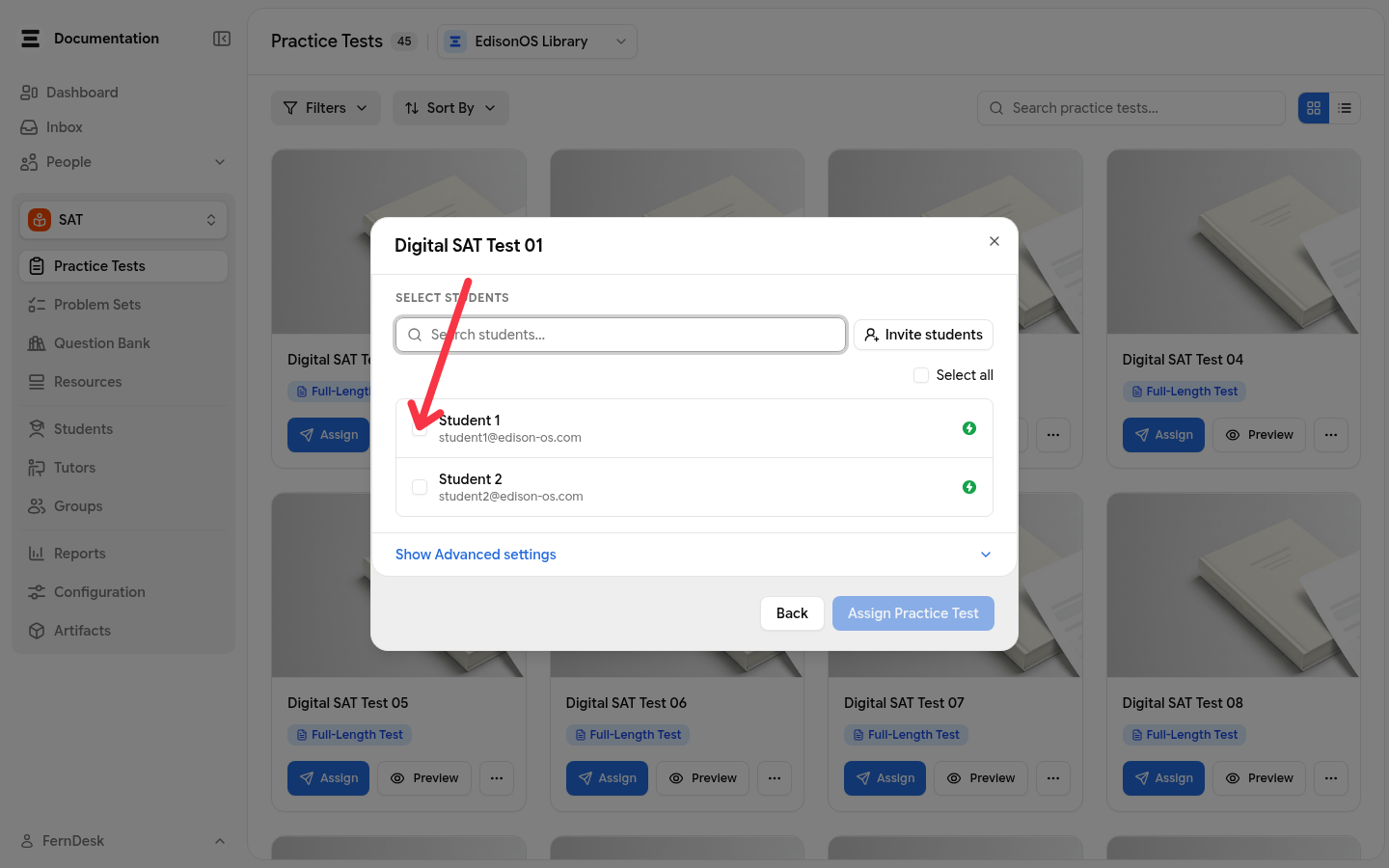
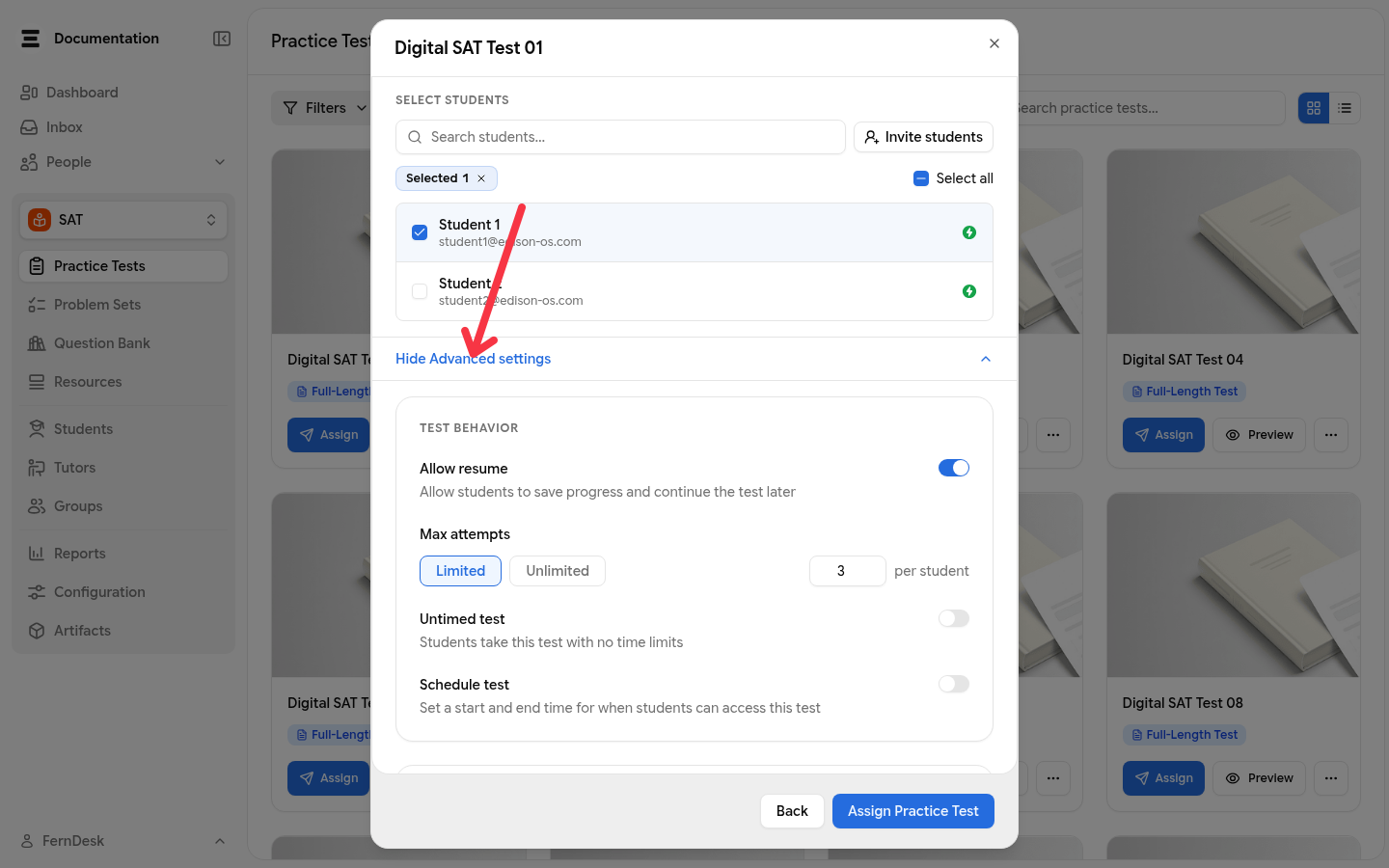
For a diagnostic test, set attempts to 1 to get a clean baseline. For revision tests, Unlimited lets students practice as much as they need.
For the full assignment walkthrough, including schedules and the other Advanced settings, see Assign a test.
Give a student an extra attempt after assigning
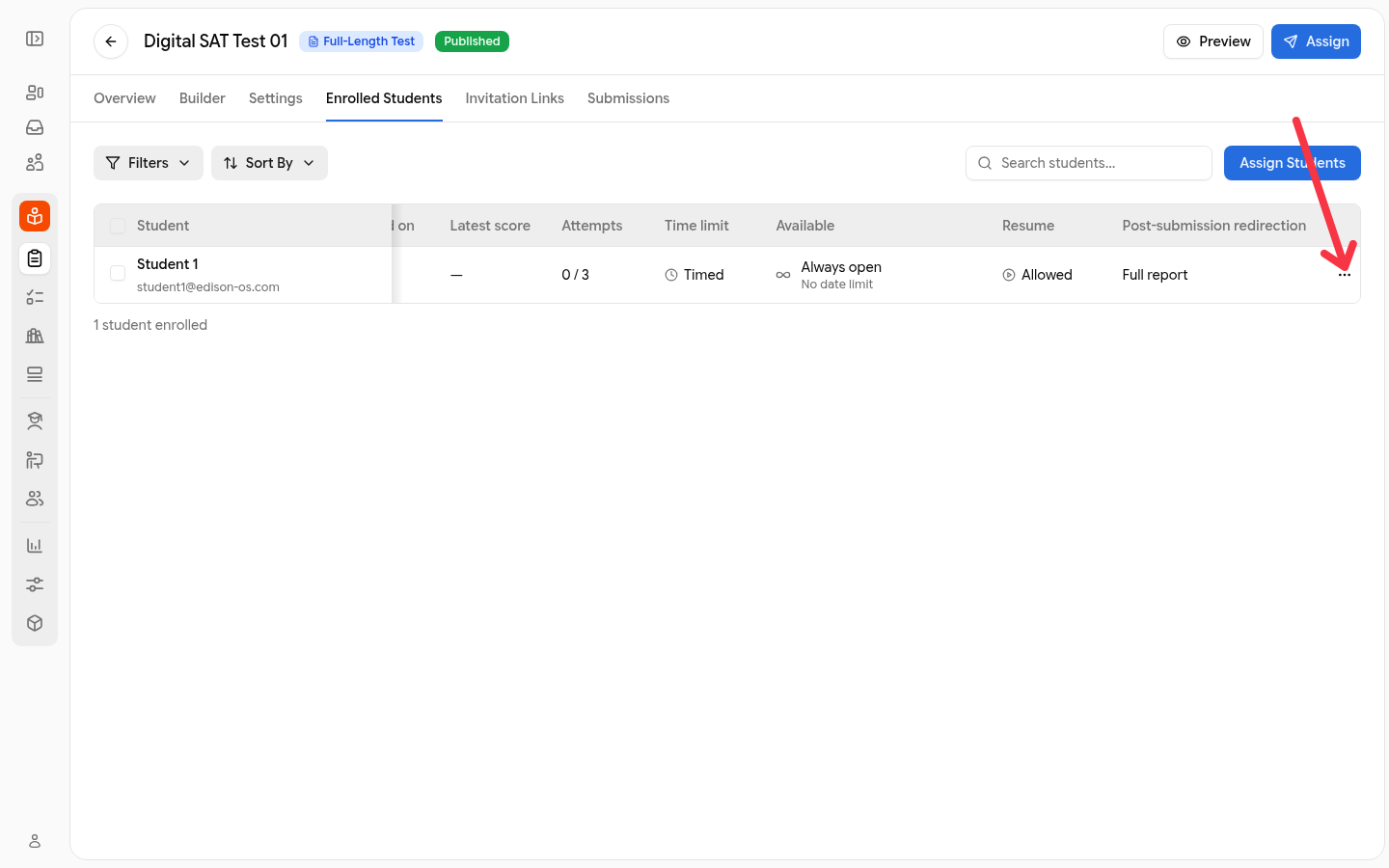
Raise the attempt cap for one student from the test's Enrolled Students tab. The Attempts column shows how many attempts the student has used out of their cap, and the lowest cap you can set is the number of attempts already used, so raise it above that number to make another attempt available.
Open the test and go to the Enrolled Students tab.
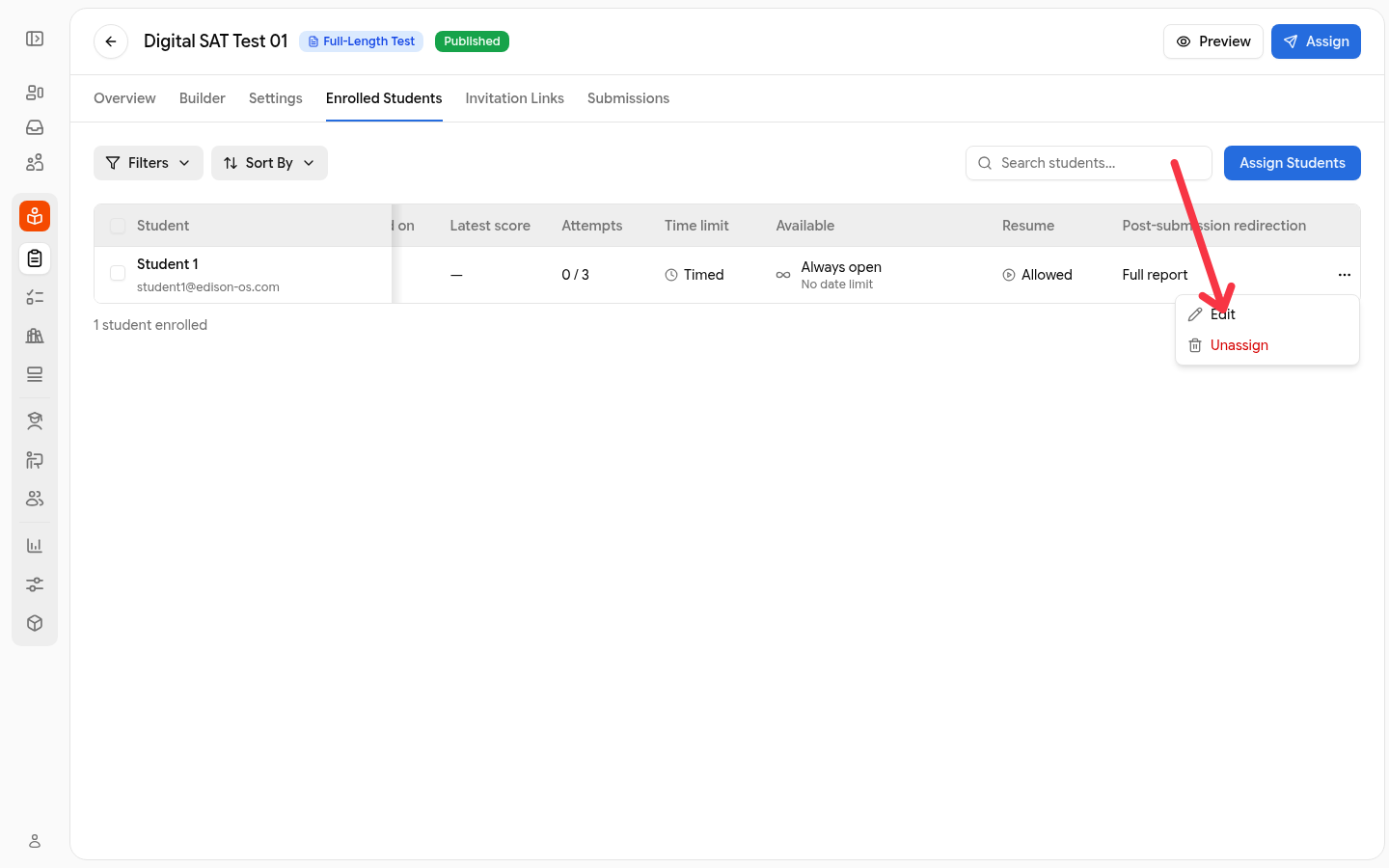
Click the three dots next to the student's name.
Click Edit.
In Edit Allotment Settings, set Max attempts to a number above the attempts already used, or choose Unlimited.
Click Update.
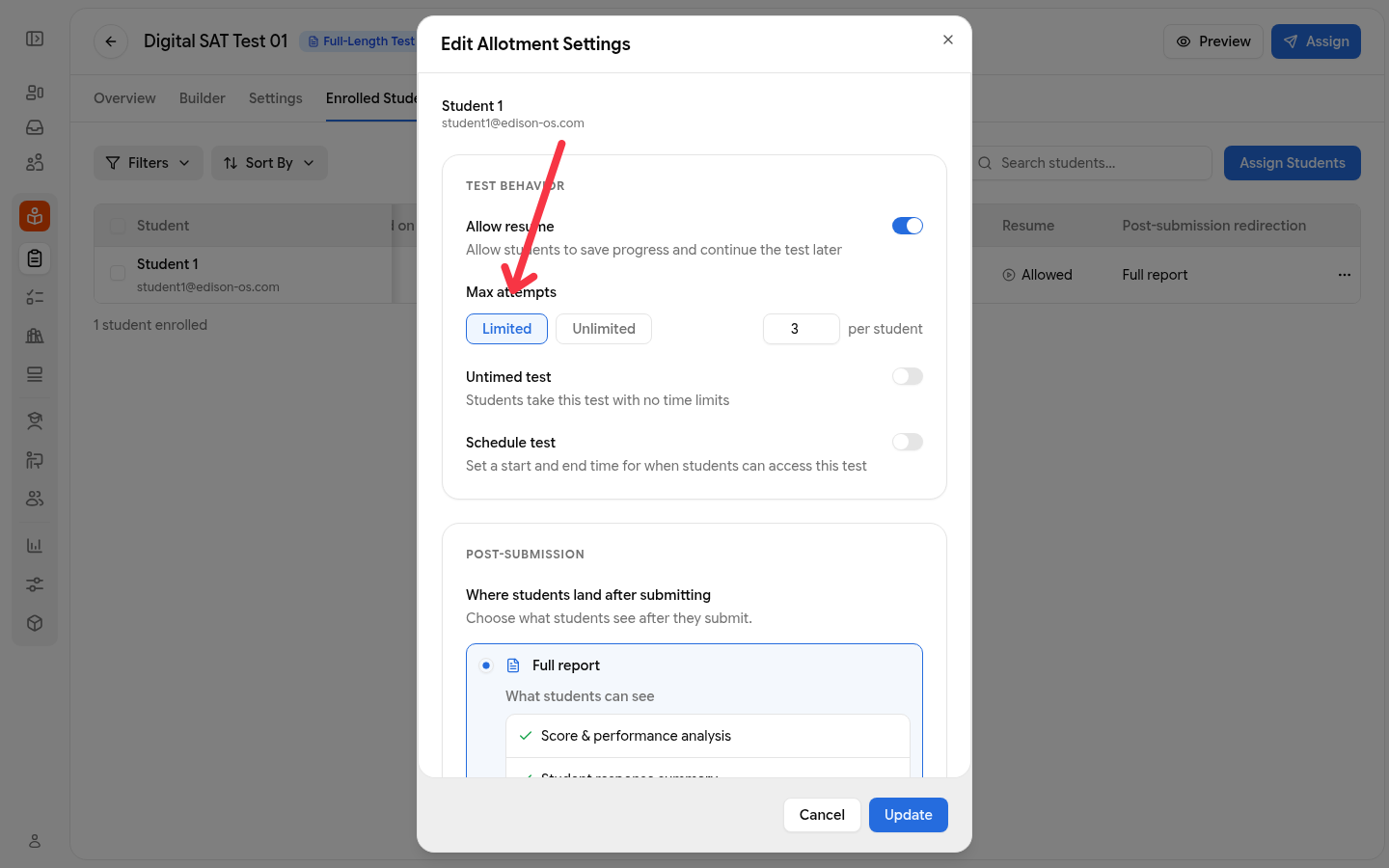
What Edit Allotment changes
Editing an allotment updates the students you selected. It does not change the settings students get when they are assigned the test later, so repeat the change for each new enrolment. Selecting several students before editing gives you a bulk edit action that updates all of them at once.
The same dialog holds Allow resume, Untimed test, Schedule test, and the post-submission settings, so you can adjust those for individual students the same way.
Whether a retake uses credits
A credit is charged as soon as a test starts, and a retake starts a new session, so every retake is charged again for credit-funded students. Saving and exiting mid-test is always free, and resuming a paused session is not charged a second time. Students on an active license do not spend credits, but the Max attempts cap still applies to them.
Pausing and resuming a test
With Allow Resume enabled on the assignment, students can use Save and Exit to pause a test mid-attempt and return later with their answers, flagged questions, and remaining timer intact. When Allow Resume is off, an interrupted attempt is finalized and cannot be resumed; the student would need to start a new attempt if attempts remain.
For the steps to enable resume when assigning, see How to Allow Students to Save & Resume a Test Later. To turn resume on for a single student after assigning, see How to Enable "Resume" for a Student After Assigning a Test.
What happens if a student leaves a test open
A test left open is automatically paused after 5 minutes 30 seconds of no activity. It is not submitted or scored. With Allow Resume on, the student resumes where they left off. With Allow Resume off, the paused attempt is finalized instead of resumed.
Section time limits
Enforce Section Time Limit restricts students from moving to the next section until that section's timer ends. It is a section-level setting, configured on each section of the test, not in the assignment dialog or the test's overall settings.
To set it, open the test in My Library, select a section, and open its Configuration tab. Under Time Configuration, enable Timer, then set the section's time (1 to 600 minutes) and turn on Enforce Section Time Limit.
Only tests you build in My Library can be edited. EdisonOS Library tests are pre-built content, and attempting to edit one shows "EdisonOS content cannot be edited", so their section timers cannot be changed.
Settings that apply to the whole test, such as proctoring and notifications, are separate; see Overall Test Settings.
Untimed tests
The Untimed test toggle in the assignment's Advanced settings removes every timer: students take the test with no countdown and no section time enforcement. It is set per assignment, so the same test can be timed for one group of students and untimed for another.
Set extended time for a student
Extended time is a student profile setting, not an assignment setting. You choose a time option per section of the program, and it applies to every new timed attempt that student starts in that program. Attempts already taken are not re-timed.
The options are Regular Time (Default), Up to Time and one half (+50%), Up to Double Time (+100%), and Up to More than Double Time (>+100%).
Go to People, then Students, and open the student's profile.
Open Profile, then Student details.
Under Accommodations, choose a time option for each section. For SAT these are Reading & Writing, Math, and Break-Time.
Click Save Changes.
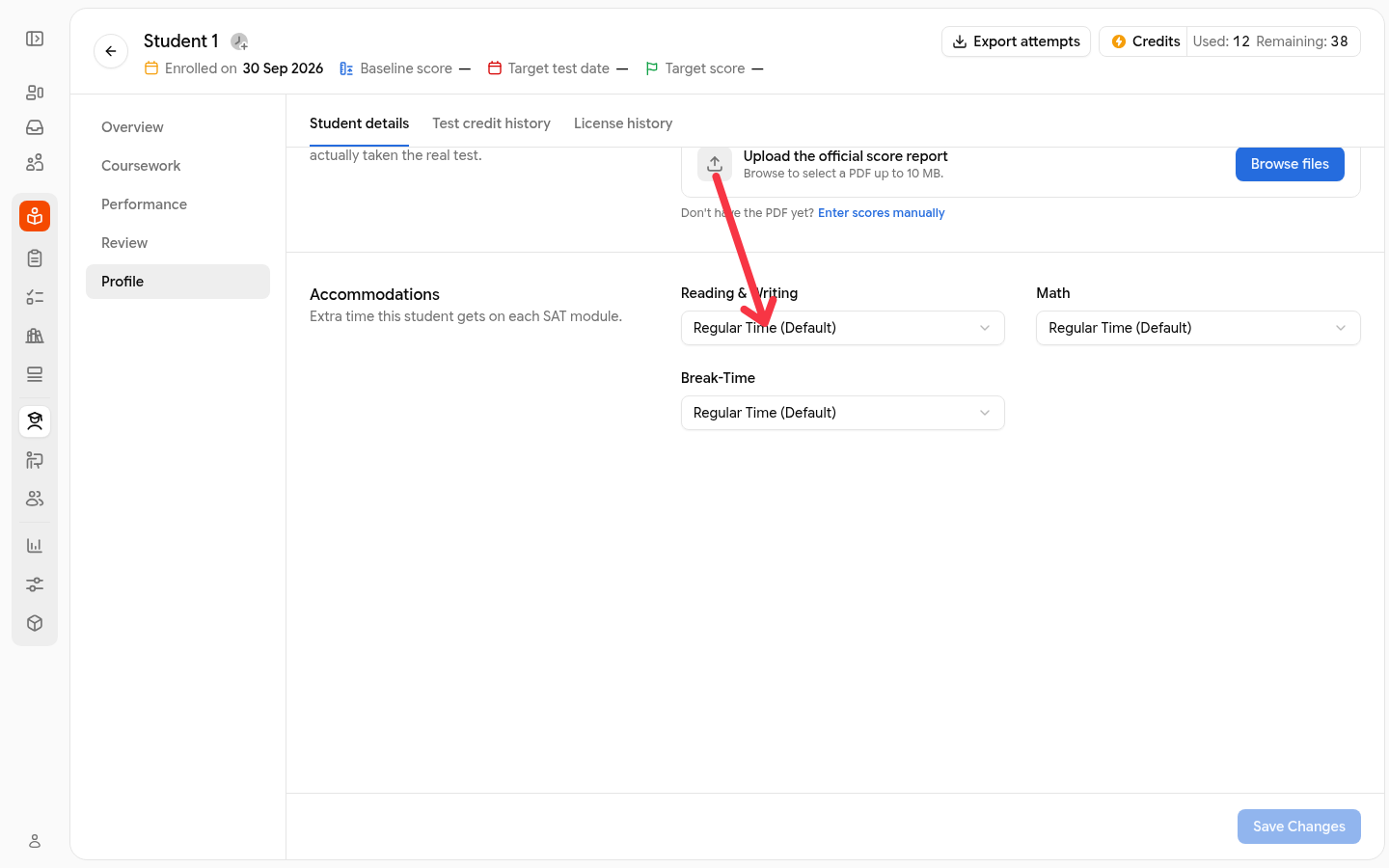
Editing accommodations requires student update permission. Staff with read access, including read-only tutors, can view the setting but not change it.
Confirm an accommodation before test day
Hover over Time accommodation details in the student's header to see the saved value for each section, such as Math: Double time. A section without a saved value shows Regular time.
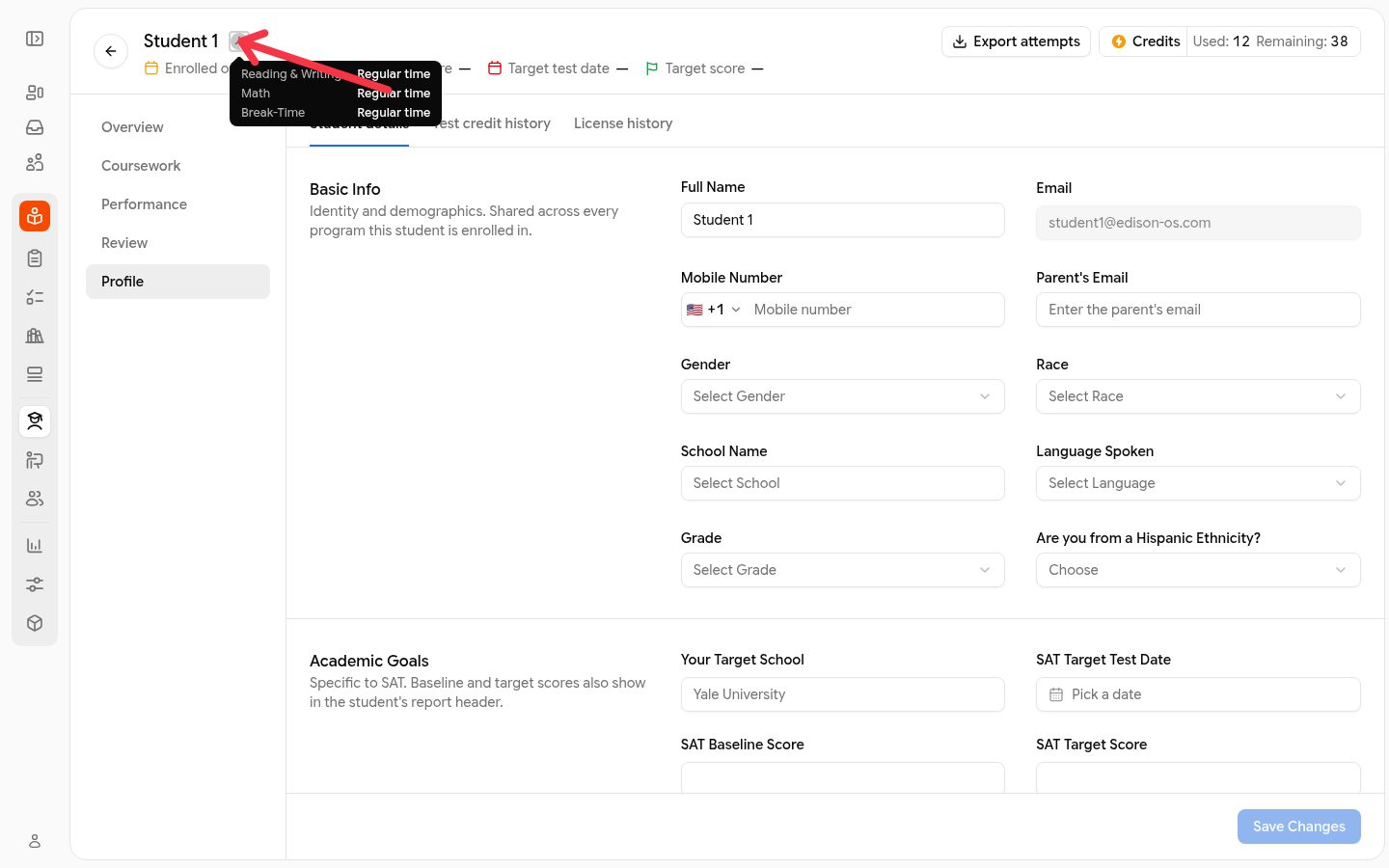
If a test ended early or a section was skipped
Contact support at [email protected] with the student's email, and support can reopen the attempt. Students cannot reopen it themselves: the Test Ended Early screen only returns them to their Practice Tests page. To keep a record of what the student completed, export their assessment data.