12.3 Billing & Invoices
Updated last week
Transactions on EdisonOS, such as a subscription purchase, a credit top-up, a license purchase, or a plan upgrade, can generate an invoice in the Console App. An invoice with a viewable link and a PDF is only available when the transaction qualifies for one and is successfully recorded.
Accessing Invoices
In the Console App, select your academy.
Choose Invoices from the academy sidebar.
You will see your invoice history. This shows the invoices available to you as a customer and is not a complete record of every billing event. It can include:
Subscription payments
Credit purchases
License purchases
Plan upgrades
Downloading an Invoice
Click View on an invoice to open the hosted invoice, or use the PDF download action to get a full invoice document. These actions appear only when the invoice has the corresponding link. These PDFs are suitable for expense reporting, accounting records, or sharing with finance teams.
Treat the academy's Invoices section as a monthly management task to review your credit balance, check the licensed students list, download any new invoices, and confirm your plan still matches your academy's size and needs. A few minutes each month prevents billing surprises and access disruptions mid-program.
Billing Address Required at Checkout
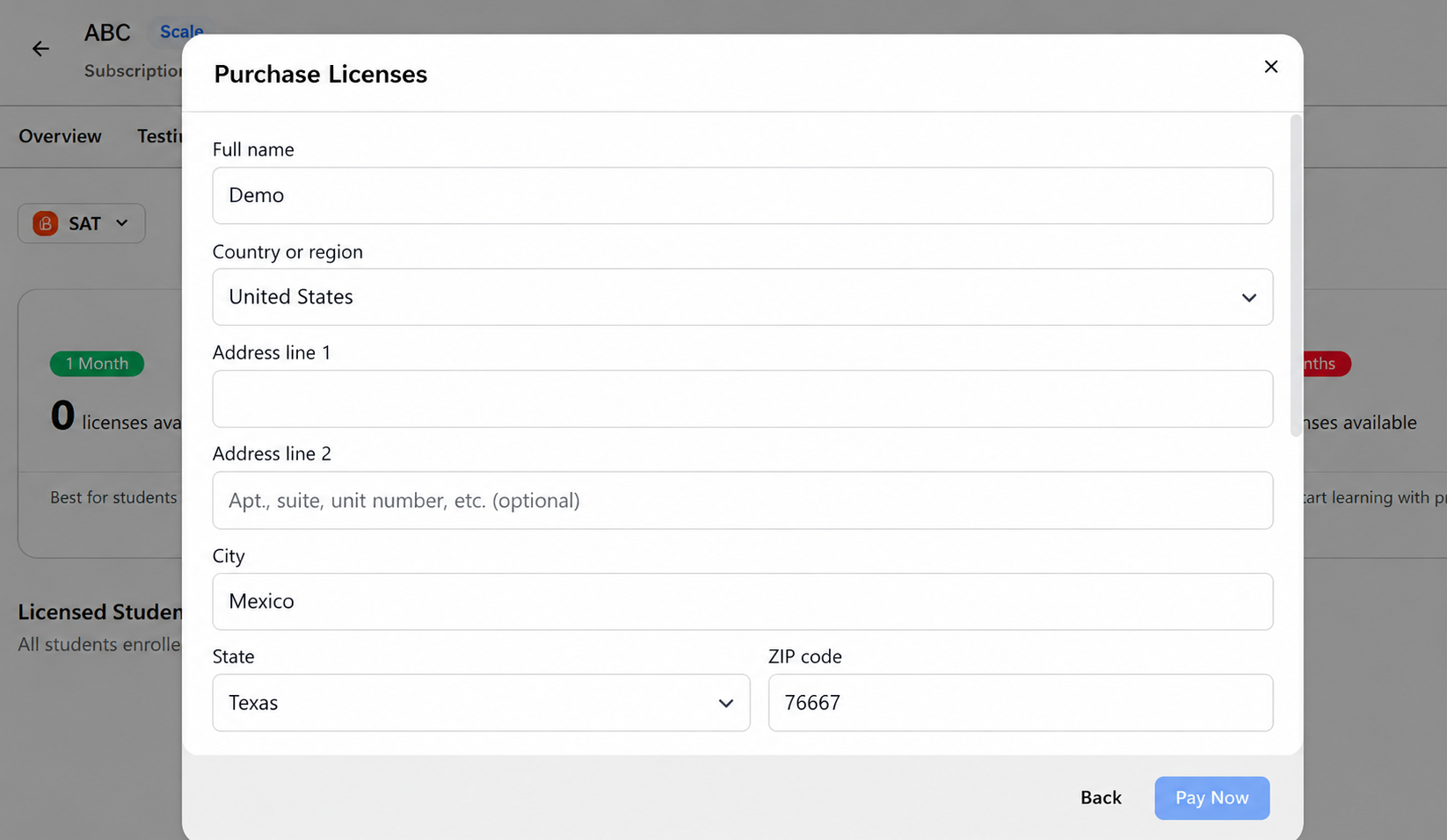
When purchasing a license or AI credits in the Console app with a new card, you must provide a billing address during checkout.
The billing address section is required when checkout collects a new card. Payments made with a saved card can proceed without entering a billing address.
You cannot complete a new-card payment until all required billing address details are entered.
Navigate to:
Console → select your academy → Licenses (Buy licenses) or Credits (Buy test credits or Buy AI credits) → Billing address → Pay Now