
6.6 Review Sets: turn past attempts into targeted review
Updated today
A review set collects questions a student has already attempted and regroups them by a theme, such as Incorrect, Skipped, Bookmarked, or Took you longest. Students can start a self-review from their own dashboard, and tutors and admins can create a set for a student. Creating and taking a review set does not use any credits.
What a review set is
A review set is built from the student's attempt history in one program. You pick the theme with filters, and the student sees only the questions that match. The student's Review Sets page offers four ready-made themes under Suggested for you:
Incorrect questions: questions the student answered incorrectly.
Skipped questions: questions the student left unanswered.
Bookmarked: questions the student marked for review during the attempt.
Took you longest: questions where the student spent more time than their average time per question. This card can only be built once the student has an average to compare against.
A set keeps the latest session status in the student's list: Not started with a Start action, In progress or Paused with Resume, or Completed with View. Opening a completed set shows the attempt summary rather than starting another attempt, and there is no retake button in the student UI. If a rule-based set runs out of unreviewed questions, the student sees "No unreviewed questions remain for this set. Take another Problem Set or Practice Test to add more."
Start a review set as a student
Students start a review from their own dashboard, inside the program where the attempts were made. A student can have one review set open at a time; finish it or use Save & Exit before starting another.
In the program, open Review Sets. The page has two tabs: Review sets and Reviewed questions.
Either click a card under Suggested for you (Incorrect questions, Skipped questions, Bookmarked, or Took you longest), which presets the filter and takes you straight to the details step, or click Create review set to choose the rules yourself.
If you chose Create review set, pick one or more filters and click Next.
On the details step, name the set and choose how many questions to include. The count defaults to 10 and cannot exceed the total number of matching questions, which is shown under the field.
Click Save as set to keep it for later, or Start review to begin the session immediately.
Create a review set for a student
Tutors and admins create a review set from the student's report, in the program's Review section. The set appears in the student's own Review Sets list.
Build it from filters
In the admin dashboard, open the program and go to Students, then open the student.
In the student's report, open the Review section.
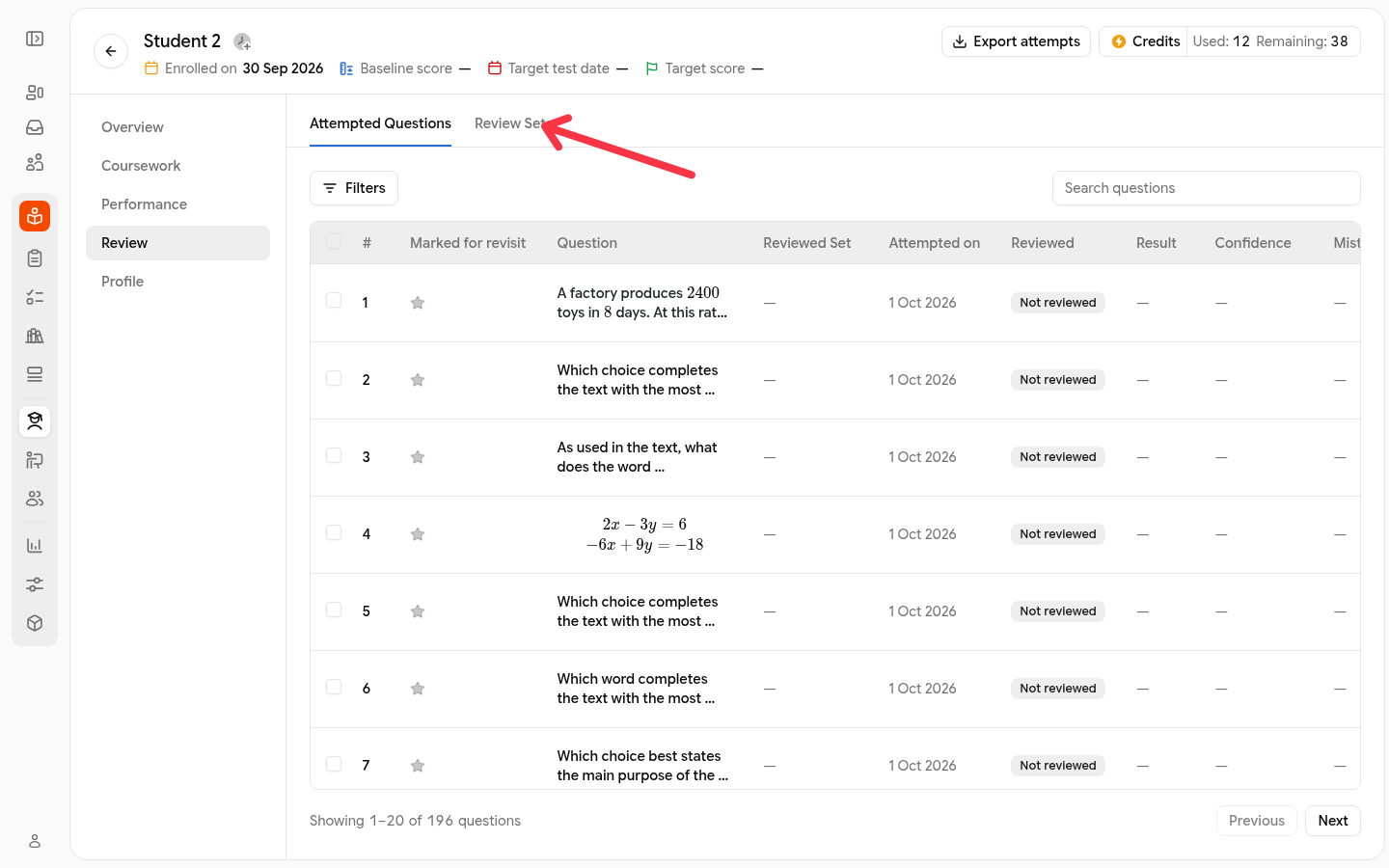
Select the Review Sets tab.
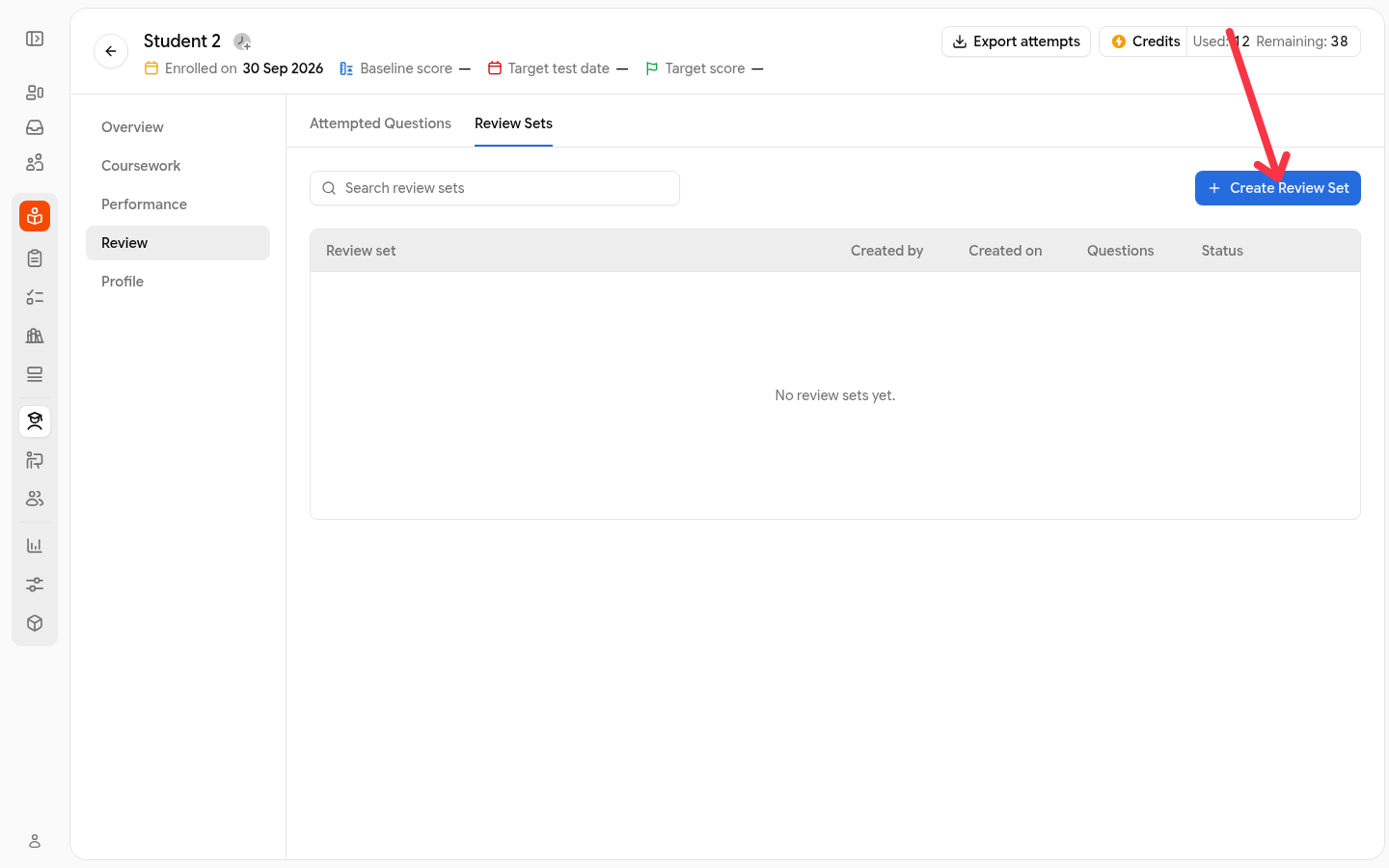
Click Create Review Set. The filter builder opens.
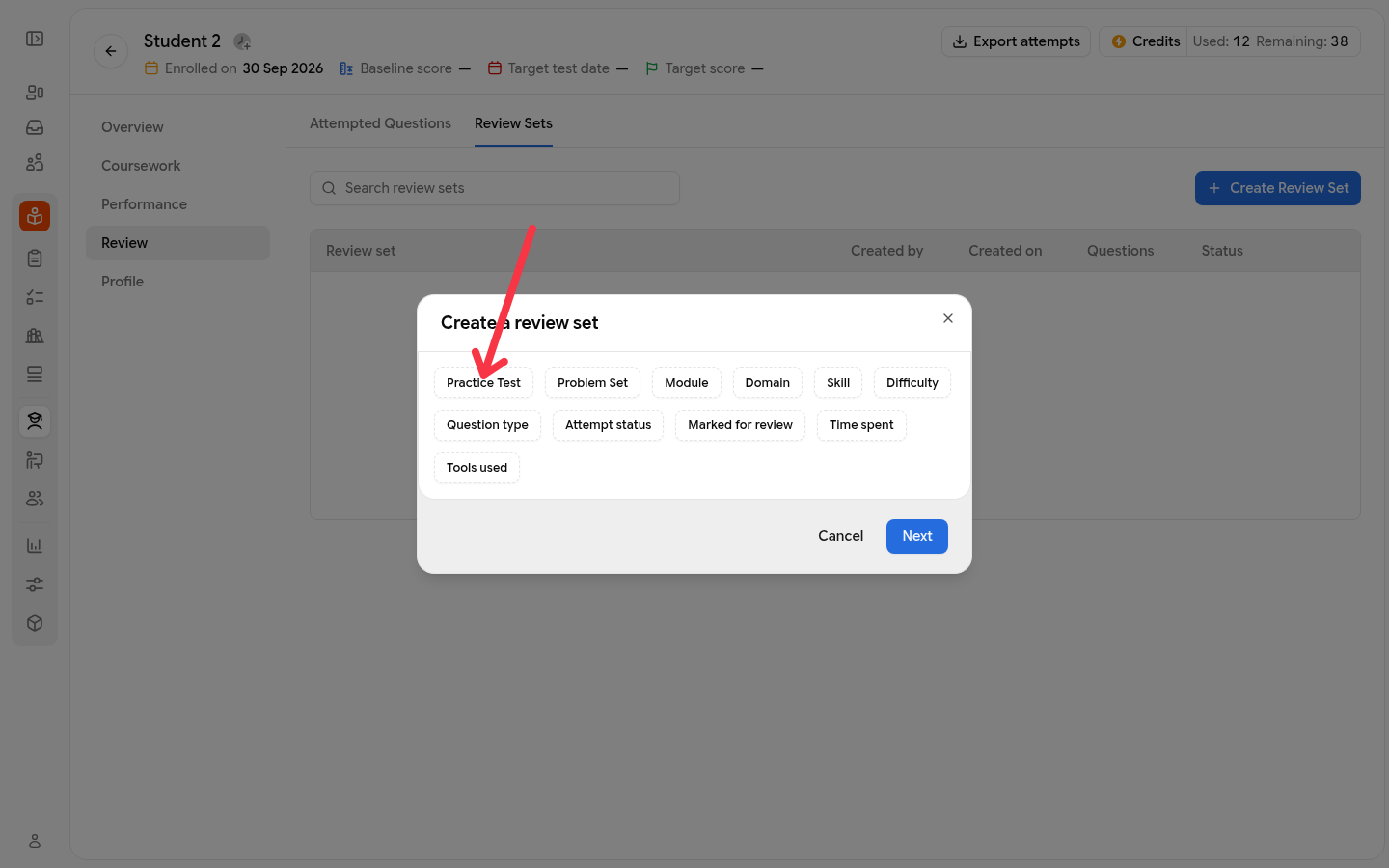
Choose one or more filters and their values. Multiple filters combine: a question must match all of them.
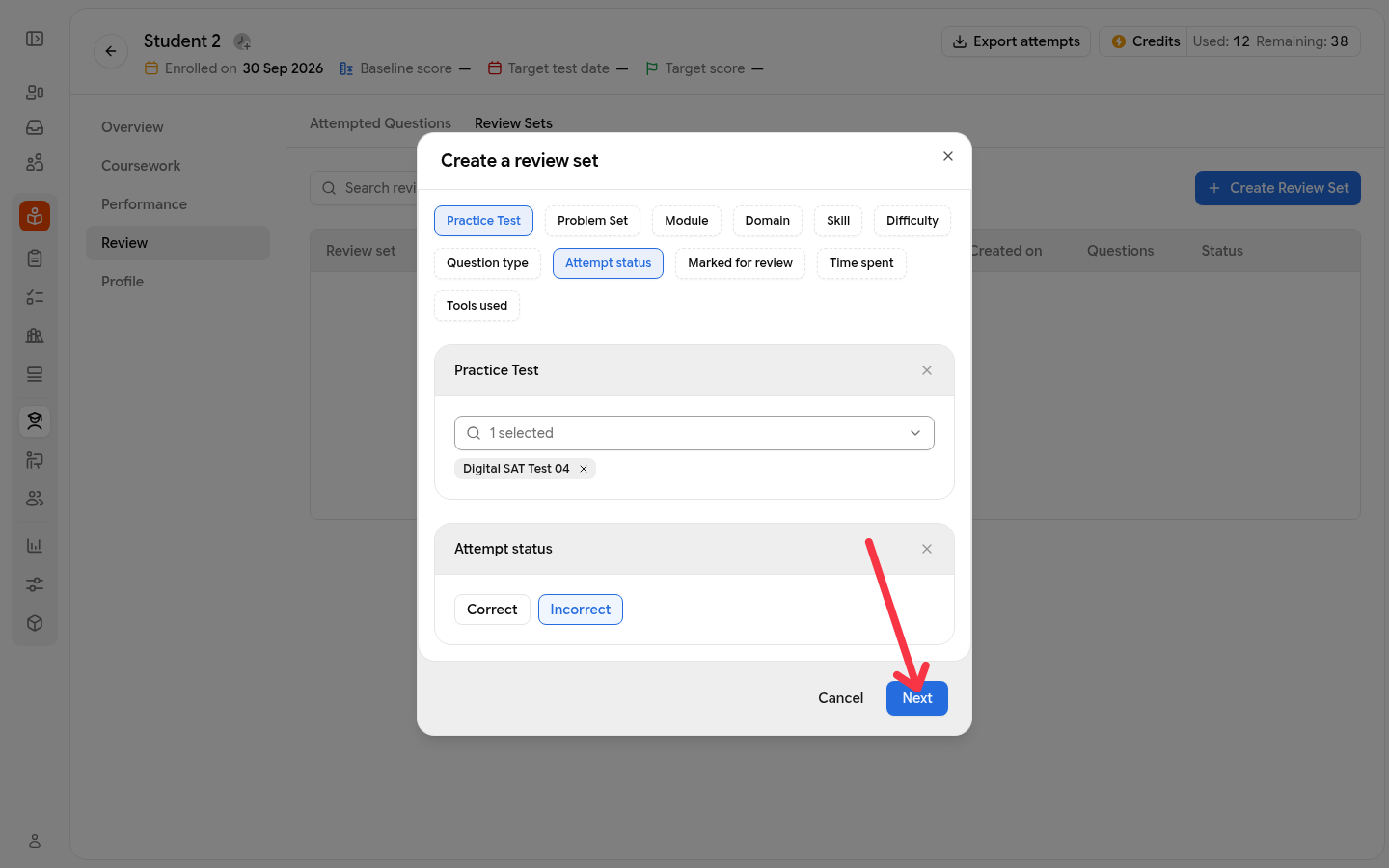
Click Next. Name the set and set the question count. The count defaults to 10 and cannot exceed the matching total shown as Total questions.
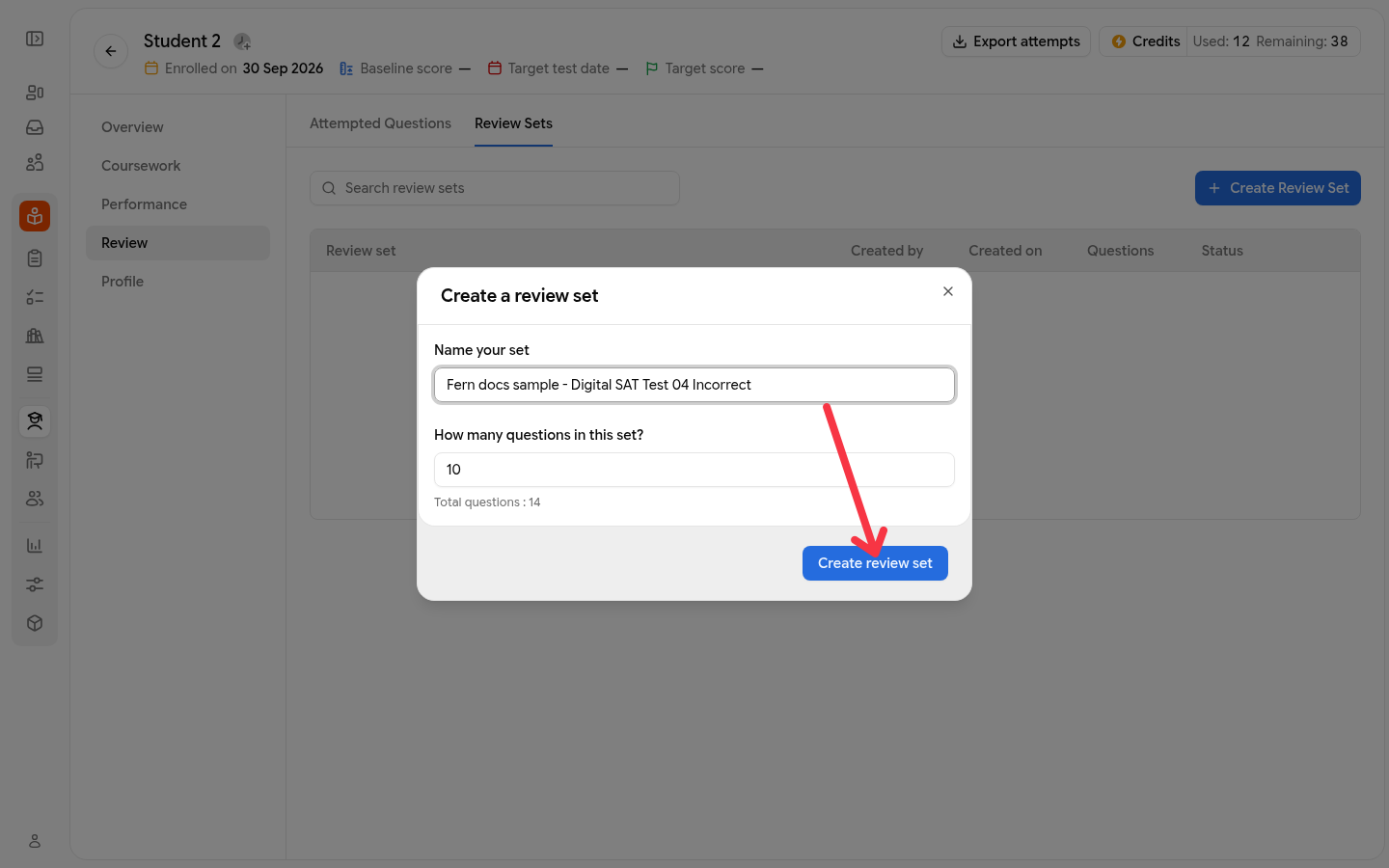
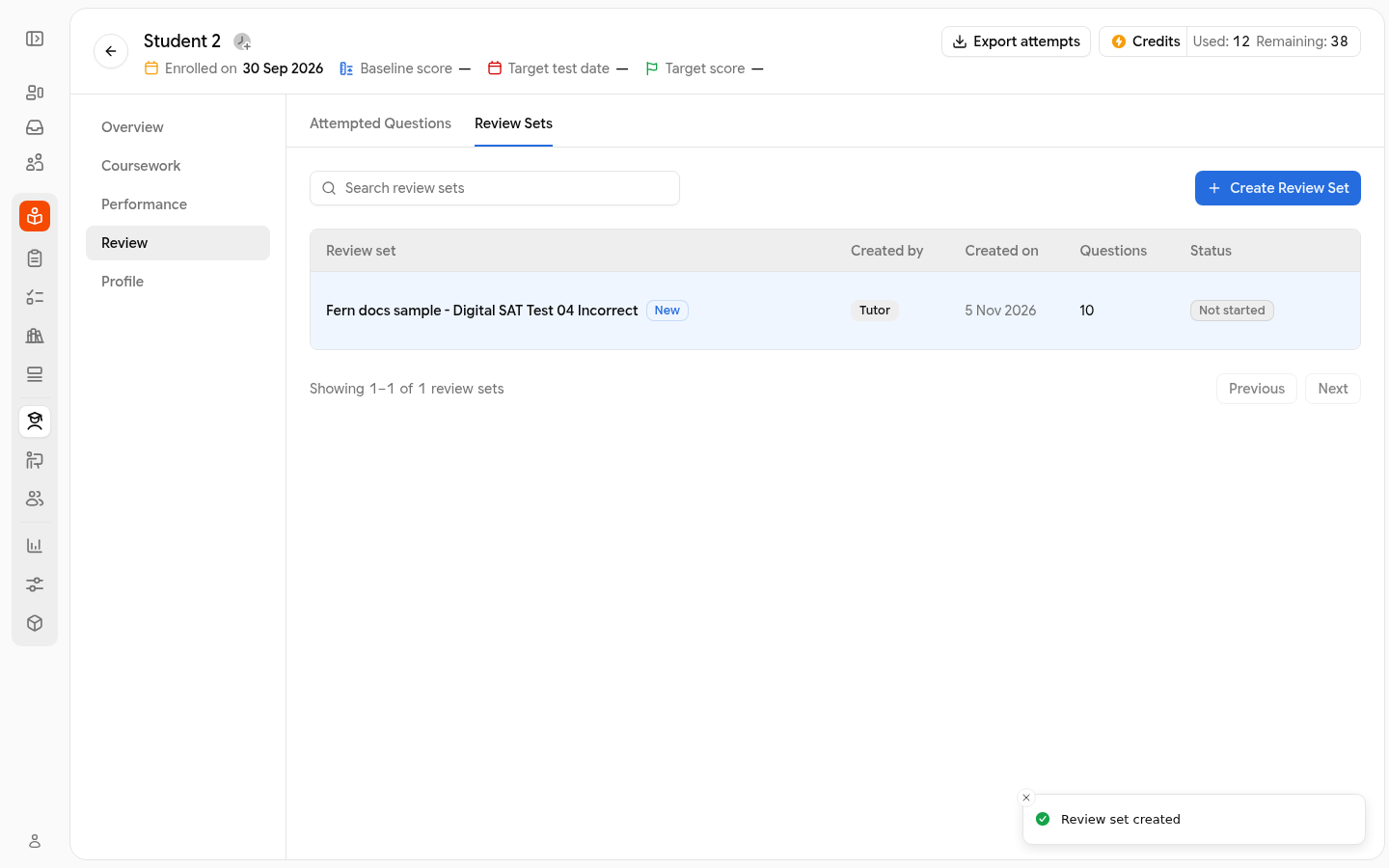
Click Create review set. The set appears in the student's Review Sets tab with the status Not started.
Build it from picked questions
In the student's report, open the Attempted Questions tab, select the question rows you want, and choose Create review set in the selection bar. The dialog shows the student you are assigning to and the number of questions; name the set and click Assign.
Filters available in the builder
The builder offers eleven filters. Every filter value comes from the student's attempt history, so only things the student has actually attempted appear as options. If no rule is selected, the set defaults to Attempt status = Incorrect.
Filter | What it selects |
|---|---|
Practice Test | Questions the student attempted in the selected practice test(s). |
Problem Set | Questions the student attempted in the selected problem set(s). |
Module | Questions from the selected module(s) in the attempt history. |
Domain | Questions in the selected domain(s), the subject or category level of the question. |
Skill | Questions tied to the selected skill(s). |
Difficulty | Questions at the selected difficulty level(s), such as Easy, Medium, or Hard. |
Question type | Questions of the selected type(s). |
Attempt status | Questions by result: Incorrect, Skipped, Correct, Partial, or Unvisited. |
Marked for review | Questions the student marked for review (Marked) or did not (Not marked). |
Time spent | Questions by time spent in seconds: greater than, less than, equals, or between two values. |
Tools used | Questions where the student used the selected tool(s) during the attempt. |
The Incorrect questions, Skipped questions, and Bookmarked themes on the student's Review Sets page are the same rules as Attempt status = Incorrect, Attempt status = Skipped, and Marked for review = Marked.
How Skills to Improve is chosen
Skills to Improve lists the skills where the student scores below 40%. Each skill's percentage is the student's accuracy on that skill: correct answers divided by attempted questions, or correct answers plus partial credit divided by attempted questions when any skill in the snapshot awards partial credit. The list shows at most five skills, and skills with no answered questions are left out. A student with few weak skills sees a short list because nothing else qualifies: if no skill falls below 40%, the card reads "Skills that need more practice will appear here."
You can find this list in the Skill Snapshot on the student's overview report, under Top Skills to Improve. For the full breakdown of scores and skill performance, see 9.3 Student Analytics.
Who can see and create review sets
Students see every review set created for them on the program's Review Sets page and can start, resume, or open them.
Students can also create their own review sets from the same page.
Owners, admins, and tutors can create review sets for a student and view that student's review sets from the student's report. The student must be enrolled in the program and visible to the person creating the set.
Do review sets use credits?
No. Creating a review set and starting a review session are free and do not deduct credits. Credits are spent when a student takes a practice test or a problem set.
Recommended way to use review sets
After each practice test, assign a review set that combines the Incorrect and Took you longest themes, and have the student complete it before the next test. This turns every test's misses and slow questions into a short, focused session instead of waiting for the next full test.
Create the set from the student's report: Practice Test set to the test they just took, Attempt status set to Incorrect, plus a Time spent rule to catch the questions that took too long.
Have the student complete it before the next practice test.
To see how incorrect and skipped questions are reviewed inside a practice test itself, see 5.1.2 Based on Incorrect and Skipped Questions. To review a completed problem set's results, see 6.4 Problem Set Reports.