
5.1.1 Using Selection Methods & Filters in the Test Builder
When you build a custom test in EdisonOS, the Builder tab is where you decide which questions go into the test and how they are chosen. You do this with two building blocks:
Filter Sets - Independent ways to categorize, each of which contributes a set number of questions to the test.
Selection Methods - the source a Filter Set draws from (Folder, Question, Passage, or Attempt). Each method exposes its own list of Filters for narrowing the selection.
This lets you mix sources within a single test. for example, pull 10 questions from a specific folder, 5 by question skill, and 5 based on past attempt behavior.
Open the Builder and add a Selection Method
Inside a Filter Set, click + Add Selection Method. You'll see four options:
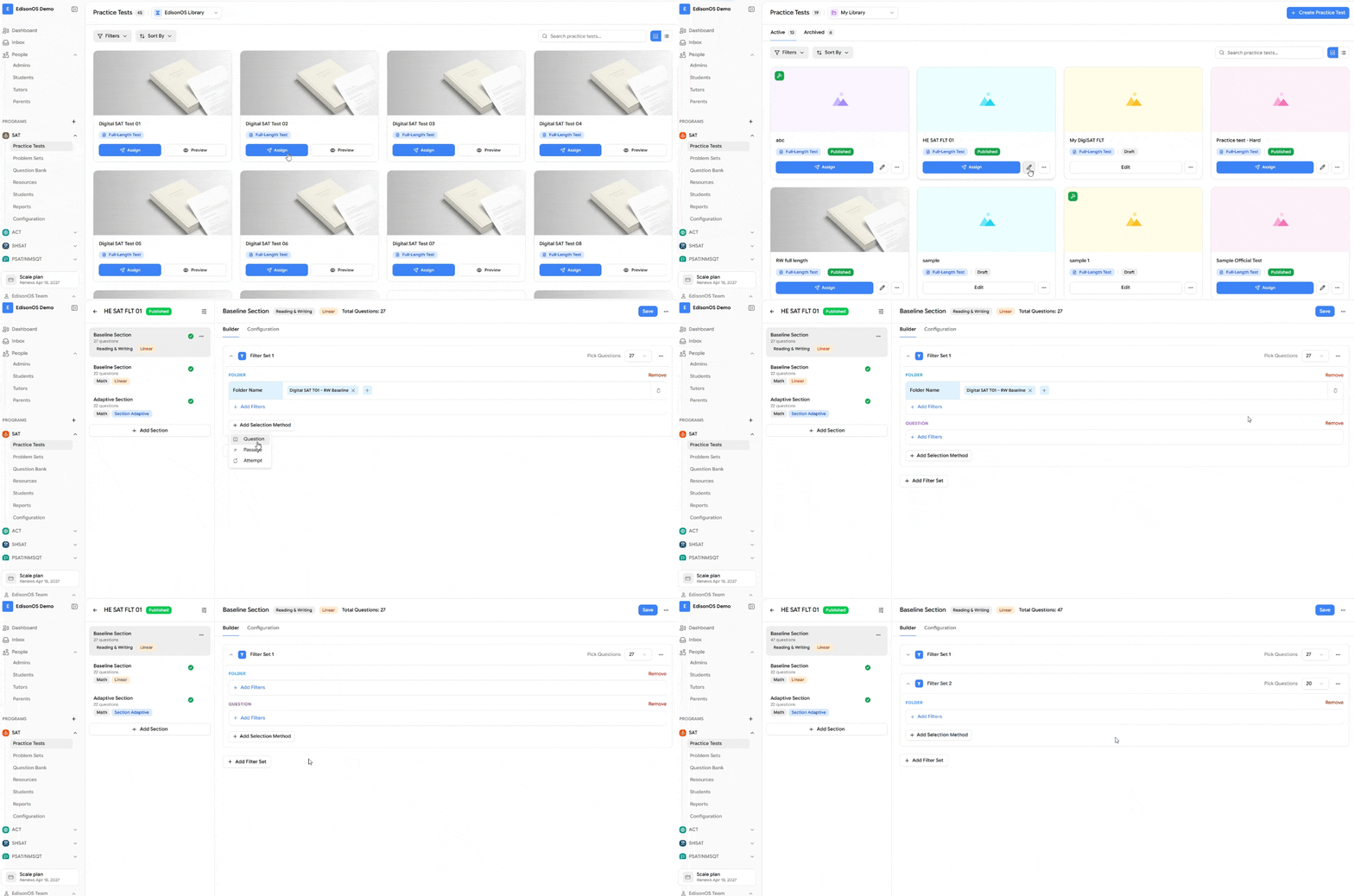
Selection Method | What it draws from |
|---|---|
Folder | Questions organized inside your folders |
Question | Individual questions from the question bank |
Passage | Questions grouped under reading/analysis passages |
Attempt | Questions filtered by how students previously attempted them |
Choose the method that matches how you want to source questions for this set.
Add Filters for the selected method
After picking a Selection Method, click + Add Filters. The list of available filters changes depending on the method you chose. This is what makes each method powerful — you only see the filters that make sense for that source.
If your Selection Method is Question
Clicking Add Filters shows question-level filters, including:
Module
Domain
Skill
Question tag
Question type
Calculator allowed
Field question
Difficulty
Difficulty score
Usage
Question ID
Use these to target questions by content area, skill, type, difficulty, or calculator use. You can search filters using the Search Filters box at the top of the list.
If your Selection Method is Folder
Clicking Add Filters shows folder-level filters:
Folder
Folder tag
This is the fastest way to pull a whole curated set. for example, every question inside a "Reading – Hard" folder, or all folders sharing a particular tag.
If your Selection Method is Passage
Clicking Add Filters lets you filter by Passage tag, so you can build passage-based sections (ideal for Reading & Writing tests) around specific themes or skills you've tagged.
If your Selection Method is Attempt
Clicking Add Filters shows attempt-based filters, including:
Attempt status
Time taken
Marked for review
Tools used
These are especially useful for review and revision tests. for example, pulling only questions a student answered incorrectly, spent too long on, or flagged as "Marked for review."
Step 3: Set how many questions each Filter Set contributes
Each Filter Set has a Pick Questions dropdown on the right. The Filter Set you start with defaults to 20 questions; each Filter Set you add defaults to 10. This is the number of questions that set contributes to the final test. If a set's filters cannot return enough questions to meet its quota, the Builder shows a validation warning.
Step 4: Add more Filter Sets to mix sources
Click + Add Filter Set to create additional sets (Filter Set 2, Filter Set 3, and so on). Each set works independently and can use a different Selection Method.
This is the key to flexible test design. A single test might combine:
Filter Set 1 - Question: 10 questions filtered by Question Skill
Filter Set 2 - Folder: 5 questions from a specific folder
Filter Set 3 - Attempt: 5 questions a student previously marked for review
To delete a method within a set, use Remove; to remove a whole set, use the ⋯ (more options) menu next to it. The menu's Remove option is disabled while only one Filter Set remains.
Step 5: Save your test
Once your Filter Sets and Filters are configured, click Save & Review in the top-right corner. Your custom test is now ready to assign.
Quick reference: Selection Methods and their Filters
Selection Method | Available Filters |
|---|---|
Folder | Folder, Folder tag |
Question | Module, Domain, Skill, Question tag, Question type, Calculator allowed, Field question, Difficulty, Difficulty score, Usage, Question ID |
Passage | Passage tag |
Attempt | Attempt status, Time taken, Marked for review, Tools used |