6.3 Preview & Assign the Problem Set
Updated 2 weeks ago
Before assigning a problem set to students, EdisonOS allows you to preview the exact experience a student will have including the interface, question flow, and post-completion report.
How to Preview a Problem Set
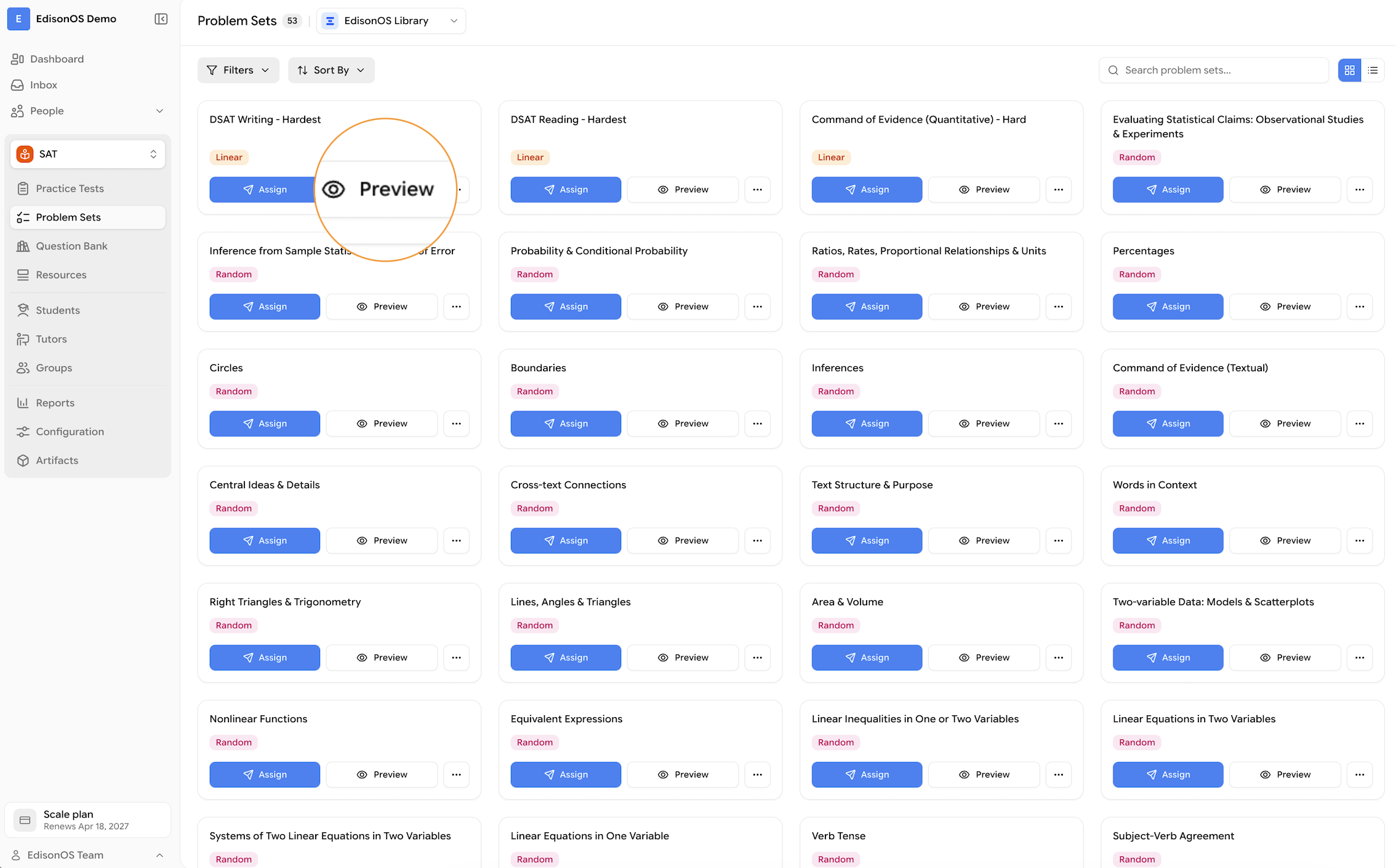
Find the problem set in either the EdisonOS Library or My Library.
Click the Preview button on the problem set card.
A student-view simulation will launch. You will see the system readiness check screen, just as a student would.
Click Start Preview to begin walking through the problem set as if you were a student.
You can answer questions and navigate through the full experience.
To exit preview at any time, click the Menu button and select Save and Exit.
Always preview a problem set before assigning it especially if you have just created it or recently edited the questions. This is your chance to catch formatting issues, missing answers, or unclear instructions before students see them.
Preview is not available for Question Adaptive problem sets, as the next question is determined dynamically based on the student's response to the previous question.
What You See After Exiting Preview
After exiting preview, EdisonOS will show you a dummy report a sample of exactly what the student-facing report will look like once they complete the problem set. This lets you verify the reporting experience before it goes live.
Assigning the Problem Set
Once you are fine with the preview:
Click Assign on the problem set page.
Choose how you want to assign it:
Assign to My Students
Assign via Invitation Link
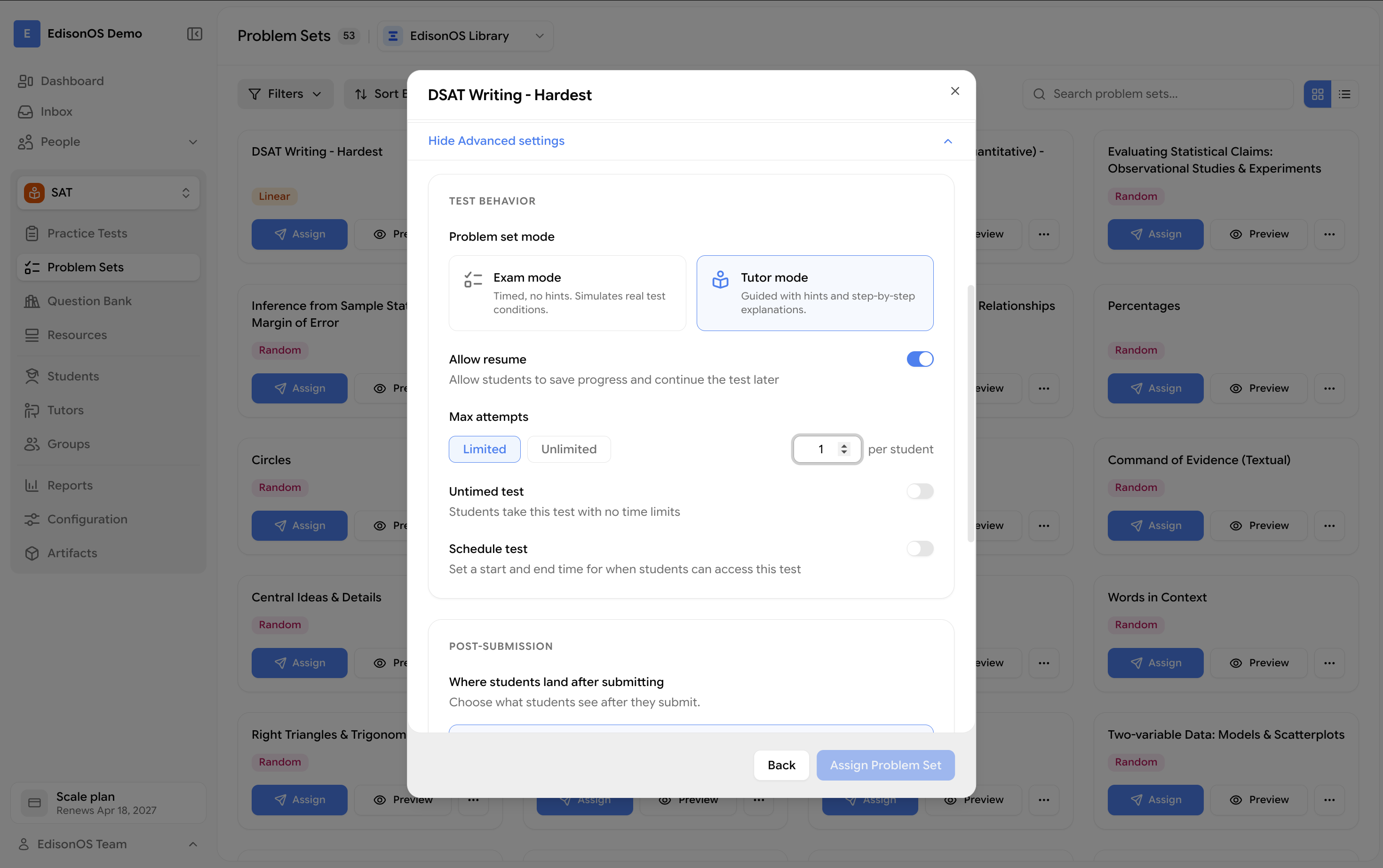
Configure the Advanced Settings, including:
Mode: Exam Mode or Tutor Mode
Attempts: Limited or Unlimited
Timed or Untimed
Review the settings to ensure students have the required access and accessibility options.
Click Assign Problem Set.