
1.5.5 Assigning a Practice Test
Follow these steps to assign a Practice Test to your students in EdisonOS.
What is Assign?
The Assign feature lets you send a Practice Test directly to one or more students. You control the number of attempts, schedule, and how much of the results students can access after completing it. Once assigned, students receive an email notification with a direct login link to access the test.
Note:
By default, EdisonOS displays content from the EdisonOS Library. If you want to assign a Practice Test you created yourself, switch to My Library using the dropdown at the top of the Practice Tests page.
Step 1: Navigate to Practice Tests
From the left sidebar, click on your Program (e.g., SAT, ACT).
Click Practice Tests in the left navigation panel.
Use the EdisonOS Library / My Library dropdown to select the correct content source.
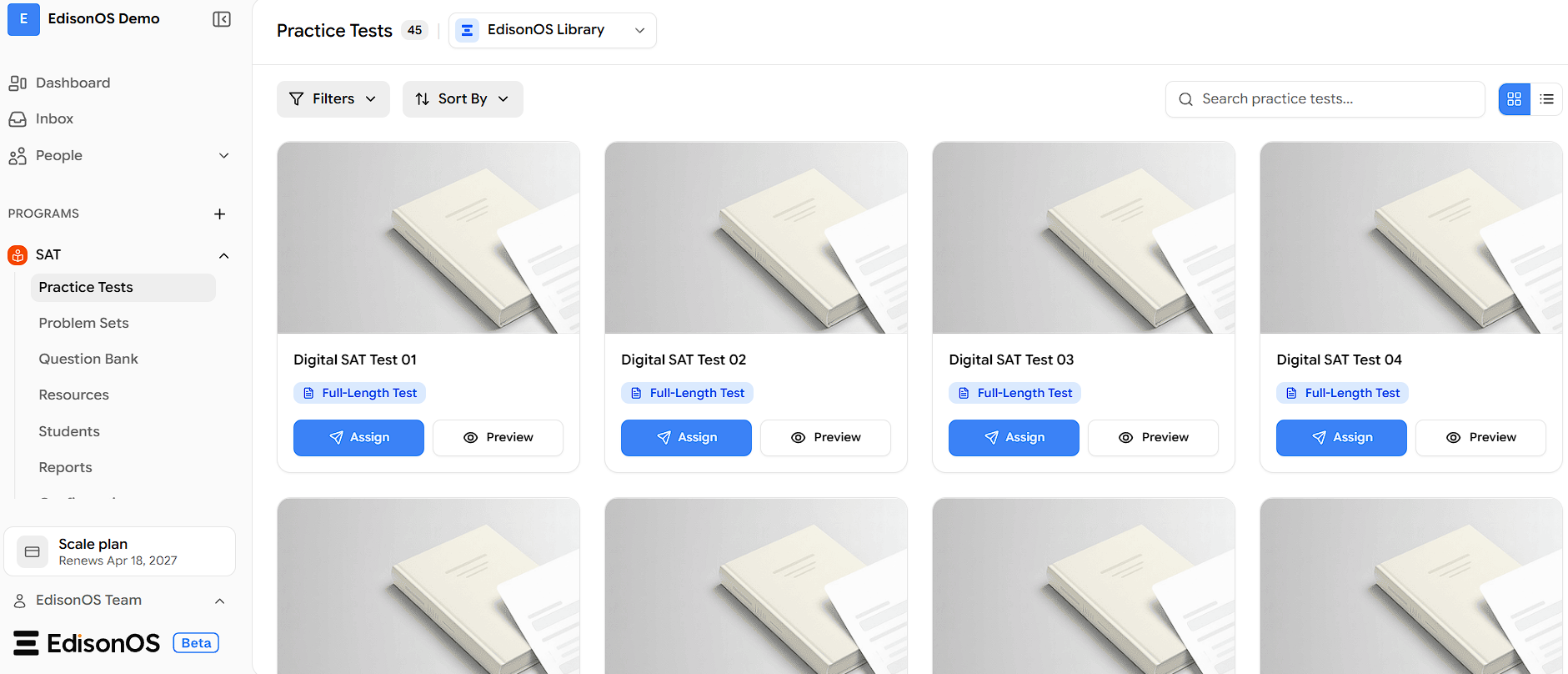
Step 2: Click Assign on a Practice Test
Browse the list to find the Practice Test you want to assign.
Click the Assign button below the test card.
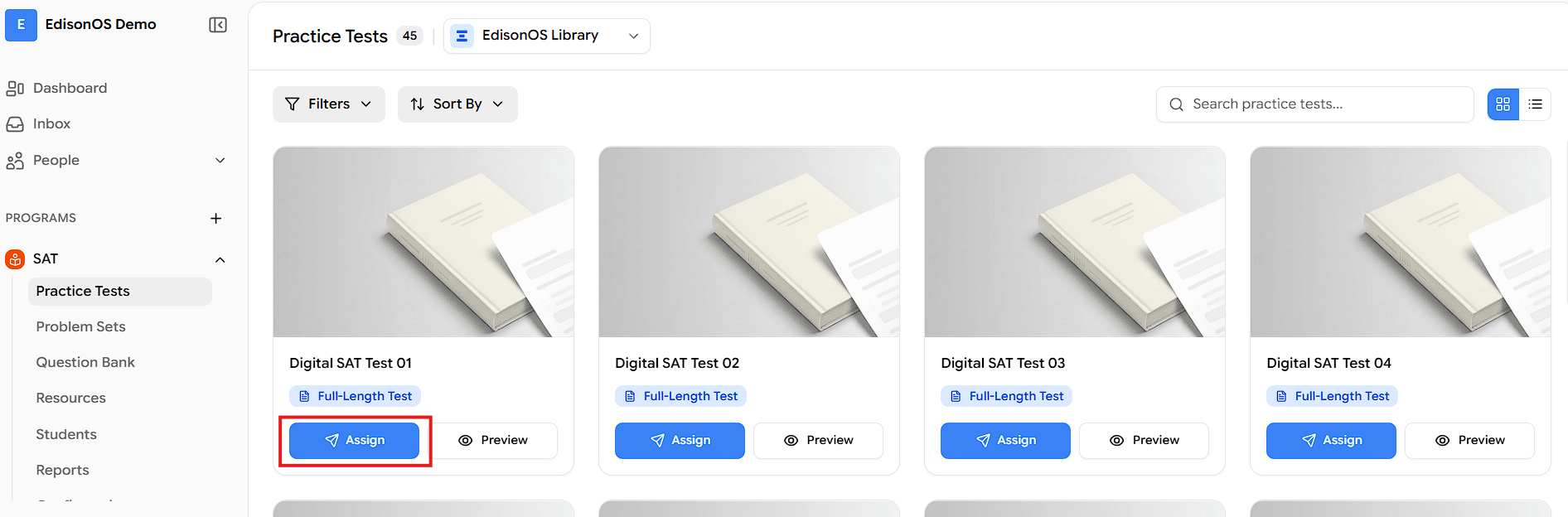
Step 3: Choose How You Want to Assign the Test
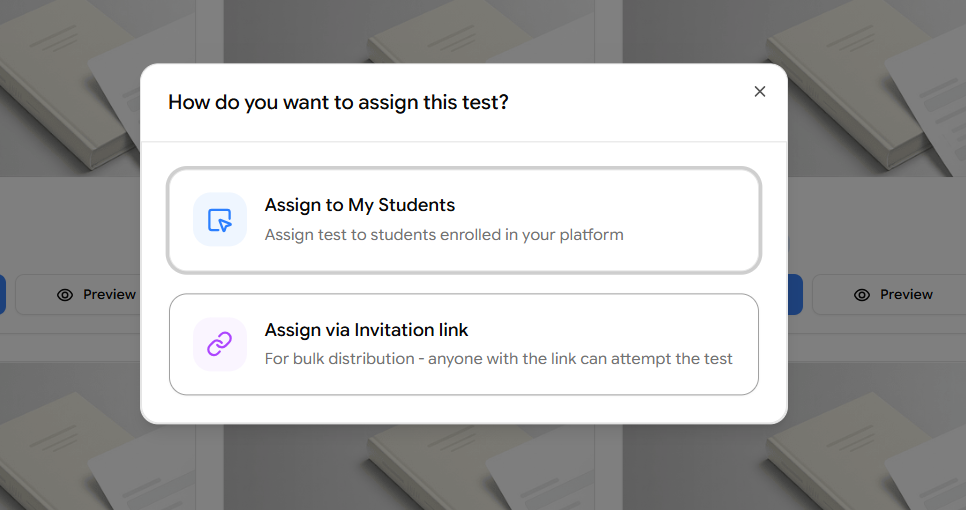
Once you click Assign, the How do you want to assign this test? dialog opens with two options:
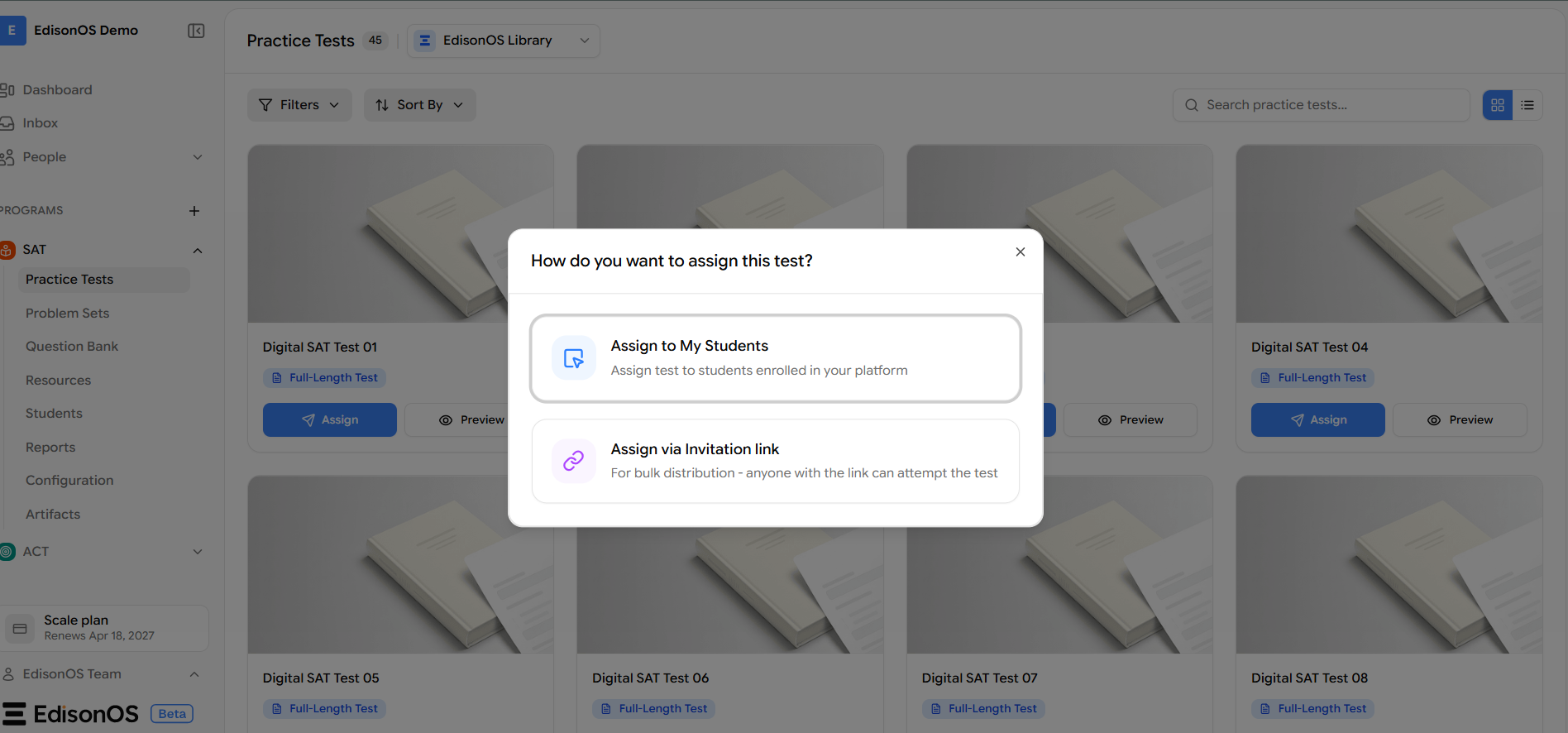
Option | When to use it |
|---|---|
Assign to My Students | Assigns the test to students who are already enrolled on your platform. |
Assign via Invitation Link | Creates a shareable link for bulk distribution, ideal for leads or students who are not yet enrolled. Anyone with the link can attempt the test. |
Pick the method that fits your needs. Both methods are explained in full below.
Method 1: Assign to My Students
Choose Assign to My Students when the people taking the test are already enrolled in your academy.
Select Students
The Digital SAT Test 01 dialog opens on the Select Students screen. Any students who already have this test are shown at the top (e.g., 106 students already assigned · View list).
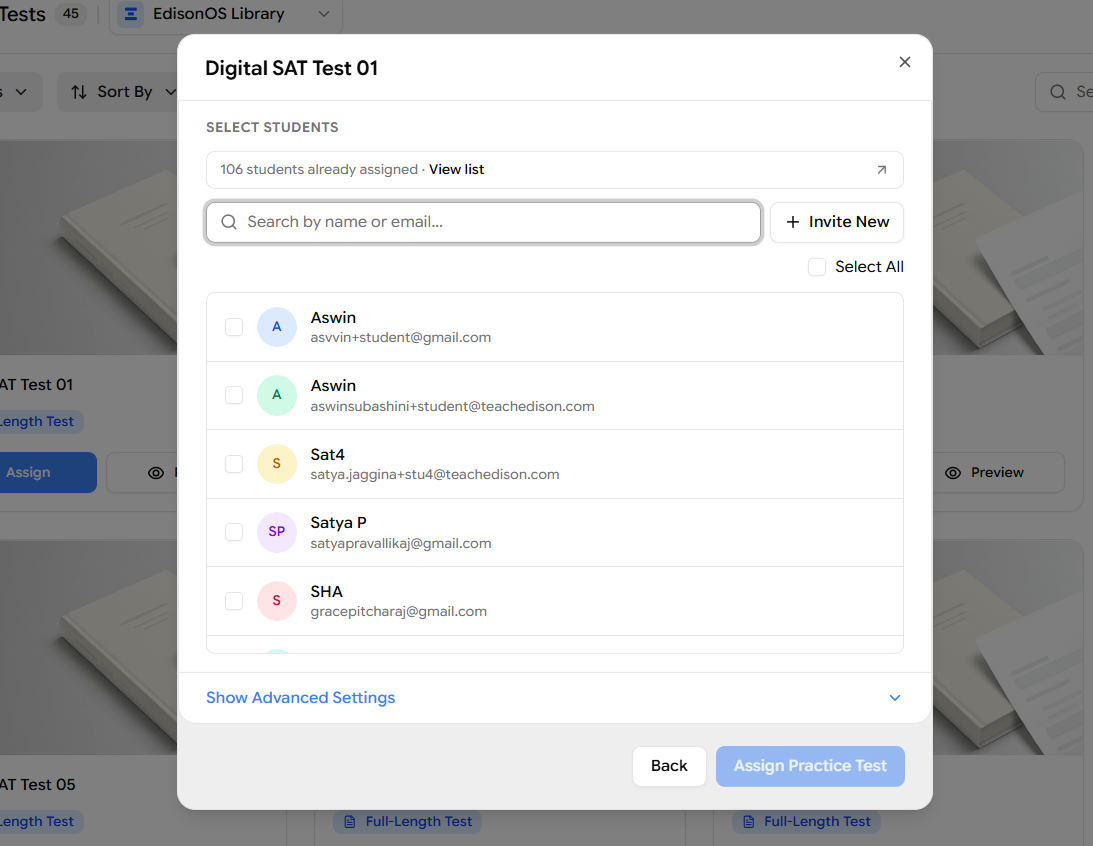
Use the Search by name or email bar to quickly find a specific student.
Check the box next to each student you want to assign the test to.
To assign to everyone at once, click Select All on the right.
To add someone who isn't listed yet, click + Invite New.
Only students enrolled on your platform will appear here, be sure to enroll them before assigning any problem sets or practice tests.
You can also bulk assign the assessment to a specific group from this screen, so an entire cohort receives the test in one action.
Configure Attempts & Schedule
Click Show Advanced Settings at the bottom of the dialog to expand the configuration options. In the Schedule & Attempts section, set how many times each student can take this test:
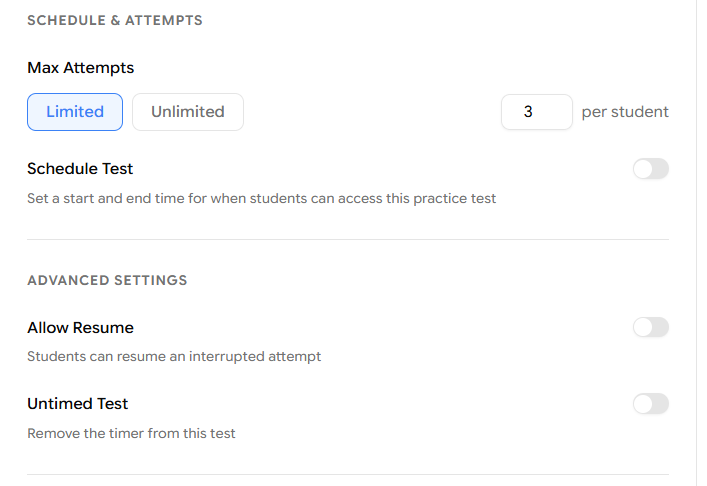
Click Limited to cap the number of attempts, then enter the maximum number in the field on the right (e.g., 3 per student).
Click Unlimited to allow students to retake the test as many times as they need.
Toggle Schedule Test on to define a specific start and end time for when students can access this practice test. Leave it off to make the test available immediately with no expiry.
Adjust Advanced Settings
Still within the same section, control the test behavior:
Setting | What it does |
|---|---|
Allow Resume | Students can resume an interrupted attempt and continue from where they left off. |
Untimed Test | Removes the timer from the test entirely, even if a default time limit exists. |
Toggle each setting on or off based on your preference.
Choose the After the Test Behavior
Scroll to the After the Test section to choose where students land after they submit this test:
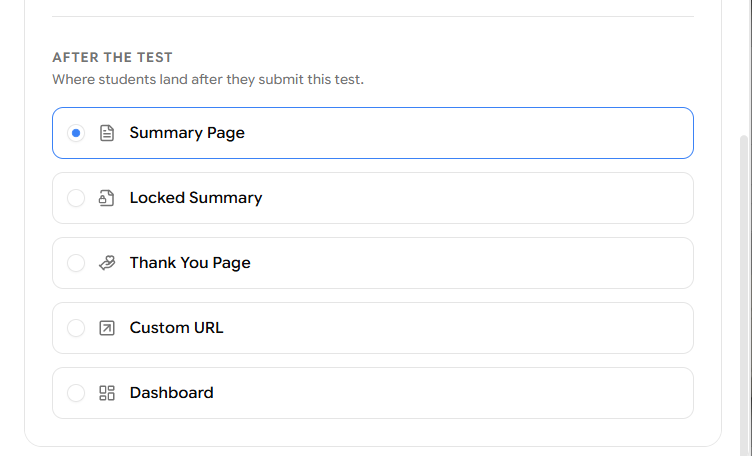
Option | What students see |
|---|---|
Summary Page | A detailed test summary screen showing their results after completing the test. |
Locked Summary | A Minimal summary which that stays basic and does not have all the reports |
Thank You Page | A Custom Thank you Message which can be set by you. |
Custom URL | Redirects students to a web address you specify. |
Dashboard | Sends students back to their EdisonOS Student dashboard. |
Select the option that matches how you want to close out the test experience.
Confirm and Assign
Once you have selected all relevant students and configured your settings, click Assign Practice Test in the bottom-right corner.
A confirmation screen will appear letting you know the students can now sign in and take the test:
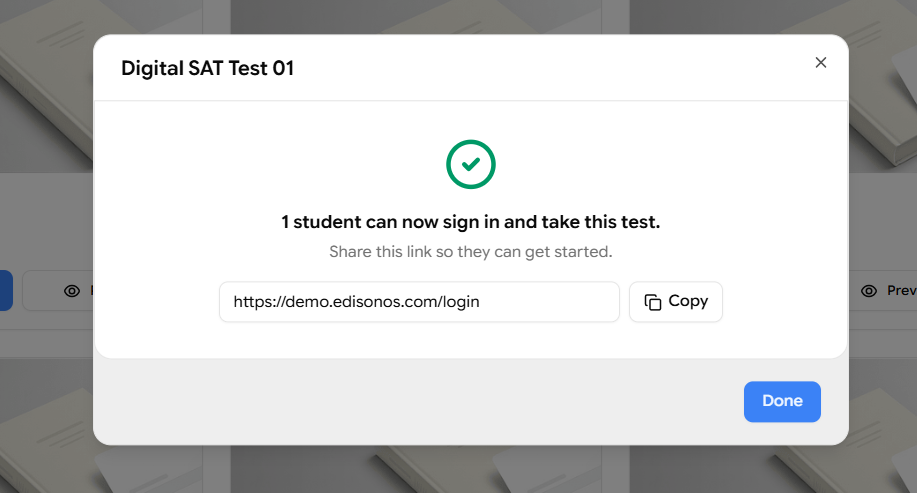
You can copy the login link to share it directly, then click Done. The assignment is now live, students can access the test immediately OR from the date you scheduled.
Method 2: Assign via Invitation Link
Choose Assign via Invitation Link for bulk distribution, this is ideal for collecting leads or creating tests for students who are not yet enrolled. Anyone with the link can attempt the test.
Add Link Details
The Digital SAT Test 01 dialog opens on the Link Details screen, where you name the link and choose when it can be used:
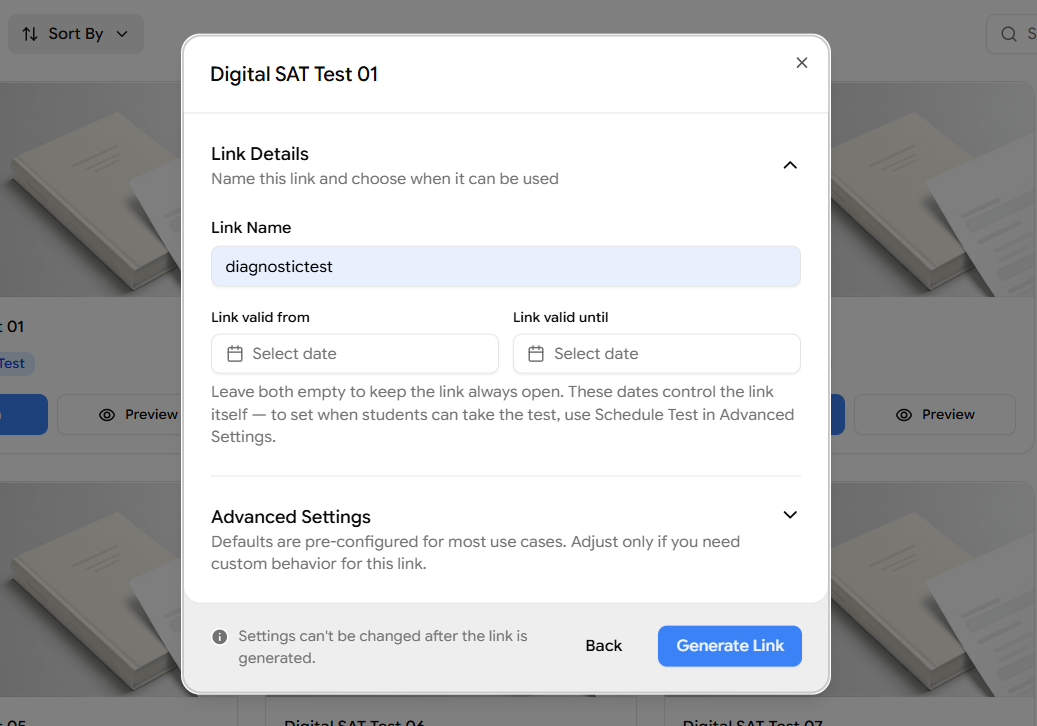
Enter a Link Name to identify this link (e.g., diagnostictest).
Set Link valid from and Link valid until dates to control when the link can be used. Leave both empty to keep the link always open.
These dates control the link itself. To set when students can take the test, use Schedule Test in Advanced Settings.
Below this you'll find the Advanced Settings section. Defaults are pre-configured for most use cases, adjust them only if you need custom behavior for this link.
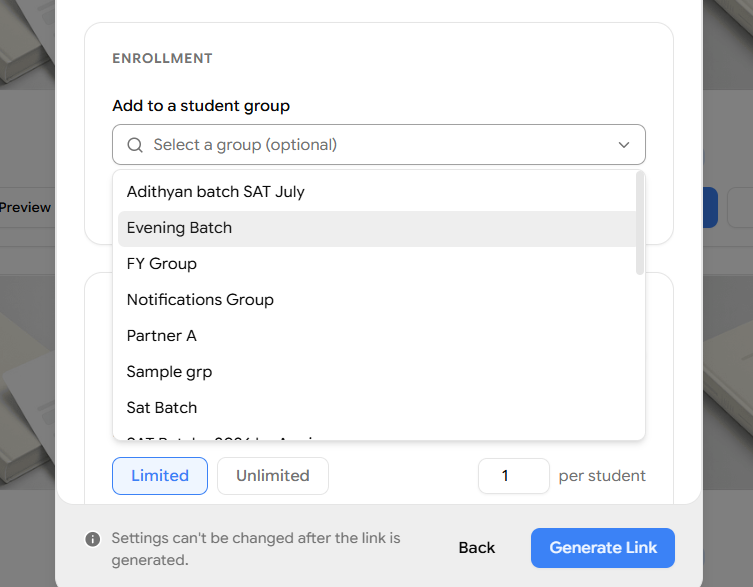
Add Students to a Group (Enrollment)
Expand Advanced Settings. At the top you'll see a reminder that these settings only apply to new students, students taking the test for the first time via this link. Existing students keep their current profile and settings.
The first section is Enrollment, where you can bulk assign test to a group:
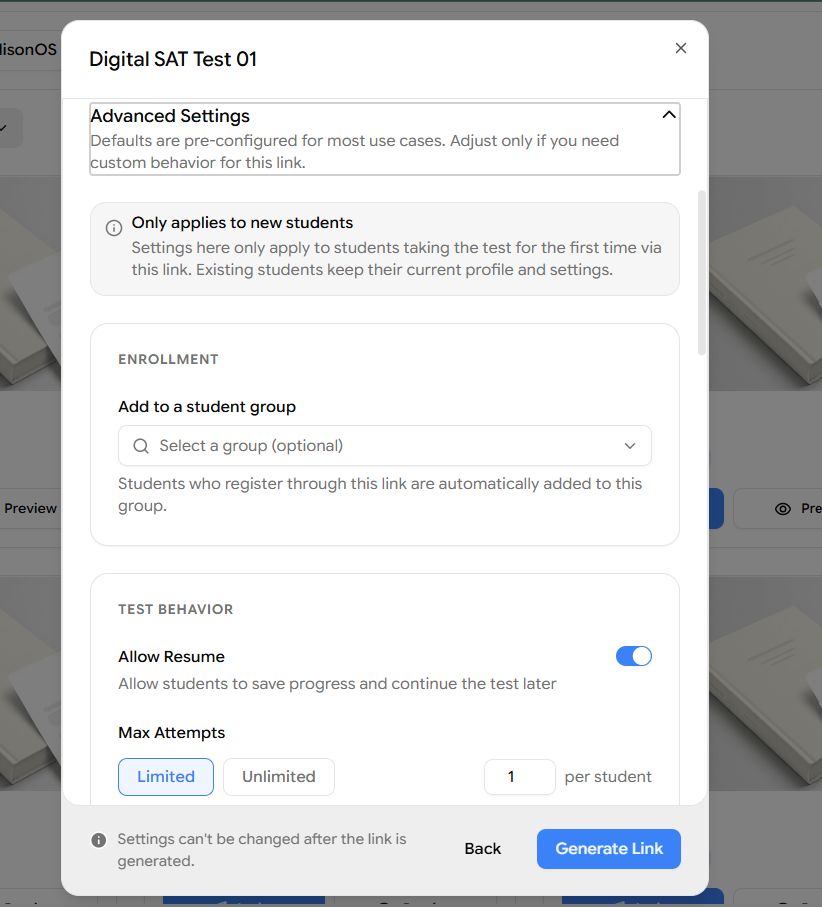
Use the Add to a student group dropdown to select a group (optional).
Students who register through this link are automatically added to the group you choose.
A group holds a set of students along with the tutor assigned to them, so assigning the link to a group means every new registrant is placed under that group and its tutor in one step, no need to enroll or group them individually.
Expand Advanced Settings. At the top you'll see a reminder that these settings only apply to new students, students taking the test for the first time via this link. Existing students keep their current profile and settings.
The first section is Enrollment, where you can bulk assign registrants to a group:
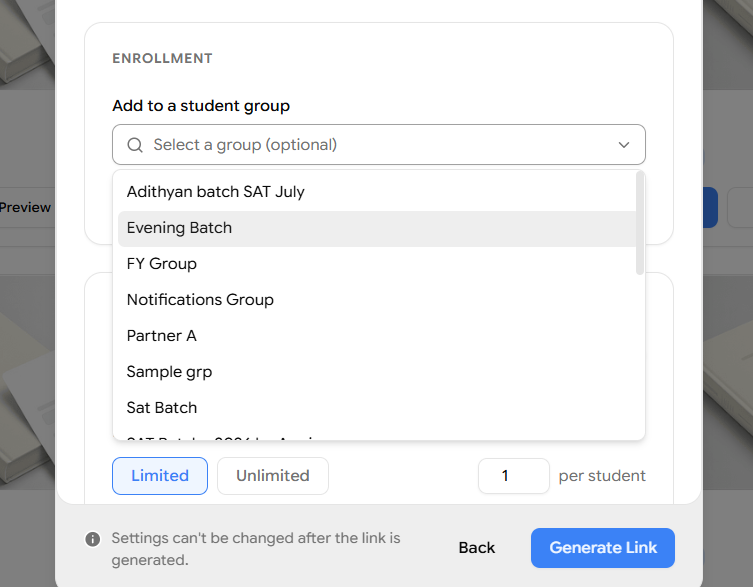
A group holds a set of students along with the tutor assigned to them, so assigning the link to a group means every new registrant is placed under that group and its tutor in one step, no need to enroll or group them individually.
To know more about Groups, Refer to Managing Groups & Tutors
Configure Test Behavior
Expand Advanced Settings and locate the Test Behavior section to control how students take the test:
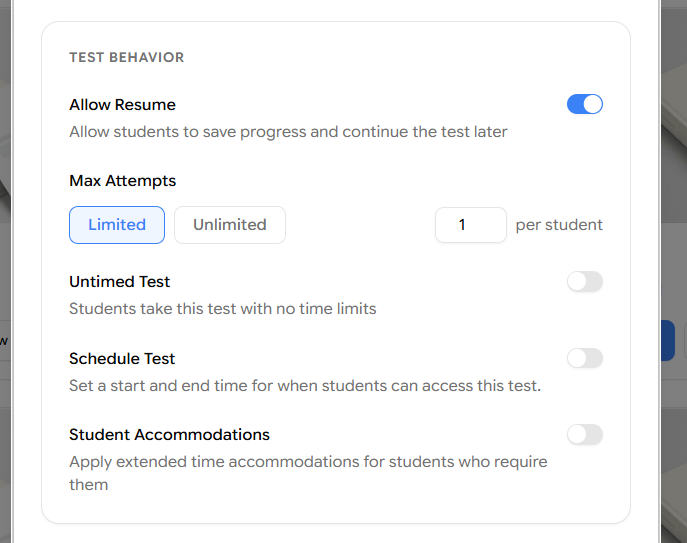
Setting | What it does |
|---|---|
Allow Resume | Allows students to save progress and continue the test later. |
Max Attempts | Set Limited (then enter a number, e.g., 1 per student) or Unlimited retakes. |
Untimed Test | Students take this test with no time limits. |
Schedule Test | Set a start and end time for when students can access this test. |
Student Accommodations | Apply extended time accommodations for students who require them. |
Toggle each setting on or off based on your preference.
Set Post-Submission Behavior
In the Post-Submission section, choose where students land after submitting the test:
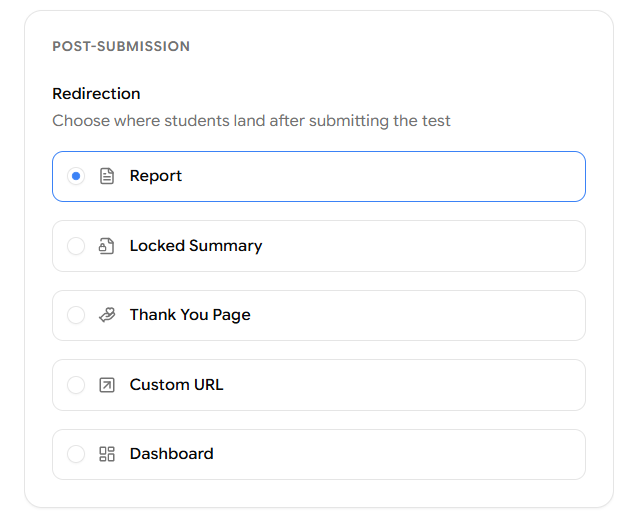
Option | What students see |
|---|---|
Summary Page | A detailed test summary screen showing their results after completing the test. |
Locked Summary | A Minimal summary which that stays basic and does not have all the reports |
Thank You Page | A Custom Thank you Message which can be set by you. |
Custom URL | Redirects students to a web address you specify. |
Dashboard | Sends students back to their EdisonOS Student dashboard. |
Choose the Student Details to Collect
In the Student Details section, choose the information students must provide when they register through this link. This is especially useful for capturing lead information from students who aren't enrolled yet.
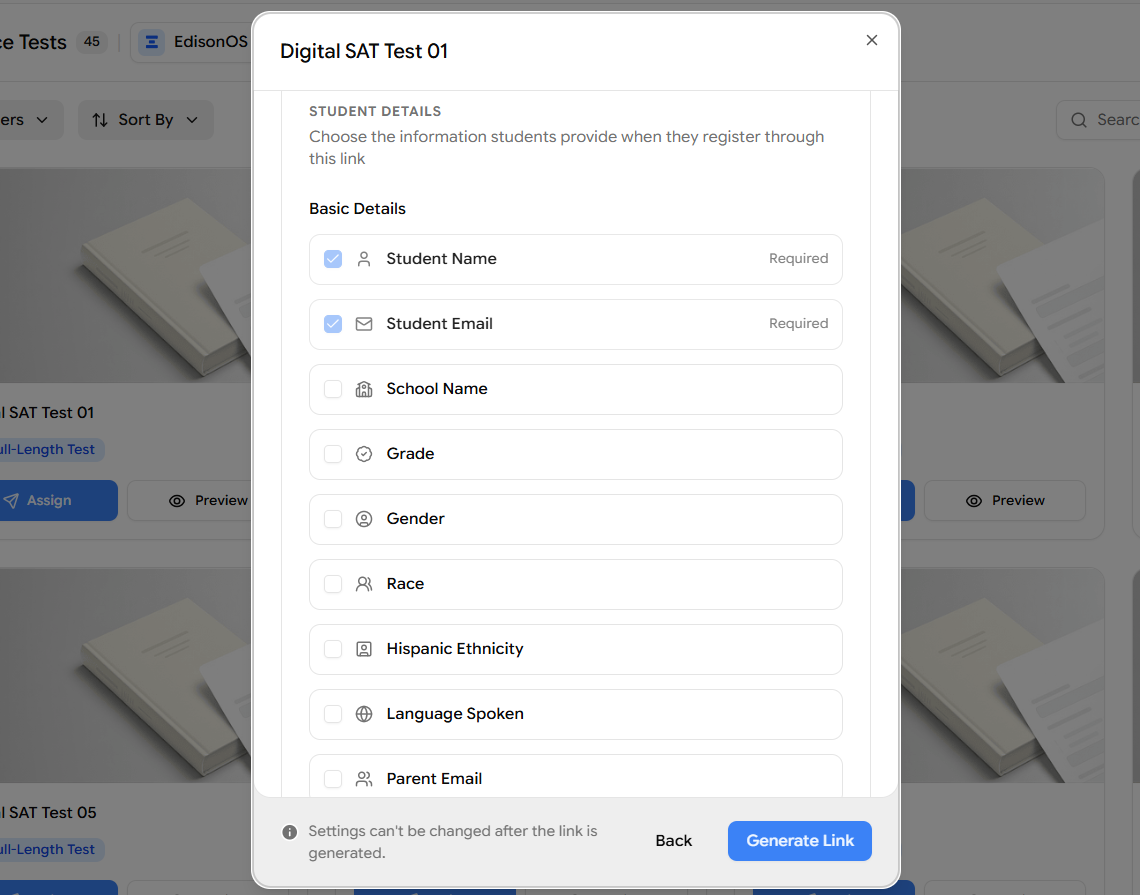
Basic Details includes fields such as:
Student Name (Required)
Student Email (Required)
School Name
Grade
Gender
Race
Hispanic Ethnicity
Language Spoken
Parent Email
Scroll down to the Academic Goals section to optionally collect goal-related information:
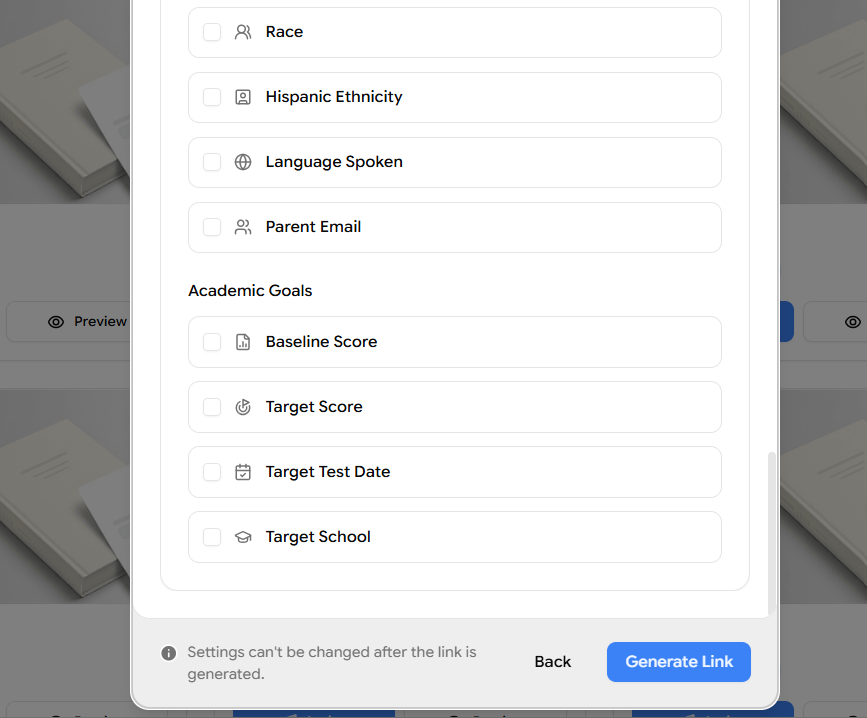
Baseline Score
Target Score
Target Test Date
Target School
Check the box next to each field you want students to fill in during registration.
Generate and Share the Link
Once you have specified the link details, test behavior, post-submission behavior, and the student details to collect, click Generate Link in the bottom-right corner.
Remember, settings can't be changed after the link is generated. Once generated, copy the link and share it with your students so they can register and take the test.
Generate and Share the Link
Once you have specified the link details, enrollment group, test behavior, post-submission behavior, and the student details to collect, click Generate Link in the bottom-right corner.
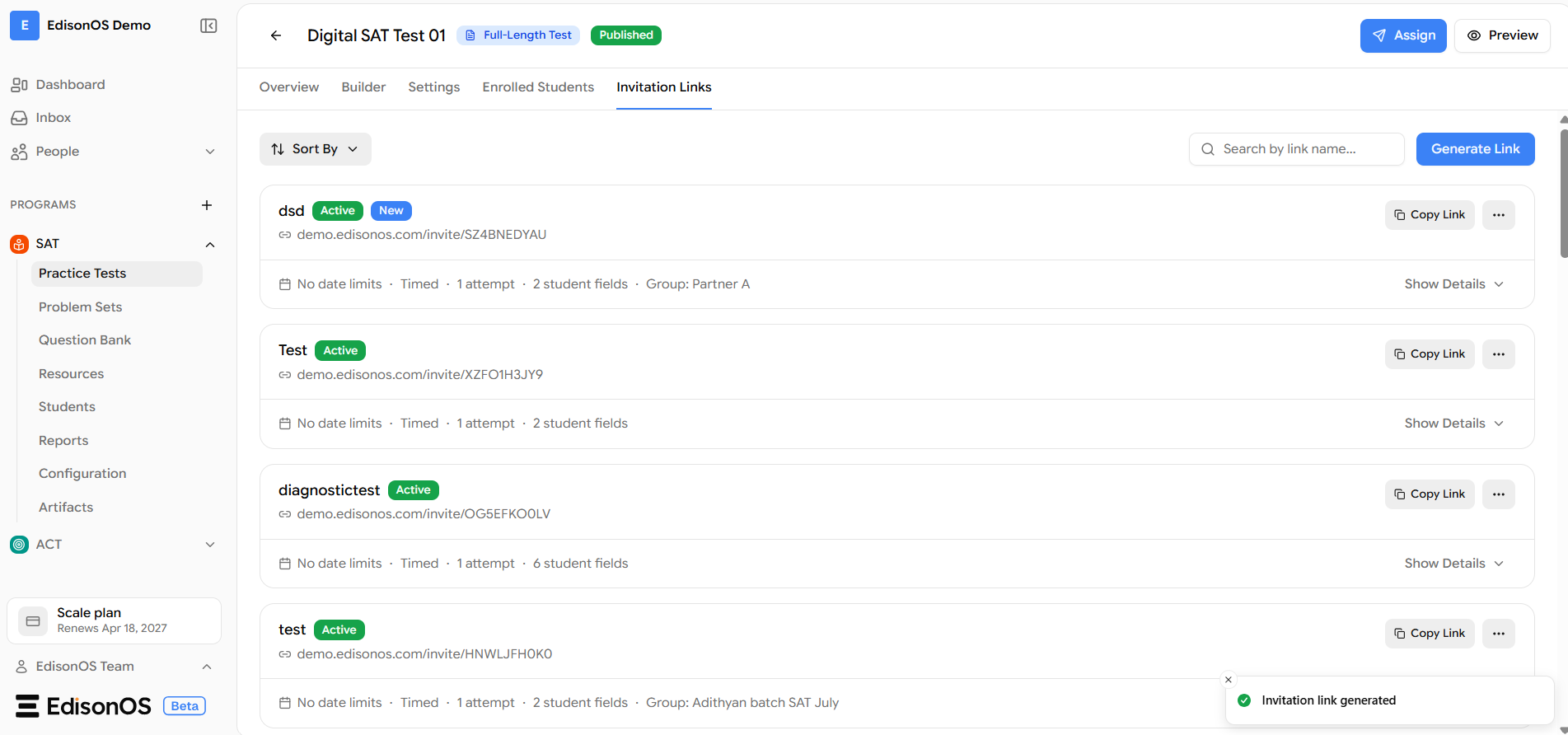
A confirmation toast appears (Invitation link generated), and you land on the Invitation Links tab, where all generated links for this test are listed:
For each link you'll see its name, status (e.g., Active), the invite URL, and a quick summary of its settings, such as date limits, timed/untimed, number of attempts, student fields collected, and the assigned group (e.g., Group: Partner A). Click Show Details to expand any link, or use the ⋯ menu for more options.
To share a link, click Copy Link next to the one you want and send it to your students, they can then register and take the test.
The settings can't be changed after a link is generated, you can create multiple links for the same test, each with different behavior, for different purposes.
Summary of Assign a Practice Test
Method 1 - Assign to My Students:
Program → Practice Tests → Click Assign → Assign to My Students → Select Students / Group → Show Advanced Settings → Set Attempts & Schedule → Configure Advanced Settings → Set After the Test behavior → Assign Practice Test → Student receives email → Student clicks Login to EdisonOS → Takes the test
Method 2 - Assign via Invitation Link:
Program → Practice Tests → Click Assign → Assign via Invitation Link → Add Link Details → Add to Student Group (optional) → Configure Test Behavior → Set Post-Submission behavior → Choose Student Details to collect → Generate Link → Copy Link from the Invitation Links tab → Share with students → Student registers → Takes the test