
1.2 Quickstart Guide
Start using EdisonOS in 15 minutes
This walkthrough will get you up and running with EdisonOS quickly. You will learn how to preview content, assign tests to students, read reports, and manage your academy all through easy-to-follow steps.
What you will accomplish
Preview a Problem Set and understand its structure
Preview a Practice Test before assigning it
Assign a Practice Test and Problem Set to a student
View student performance in Reports
Explore the Console App to manage billing and academies
1. Preview a Problem Set
A Problem Set is a short, test focused on a specific skill or topic. Before assigning it to students, you can fully preview it experiencing it exactly as your students will.
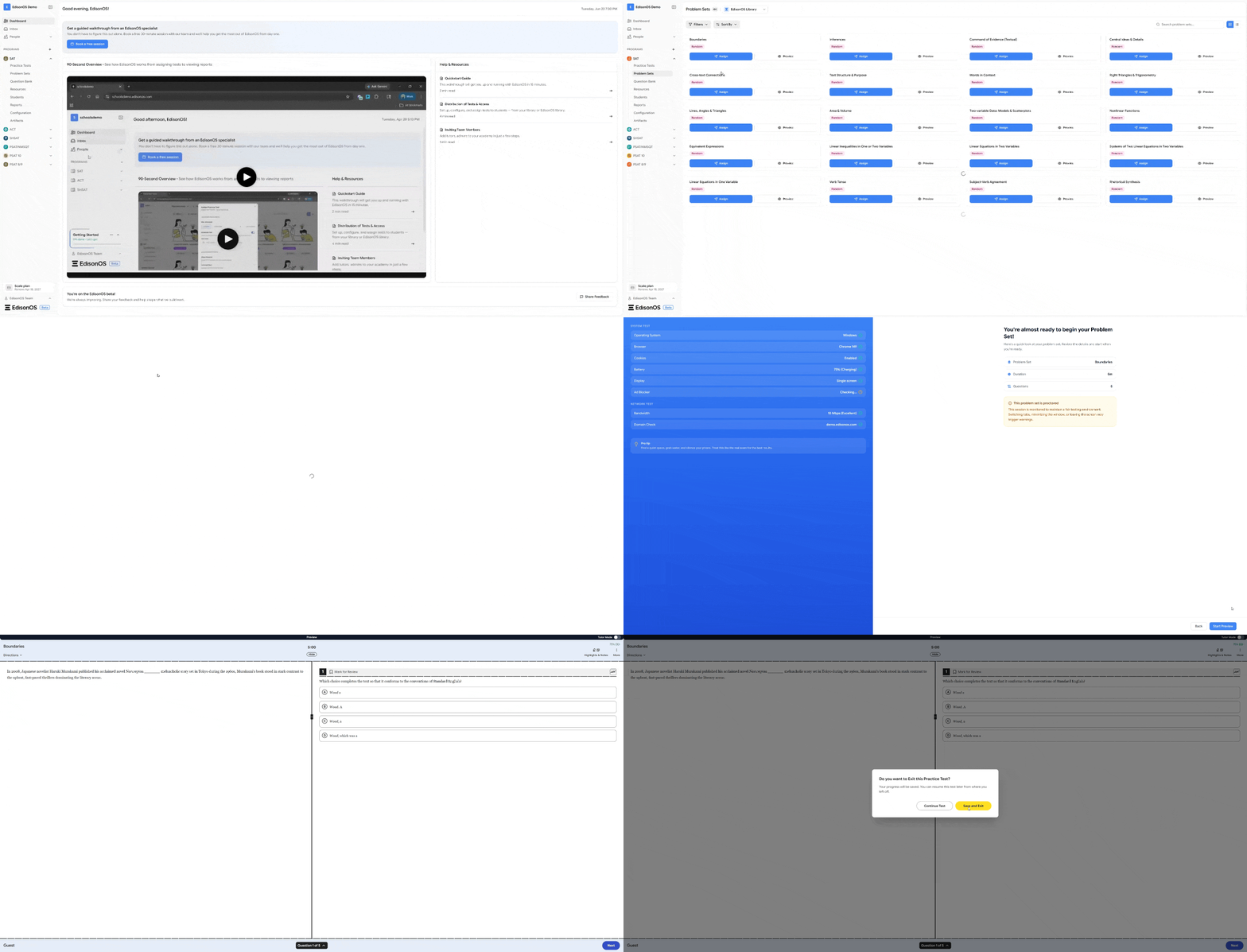
In the left sidebar, click on a Program for example, SAT or ACT
Click on Problem Sets
Use the EdisonOS Library / My Library dropdown to switch content
Browse and find the Problem Set you want to preview
Click the Eye Icon on the Problem Set to launch the full preview
What happens in Preview for both practice test/problem set:
You are taken into the real testing interface the same one students see
The Lobby Page loads first, where a quick system check takes place
You can navigate through all questions, choose answers, and use all available tools
At the end, a dummy performance report is generated showing exactly how a student's report would look after completing the test
No attempt records are created and no credits are deducted
The Preview feature lets you experience a Problem Set exactly as your students will including the full test interface, timing, and a sample performance report without affecting any records or credits.
You are not assigning anything yet, this is just a preview. Use this step to explore what is available before committing to an assignment.
2. Preview a Practice Test
Practice Tests simulate real exam conditions. Preview to verify structure, timing, and coverage.
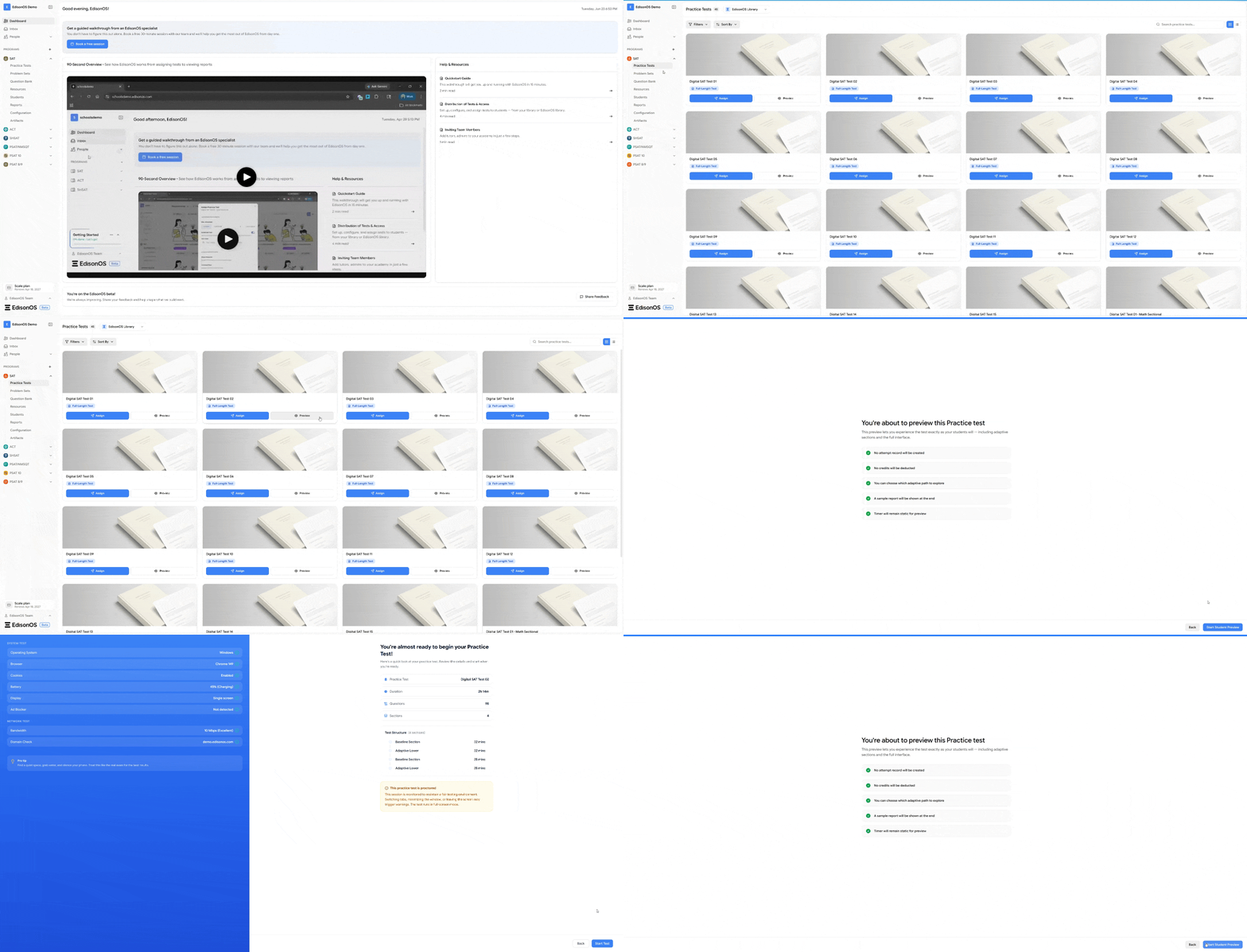
In the left sidebar, click on a Program for example, SAT or ACT
Click on Practice Tests
Use the EdisonOS Library / My Library dropdown to switch content
Browse and find the Practice test you want to preview
Click the Eye Icon on the Problem Set to launch the full preview
Practice Tests from the EdisonOS Library are pre-built and verified. You do not need to create anything from scratch to get started.
3. Assign a Problem Set
Assign skill based test to your students
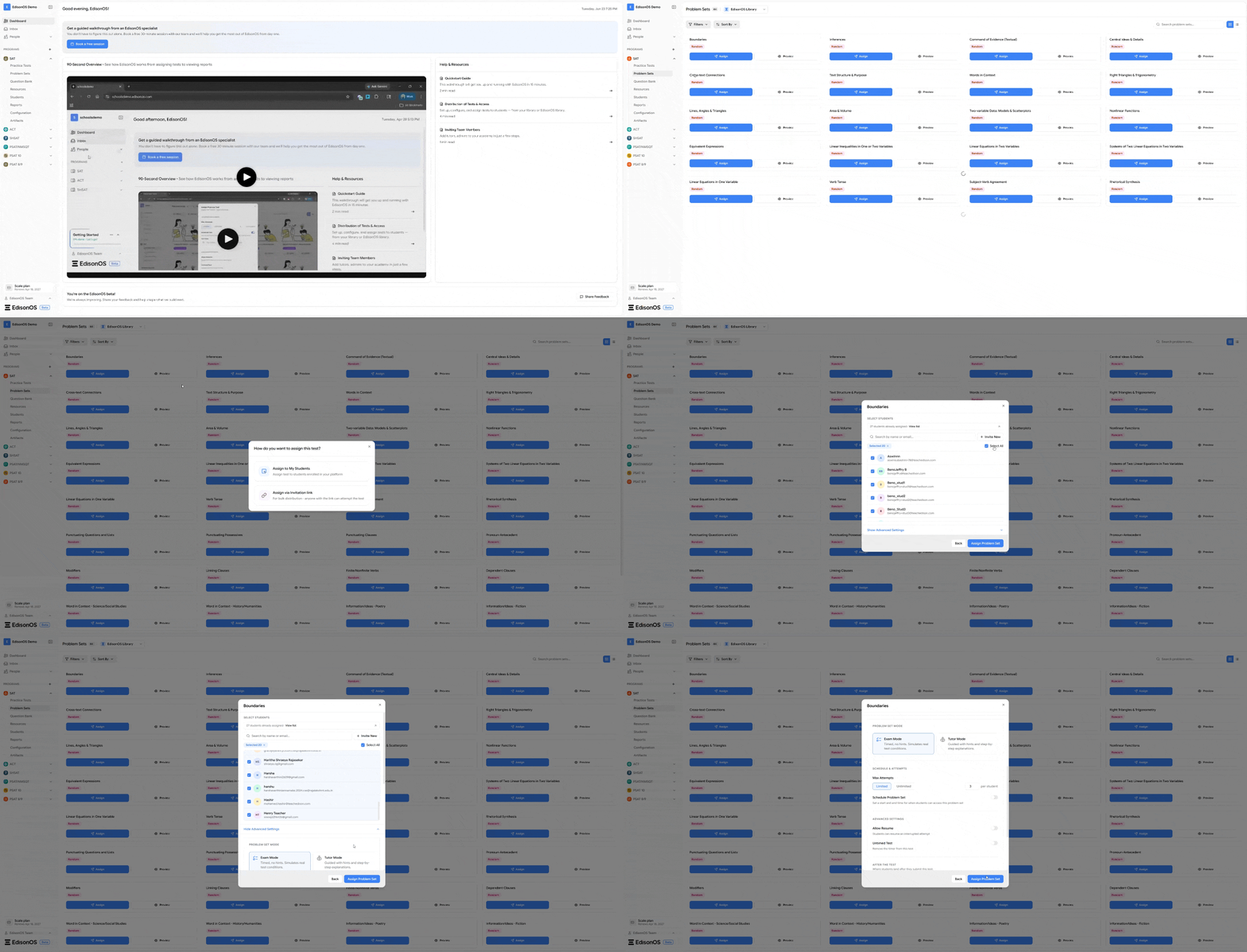
Navigate to Problem Sets inside your program
Find the Test you want to assign and click Assign
Choose the test mode:
Exam Mode: timed, no hints replicates real test conditions
Tutor Mode: guided with hints and step-by-step explanations
Configure attempts:
Set maximum attempts as limited or unlimited
If limited, define how many attempts a student can take
Schedule the assignment:
Set when the Test or Problem Set should be available
Adjust advanced settings:
Allow Resume: students can continue where they left off
Untimed Test: removes the timer
Select the students you want to assign the test to
Click Assign Test to send the assignment
Use Tutor mode for practice and Exam mode for realistic test simulations.
4. Assign a Practice Test
Assign a full-length practice test to your students.
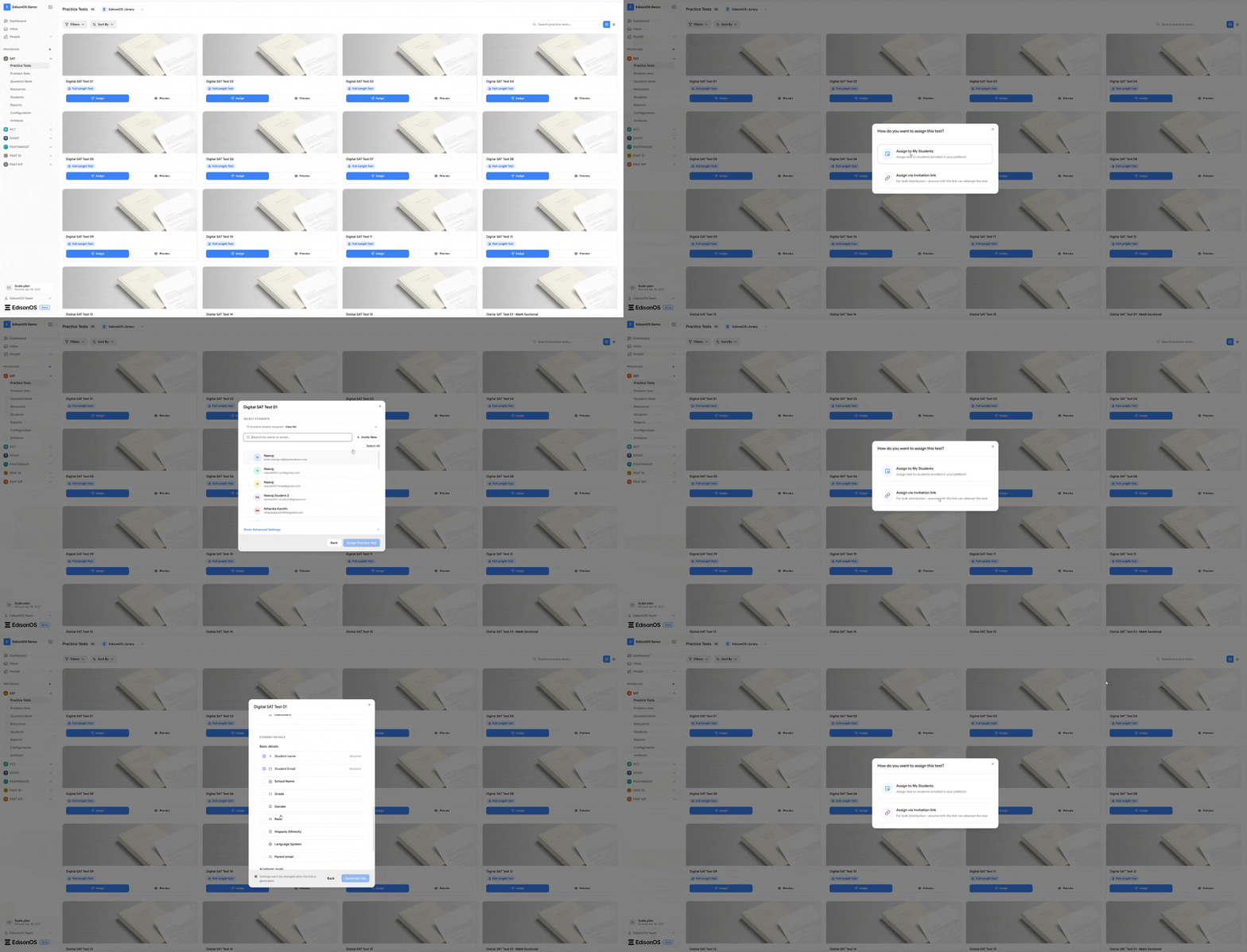
Steps to Assign a Practice Test:
Navigate to Practice Tests inside your program.
Find the test you want to assign and click Assign via any method.
Select the students who should receive the test.
Configure attempts:
Set Maximum Attempts as Limited or Unlimited.
If limited, specify the number of attempts allowed per student.
Configure scheduling (optional):
Enable Schedule Test to set a start and end date for access.
Adjust advanced settings:
Allow Resume: Lets students continue an interrupted attempt.
Untimed Test: Removes the timer from the assessment.
Choose what students see after submitting:
Summary Page
Locked Summary
Thank You Page
Custom URL
Dashboard
Click Assign Practice Test to complete the assignment.
Use Allow Resume for at-home practice and Schedule Test when administering tests during a specific time window.
5. View student Reports
Review performance
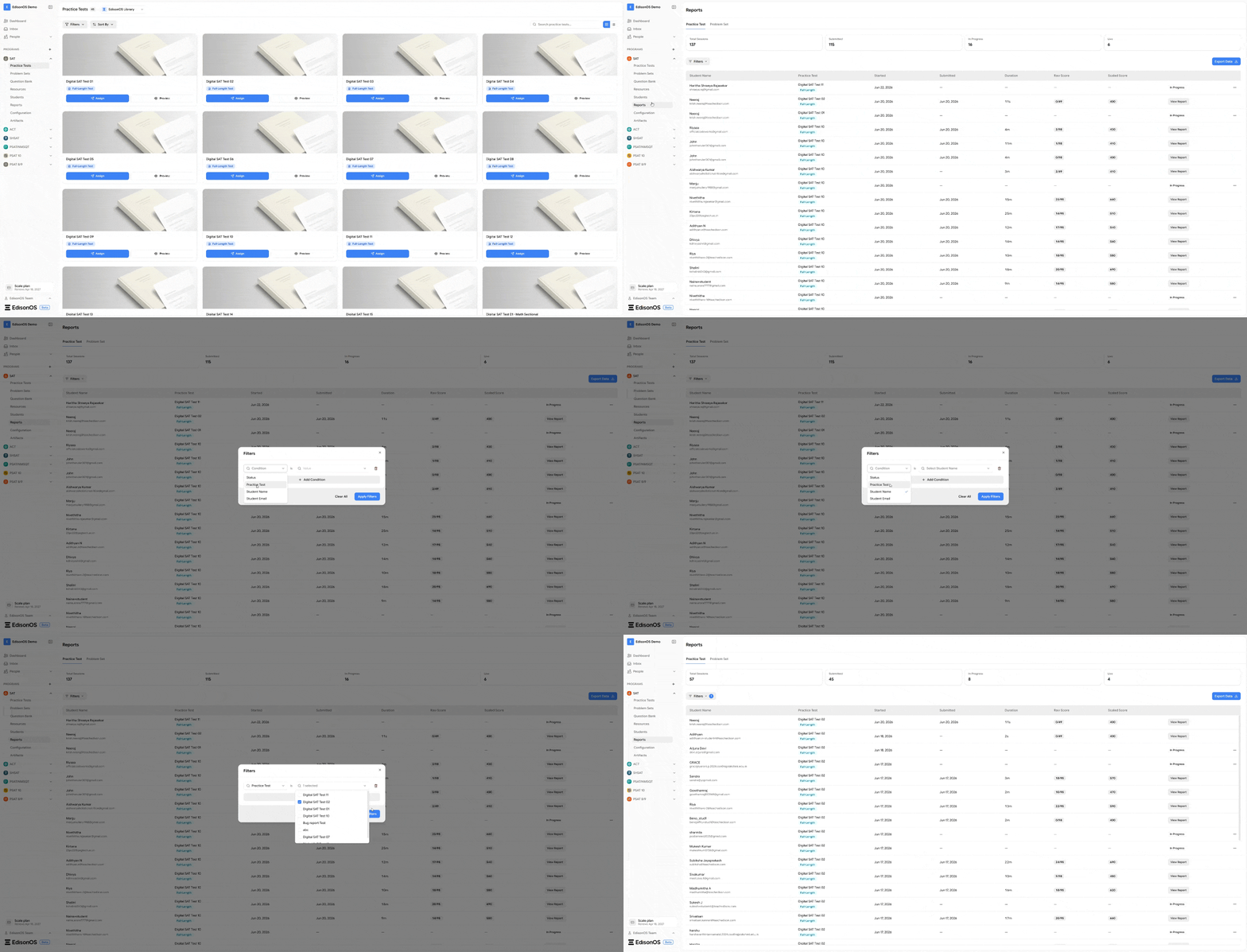
Steps to review performance:
Open your program
Click Reports
Filter by status, practice test name, student name & student email.
Open any result
Inside reports you’ll see:
Overall & section scores
Time taken
Question breakdown
Weak areas
Reports are scoped per program. To see SAT results open Reports inside the SAT program; for ACT results, switch to the ACT program.
5. Manage in Console App
Manage academies and billing
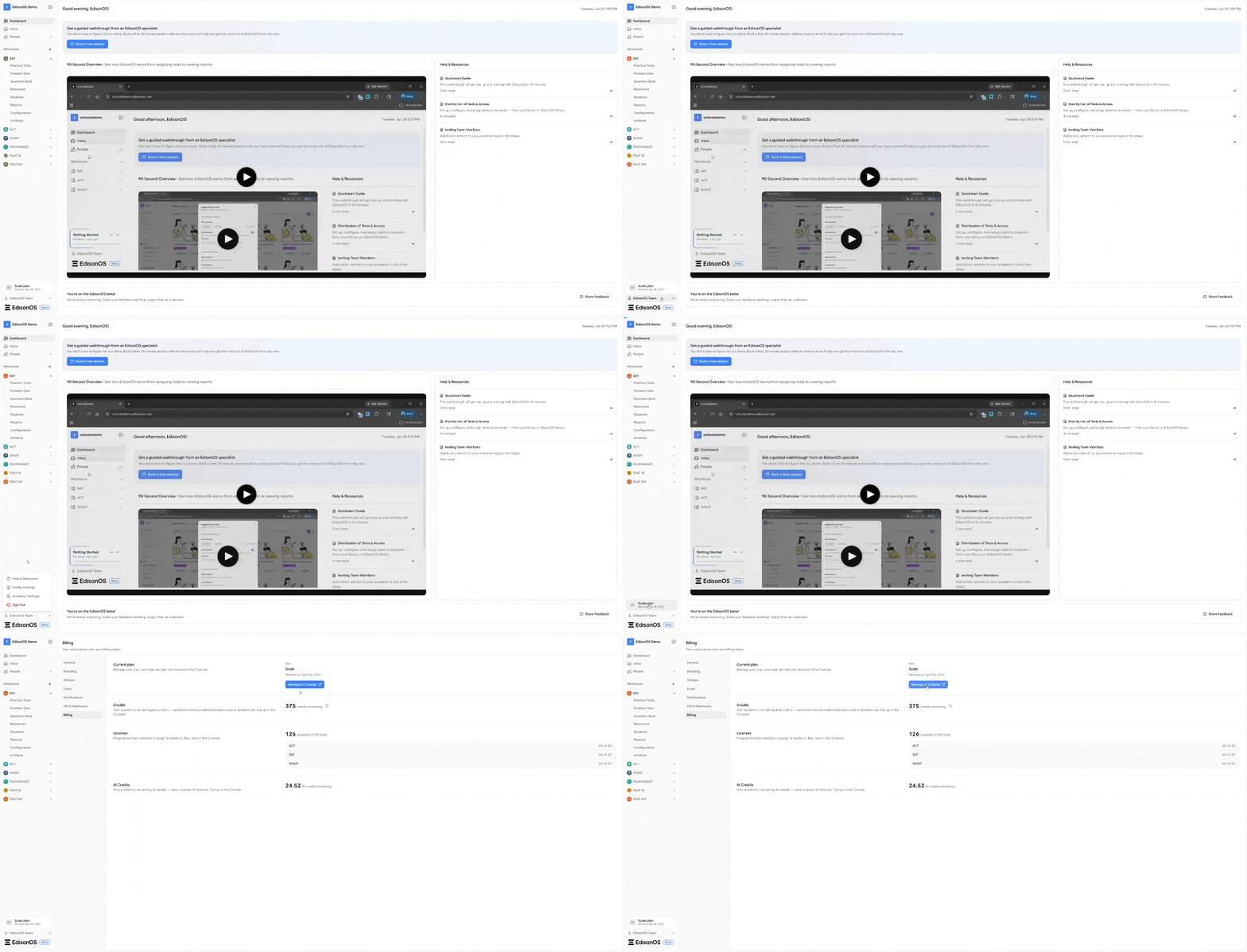
Steps to visit console app:
In the bottom-left sidebar, click on your plan name located just above your profile.
This will open the Academy Billing Settings page, where you can view your remaining credits, licenses, and AI credits.
Click "Manage in Console" to access the Console App, where you can upgrade your plan, purchase licenses, and manage your subscription.
What's next?
Want to understand how everything connects? Explore Core Concepts.