
1.3 Core Components
Core Components of the Platform
The platform is designed to help admins manage test prep in a clear, structured flow from creating content to improving student outcomes through tests.
Everything is organized in a simple hierarchy:
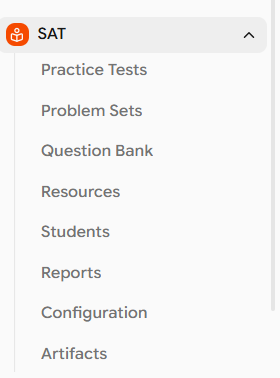
Programs → Practice Tests → Problem Sets → Question Bank → Students → Reports → Configuration → Artifacts
1. Programs
Your top-level workspace
A Program is the highest-level container in EdisonOS. It represents a specific standardized exam and defines everything related to that exam: the question types accepted, the official curriculum structure, and the scoring model. All content, tests, students, and reports live inside the program they belong to.
Supported programs: SAT, ACT, SHSAT, SAT , PSAT/NMSQT , PSAT8/9 , PSAT10
Feature | What it means for you |
|---|---|
What's inside | Question Bank, Practice Tests, Problem Sets, Users, Reports, and Configuration all scoped to one exam |
Program separation | Each program is a separate environment. SAT content, students, and reports are completely separate from ACT |
Curriculum | Pre-set by EdisonOS per exam (Module → Domain → Skill → Subskill). Read-only and cannot be modified |
Multiple Programs | Multiple programs can exist in a single academy. Admins/Owners manage each independently |
Switch between them using the left sidebar. Reports, question banks, and tests inside SAT will never surface inside ACT.
2. Question Bank
Your content foundation
The Question Bank is the repository where all questions live. It is split into two distinct libraries: EdisonOS Library and My Library where each with a different purpose and set of permissions. Every test or problem set you build draws its questions from here.
EdisonOS Library A pre-built, curated collection of 7,500+ questions maintained by EdisonOS. This is read-only. You cannot edit, delete, or move these questions. Questions are organized by program, module, domain, skill, and difficulty.
My Library Your private question bank. Fully editable. You can add questions manually, or use the AI Uploader to bulk import from PDFs or images. Questions can be organized into custom folders (e.g., "Jan 2026 Upload").
Capability | EdisonOS Library | My Library |
|---|---|---|
Preview a Folder | Yes | Yes |
Search by keywords | Yes | Yes |
Use in tests and problem sets | Yes | Yes |
Edit questions | No, read-only | Yes, fully editable |
Add questions | No | Yes, manual entry or AI Uploader |
Organize with folders | No | Yes |
Reorder questions | No | Yes |
Questions can be filtered by Difficulty & Question Usage.
Question types supported: EdisonOS supports Multiple Choice Questions (MCQ), Student Produced Response (SPR), and 9+ TEI (Technology-Enhanced Item) question types for SHSAT matching the real question mechanics of each supported exam.
Best practice Start with the EdisonOS Library for all pre-built, verified content. Use My Library for proprietary materials, custom drills, or questions you have sourced from your end.
3. Practice Tests
Full-length and Module Tests
Tests are full-length or module-based, timed exams that replicate the official test structure for sections, breaks, timing, and question mechanics so students experience real exam conditions. They can be pre-built (from the EdisonOS Library) or custom-built by a tutor (My Library).
EdisonOS Tests Ready-to-use tests created using EdisonOS Library questions. Verified and accurate to the official exam. No setup required, It can be assigned directly to students.
My Library Tests built by tutors using questions from the EdisonOS Library or your own Library, or both.
When you click on "assign" for any practice tests, below are the settings you receive while assigning a test.
Setting | Options | When to use |
|---|---|---|
Max Attempts | Limited or Unlimited | Set a cap for formal assessments; unlimited for open practice |
Schedule Test | On / Off | Set a start and end time for when students can access the test |
Allow Resume | On / Off | Lets students continue from where they left off |
Untimed Test | On / Off | Removes the timer for accessibility or tutoring scenarios |
After the Test | Summary Page, Locked Summary, Thank You Page, Custom URL, Dashboard | Controls where students land after they submit the test |
Reports for Practice Tests are scoped per program. To view SAT practice test results, open Reports inside the SAT program. ACT results live inside the ACT program
4. Problem Sets
Focused, targeted practice
Problem Sets are short, targeted practice sessions focused on a specific skill or domain. Unlike Practice Tests, which simulate the full exam, Problem Sets let you zero in on weak areas making them ideal for daily drills, homework assignments, or remediation.
Property | Detail |
|---|---|
Scope | Narrow focused on one skill, or difficulty level (e.g., "SAT Math - Algebra: Linear Equations") |
Structure Types | Linear (fixed question order), Random (randomized question order), or Question Adaptive (difficulty adjusts based on responses) |
Source | EdisonOS Library (pre-built sets) or My Library (custom sets) |
Assignment Settings | Tutor Mode / Exam Mode (available for Problem Sets only), attempts, scheduling, and resume |
Best Used For | Daily practice, weak area remediation, homework, or skill checkpoints |
Practice Tests vs Problem Sets Use Practice Tests to evaluate overall performance on a full exam. Use Problem Sets to improve specific weak areas identified in those reports. They work together as a diagnostic → remediation loop.
5. Students
Managing students
Students is where you manage all students enrolled in a specific program. Only students enrolled in that program will be visible here for example, SAT enrolled students will be seen under SAT, and ACT enrolled students under ACT.
Action | What it enables |
|---|---|
Assign Student License | Grant a student access to the program |
Limit Credits | Control the number of attempts or credits available to a student |
View Profile | Access individual student details and activity |
Deactivate a Student | Remove a student's active access to the program |
Users are managed per program. A student enrolled in your SAT program is not automatically visible in your ACT program they must be added separately.
7. Reports
Test history and performance overview
Reports is essentially a test history page where you can see every test a student has taken, is in progress on, or is live. It gives you a quick view of how students are performing across all their practice tests, and acts as the entry point into each individual test report.
At the top, summary cards show Total Sessions, Submitted, In Progress, and Live counts. The main table lists every test session with the following columns:
Report Dimension | What you see |
|---|---|
Student | Student name and email |
Practice Test | Test name and type (e.g., Digital SAT Test 01, Full-Length) |
Started | Date the student started the test |
Submitted | Date the student submitted the test |
Duration | Total time the student spent on the test |
Raw Score | Number of correct answers out of total (e.g., 17/98) |
Scaled Score | The official exam-scale equivalent (e.g., 630) |
View Report | Opens the individual report for that specific test |
Program scope Reports are always scoped to the program you are currently in. Open the SAT program to see SAT results; switch to ACT for ACT results.
Clicking View Report takes you to the detailed report of that test, with section breakdowns, question-level detail, and weak areas. Use Filters to narrow by Status, Practice Test, Student Name, or Email, and Export Data to download results. Reports are split into Practice Test and Problem Set tabs.
8. Configuration
Curriculum and tags
Configuration is where you manage two things: the official curriculum hierarchy for your program, and your own custom tags. These two settings work differently like curriculum is fixed and set by EdisonOS, while tags are fully yours to create and manage.
Curriculum Hierarchy (read-only) The curriculum hierarchy represents the official syllabus structure of the exam you are teaching. It is defined by EdisonOS and structured as: Module → Domain → Skill → Subskill. Example: Math → Algebra → Linear Equations. You can view this hierarchy but cannot edit it.
Custom Tags (editable) Create your own labels for questions in My Library. Tags are flexible and you can use them to categorize by source, difficulty tier, priority, or any internal system you prefer.
Hierarchy level | Example (SAT Math) | Editable? |
|---|---|---|
Module | Math | No |
Domain | Algebra | No |
Skill | Linear Equations | No |
Subskill | Exam-specific breakdowns | No |
Custom tags | e.g., "Priority", "Source: Khan Academy, Jan 2025 Questions" | Yes, fully editable |
How it all works together
EdisonOS follows one clean, repeatable workflow from setup to improvement:
Open a Program (SAT, ACT, etc.) this sets your entire context.
Explore the Question Bank browse the EdisonOS Library (7,500+ questions) or upload your own into My Library.
Build or select a Practice Test / Problem Set: Pick a ready-to-use test from the EdisonOS Library, or create your own in My Library and assign it to students.
Enroll students and assign practice tests or problem sets with your preferred mode and settings.
Review Reports: Identify weak areas, track progress, and use insights to refine the next assignment.
What's next?
Glossary → Definitions for every term used across EdisonOS 3.0 Read the Glossary