
2.3 Academy Settings
The Academy Settings page allows administrators to manage everything related to their academy from one place. You can update your academy information, customize branding, configure your website domain and email settings, manage notifications, connect external integrations, and view billing details.
Who Can Access Academy Settings?
Only users with administrator permissions can access and modify Academy Settings.
To access it:
Log in to your EdisonOS admin account.
Click your Profile icon.
Select Academy Settings.
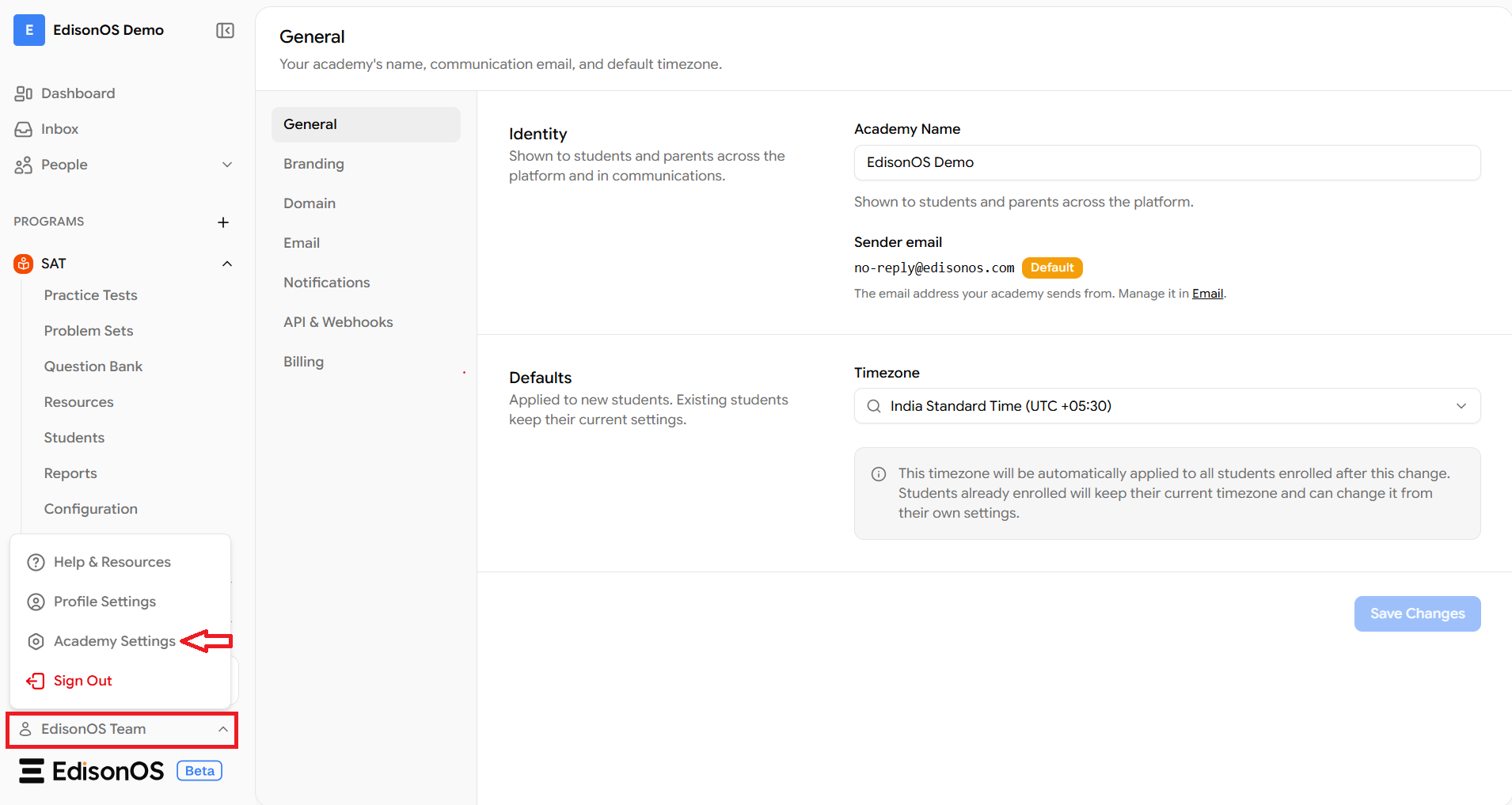
The page contains the following sections:
General
Branding
Domain
Email
Notifications
API & Webhooks
Billing
1. General:
Use this section to update your academy's basic information.
Academy Name: Update the name of your academy. This name appears throughout the platform and in emails sent to students and parents.
Sender Email: The sender email is used for outgoing academy emails. To use your own email address, authenticate your domain from the Email section.
Time zone: Select the default time zone for newly enrolled students.
Changing the time zone only affects new students. Existing students keep their current time zone unless they update it themselves.
2. Branding:
Customize your academy's appearance by uploading a logo and browser favicon.
Logo: Recommended size – 250 × 100 px
Favicon: Recommended size – 32 × 32 px
Supported formats: JPG and PNG.
3. Domain:
Manage your academy's website address.
Use the default EdisonOS subdomain or connect your own custom domain.
To verify a custom domain, add the DNS records provided and wait for verification.
Once verified, visitors to your default EdisonOS URL are automatically redirected to your custom domain.
DNS changes can take up to 24 hours to propagate.
4. Email:
Authenticate your email domain so academy emails are sent from your own domain instead of the default EdisonOS email address.
Enter only your root domain.
❌ youracademy.com/login
After adding the required DNS records, EdisonOS automatically verifies your domain.
5. Notifications:
Manage notification preferences for different academy events.
You can:
Enable or disable notifications.
Choose who receives them.
Send notifications by Email, In-app, or both.
Save your changes after updating the notification settings.
6. API & Webhooks:
Use this section to connect EdisonOS with external applications.
API: Create secure access tokens for integrations.
Webhooks: Send real-time event updates to other applications.
Docs: View API documentation, including endpoints and examples.
Important: Keep your API access tokens secure.
7. Billing:
View your academy's subscription and available resources.
This section includes:
Current Plan: View your subscription details, renewal date, invoices, and payment options.
Credits: Remaining test credits.
Licenses: Available program licenses that can be assigned to students.
AI Credits: Remaining AI credits available for AI-powered features.
Need More Help?
To learn how to Purchase Credits, Licenses or AI Credits, refer to the following articles: For your reference, you can access the article
If you need further assistance, contact help@edisonos.com.