Skip to content
EdisonOS Help Center home

Purchase Guide for Test Credits, Licenses, and AI Credits

About Test Credits

Test Credits are required for students to attempt tests that are not covered by a license. You can purchase additional Test Credits at any time from the Console App based on your academy's requirements.

Steps to Purchase Test Credits

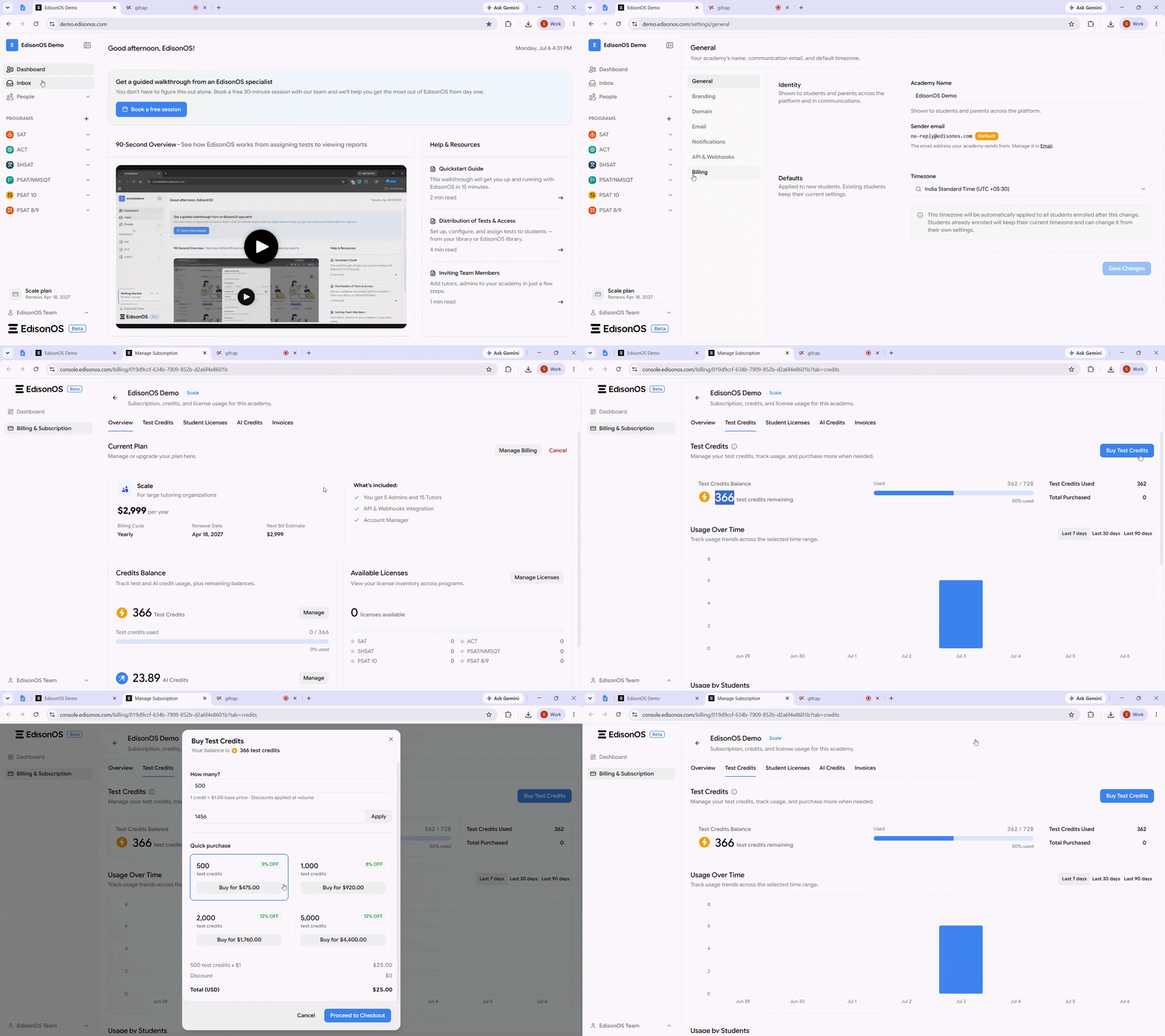
  1. From your academy dashboard, navigate to Your Plan.

  2. Click Billing, and then select Manage Console to open the Console App.

  3. In the Console App, navigate to Billing & Subscription and open the Test Credits tab.

  4. Click Buy Test Credits in the top-right corner of the page.

Purchase Summary

  • In the Buy Test Credits window, enter the number of test credits you want to purchase in the How many? field, or choose one of the available Quick Purchase options.

  • If you have a Promotion Code, enter it in the provided field and click Apply to redeem the discount.

  • Review the purchase summary, including the number of test credits, any applicable discounts, and the total amount.

  • Click Proceed to Checkout to complete your purchase.

Purchase Options 

You can purchase test credits in either of the following ways:

  • Custom Purchase: Enter the required number of test credits in the How many? field. 

  • Quick Purchase: Select one of the predefined credit packages to purchase test credits instantly. Available packages may include volume discounts.

Verify Your Purchase

Once the purchase is completed, the newly purchased test credits will be added to your academy's Test Credits Balance. You can also view your remaining balance, credit usage, and purchase details from the Test Credits page.
Recording2026-07-06at16.33.21online-video-cutter.com-ezgif.com-video-to-gif-converter.gif

Purchase Licenses

About Purchase Licenses

A license gives a single student unlimited access to all tests, problem sets, and practice content within a specific program for the license duration.

Steps to Purchase Licenses

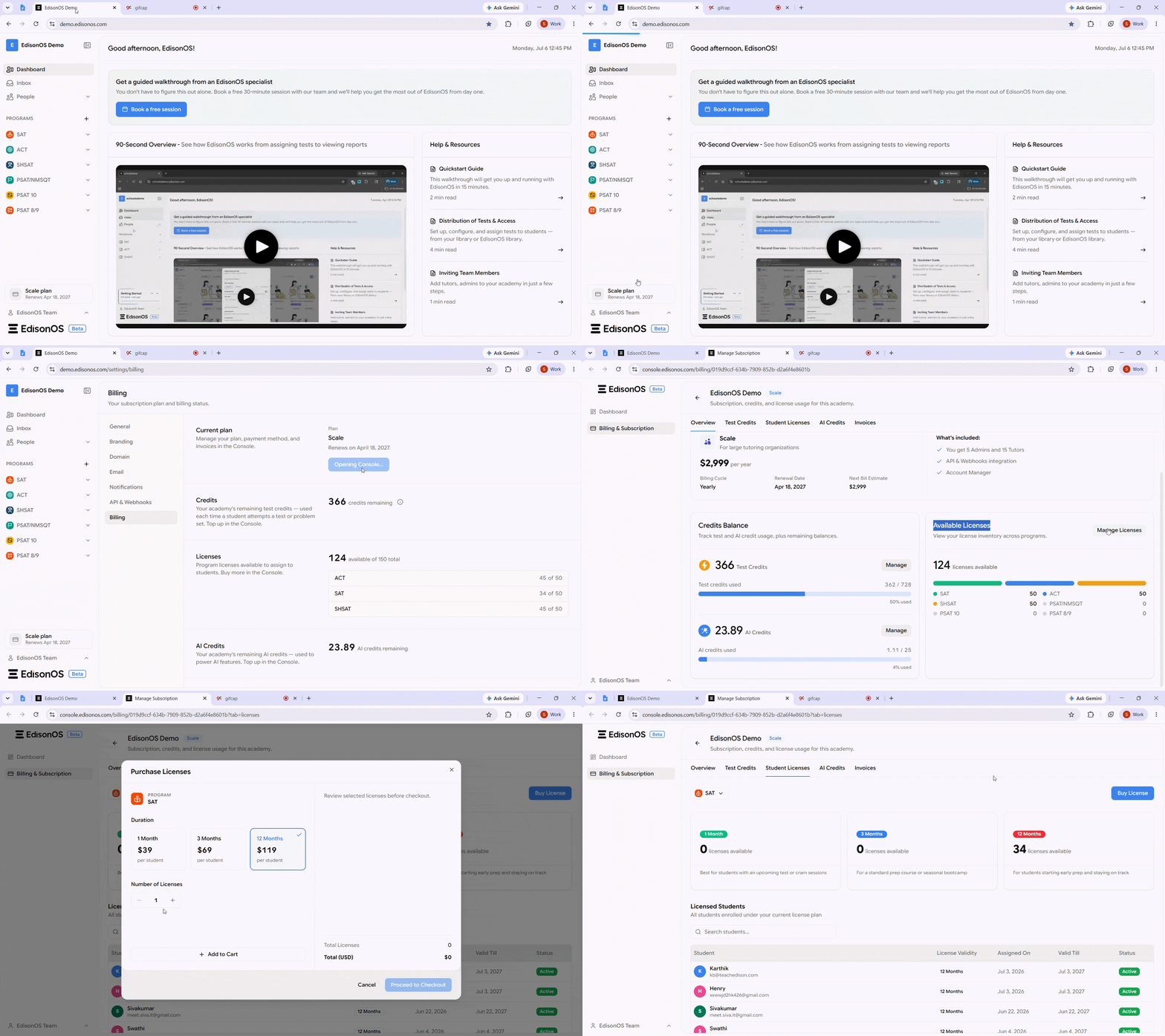
  1. From your academy dashboard, navigate to Your Plan.

  2. Click Billing, and then select Manage Console to access the Console App.

  3. In the Console App, navigate to Billing & Subscription, and then click the Student Licenses tab.

  4. Enter the required number of licenses based on your academy's needs and complete the purchase.

    Recording2026-07-06at12.47.38online-video-cutter.com-ezgif.com-video-to-gif-converter.gif

    Assign a License to a Student

    Students with an assigned license can take unlimited tests and problem sets without consuming Credits. Although Credits may still be displayed in the platform, licensed students will not use those credits while taking tests.

    Once licenses are available, you can assign them to individual students.

    1. Open the required Program and navigate to the students tab.

    2. Search for the student by name.

    3. Click the three-dot menu (⋯) next to the student's name.

    4. Select Assign License.

    5. Choose the required license duration based on your available plans (for example, 1 Month, 3 Months, or 12 Months).

    6. Click Assign License to apply the license immediately.

    After a license is assigned, the student can continue taking tests and problem sets without consuming Credits, even if Credits are still displayed on the platform.

    Recording 2026-07-03 at 10.45.43.gif

    Purchasing a license does not activate it. The license becomes active only after it is assigned to a student.

    Purchase AI Credits
    About AI Credits

    AI Credits are used whenever you upload a PDF using AI extractor. Each PDF upload consumes AI credits, which are automatically deducted from your available balance.

    Steps to purchase AI Credits

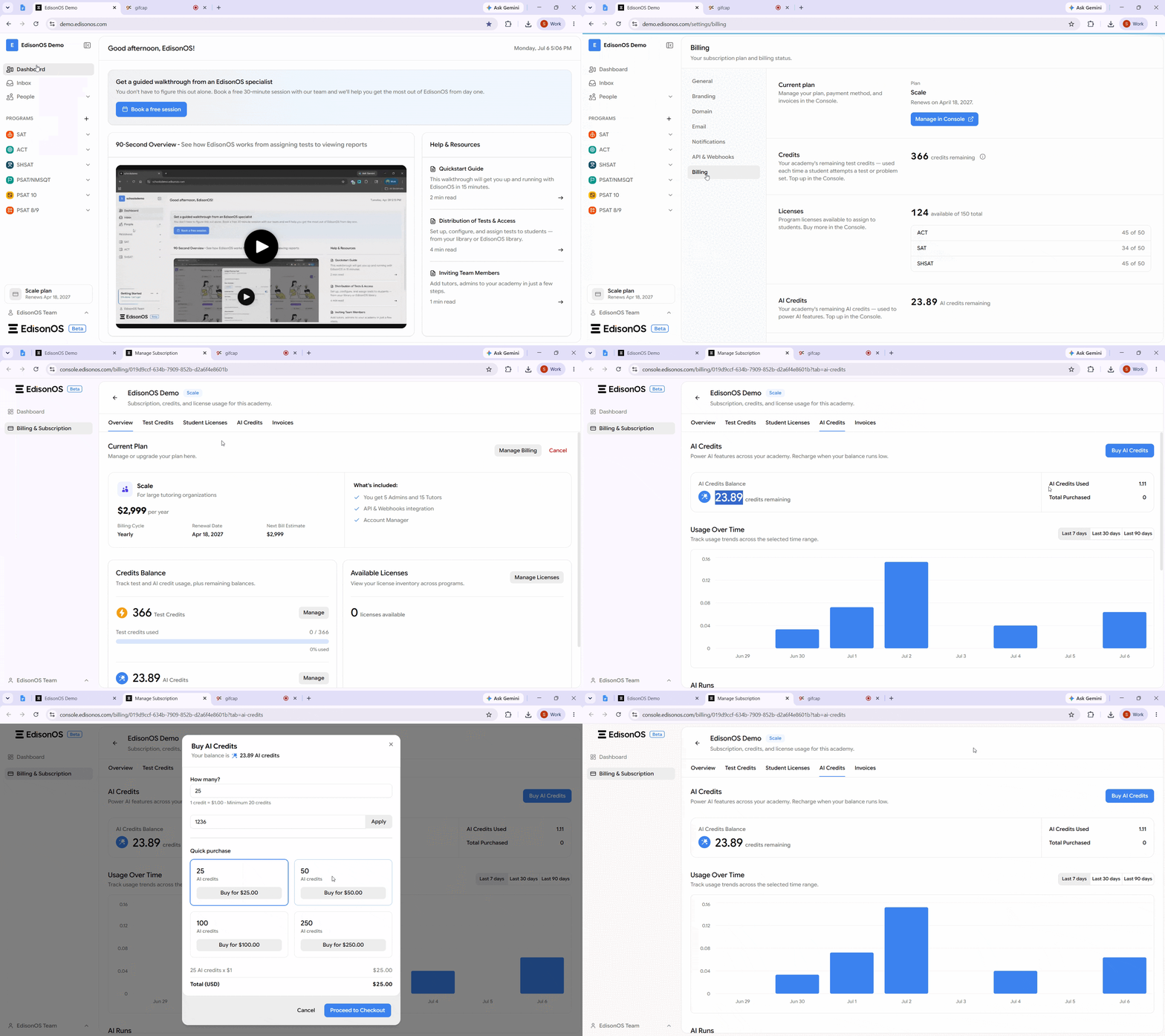
    1. From your academy dashboard, navigate to Your Plan.

    2. Click Billing, and then select Manage Console to access the Console App.

    3. In the Console App, navigate to Billing & Subscription, and then click the AI credits tab.

    4. Click Buy AI credits in the top-right corner of the page.
    ezgif.com-cut.gif

    The AI Credits feature is currently under development. The information in this article is based on the latest details available and may be updated as the feature is finalized.

How to Upgrade to a Higher Plan?

Upgrading to a higher plan lets you add more users to your academy, such as admins and tutors, along with additional features. This guide walks you through the process in EdisonOS, step by step, from logging in to confirming your new plan.

Step to upgrade the plan:

1. Log in to the EdisonOS platform

Sign in with your credentials. You'll land on your Dashboard.

2. Open your plan from the bottom-left corner

In the bottom-left corner of the sidebar, click your plan button. If it's labeled Trial you're on a trial, or shows your current plan (for example, Basic plan) with its renewal date. This takes you to the Billing page.

3. Click "Manage in Console"

On the Billing page, click Manage in Console.

4. Go to "Billing & Subscription"

In the Console, you can manage all your academies, subscriptions, and billing in one place. Click Billing & Subscription in the left sidebar.

5. Click "Manage Billing"

Find the academy you want to upgrade, then click Manage Billing on its card.

6. Upgrade to a higher plan

Select the option to upgrade to a higher plan.

Recording 2026-07-16 at 15.06.28.gif

Once confirmed, your account is updated to the new plan and the added features become available.