15.16 Student Response Review page
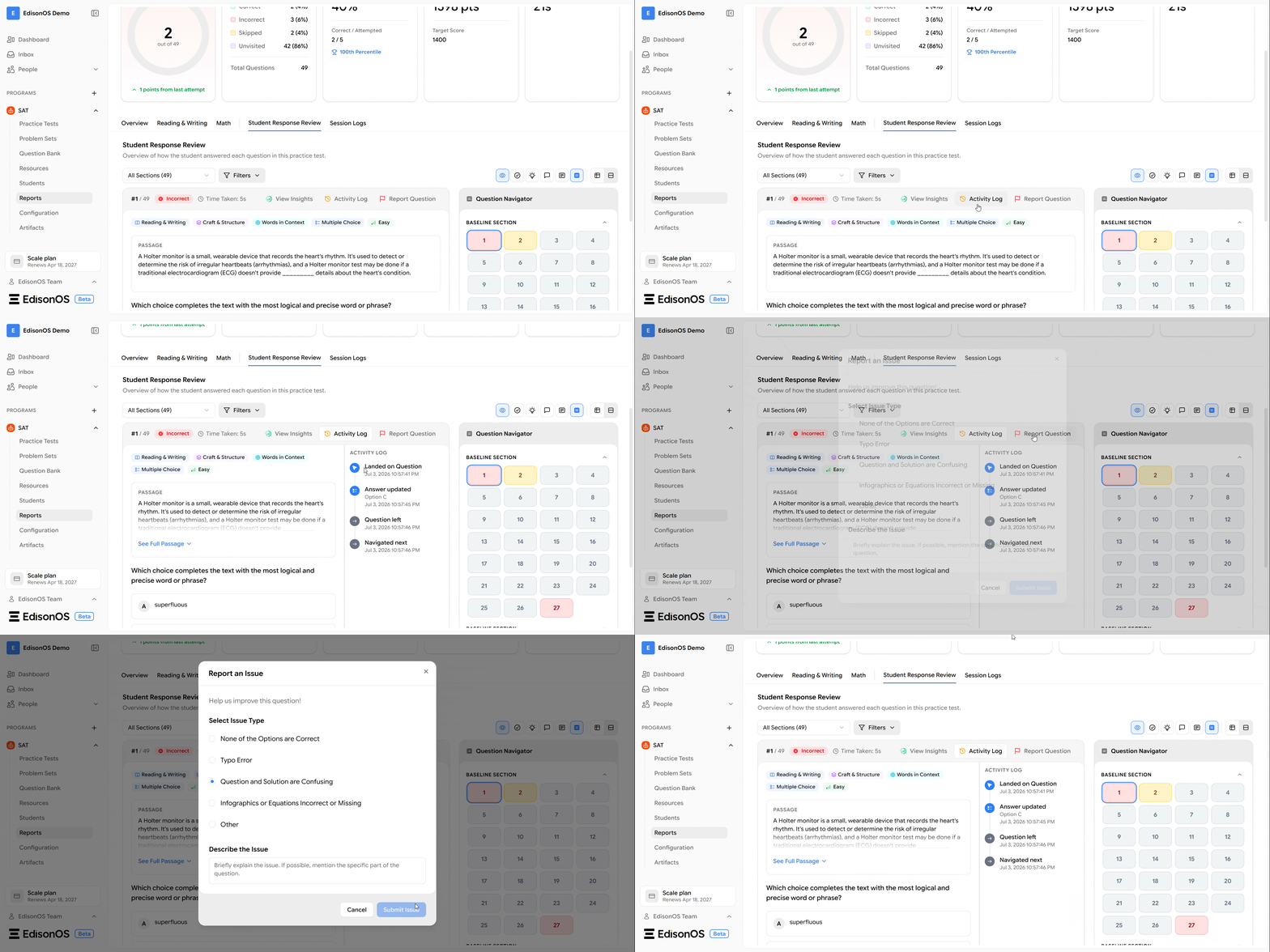
1. Understanding the Question Header
The Question Header provides a quick summary of the selected question before you review its content.
It displays key information such as the question number, response status, time spent, subject, domain, skill, question type, and difficulty level, helping you understand the context of the question at a glance.
Information Available in the Question Header
Question Number
The question number indicates the position of the current question within the assessment.
For example, 1 / 98 means you are viewing the first question out of a total of 98 questions in the test.
This makes it easy to keep track of your progress while reviewing the report.
Response Status
The response status shows whether the student's answer was Correct, Incorrect, or Skipped.
This indicator allows you to immediately identify how the student performed on the selected question without reviewing the answer choices.
Time Taken
The Time Taken field displays the amount of time the student spent answering the question.
This information can be useful when analyzing pacing and identifying questions that may have required additional effort.
Subject
The subject label identifies which section of the assessment the question belongs to.
Depending on the assessment, this may display sections such as Reading & Writing or Math, making it easier to organize and review questions by subject.
Domain
The domain specifies the broader content area being assessed by the question.
For example, a Reading & Writing question may belong to the Craft & Structure domain, while a Math question may belong to domains such as Algebra or Advanced Math. Domain information helps identify which areas require additional practice.
Skill
The skill label provides a more specific classification of the concept being tested within a domain.
For example, a question in the Craft & Structure domain may assess the Words in Context skill. This detailed categorization helps pinpoint the exact concept the student is being evaluated on.
Question Type
The Question Type indicates the format of the question.
For example, the report may display Multiple Choice for questions that require selecting one correct answer from multiple options.
Knowing the question type helps users understand how the question was presented during the assessment.
Difficulty Level
Each question is assigned a difficulty level, such as Easy, Medium, or Hard.
The difficulty label helps educators and students understand the complexity of the question and evaluate performance across different levels of difficulty.
2. Reviewing Student Answers
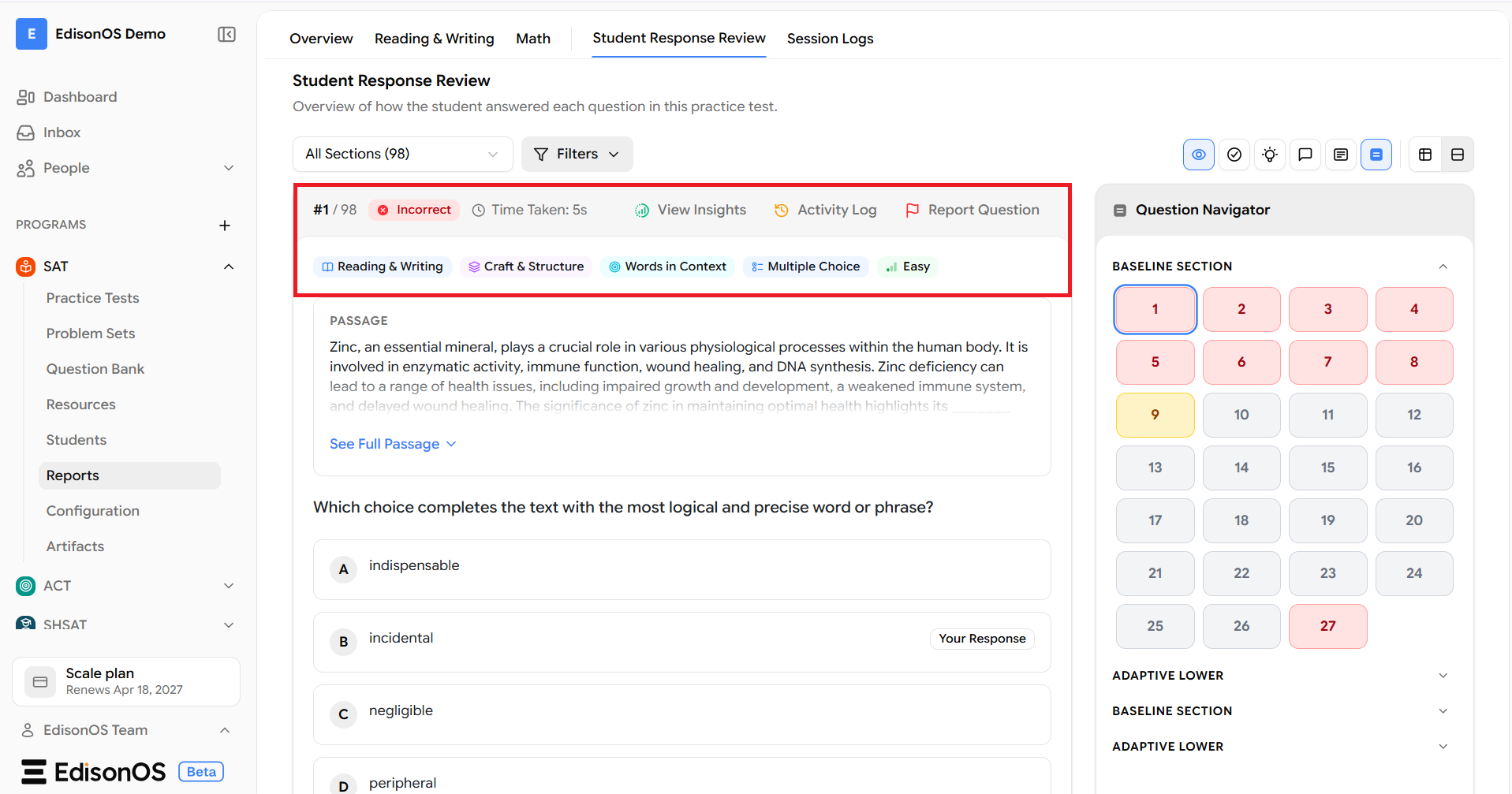
The Student Response section provides a complete view of how the student answered each question during the assessment. It allows you to compare the student's selected answer with the correct answer, making it easier to identify mistakes, understand misconceptions, and evaluate overall performance.
This section is especially useful for reviewing completed assessments and discussing incorrect responses during practice or feedback sessions.
Passage
For passage-based questions, the relevant reading passage is displayed above the question.
If the passage is lengthy, select See Full Passage to expand and view the complete text before reviewing the question.
Reading the full passage provides the necessary context for understanding both the question and the available answer choices.
Question
The question is displayed exactly as it appeared during the assessment.
Reviewing the original question allows you to analyze whether the student understood the prompt and selected the most appropriate answer.
Answer Choices
All available answer options are listed below the question.
Each option is displayed in the same order presented during the assessment, allowing you to compare every possible response before reviewing the correct answer.
Correct Answer
The correct option is highlighted with a Correct Answer label.
This allows you to quickly identify the expected response and compare it with the student's selection.
Your Response
The option selected by the student is marked with a Your Response label.
Comparing the student's response with the correct answer helps identify whether the mistake resulted from a misunderstanding of the concept, misreading the question, or selecting an incorrect option.
3. Using the Question Navigator
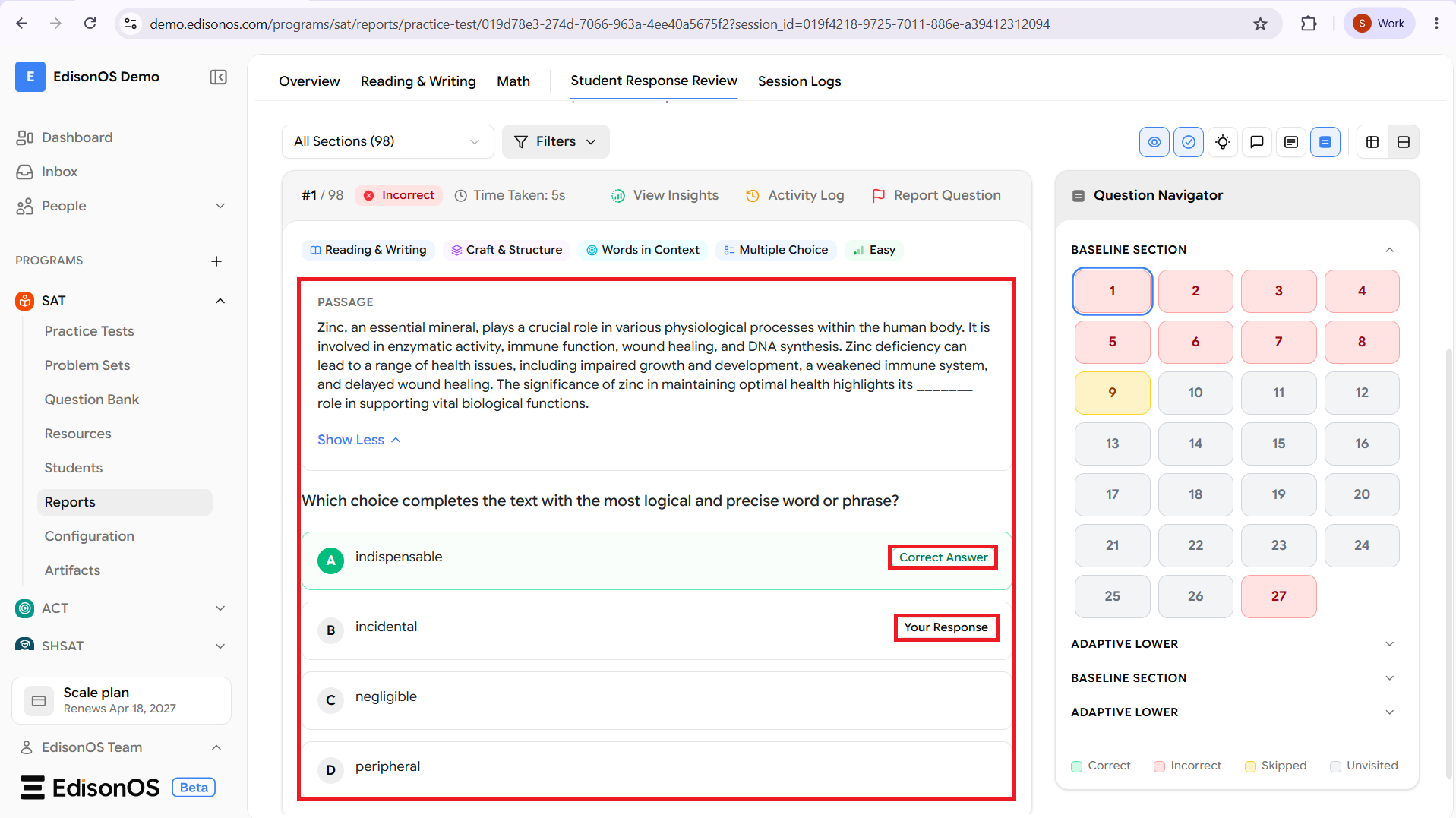
The Question Navigator provides a convenient way to browse every question in the assessment without scrolling through the entire report. It displays all questions in a structured layout and allows you to jump directly to any question for review.
This feature simplifies navigation, especially when reviewing assessments with a large number of questions.
Question Groups
Questions are organized into their respective assessment modules, such as Baseline Section and Adaptive Sections.
Each section can be expanded or collapsed, making it easy to focus on a specific part of the assessment.
Question Status
Each numbered question is color-coded to indicate its current status.
Green indicates the student answered the question correctly.
Red indicates the student's answer was incorrect.
Yellow indicates the question was skipped.
Gray indicates the question was not visited during the assessment.
These visual indicators provide an instant overview of the student's performance across the assessment.
Navigate Between Questions
Selecting any question number in the navigator immediately opens that question in the review panel.
This allows you to quickly move between questions, revisit incorrect answers, or review skipped questions without manually scrolling through the report.
4. Using Filters
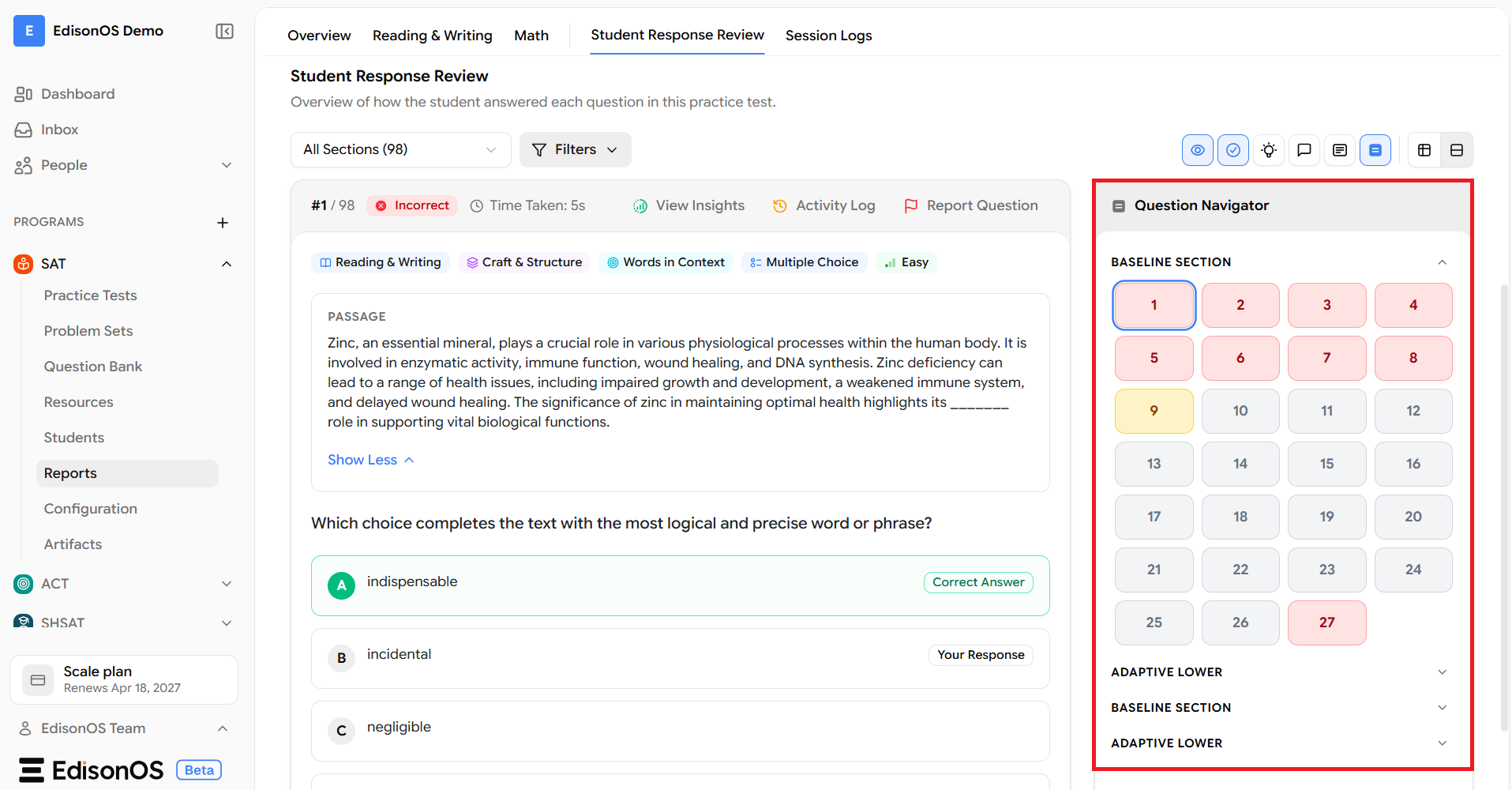
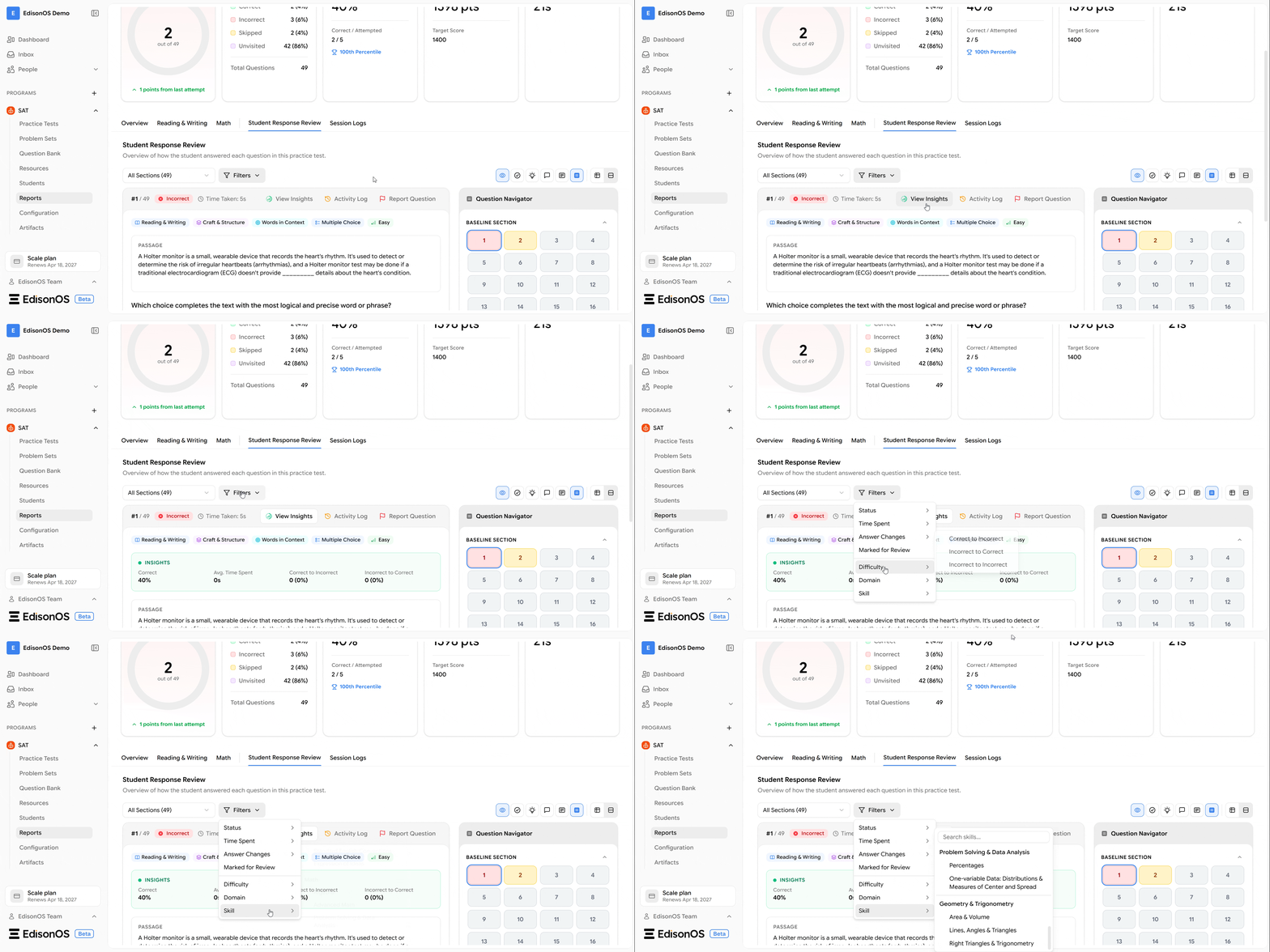
The Filters option helps narrow the questions displayed in the Student Response Review. Instead of reviewing every question, you can focus on specific groups of questions based on selected criteria.
Using filters makes the review process faster and helps identify patterns in student performance.
View Insights
The View Insights option provides additional information related to the selected question. It offers a deeper understanding of the student's performance and can help identify patterns or learning opportunities associated with that question.
5. Activity Log
The Activity Log displays the recorded actions associated with the selected question during the assessment.
Depending on the assessment data, this may include interactions such as response changes or other recorded activities, allowing educators to better understand how the student approached the question.
Report Question
If you believe a question contains an error, incorrect information, or any issue that requires review, select Report Question.
This option allows users to notify the appropriate team so the question can be reviewed and, if necessary, corrected in future assessments.