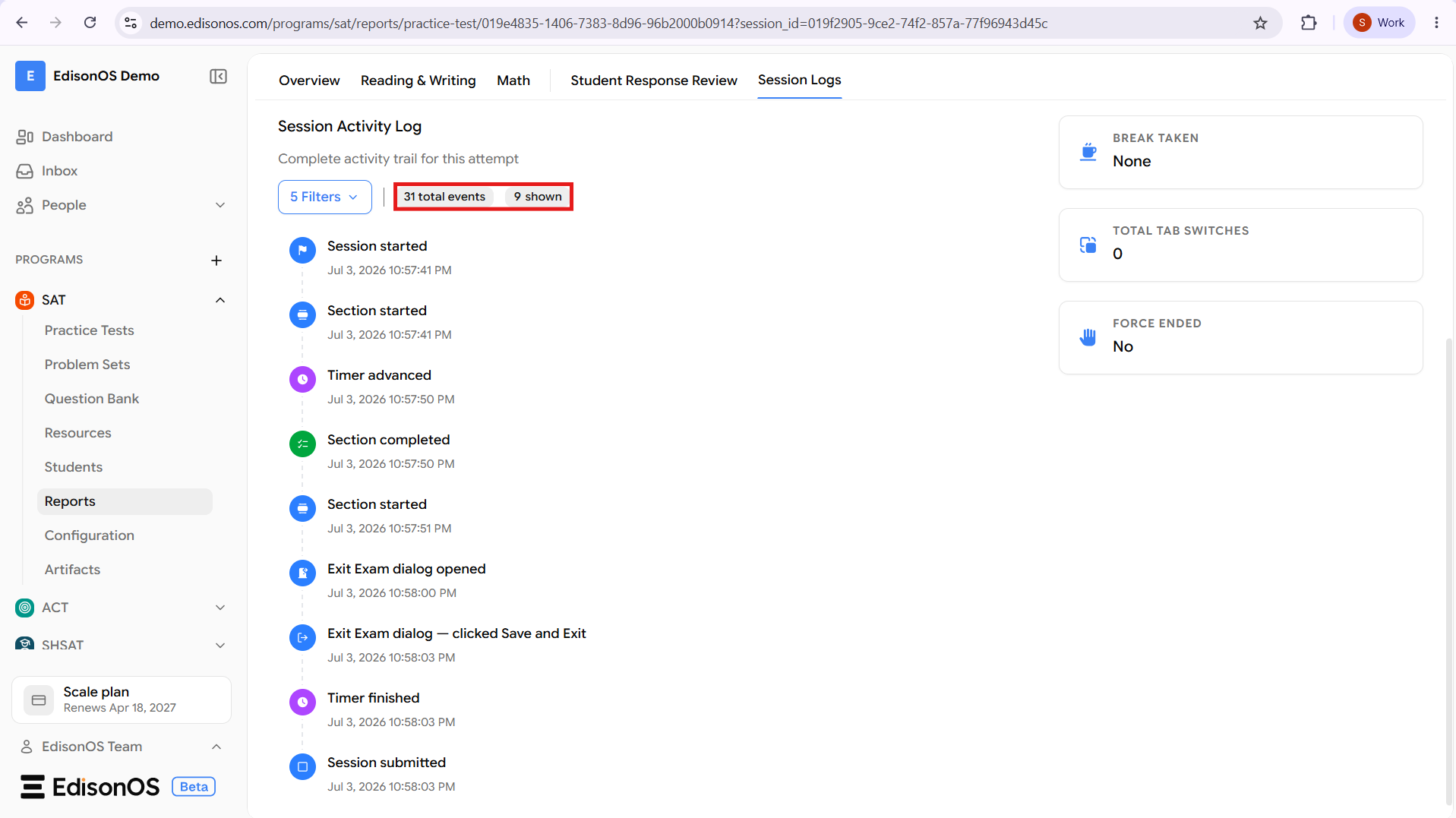
15.17 Session Log
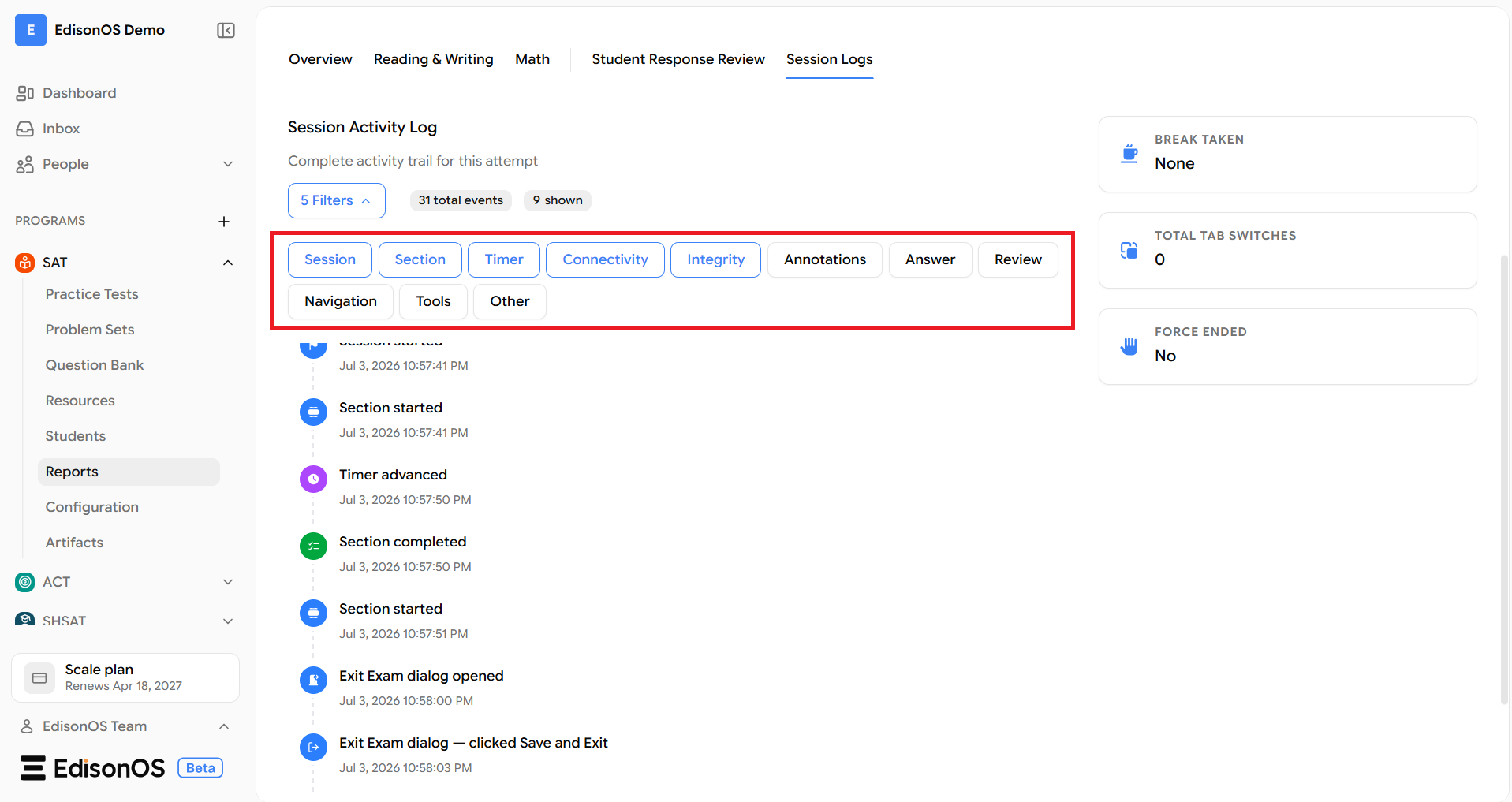
1. Filter Categories
This is the strongest standalone guide because the filter section has multiple options and helps users narrow down activity logs.
Session
Displays events related to the overall test session, such as when the assessment starts, ends, or other session-level activities occur.
Section
Shows events related to individual test sections or modules, including when a section starts and when it is completed.
Timer
Displays timer-related events that occur during the assessment, helping you track the progression of timed sections throughout the test.
Connectivity
Shows connectivity-related events recorded during the session, making it easier to identify network interruptions or connection status changes that may have affected the assessment.
Integrity
Displays events related to test integrity and monitoring, allowing you to review activities that help maintain the security and validity of the assessment.
Annotations
Shows events related to annotations created by the student while taking the assessment, such as notes or highlights made during the test.
Answer
Displays answer-related activities, including events associated with selecting, changing, or submitting responses to questions.
Review
Shows events related to reviewing questions during the assessment, helping you identify when the student revisited questions before submitting the test.
Navigation
Displays navigation events as the student moves between questions or sections, providing insight into how they progressed through the assessment.
Tools
Shows interactions with the tools available during the assessment, helping you review when built-in testing tools were used.
Other
Displays additional events that do not belong to the predefined filter categories but were recorded during the assessment session.
2. Understanding the Session Activity Timeline
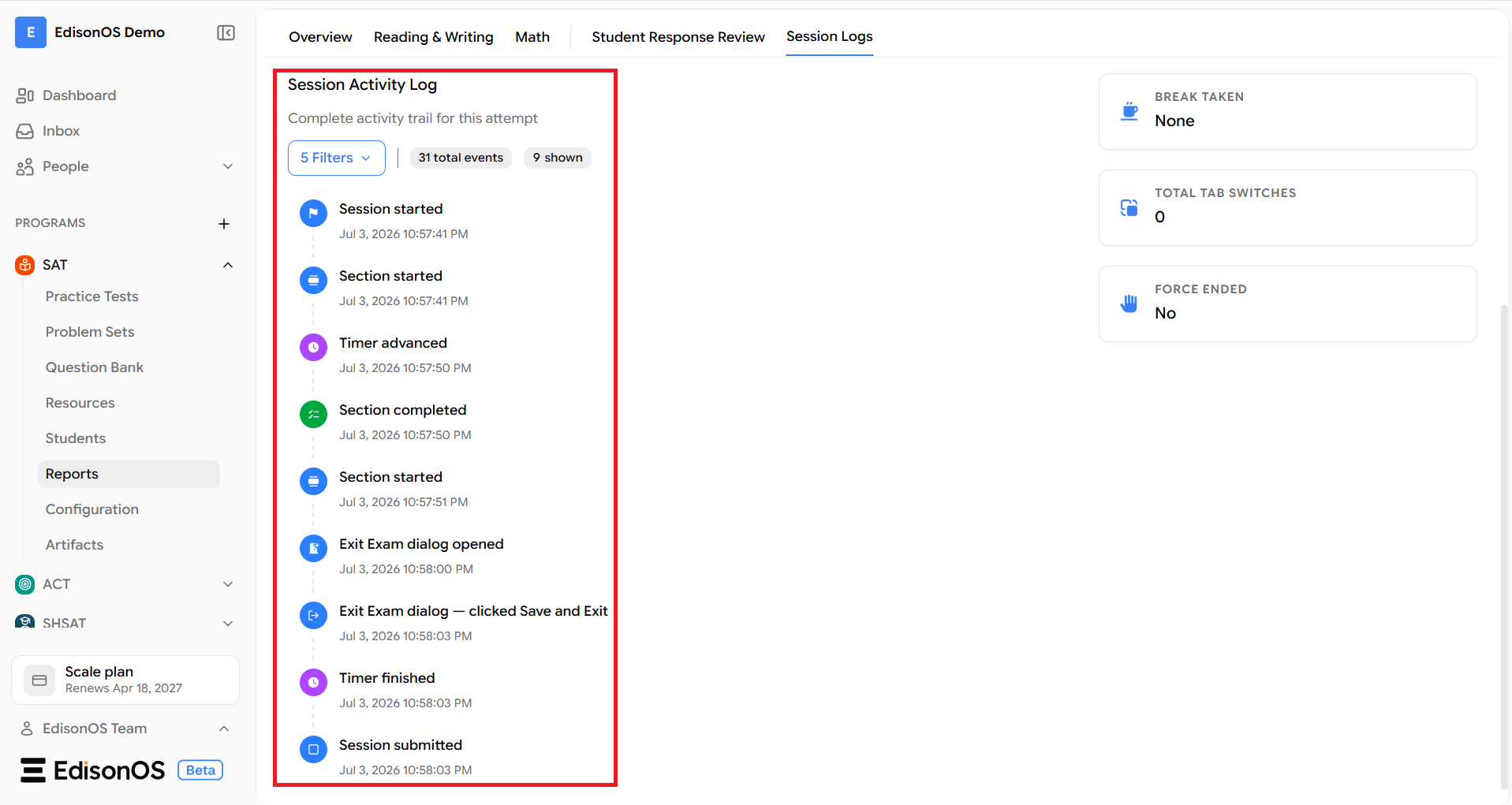
The Session Activity Timeline provides a chronological record of all events that occurred during a student's test attempt. Each event is displayed in the order it occurred, along with its timestamp, creating a complete history of the assessment session.
About Each Event
Session Started
Indicates when the student begins the assessment session.
Section Started
Indicates when the student enters a new section or module of the assessment.
Timer Advanced
Indicates that the assessment timer moved to the next timed section.
Section completed
Indicates that the student completed the current section.
Exit Exam dialog opened
Indicates that the student opened the confirmation dialog to exit the assessment.
Exit Exam dialog – clicked Save and Exit
Indicates that the student selected Save and Exit, allowing the assessment to be resumed later if permitted.
Timer Finished
Indicates that the allotted time for the section or assessment has expired.
Session Submitted
Indicates that the student submitted the assessment, marking the end of the test attempt.
3. Understanding Session Summary Cards
The summary cards on the right side of the Session Logs page provide a quick overview of key session metrics, allowing you to review important information without scrolling through the activity timeline.
Break Taken
Displays the total amount of break time used during the assessment.
This helps determine whether the student used the available break time.
Total Tab Switches
Displays the number of times the student switched away from the assessment window during the test.
This information can help monitor student activity during online assessments.
Force Ended
Indicates whether the assessment session was forcefully terminated.
Yes – The session ended unexpectedly or was manually terminated.
No – The assessment ended normally.
4. Understanding Session Events
Every item displayed in the Session Activity Timeline represents an event recorded during the student's assessment. These events provide detailed insights into how the student progressed through the test.
Event Icons
Each activity is accompanied by a unique icon that visually represents the type of event, making it easier to identify different actions while reviewing the timeline.
Event Titles
Session Started
Section Started
Timer Advanced
Section Completed
Break Started
These titles clearly indicate what occurred during the assessment.
Event Order
Events are displayed in chronological order, allowing you to follow the student's assessment journey from beginning to end.