
Overview of Practice Tests
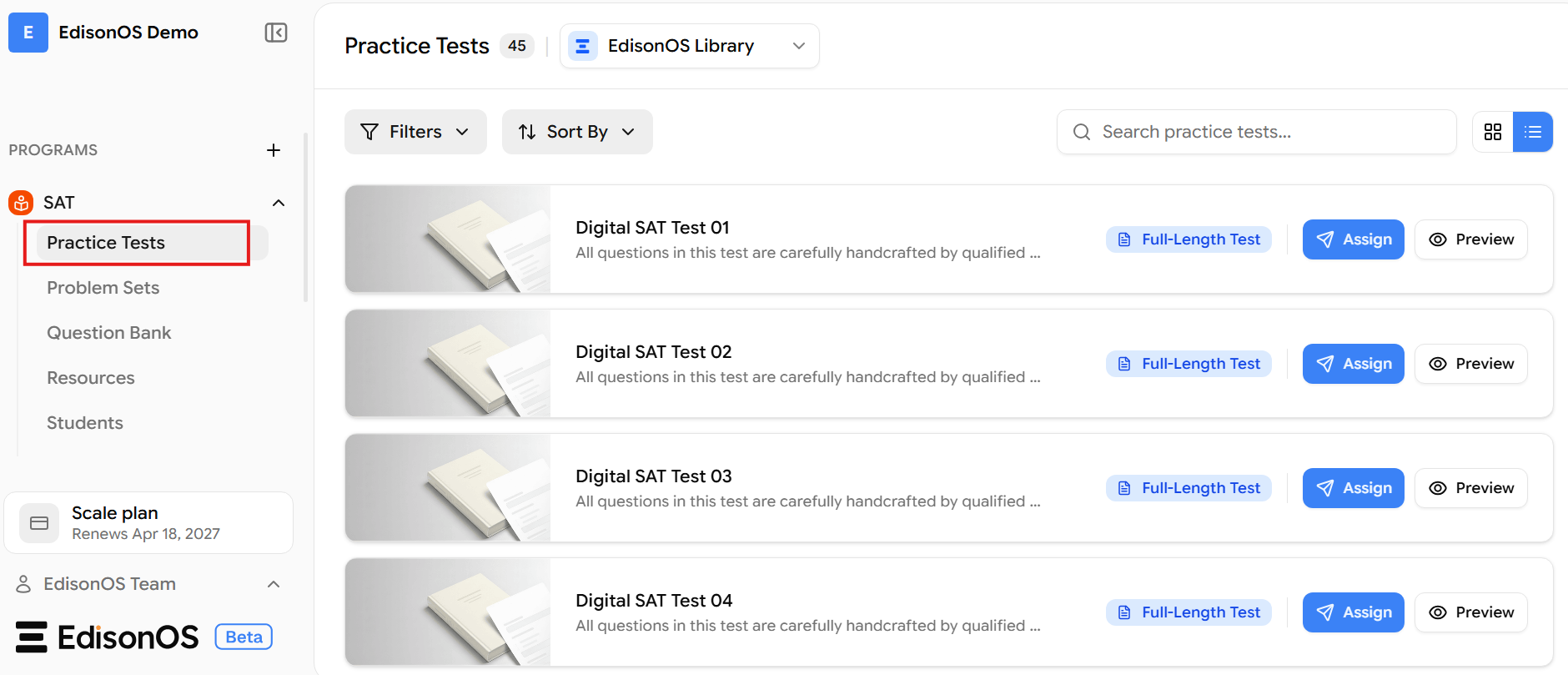
Click Practice Tests inside the SAT program to see the full list. At the top of the page, make sure the source is set to EdisonOS Library to browse the ready-made tests.
You can also switch the source to My Library, where you can create your own full-length practice test.
Tip: Practice Tests aren't the only way to give students practice. Problem Sets let you assign focused practice instead of a full-length test — a targeted collection of questions handed straight to the student.
What Are Practice Tests?
Practice Tests are complete, exam-style SAT tests built by EdisonOS and stored in the library, ready to assign no building required. Each one is designed to mirror the real exam so students know exactly what to expect on test day.
All questions are carefully handcrafted by qualified Subject Matter Experts and independently vetted by US-based SMEs - never AI-generated.
How Many Tests Are Available?
The EdisonOS Library providing 15 SAT practice tests, plus additional module tests:
Full-length tests — 15 complete, exam-style tests covering every section.
Module tests - shorter tests for practicing a specific part of the SAT, such as Reading and Writing or Math. These include both a baseline section and an adaptive section.
So you can hand students a full exam simulation or a quick, section-specific test, without building anything yourself.
Finding a Test
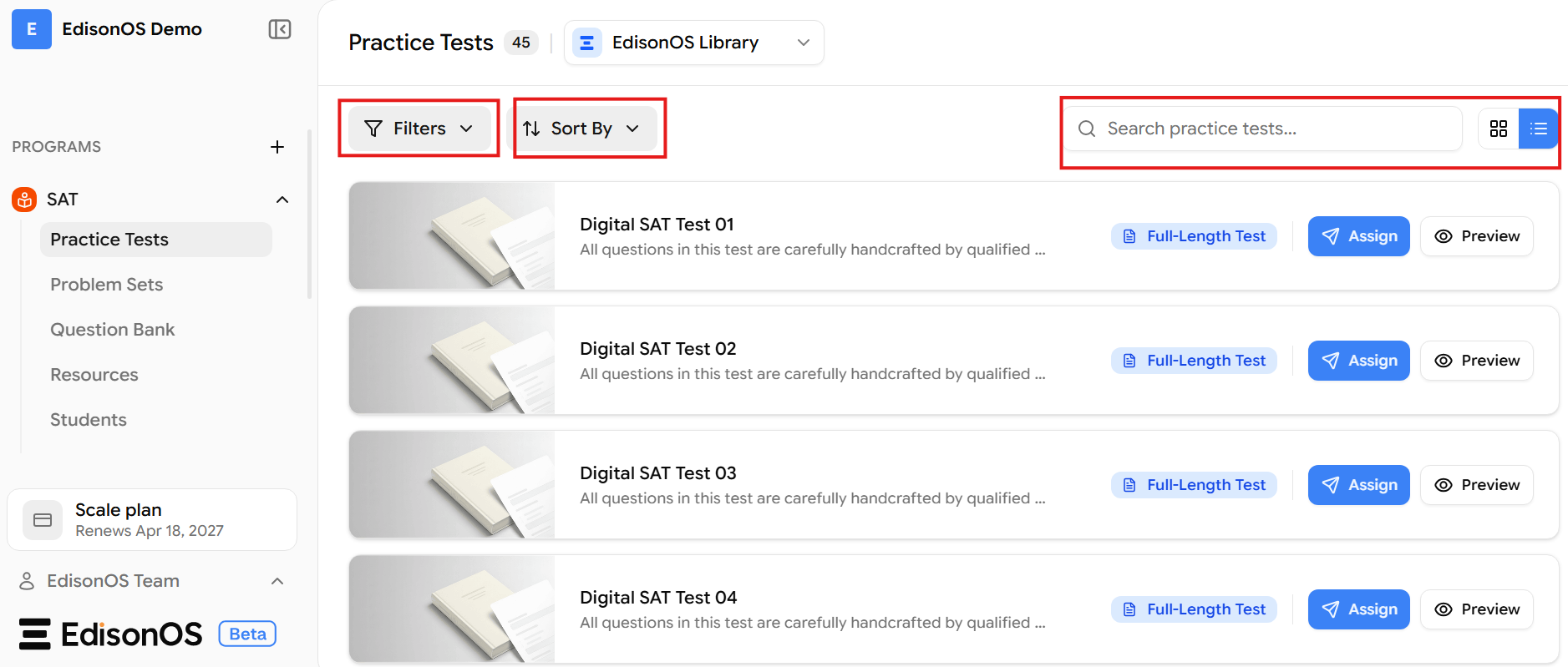
Each test appears as a card showing its name (for example, Digital SAT Test 01), a Full-Length Test tag, and two buttons — Assign and Preview. To find the right one quickly, use:
Filters — narrow the list.
Sort By — reorder the tests.
Search — jump straight to a test by name.
Grid / list view — switch how tests are displayed.
Overview of a Test
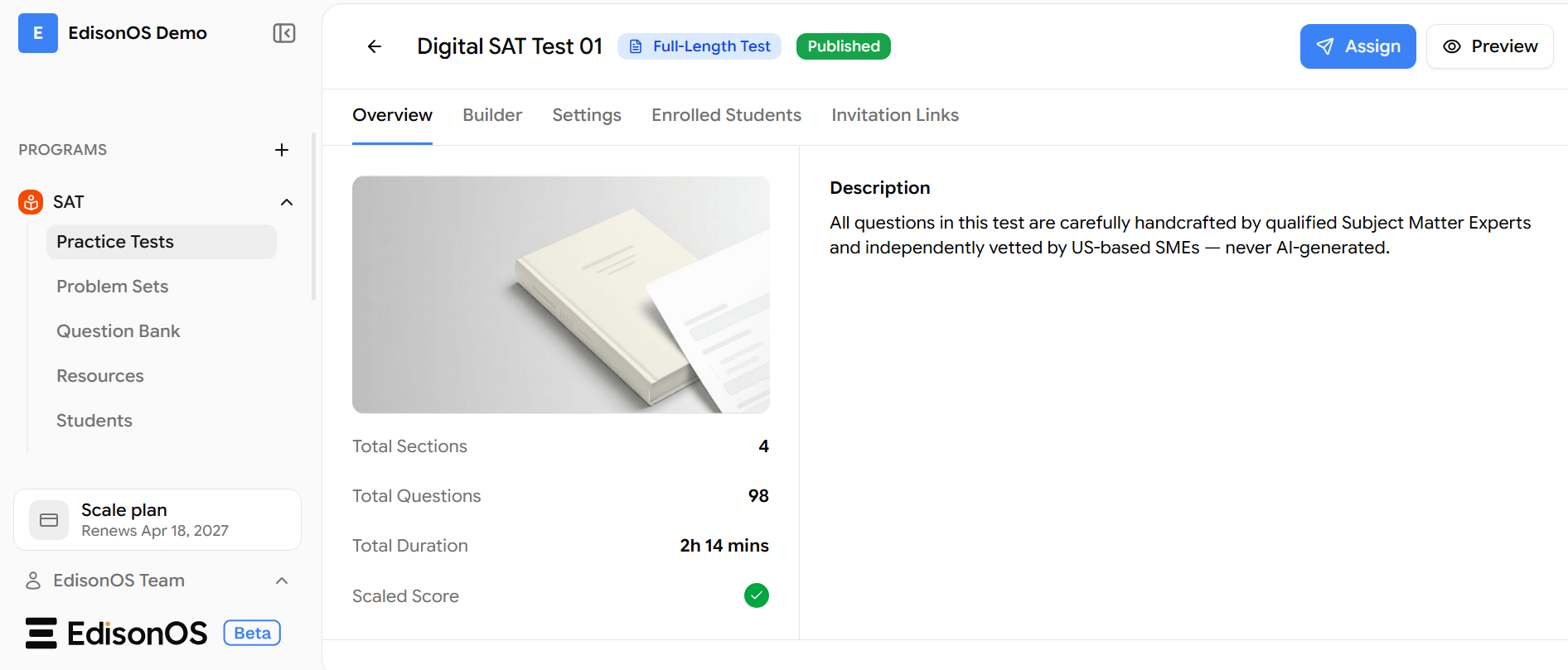
Click any test to open its Overview page. This is your at-a-glance summary of the test before you assign it.
At the top you'll see the test name, its Full-Length Test tag, a Published status, and the Assign and Preview buttons.
Tip: These settings are common across all EdisonOS full-length tests — you'll see the same layout whichever full-length test you open.
The Overview lists the essentials:
Total Sections - how many sections the test contains (for example, 4).
Total Questions - the total number of questions (for example, 98).
Total Duration - how long the test runs (for example, 2h 14 mins).
Scaled Score - whether scaled scoring is turned on.
Along the top are tabs that let you look deeper into the test:
Overview - the summary above.
Builder - the test's structure and questions.
Settings - the test's configuration.
Enrolled Students - students who already have this test assigned.
Invitation Links - links for sharing the test.
When you're ready, use Preview to experience the test as a student would, or Assign to send it to your students.
That covers everything you need to know about Practice Tests in the SAT program — what they are, how many full-length and module tests are available in the EdisonOS Library, and how to read a single test's Overview before assigning it. From here, just pick a test, review its details, and assign it to get your students practising for the SAT.