
15.10 Invoice Access and Download Guide
Overview
Our platform provides a convenient way to download all your invoices in one place. Each invoice contains important billing details, such as the purchase type (Credits, AI Credits, or Licenses), invoice status, amount charged, billing date, and payment information.
You can download any invoice at any time to view the complete billing details for your records.
Understanding the Invoices Page
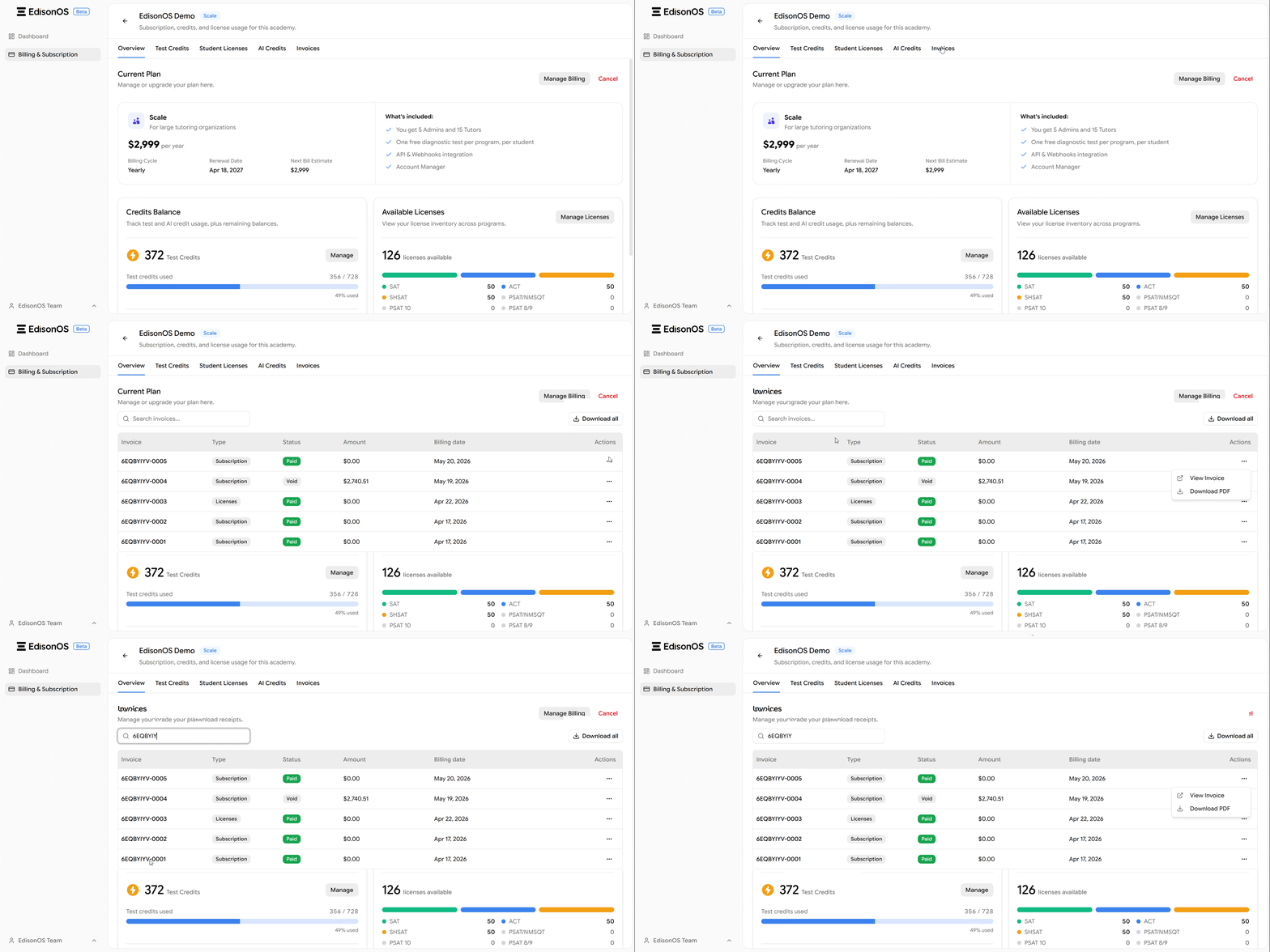
An invoice is generated for every purchase, including Credits, AI Credits and licenses. The Invoices page provides a list of all invoices generated for your academy.
Each invoice displays the following information:
Type - Indicates the invoice type (for example, Subscription or Licenses).
Status - Shows the invoice status (for example, Paid or Void).
Amount - Displays the total amount charged.
Billing Date - Shows the date the invoice was generated.
Actions - Provides options to download the selected invoice.
Navigation path
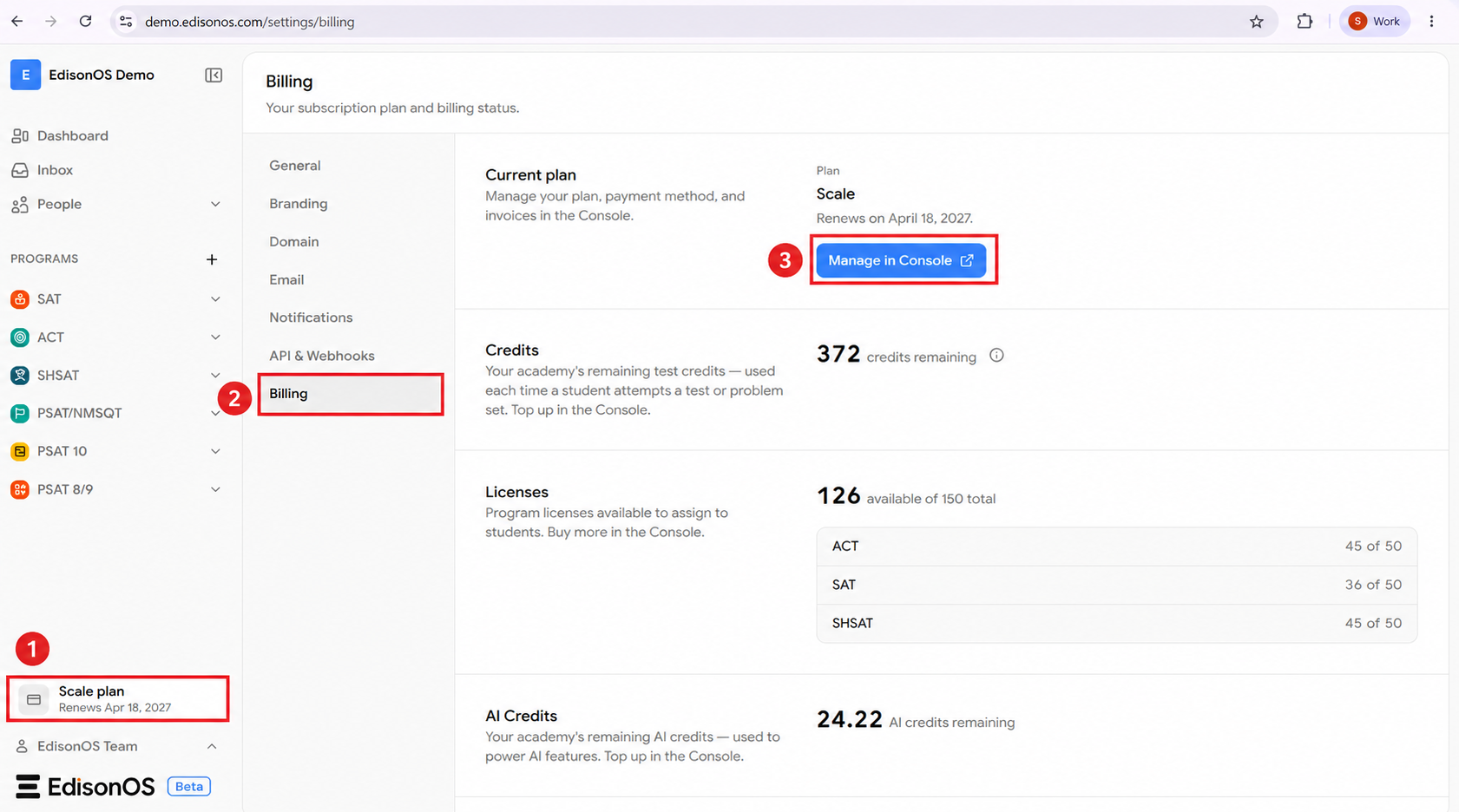
Go to your plan → Billing → Manage Console → Billing Subscription → Invoices
Ways to Download an Invoice
1. Download All Invoices:
Click Download All to save all available invoices for your academy.
2. Download a Specific Invoice:
To download a specific invoice, find the invoice in the list, click the three-dot (⋮) menu under the Actions column, and select Download.
3. Search and Download an Invoice:
Enter the invoice number in the Search bar to quickly find and download the required invoice.