
15.11 Creating and Managing Problem Sets
Working with Problem Sets
Problem Sets are how you assign focused practice to a student. Instead of a full-length test, you hand the student a targeted collection of questions a single skill, a set of tags, the questions they got wrong last time, or any combination of these. This article covers assigning an existing set, the delivery modes, and how to build your own set from scratch using filter sets and selection methods.
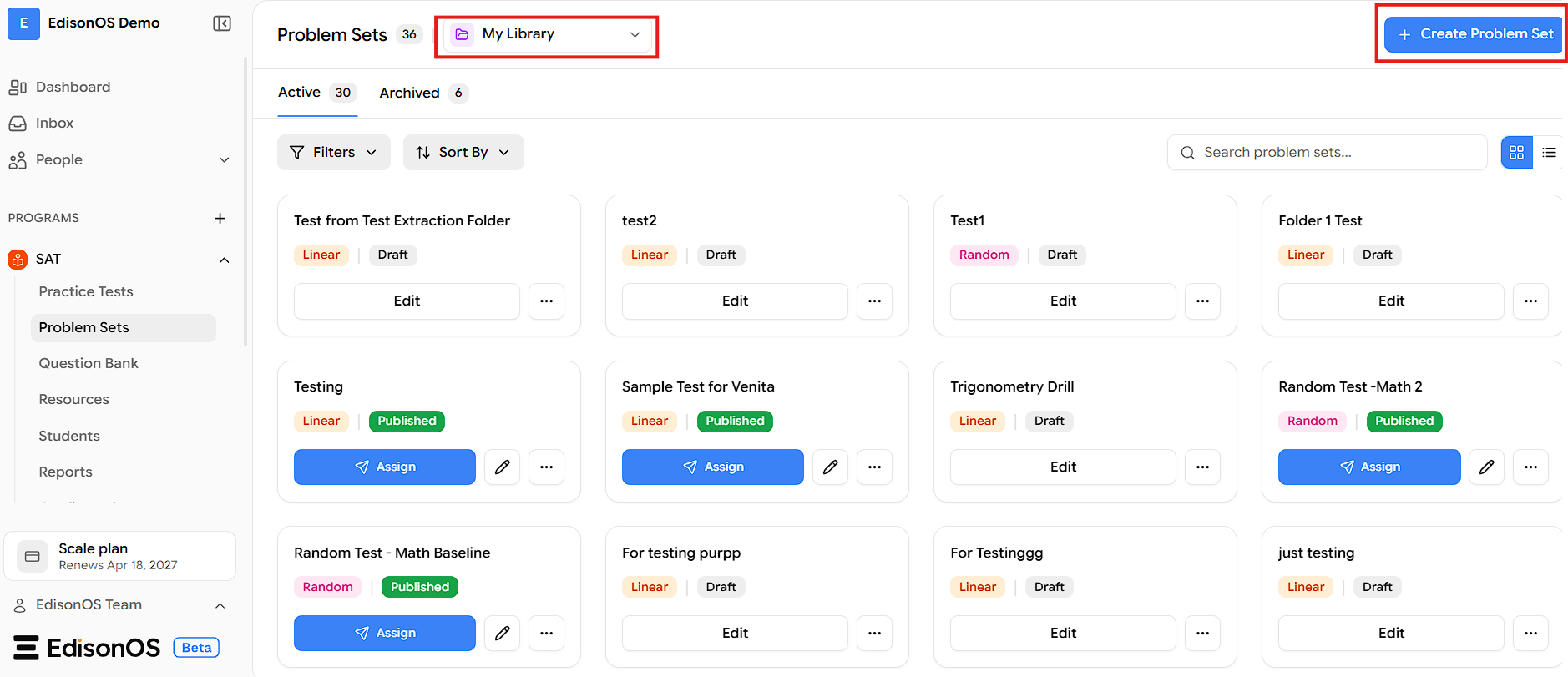
Note: Where to find it: Open Problem Sets from the main menu to assign an existing set. To build your own, go to My Library and click Create Problem Set.
Assigning an EdisonOS Problem Set
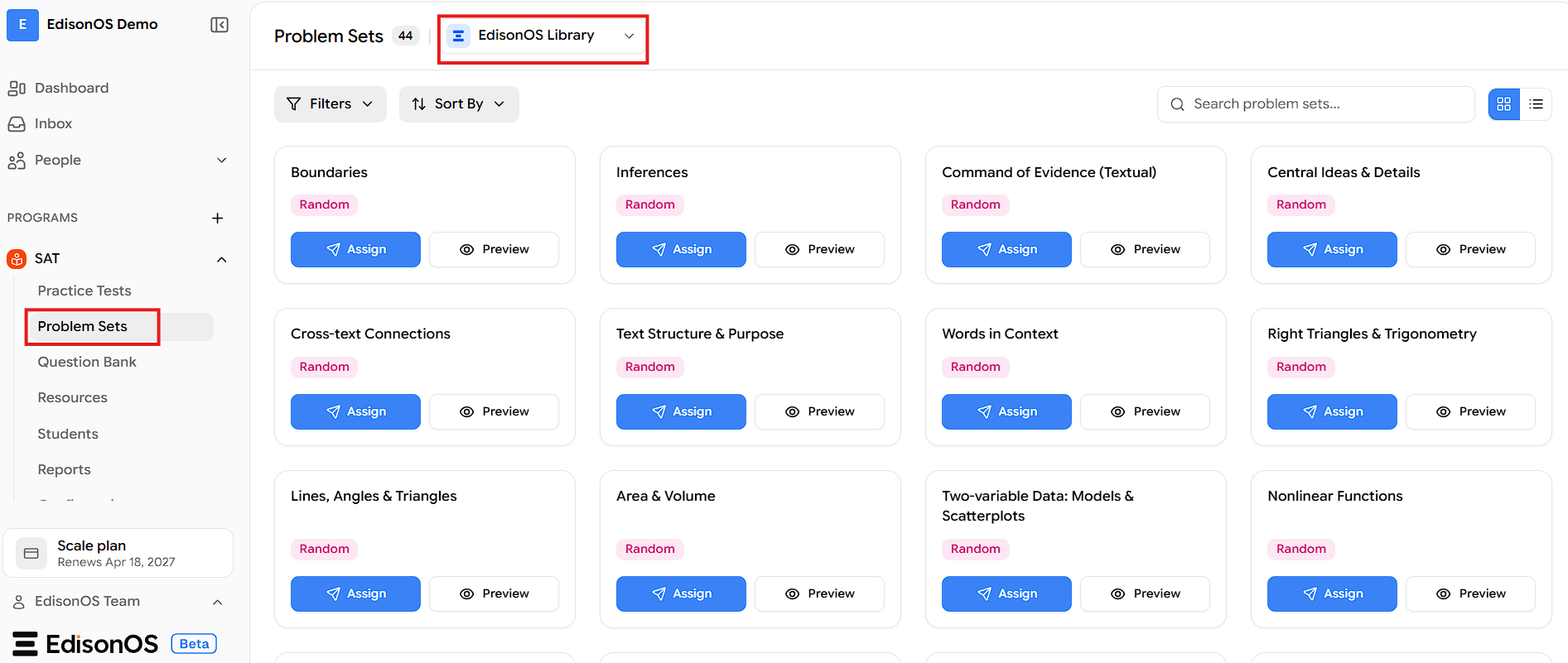
The fastest way to assign practice is to use an EdisonOS problem set that already exists.
Go to Problem Sets.
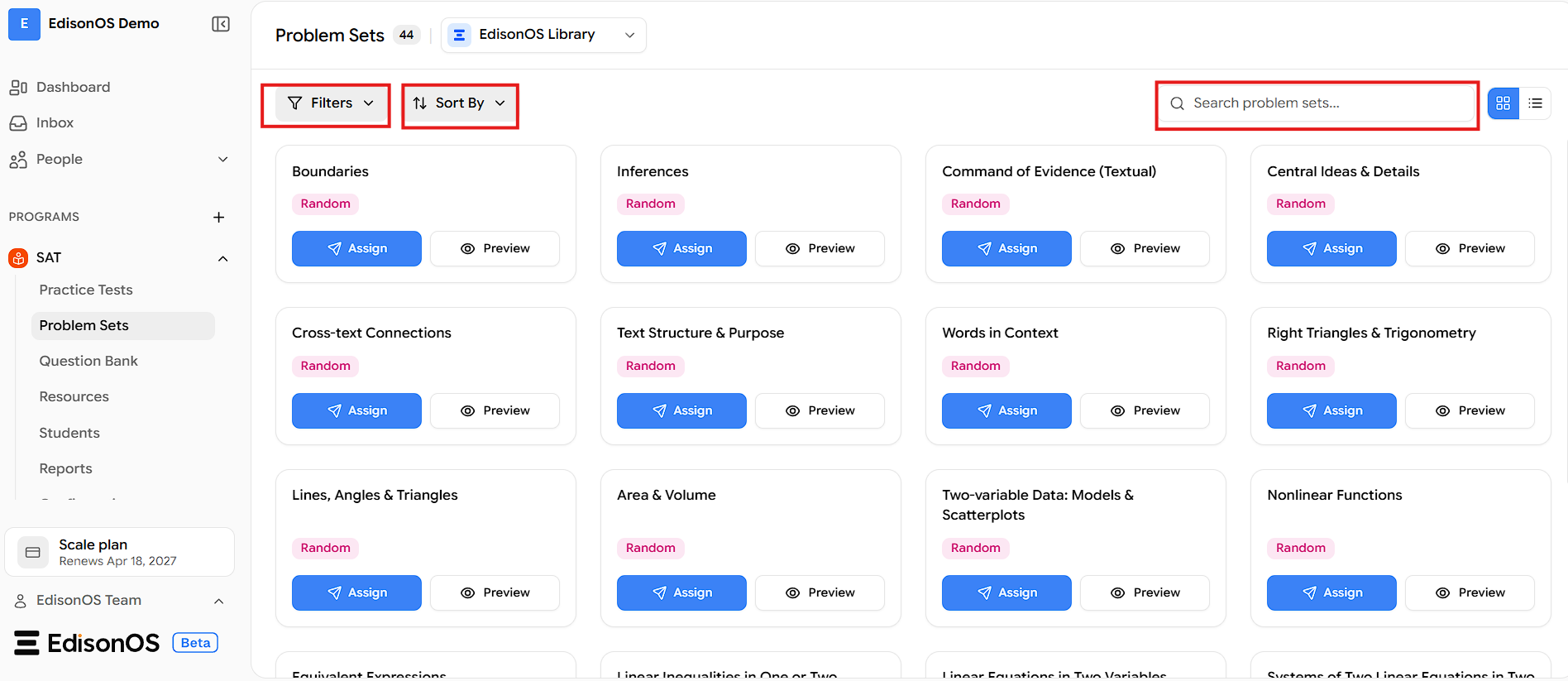
Find the set you want. Use whatever's most convenient - apply filters, use sort by, or type a topic into the search bar.
On the set you want, click Assign to give it to your student, or Preview to see the questions first.
Delivery modes: Random, Linear, and Question Adaptive
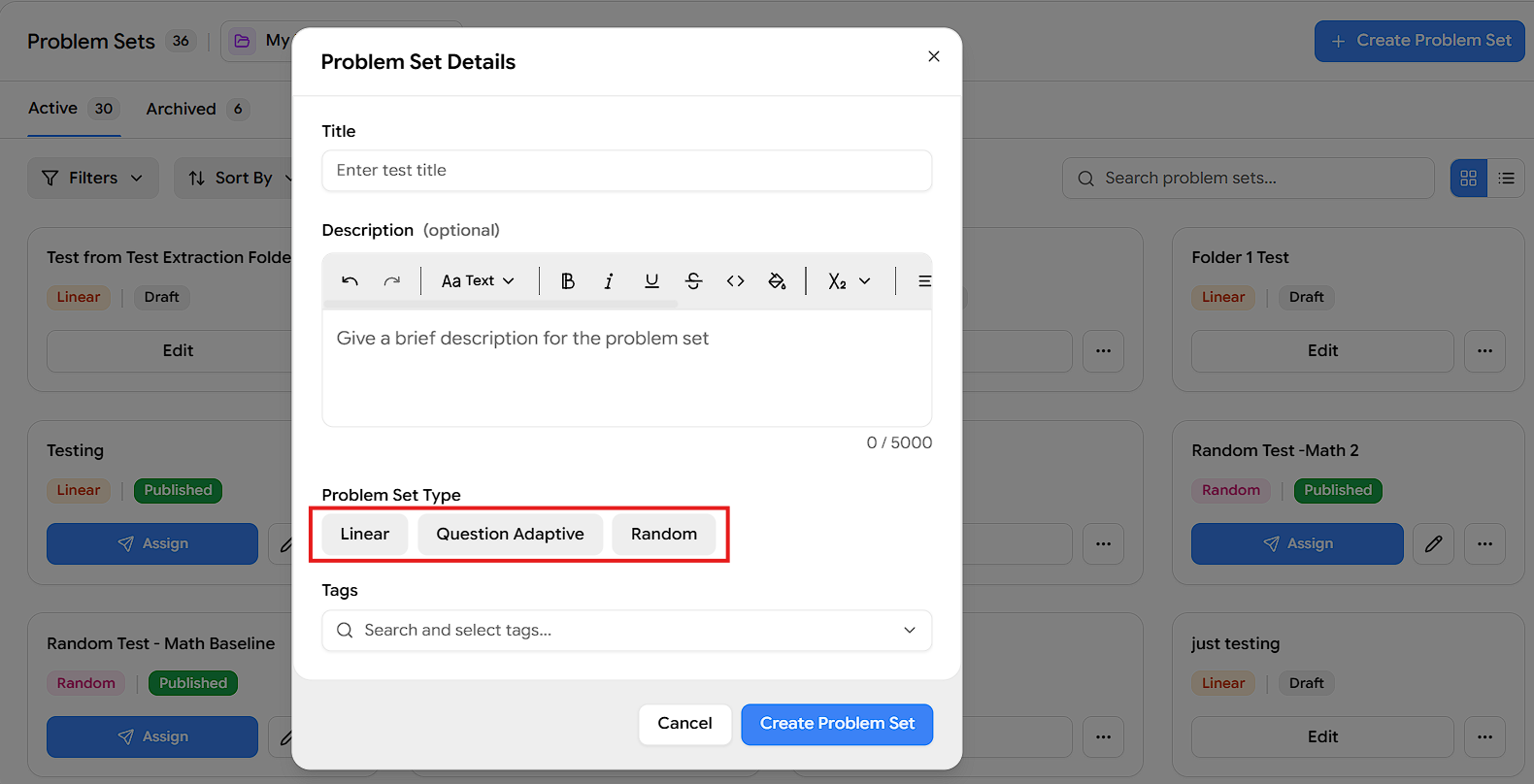
Every problem set is delivered in one of three modes. The difference matters, so it's worth explaining to the student:
Random - Every time the student takes the set, they get a fresh batch of questions, but a smaller number per attempt. Good for repeated practice on the same skill without the student memorizing answers.
Linear - The student gets a larger number of questions, but the same questions every time they take it. Good when you want a fixed, repeatable set.
Question Adaptive - The next question is chosen based on how the student answered the previous one, adjusting to their performance as they go. Good for mirroring how the real adaptive exam behaves.
Note: choose Random for ongoing drilling, Linear for a fixed assignment you'll revisit, and Adaptive to mimic the real exam.
Building your own Problem Set
When no existing set fits, build your own. Go to My Library and click Create Problem Set - instead of searching the EdisonOS library, this is where you create and keep your own sets. That opens the builder.
How the builder is organized:
The builder has two tabs: Builder (where you choose questions) and Configuration (settings and access). Everything below happens on the Builder tab.
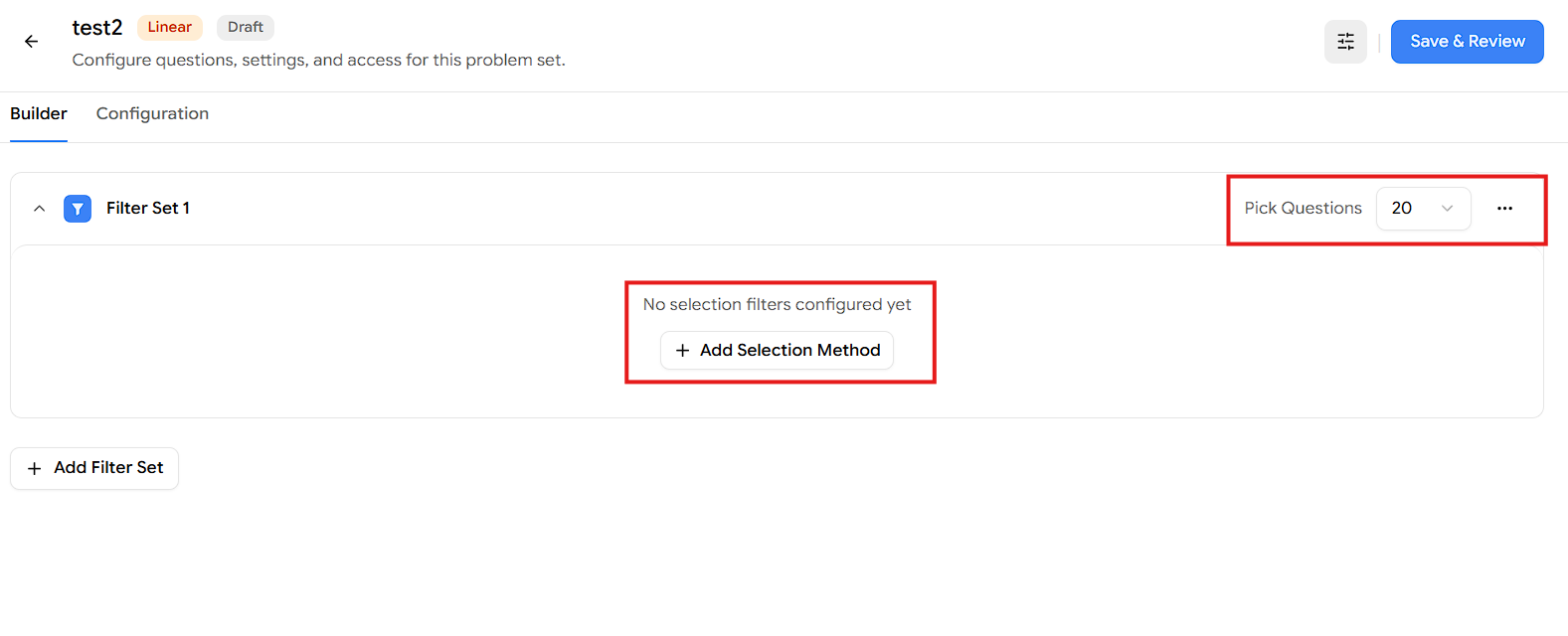
A new problem set starts with Filter Set 1. From there:
We can set how many questions to pull. Each filter set has a Pick Questions number on the right. We can choose how many questions the student can take in the particular test (e.g., 20). Here you can change the number of questions.
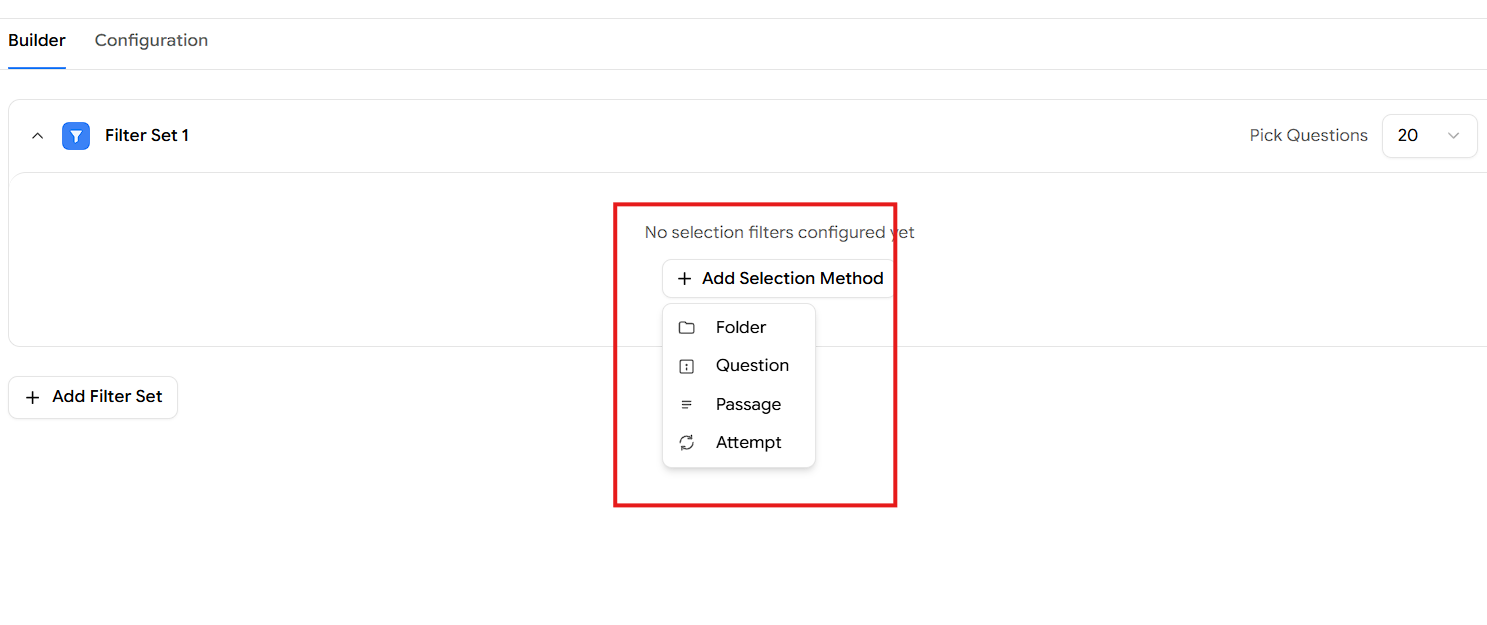
Add a selection method - Click Add Selection Method and choose one of four types: Folder, Question, Passage, or Attempt. Each type has its own filters.
Add filters - Inside a selection method, click Add Filters to add one or more conditions. Add as many as you need, and use Remove to delete a selection method you no longer want.
Add more filter sets (optional) - Use Add Filter Set to stack additional sets, each with its own Pick Questions number (more on this below).
Save - When you're done, click Save & Review.
The four selection methods and their filters -
Each selection method pulls questions in a different way, and each has its own filters:
Selection method | What it does | Filters available |
Folder | Pull from specific folders in your library | Folder Name, Folder Tags |
Question | Filter by the properties of the question itself | Question Module, Question Domain, Question Skill, Question Tags, Question Type, Calculator Allowed |
Passage | Filter by passage | Passage Tags |
Attempt | Pull based on how the student behaved on earlier attempts | Attempt Status, Time Spent, Marked for Review, Tools Used |
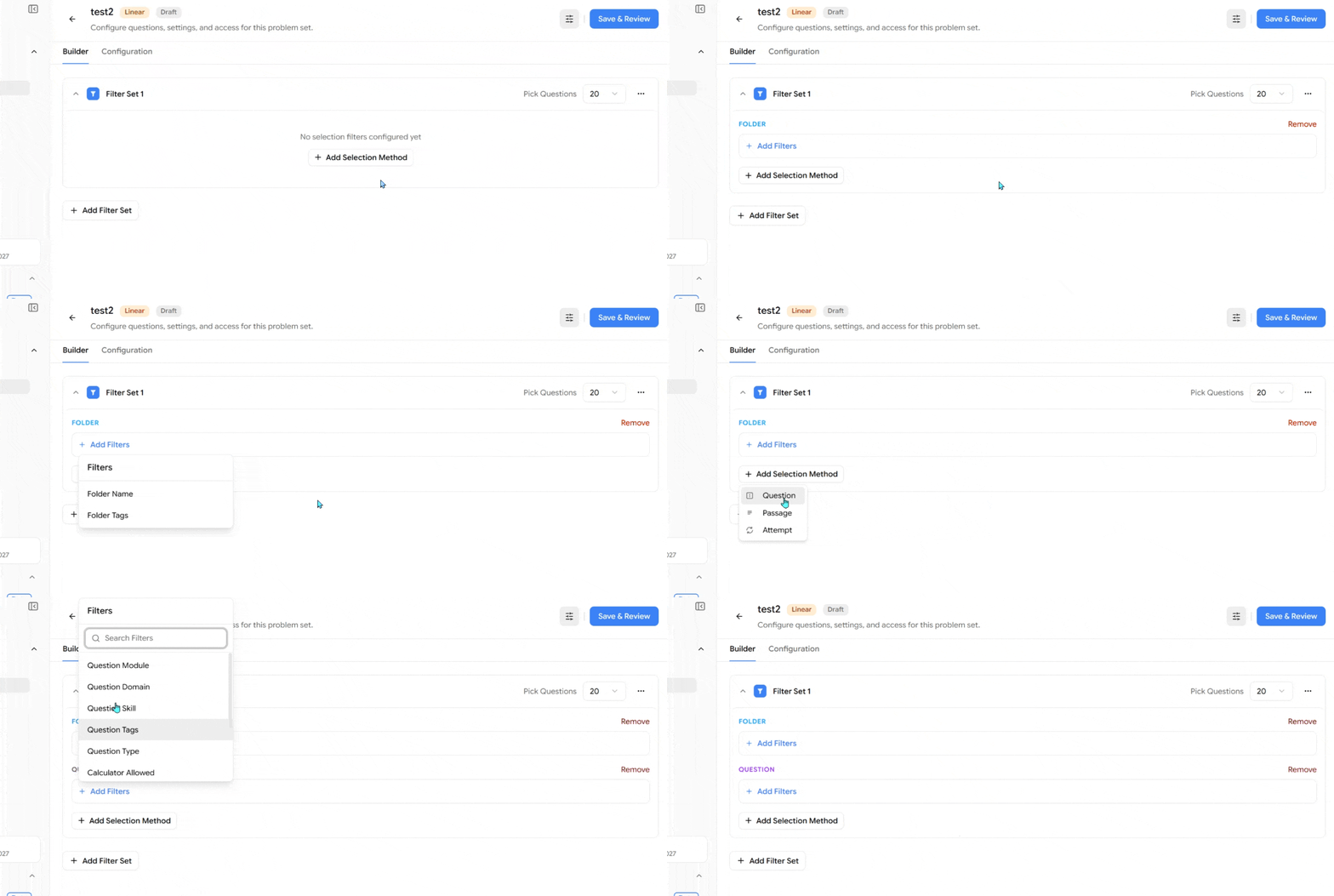
How each filter works:
Click Add Filters under a selection method, pick the filter you want, set its value, and click Apply Filter.
Folder
Folder Name — search for and select folders by name.
Folder Tags — select folders by the tags you've applied to them.
Question
Question Module — choose Reading & Writing, Math, or both.
Question Domain — search for and select a domain by name.
Question Skill — search for and select a specific skill
Question Tags — search the questions with the tags that you've created on your questions.
Question Type — restrict to a question format (e.g., multiple choice or student response).
Calculator Allowed — filter to questions where a calculator is or isn't allowed.
Passage
Passage Tags — search for and select passages by their tags
Attempt
Attempt Status (is any of) — Correct, Incorrect, or Skipped. Pull only questions the student has already attempted, filtered by outcome.
Time Spent — filter by how long the student spent on a question. Enter a number of seconds and choose an operator: (equals, less than, greater than, or between)
Marked for Review (is) — True or False, depending on whether the student flagged the question.
Tools Used (is any of) — pull questions where the student used a given tool: Calculator, Magnifier, Line Reader, Option Eliminator, Answer Masking, Reference Sheet, or Highlights & Notes.
Note: Why Attempt is powerful: because it's tied to each student's own history, the same set produces different questions for every student - a built-in way to personalize practice.
Using multiple filter sets
You can add more than one filter set to a single problem set, and give each its own Pick Questions number.
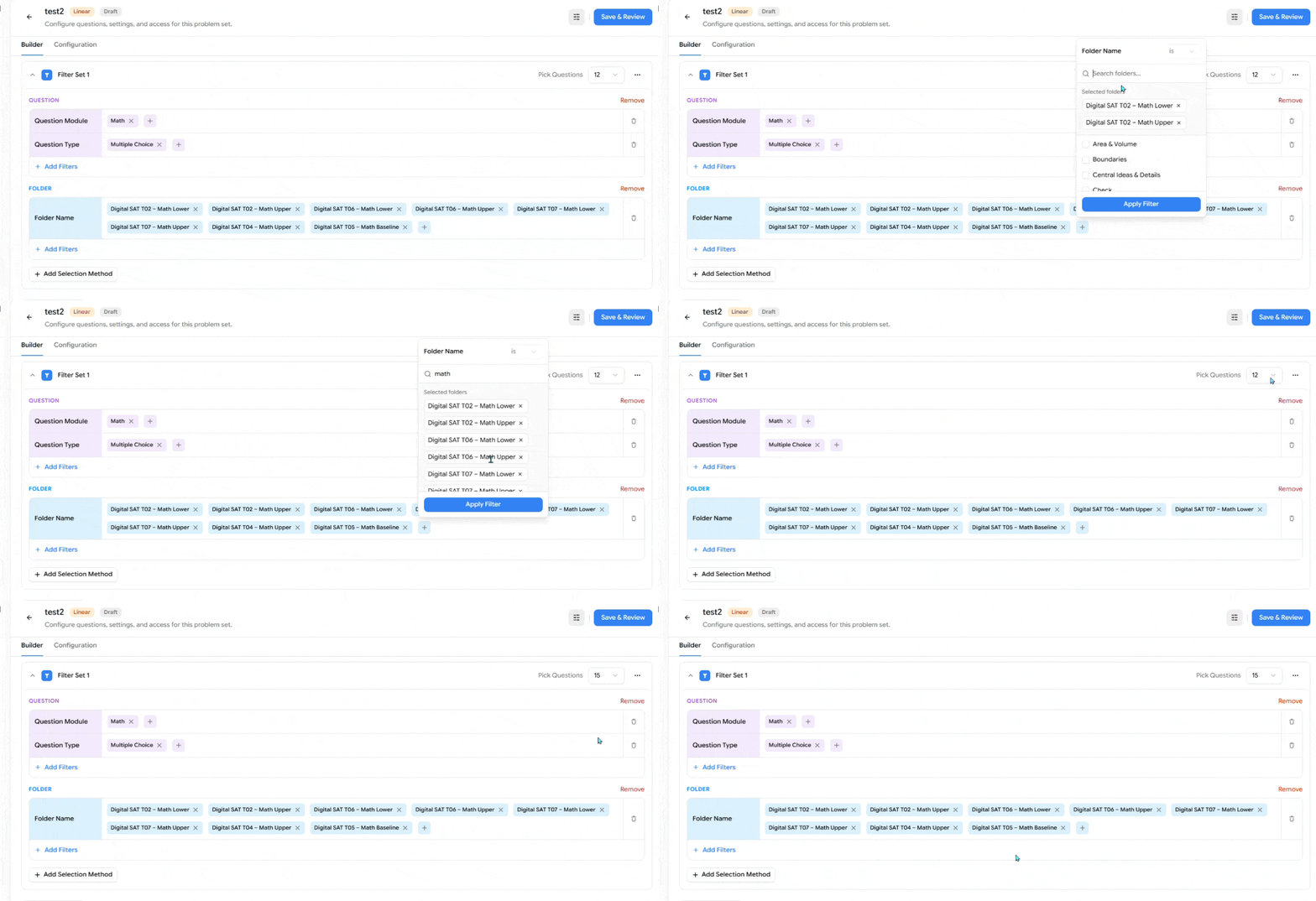
Here, we used some filters to select the questions, then used the Pick Questions dropdown in the top-right corner to change the number of questions in the set. This is how you can also change the number of questions in a problem set.
A quick example:
A tutor wants a short Math practice set of multiple-choice questions pulled from a few Digital SAT folders.
In Filter Set 1, they add a Question selection method and set Question Module to Math and Question Type to Multiple Choice.
Then they add a Folder selection method and use Folder Name to pick the folders they want from the Digital SAT Math sets.
Finally, they open Pick Questions and change it from 12 to 15, and click Save & Review.
The result is a 15-question set of Math multiple-choice questions drawn only from those folders.
Problem Sets let you assign focused practice instead of a full test. You can hand a student an existing EdisonOS set, or build your own in My Library using filter sets and selection methods (Folder, Question, Passage, Attempt), each with its own filters. Choose how the set is delivered: Random, Linear, or Adaptive. Set how many questions to pull, combine multiple filter sets if you need to, and click Save & Review. Together, these options make Problem Sets a flexible way to personalize practice for each student.