
15.8 How to Report/Flag a Question?
While working through the Question Bank or reviewing a student's test performance, you may come across a question that has a typo, a confusing solution, a missing equation, or an answer that doesn't seem right. EdisonOS lets you flag these questions so they can be reviewed and corrected. In this article, we'll walk through the two places where you can report a question and how the reporting flow works.
There are two ways to report a question in EdisonOS: from the Question Bank while viewing an individual question, and from the Student Response Review section while reviewing a test report.
Method 1: Reporting from the Question Bank
You can report a question directly while previewing it in the Question Bank. This is useful when you spot an issue in a question as you're building or reviewing your bank.
Navigate to your program (for example, SAT) from the left sidebar and select Question Bank.
Open the specific question you'd like to review. The full question, options, correct answer, and solution will be displayed.
In the top-right corner of the question view, click the flag icon to report an issue.
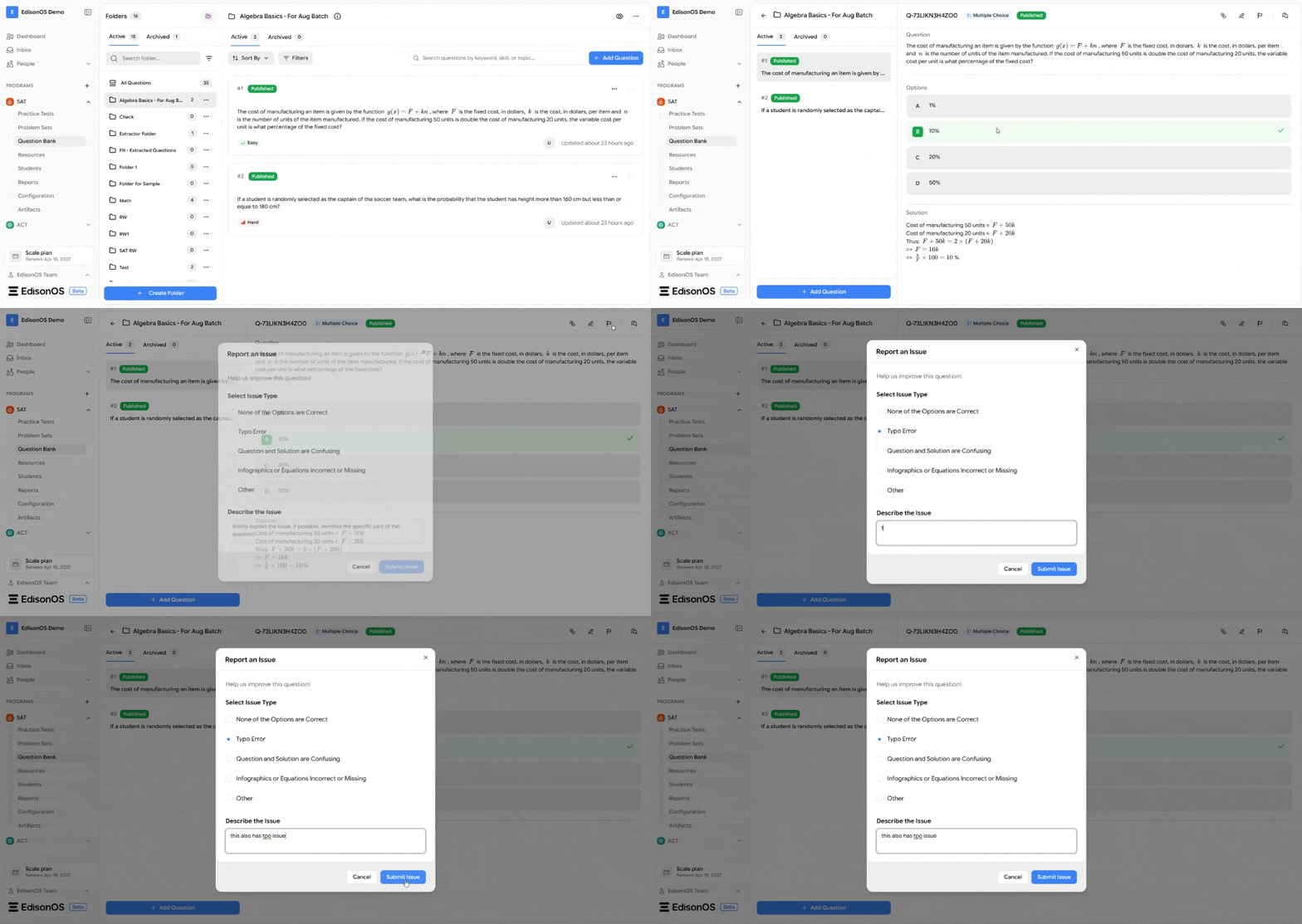
A Report an Issue dialog will open. Here you can select the type of issue you're reporting:
None of the Options are Correct
Typo Error
Question and Solution are Confusing
Infographics or Equations Incorrect or Missing
Other
Add a short note in the Describe the Issue box, mentioning the specific part of the question wherever possible.
Click Submit Issue.
Once the question is reported, it is forwarded to our subject matter experts for review.
Method 2: Reporting from the Student Response Review
You can also flag a question while going through a test report. This is helpful when you're reviewing how a student performed and notice an issue with a specific question.
Open the test report and go to the Student Response Review tab.
Browse to the individual question you want to review using the Question Navigator or by scrolling through the questions. Each question shows its details, the options, and the correct answer.
At the top of the question, click Report Question.
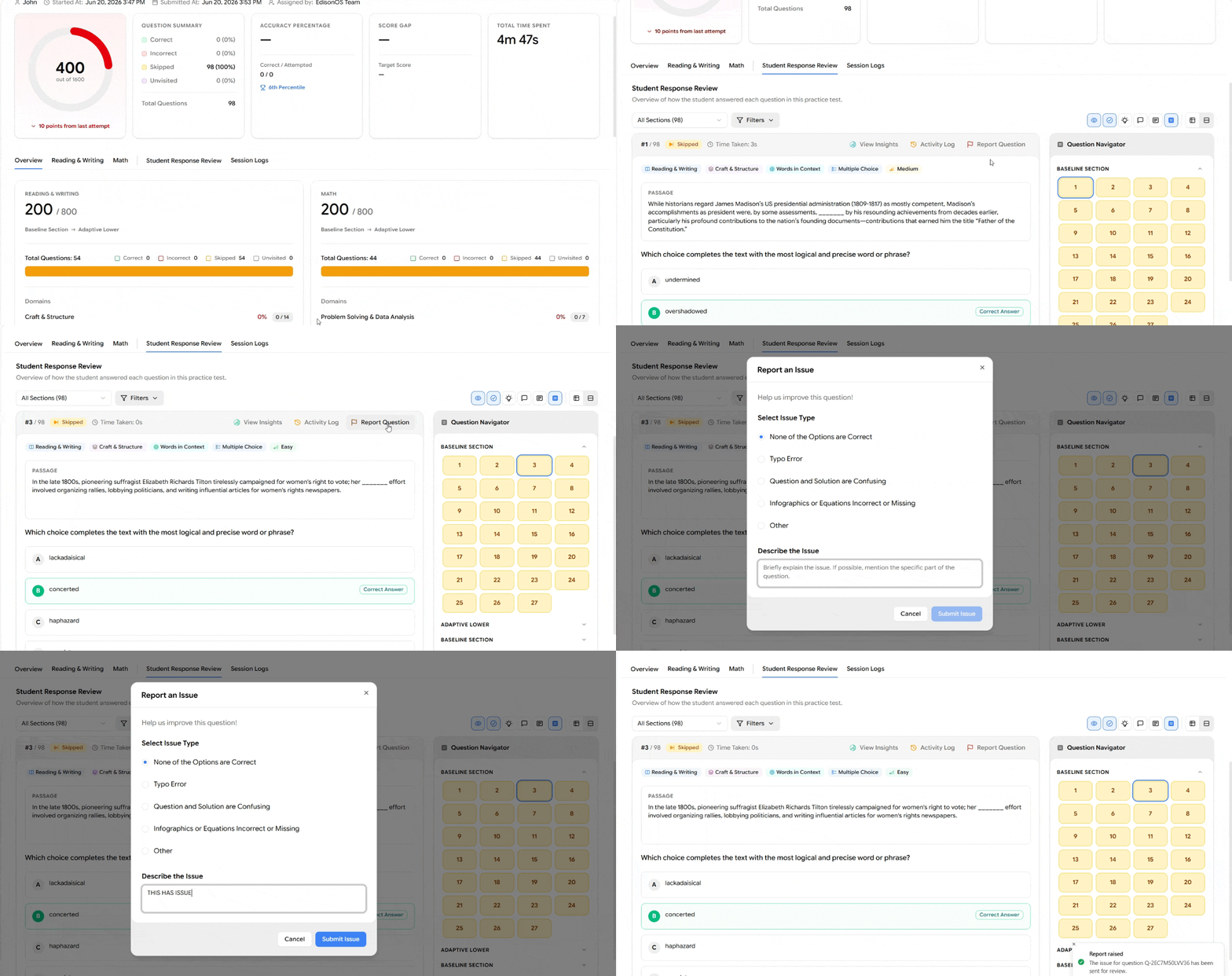
The same Report an Issue dialog will open. Select the relevant issue type, describe the issue in the text box, and click Submit Issue.
As with the Question Bank, the reported question is forwarded to our subject matter experts for review.
Admins, tutors, and students all have access to the Report Question option when viewing a test report. This means anyone reviewing a test can flag a question they believe needs attention.
Summary
There are two places in EdisonOS where you can report a question: from within the Question Bank using the flag icon while previewing a question, and from the Student Response Review section of a test report using the Report Question option. In both cases, you select an issue type, add a brief description, and submit it for our subject matter experts to review.
For more help articles and guides, visit help.edisonos.com.