
A) How to Map Your Domain on GoDaddy
By following the steps outlined, you can point your domain to EdisonOS by adding a few DNS records inside your GoDaddy account. This is available on all the plans.
Open your EdisonOS Custom Domain page (Academy Settings > Domain > Custom Domain) in a separate tab. EdisonOS displays the exact records you need to add the Type, Name, and Value for each one. Always copy the values from there.
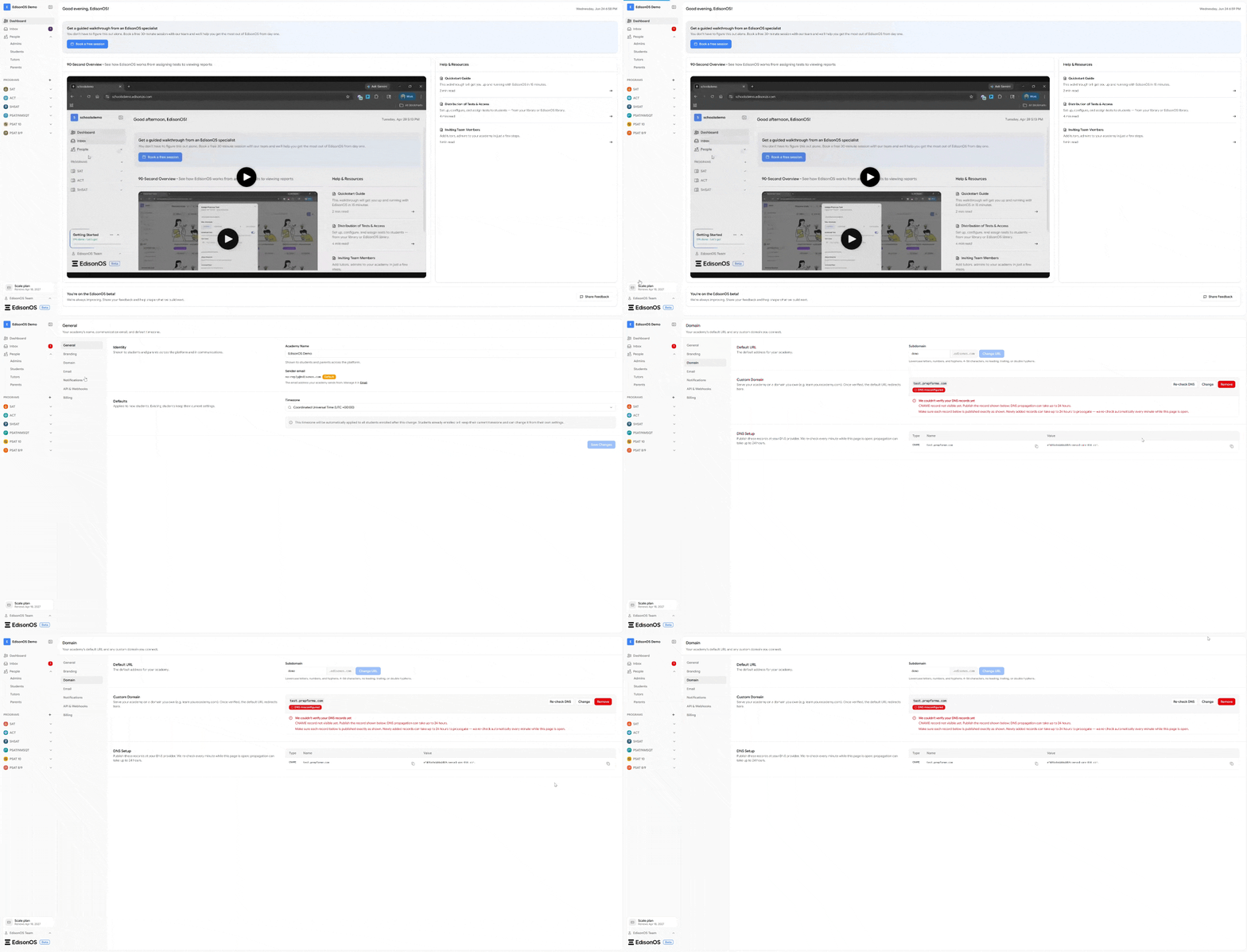
Add your domain mapping records
1. Log in to your GoDaddy account at godaddy.com.
2. Click your account name in the top-right corner and select "My Products".
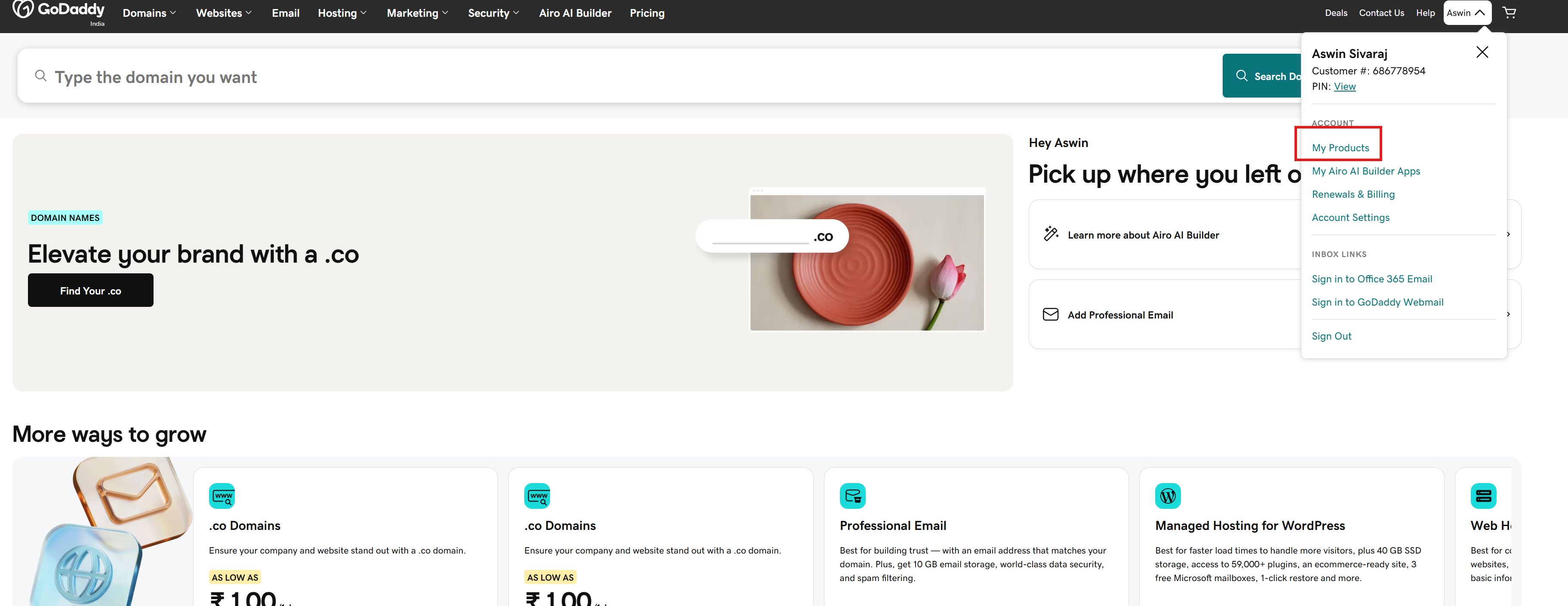
3. Under "Domains", locate the domain you want to connect.
4. Select the three dots ( ⋯ ) next to your domain and choose "Edit DNS" (or click the domain name and open the "DNS" tab). You will land on the DNS Records screen.
5. Under "Records", click "Add New Record".
Please follow the DNS setup instructions available in your EdisonOS platform and add the provided names and values to the appropriate fields. It’s a simple and easy process to complete.
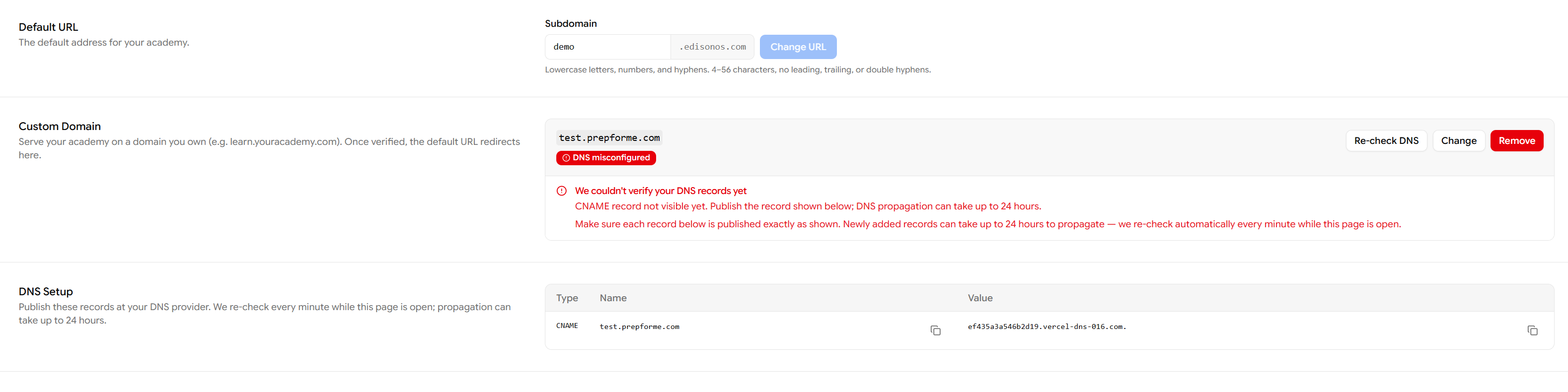
6. From the "Type" dropdown, select "A".
7. In the "Name" field, enter @ to map your root domain (for example, yourdomain.com).
8. In the "Value" field, paste the IP address shown on your EdisonOS Custom Domain page.
9. Leave "TTL" on the default (1 hour) unless EdisonOS specifies otherwise, then click "Save".
10. To point the www version, click "Add New Record" again, select "CNAME", enter www in "Name", enter your EdisonOS target host (or @) in "Value", and click "Save".
A CNAME record cannot be used on the root @ host. If EdisonOS gives you a CNAME for a subdomain (for example, app.yourdomain.com), select "CNAME" as the Type, enter the prefix (app) in "Name", and paste the EdisonOS target into "Value".
If an old A or CNAME record already exists for the same Name (such as a parking page on @ or www) delete it first, as duplicate records on the same host will conflict.
Click here to view the YouTube tutorial on how to do this
Verify and wait for propagation
1. Return to your EdisonOS Custom Domain page and click "Re-check DNS"

2. Most GoDaddy DNS changes take effect within about an hour, but full global propagation can take up to 48 hours.
3. If verification fails right away, wait a little and check again before changing anything.
You can confirm a record is live using a free DNS lookup tool by searching for your domain and the record type. If the value matches what EdisonOS provided, the setup is complete.
Domain won't verify: Double-check the A/CNAME Value matches EdisonOS exactly, with no trailing spaces, and that no old conflicting record remains.
If you need further assistance with domain mapping, reach out through the email help@edisonos.com.