
2.2 Subdomain & Branding
Once your Academy is created, EdisonOS gives you full control over how it looks and feels to your students. From your Academy's name and communication identity to logos and fav icons everything is configurable from a single place.
Subdomain & Branding is available exclusively on all the plans.
White labeling is not available during the trial period.
Accessing Academy Settings
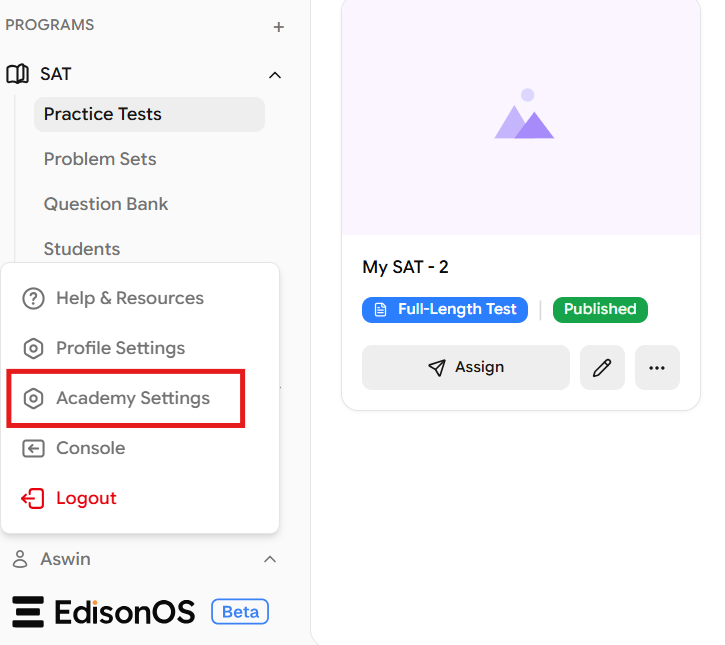
To configure your Academy's identity and branding, navigate to your Academy and click your profile in the bottom-left corner, then select Academy Settings.
Why Personalization Matters
Your Academy's branding is the first thing students and parents encounter across every touchpoint from enrollment pages to system emails. A well-configured Academy identity builds trust, reinforces your brand, and delivers a cohesive experience that feels like your platform, not a generic tool.
EdisonOS gives you the controls to make it yours.
Academy Identity
These details define how your Academy is represented across all student-facing pages and communications.
Field | Description |
|---|---|
Academy Name | Displayed to students and parents across the platform. |
Communication Email | Used for system notifications and outbound student communications. |
Visual Identity
Upload your brand assets to ensure a consistent, professional appearance across the platform.
Logo - Upload your Academy logo in JPG, PNG, or SVG format. Renders at 250 × 100 px across student-facing pages.
Favicon - Upload a favicon in JPG, PNG, SVG, or ICO format. Appears in browser tabs at 32 × 32 px. a small but meaningful detail that reinforces your brand presence.
Experience Defaults
Timezone - Set a default timezone for your Academy. This applies automatically to all students enrolled after the change. Students already on the platform retain their existing timezone and can update it independently from their own settings.
Domain
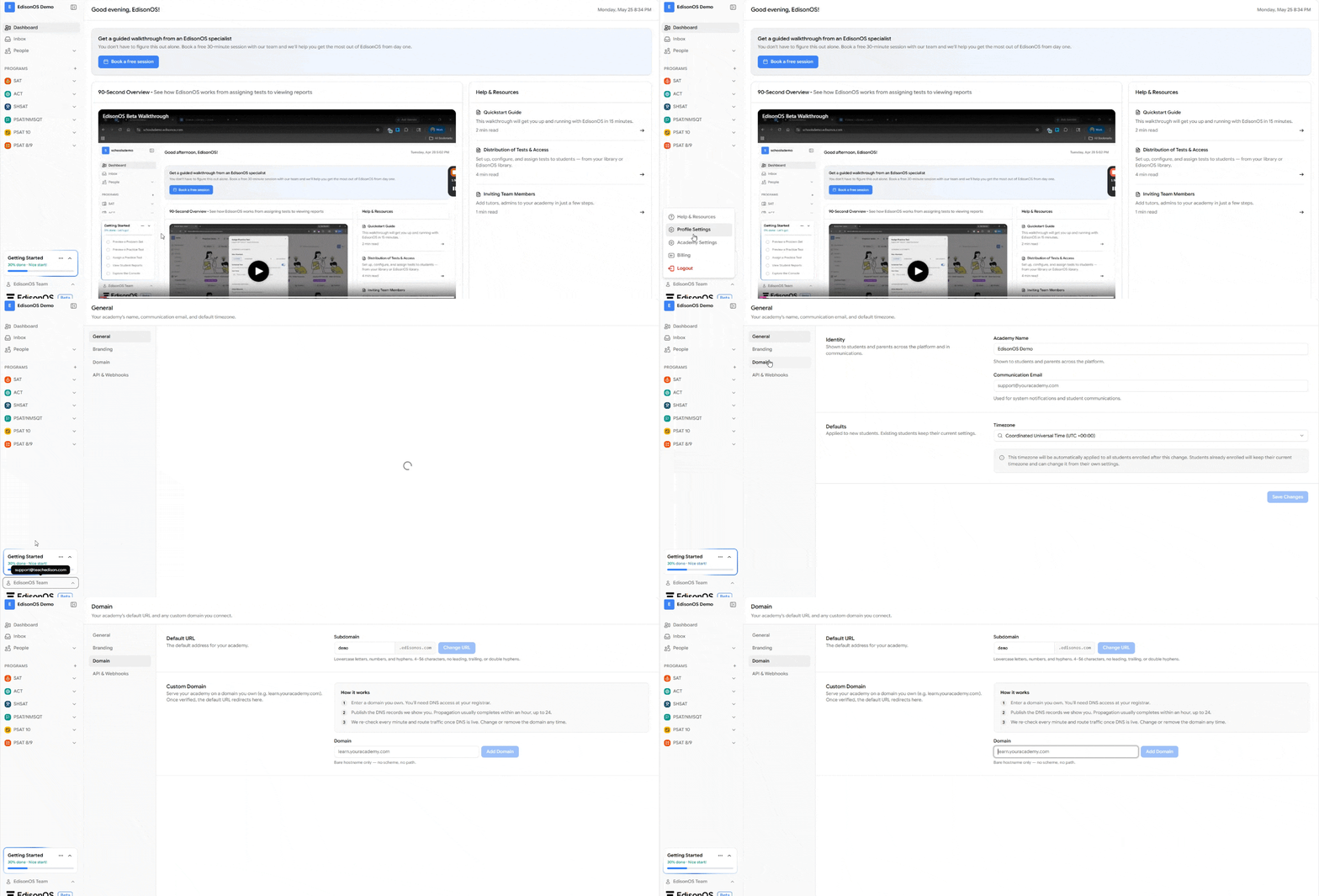
The Domain section lets you manage the URL students use to reach your Academy. You can run on the default EdisonOS subdomain, or serve your Academy on a domain you own for a fully native brand experience.
Default URL
Every Academy gets a default subdomain in the format youracademy.edisonos.com. This is the address EdisonOS provisions automatically when your Academy is created, and it works out of the box no DNS setup required.
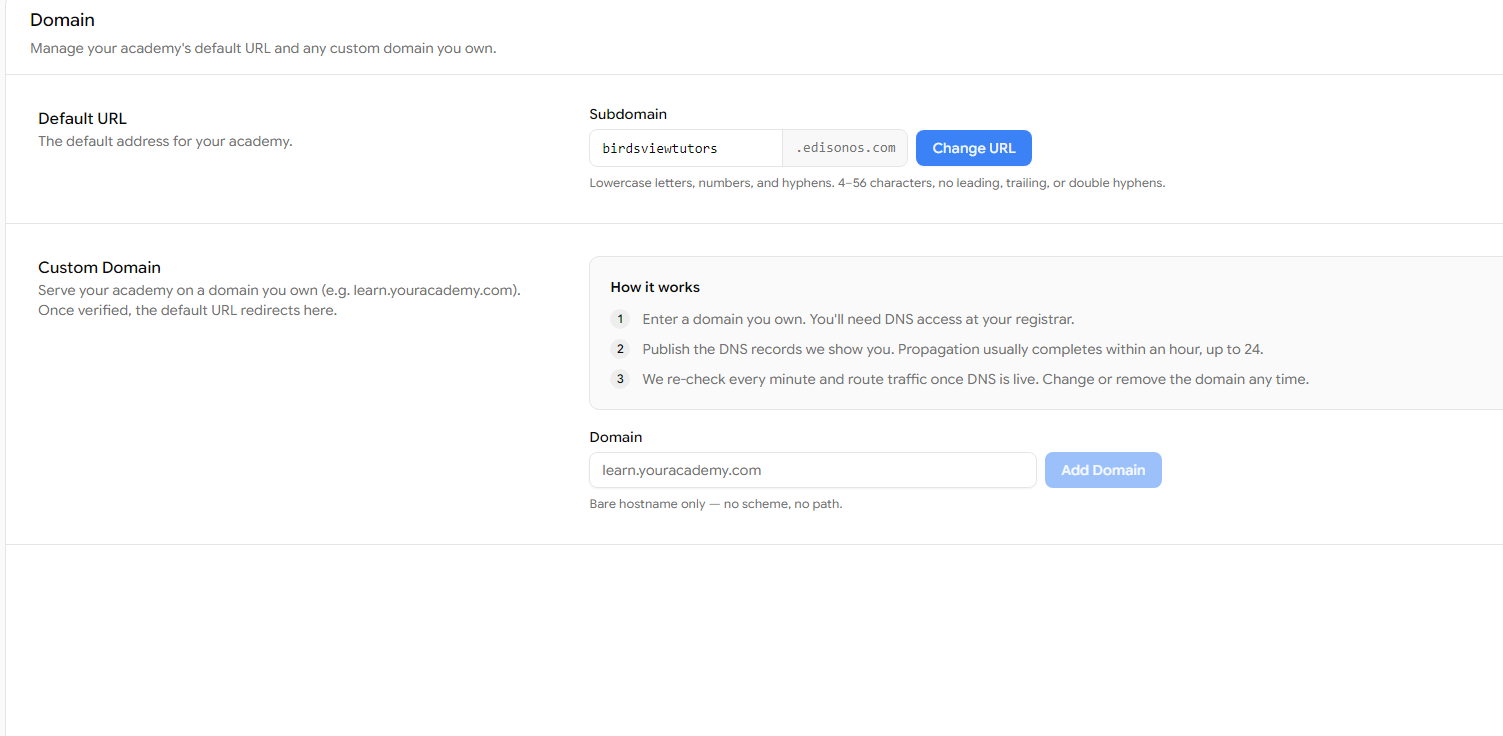
You can rename the subdomain at any time by editing the Subdomain field and clicking Change URL.
Subdomain rules
Subdomains must be lowercase letters, numbers, and hyphens only, between 4 and 56 characters, with no leading, trailing, or double hyphens. Pick something short and memorable students will type or paste this regularly.
When you change the subdomain, EdisonOS shows a confirmation dialog explaining exactly what happens:
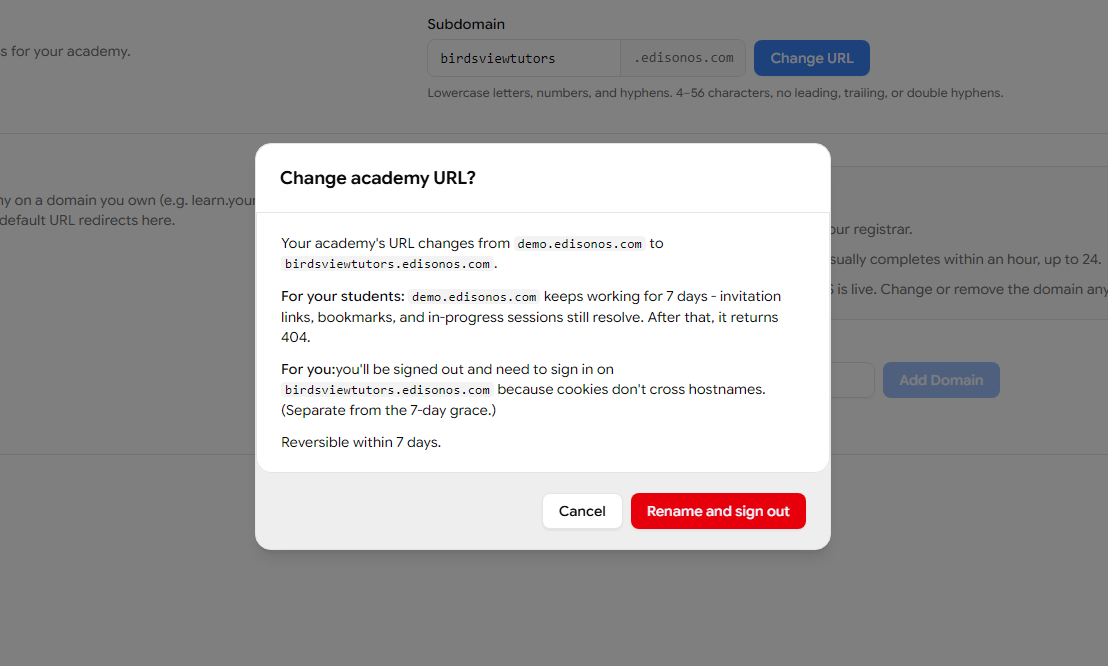
For your students: the old URL keeps working for 7 days invitation links, bookmarks, and in-progress sessions still resolve. After 7 days, the old URL returns a 404.
For you: you'll be signed out and need to sign in again on the new URL, because cookies don't cross hostnames.
The change is reversible within 7 days if you rename back to the old subdomain in time, everything continues to work.
Communicate URL changes before renaming
The 7-day grace period is generous, but it's still a deadline. Before changing your subdomain, notify students by email and update any external links (your website, marketing materials, invitation templates) so no one lands on a 404 once the grace window closes.
Custom Domain
A custom domain lets you serve your Academy on a URL you own for example, learn.youracademy.com or practice.birdsviewtutors.com. Once verified, your default edisonos.com URL automatically redirects to the custom domain, so every student lands on your brand.
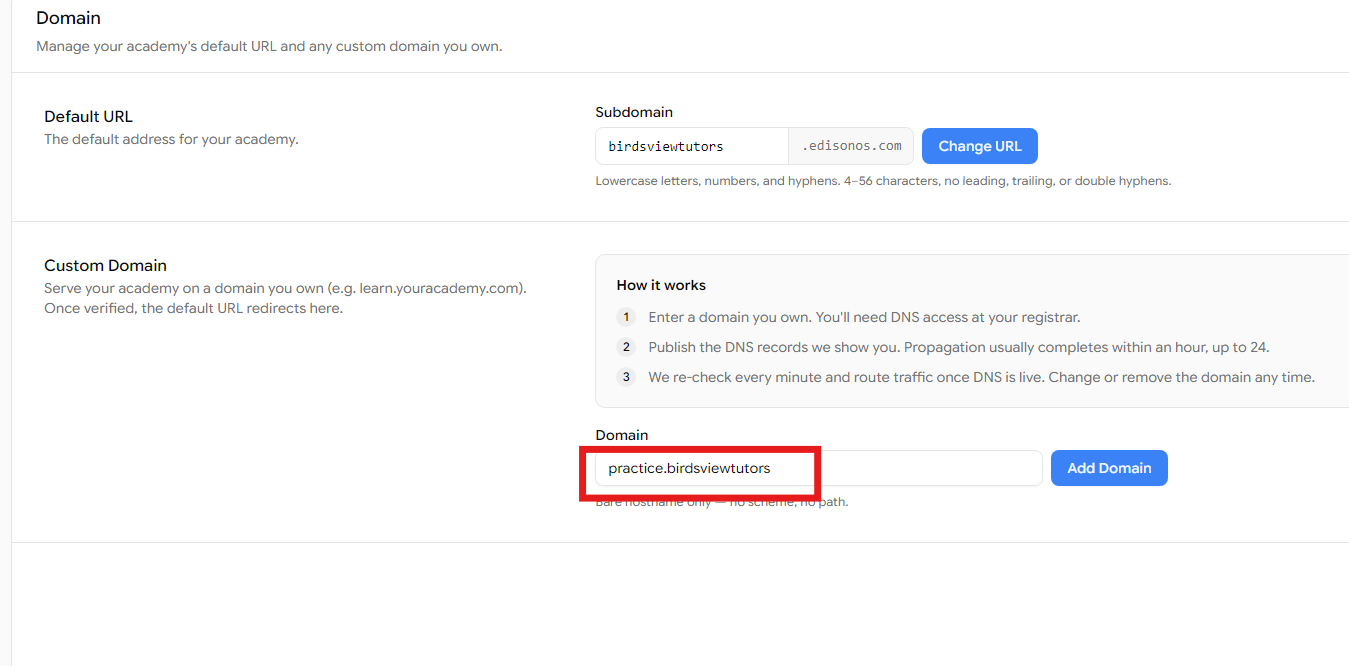
How it works:
Enter a domain you own. You'll need DNS access at your registrar (GoDaddy, Namecheap, Cloudflare, etc.).
Publish the DNS records EdisonOS shows you. Propagation usually completes within an hour, up to 24.
EdisonOS re-checks every minute and routes traffic once DNS is live. You can change or remove the domain any time.
To add one, enter the bare hostname (no https://, no trailing slash) in the Domain field and click Add Domain.
Bare hostname only
Enter just the hostname for example, learn.youracademy.com not https://learn.youracademy.com or learn.youracademy.com/. The form rejects schemes and paths.
DNS Verification
After you add a custom domain, EdisonOS shows the exact DNS record you need to publish at your registrar a CNAME record pointing your domain at an EdisonOS target.
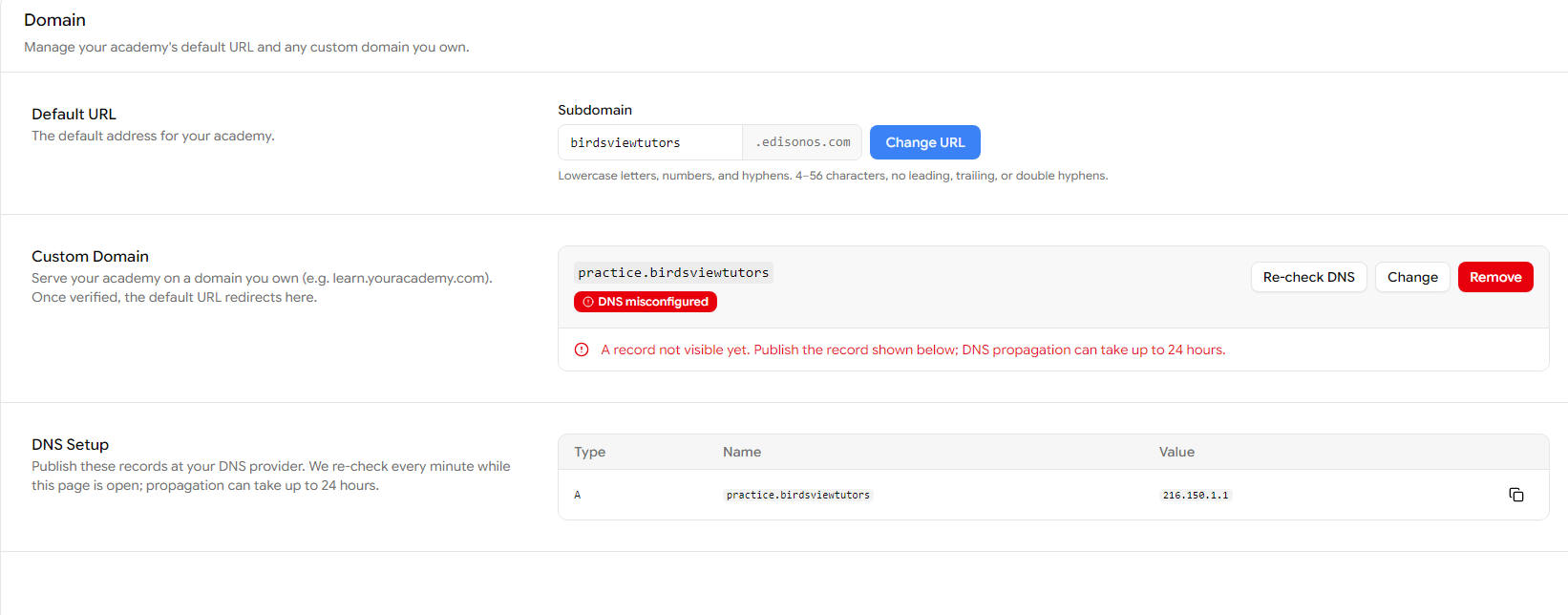
The status badge shows where you are in the process:
Pending verification - the domain is added but EdisonOS hasn't seen the CNAME record yet. Publish the record at your DNS provider; this page re-checks every minute while it's open.
Verified - the CNAME is live and traffic is routing to your custom domain.
You can also click Re-check DNS to force an immediate check, Change to swap to a different domain, or Remove to detach the custom domain entirely (your default URL keeps working).
DNS propagation can take up to 24 hours
If the verification banner says "CNAME record not visible yet," that usually means DNS hasn't propagated rather than something being wrong with your record. Double-check the CNAME at your registrar matches the value EdisonOS shows exactly, then give it time. Most domains verify within an hour, but some registrars take longer.
Custom domains are additional, not replacement
Even after your custom domain verifies, the defaultyouracademy.edisonos.com URL continues to work it redirects to your custom domain. This means existing invitation links and bookmarks don't break when you add custom branding.