
2.1 Creating Your Academy
An Academy is your primary workspace within EdisonOS, the top-level entity that represents your test prep or tutoring business. Everything from content, students, tutors, and assessments is managed within the scope of an Academy.
Each Academy operates independently with its own roster of students, tutors, and admins, giving you full control over how your programs are organized and delivered.
Roles & Permissions
Academies support a tiered role structure, ensuring the right level of access for each member of your team.
Role | Permissions |
|---|---|
Academy Owner | Full administrative control includes onboarding, plan selection, subscription management, and enrolling admins, tutors, and students. Inherits all Admin permissions. |
Academy Admin | Manages student enrollment, licensing, content and test creation, tutor access control, and academy settings. |
Student | Attempts assigned assessments and tracks personal performance over time. |
The Academy Owner holds all permissions available to an Admin, in addition to exclusive controls over subscriptions and academy-level management.
What You Can Do in an Academy
Content & Assessments Access EdisonOS's ready-to-use SAT, ACT, SHSAT and subject test libraries, or create custom assessments tailored to your curriculum and assign them directly to students.
Student & Tutor Management Enroll and organize students, assign tutors, and manage access controls all from within your Academy application.
Performance Tracking Monitor individual and group performance across all assigned practice tests and problem sets, with detailed attempt reviews available to tutors, admins and students.
Creating an Academy
Setting up your Academy takes moments. Navigate to the EdisonOS Console and follow the steps below.
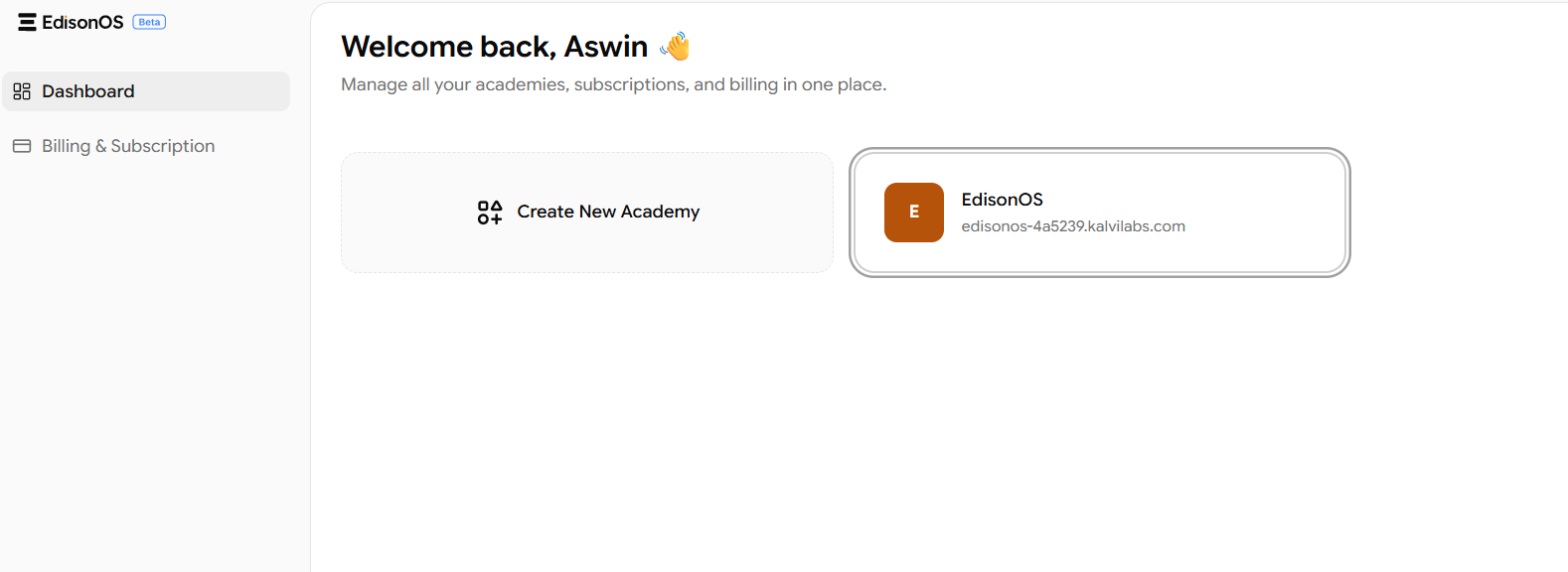
Go to the EdisonOS Console and sign in. You'll land on your Dashboard, which displays all academies linked to your account.
Select Create New Academy from the Dashboard to initiate the setup flow.
Complete the onboarding, provide your Academy name, select your program and plan, and configure initial settings. Once submitted, your Academy is live and ready to use.
You can manage multiple academies from a single EdisonOS account. Each Academy maintains its own independent roster, content, and subscription.