
5.1.2 Based on Incorrect and Skipped Questions
Filter Methods and Scenarios
When you build a custom test in EdisonOS, the Builder tab is where you decide which questions go into the test and how they are chosen.
Here we share few scenarios to understand better about the filter set and selection methods.
Filter 1: Attempt Status — Based on Incorrect and Skipped Questions
Options: Correct, Incorrect, Skipped
Attempt Status filters questions by how a student previously answered them. This is useful for building a set that focuses only on the questions a student got wrong or left unanswered.
Note: Because this is a full-length test, it has six folders, which is why we're picking those six folders here. If you'd rather select on a test-name basis instead, that's covered too.
Scenario:
Pick 6 questions from a set of folders where the attempt status is Incorrect or Skipped.
Steps:
Open the problem set on the Builder tab. You'll see Filter Set 1 with a Pick Questions value on the right.
Set Pick Questions to 6 — the number of questions this Filter Set should contribute.
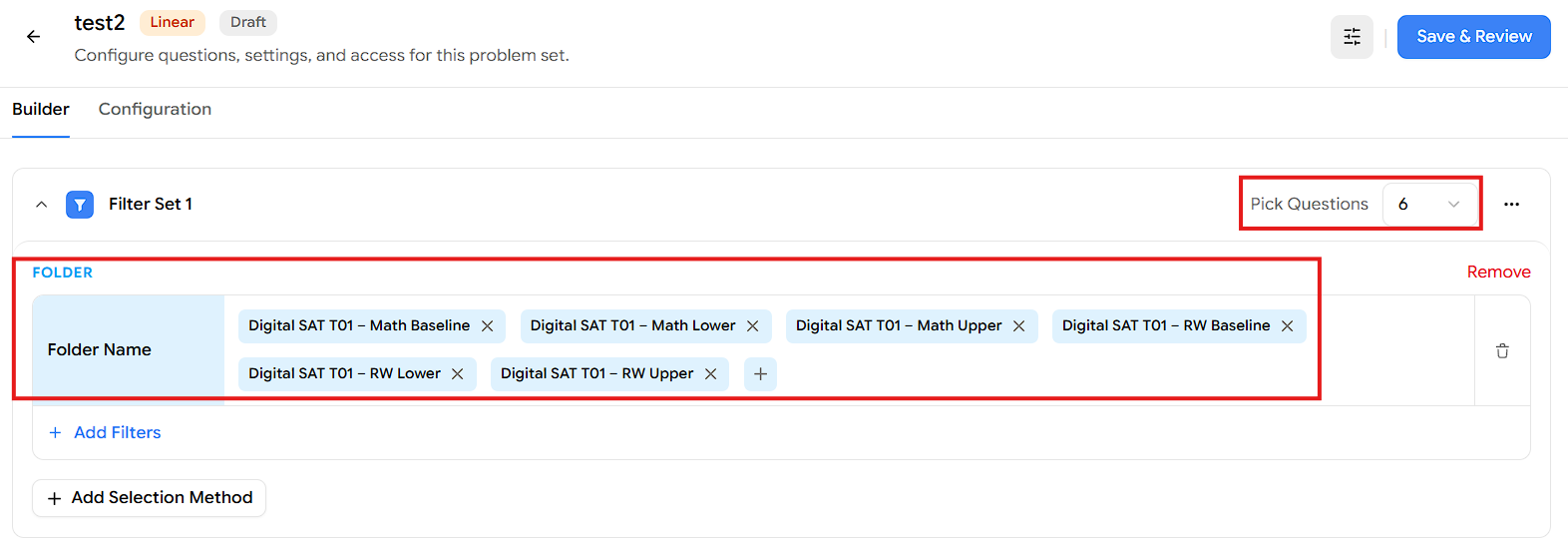
Add the Folder selection method and select the folder names you want to draw questions from
Click Add Selection Method and choose Attempt.
Under the Attempt section, click Add Filters.
In the Filters popup, click Attempt Status.
With the condition set to is any of, select Incorrect and Skipped.
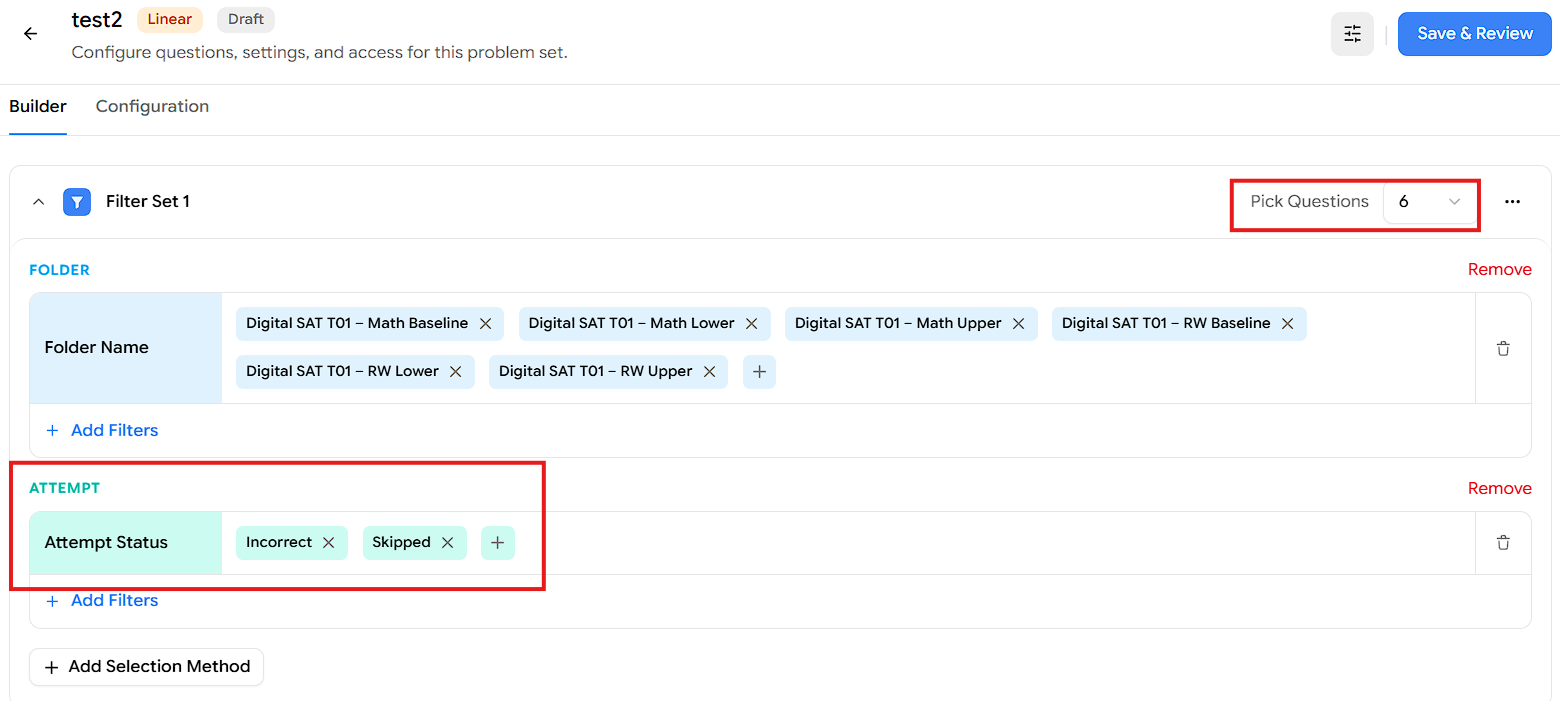
Click Apply Filter.
Click Save & Review, then publish the test to assign it to your students.
Result:
The Filter Set pulls 6 questions from the selected folders where the student's attempt status is Incorrect or Skipped — turning each student's past mistakes and skipped items into targeted practice.