
5.1.1 Using Selection Methods & Filters in the Test Builder
When you build a custom test in EdisonOS, the Builder tab is where you decide which questions go into the test and how they are chosen. You do this with two building blocks:
Filter Sets - Independent ways to categorize, each of which contributes a set number of questions to the test.
Selection Methods - the source a Filter Set draws from (Folder, Question, Passage, or Attempt). Each method exposes its own list of Filters for narrowing the selection.
This lets you mix sources within a single test. for example, pull 10 questions from a specific folder, 5 by question skill, and 5 based on past attempt behavior.
Open the Builder and add a Selection Method
Inside a Filter Set, click + Add Selection Method. You'll see four options:
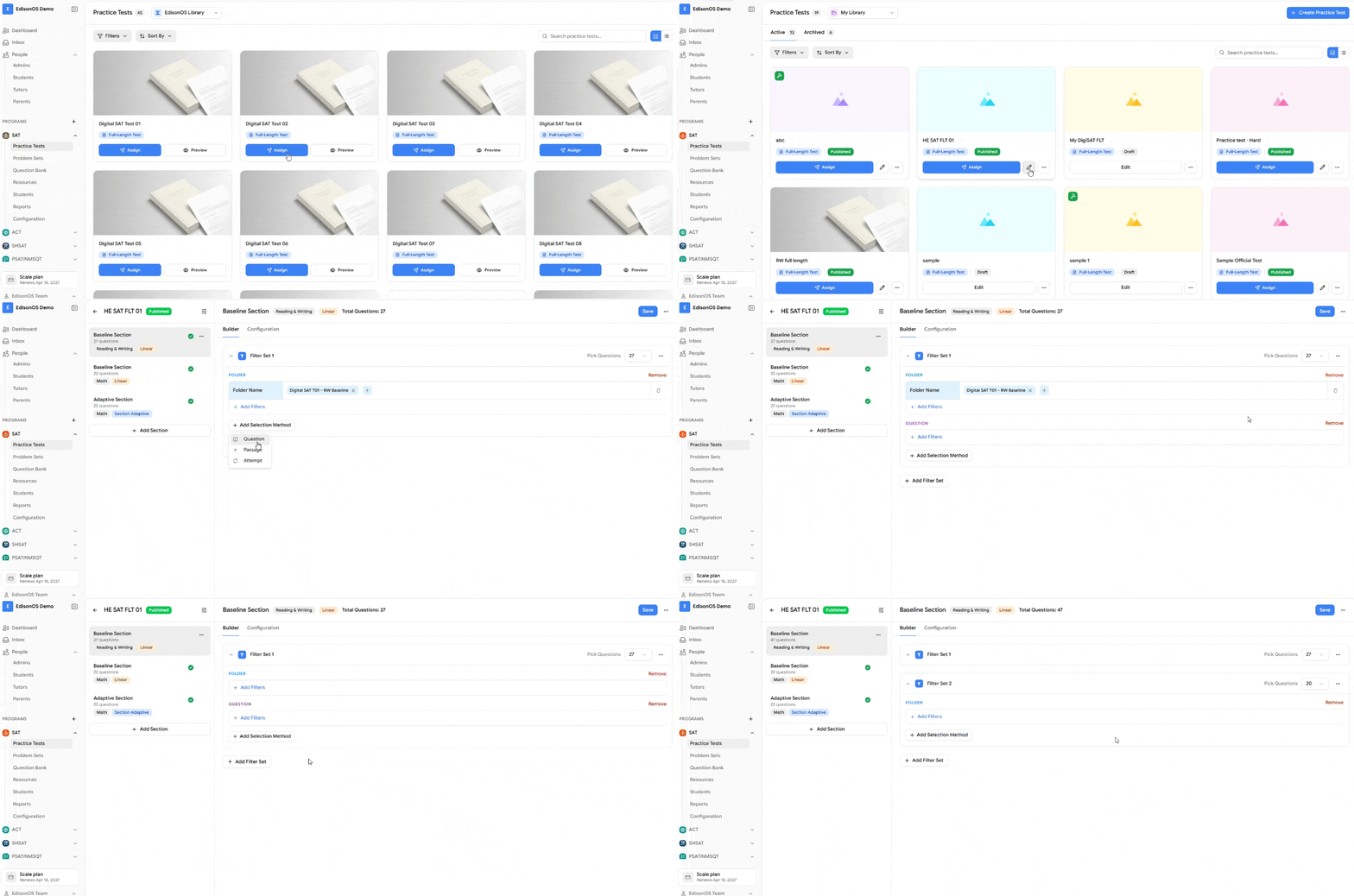
Selection Method | What it draws from |
|---|---|
Folder | Questions organized inside your folders |
Question | Individual questions from the question bank |
Passage | Questions grouped under reading/analysis passages |
Attempt | Questions filtered by how students previously attempted them |
Choose the method that matches how you want to source questions for this set.
Add Filters for the selected method
After picking a Selection Method, click + Add Filters. The list of available filters changes depending on the method you chose. This is what makes each method powerful — you only see the filters that make sense for that source.
If your Selection Method is Question
Clicking Add Filters shows question-level filters, including:
Question Module
Question Domain
Question Skill
Question Tags
Question Type
Calculator Allowed
Tools Used
Use these to target questions by content area, skill, type, or the tools a student is allowed/expected to use. You can search filters using the Search Filters box at the top of the list.
If your Selection Method is Folder
Clicking Add Filters shows folder-level filters:
Folder Name
Folder Tags
This is the fastest way to pull a whole curated set. for example, every question inside a "Reading – Hard" folder, or all folders sharing a particular tag.
If your Selection Method is Passage
Clicking Add Filters lets you filter by Passage Tags, so you can build passage-based sections (ideal for Reading & Writing tests) around specific themes or skills you've tagged.
If your Selection Method is Attempt
Clicking Add Filters shows attempt-based filters, including:
Attempt Status
Time Spent
Marked for Review
Tools Used
These are especially useful for review and revision tests. for example, pulling only questions a student answered incorrectly, spent too long on, or flagged as "Marked for Review."
Step 3: Set how many questions each Filter Set contributes
Each Filter Set has a Pick Questions dropdown on the right (default: 20). This is the number of questions that set contributes to the final test. The Total Questions count at the top of the Builder updates as you adjust each set.
Step 4: Add more Filter Sets to mix sources
Click + Add Filter Set to create additional sets (Filter Set 2, Filter Set 3, and so on). Each set works independently and can use a different Selection Method.
This is the key to flexible test design. A single test might combine:
Filter Set 1 - Question: 10 questions filtered by Question Skill
Filter Set 2 - Folder: 5 questions from a specific folder
Filter Set 3 - Attempt: 5 questions a student previously marked for review
To delete a method within a set, use Remove; to manage a whole set, use the ⋯ (more options) menu next to it.
Step 5: Save your test
Once your Filter Sets and Filters are configured and the Total Questions count looks right, click Save in the top-right corner. Your custom test is now ready to assign.
Quick reference: Selection Methods and their Filters
Selection Method | Available Filters |
|---|---|
Folder | Folder Name, Folder Tags |
Question | Question Module, Question Domain, Question Skill, Question Tags, Question Type, Calculator Allowed, Tools Used |
Passage | Passage Tags |
Attempt | Attempt Status, Time Spent, Marked for Review, Tools Used |