
5.1.3 Based on Difficulty level - Hard
Filter Methods and Scenarios
When you build a custom test in EdisonOS, the Builder tab is where you decide which questions go into the test and how they are chosen.
Here we share few scenarios to understand better about the filter set and selection methods.
Options: Easy, Medium, Hard
Scenario:
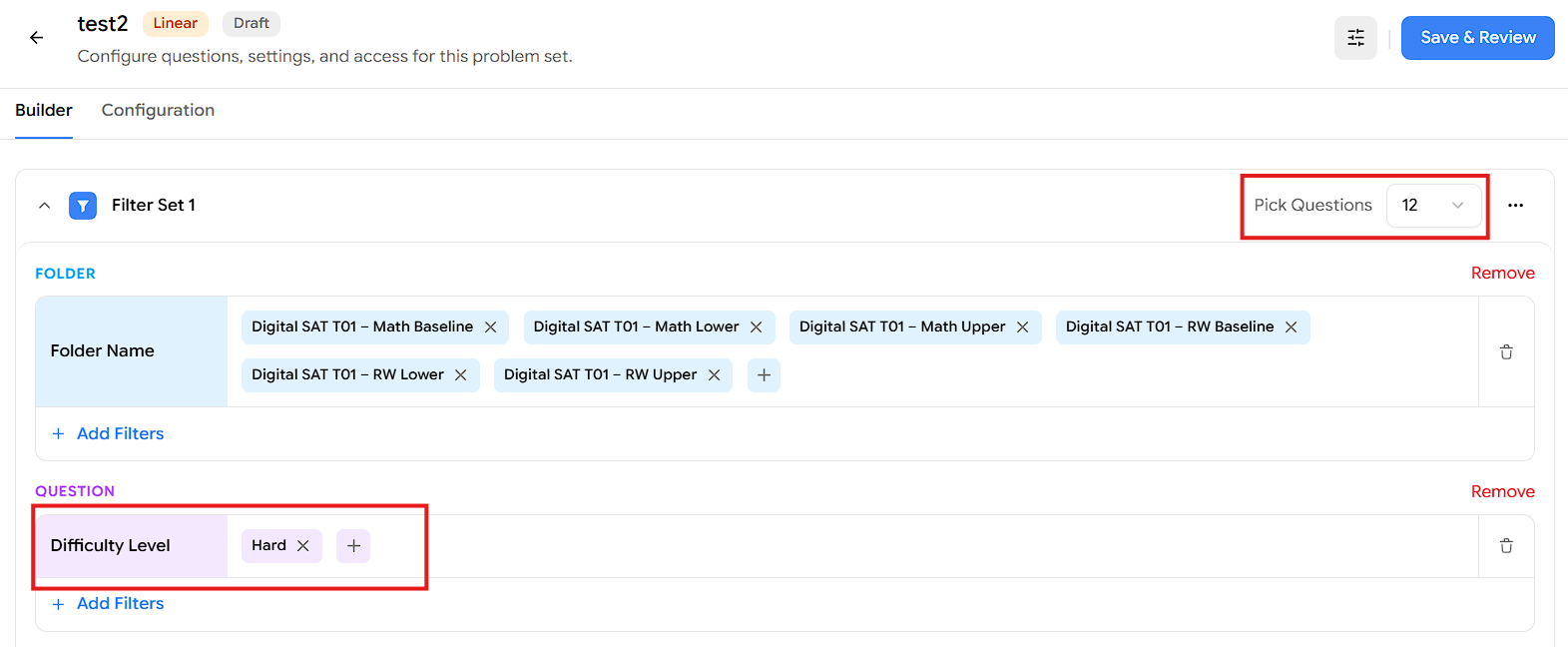
Pick 12 questions from the given folders where the difficulty level is Hard. (You can choose Easy, Medium, or Hard — in this scenario, we want Hard.)
Note: Because this is a full-length test, it has six folders — which is why we're picking those six folders here. If you'd rather select on a test-name basis instead, that's covered too.
Steps:
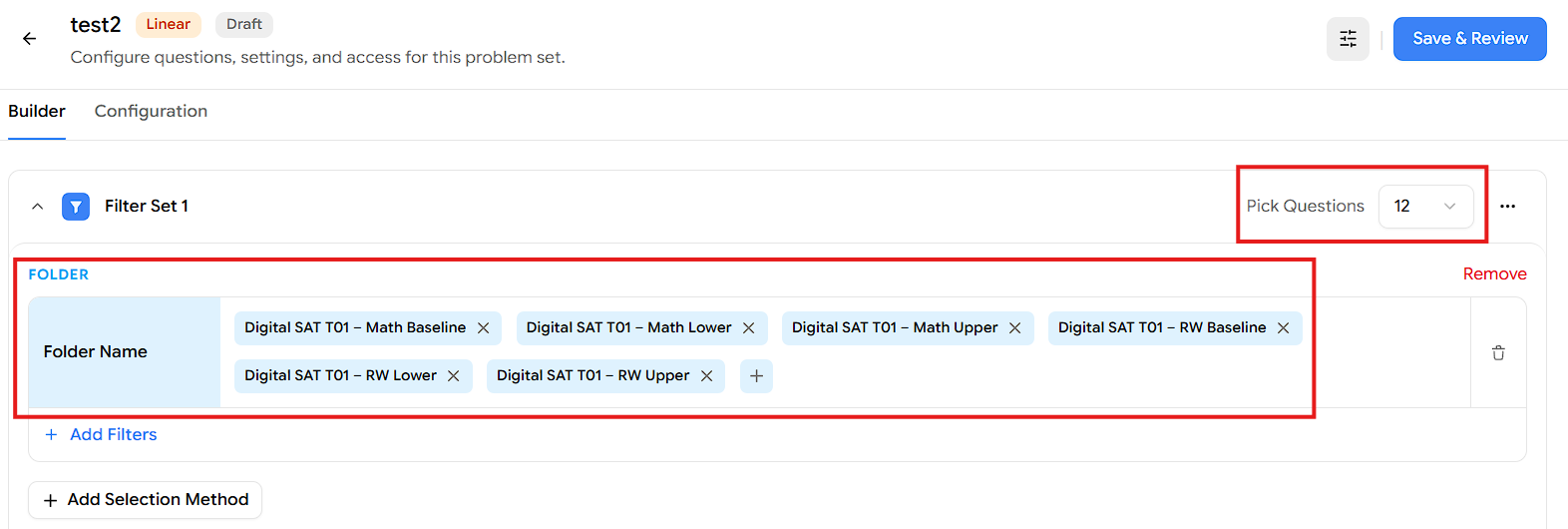
Open the problem set on the Builder tab. You'll see Filter Set 1 with a Pick Questions value on the right.
Set Pick Questions to 12, the number of questions this Filter Set should contribute.
Add the Folder selection method and select the folder names you want to draw questions from.
Click Add Selection Method and choose Question.
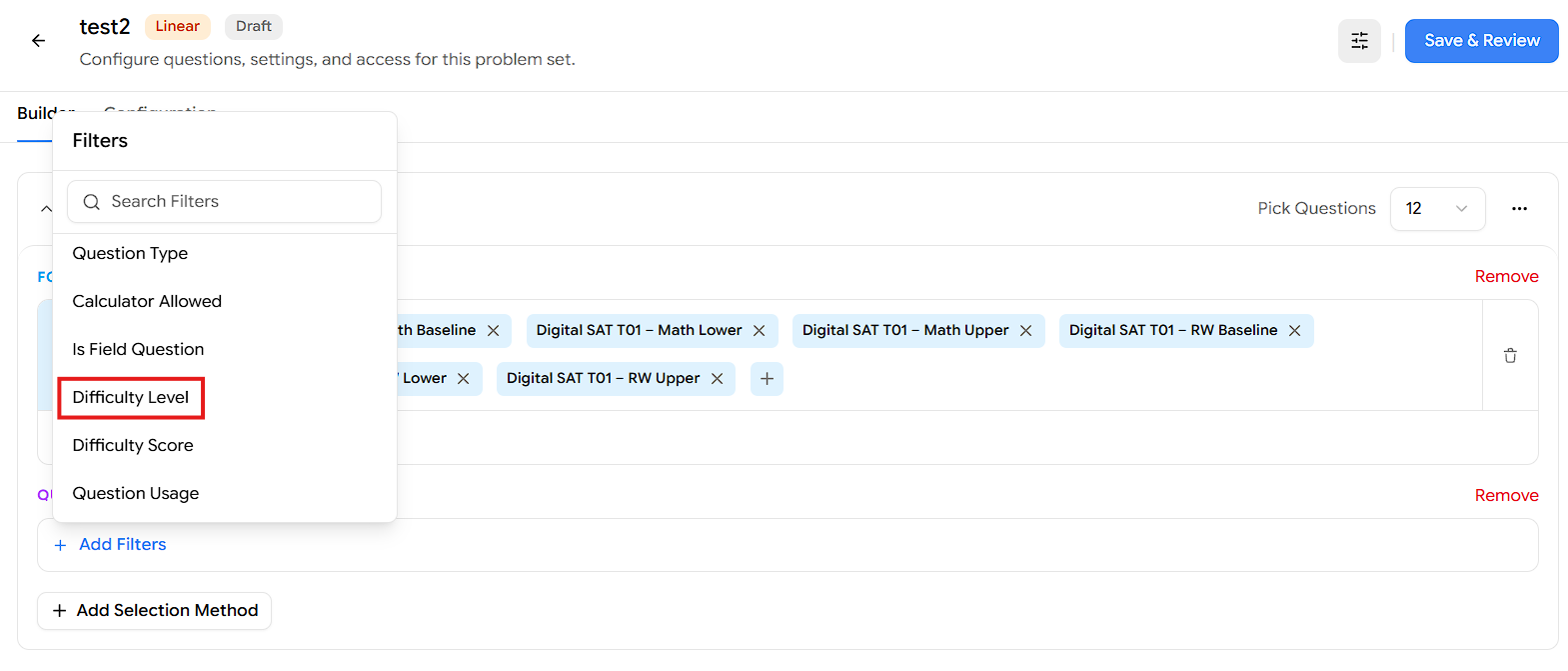
Under the Question section, click Add Filters.
In the Filters popup, click Difficulty Level.
With the condition set to is any of, select Hard.
Click Apply Filter.
Click Save & Review, then publish the test to assign it to your students.
Result:
The Filter Set pulls 12 questions from the selected folders where the difficulty level is Hard — giving students a set made up entirely of the hardest questions.
Note: Make sure enough questions match your filter. If the selected folders don't have 12 Hard questions available, either add more test folders to the selection or reduce the Pick Questions count so it matches what's available.