
13.3 Notification Preferences
Notification Preferences let you decide exactly which events trigger alerts, who receives them, and through which channel. Instead of every role being notified about everything, you control the flow so the right people stay informed without unnecessary noise.
Accessing Notification Preferences
As an Academy Owner, head into your Academy Settings. From the settings menu, navigate to Notifications. Choose which events notify which roles, by email and in-app.
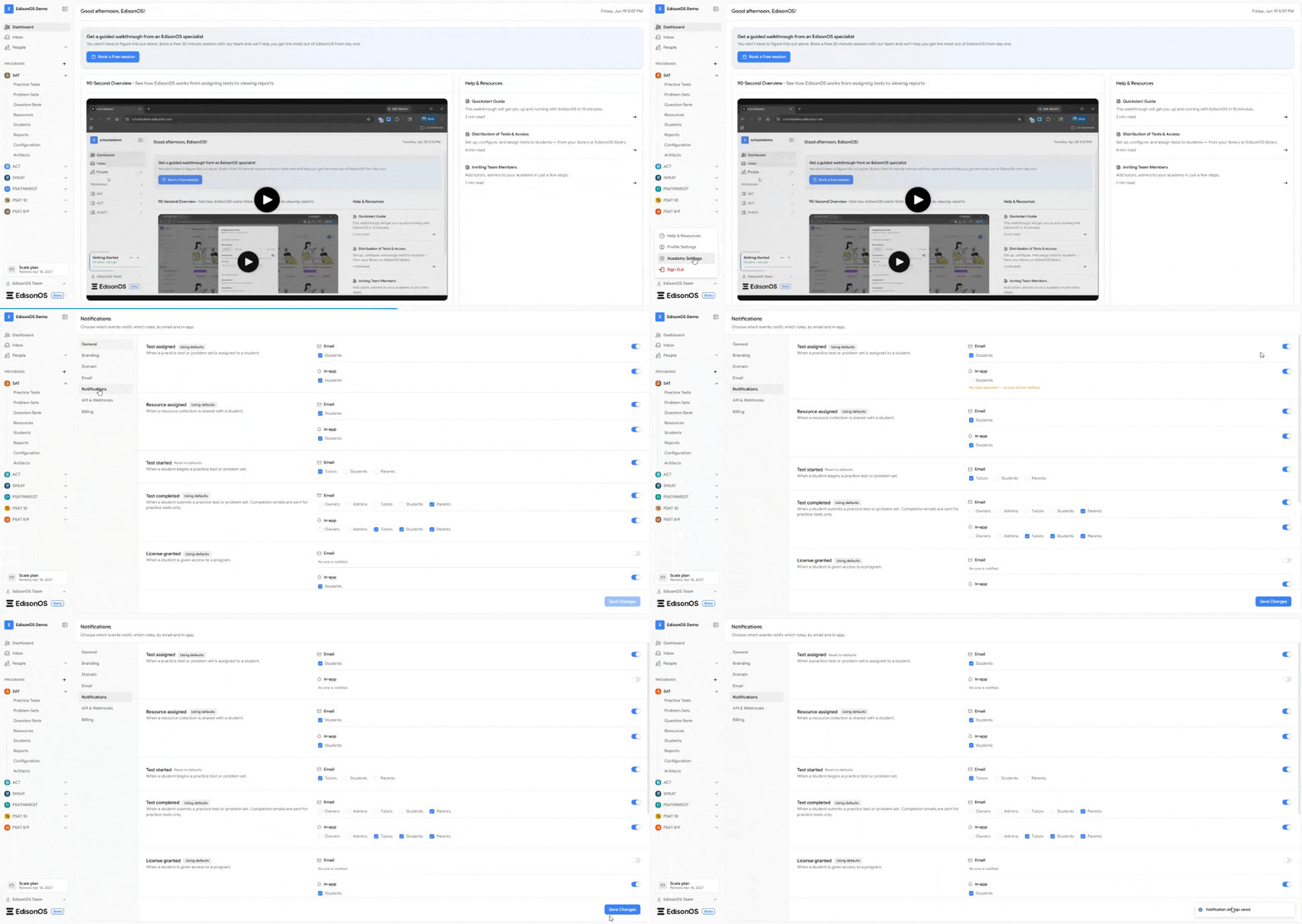
The Two Notification Channels
Every event supports two independent channels, each governed by its own toggle.
Email Notifications - When enabled, the selected roles receive an email about the event directly in their inbox.
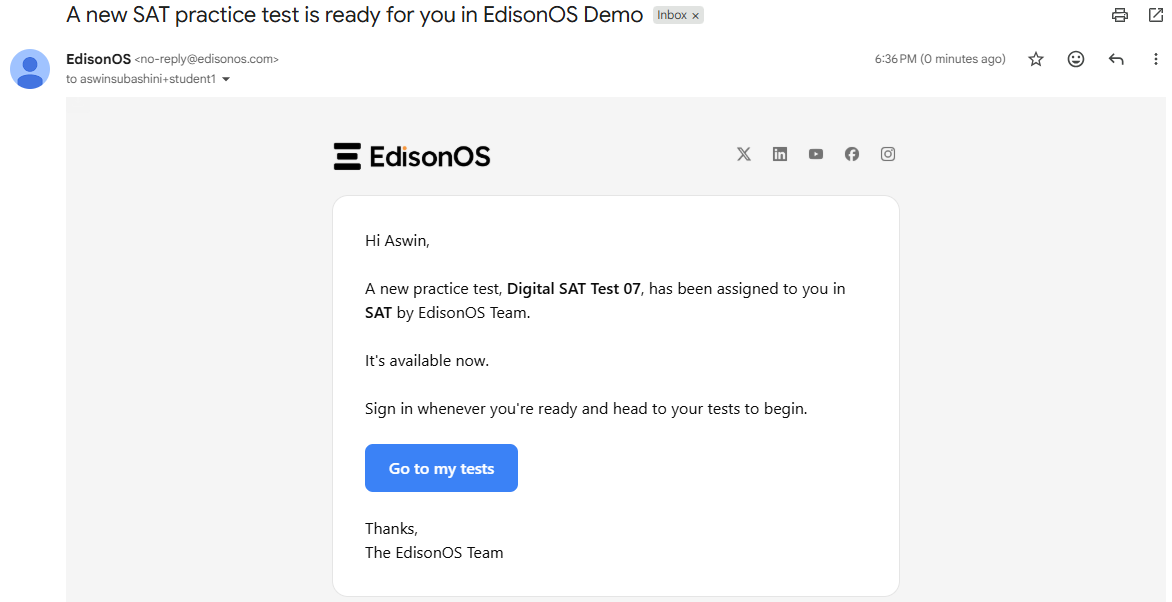
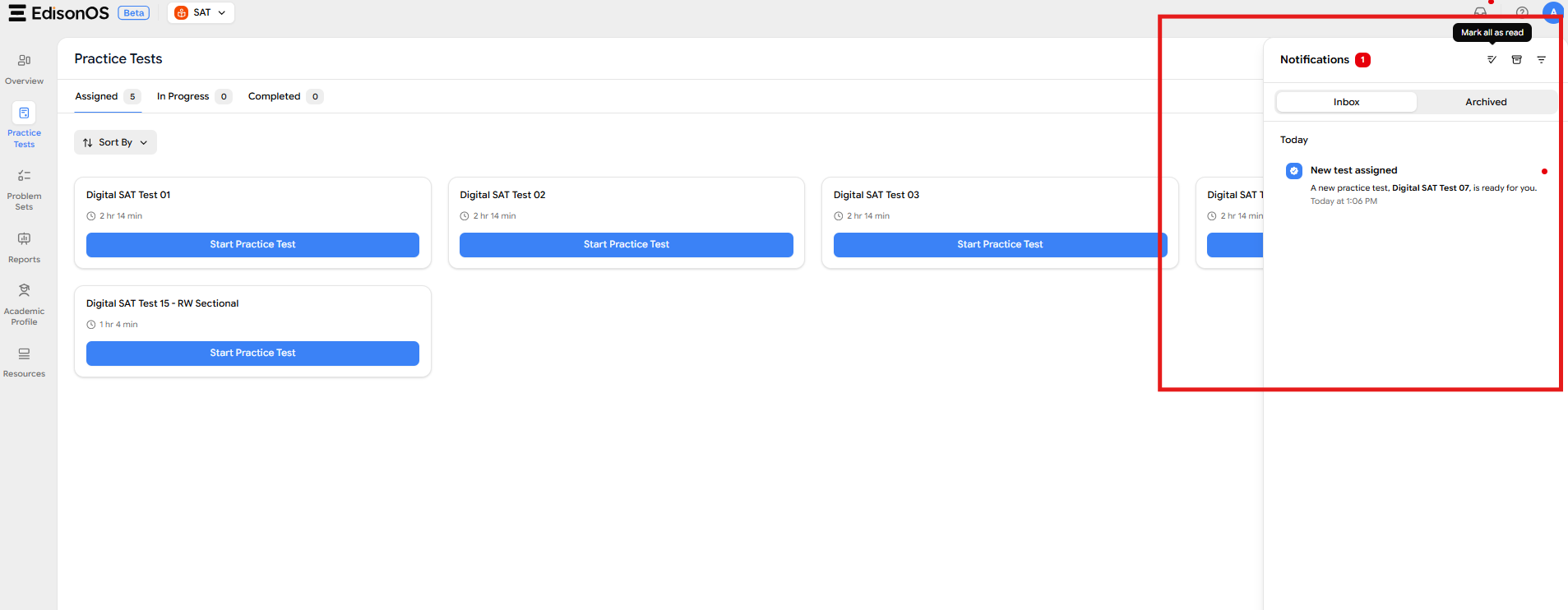
In-app Notifications - When enabled, the selected roles are notified inside the platform itself. After logging in, they'll see the alert under the Inbox section. For example, a student raising a dispute on a question generates an in-app notification such as "Dispute raised by student" with the question reference, timestamp, and a prompt to review and resolve it. These appear in the Inbox, where they can also be moved to Archived once handled.
How the Toggles Work
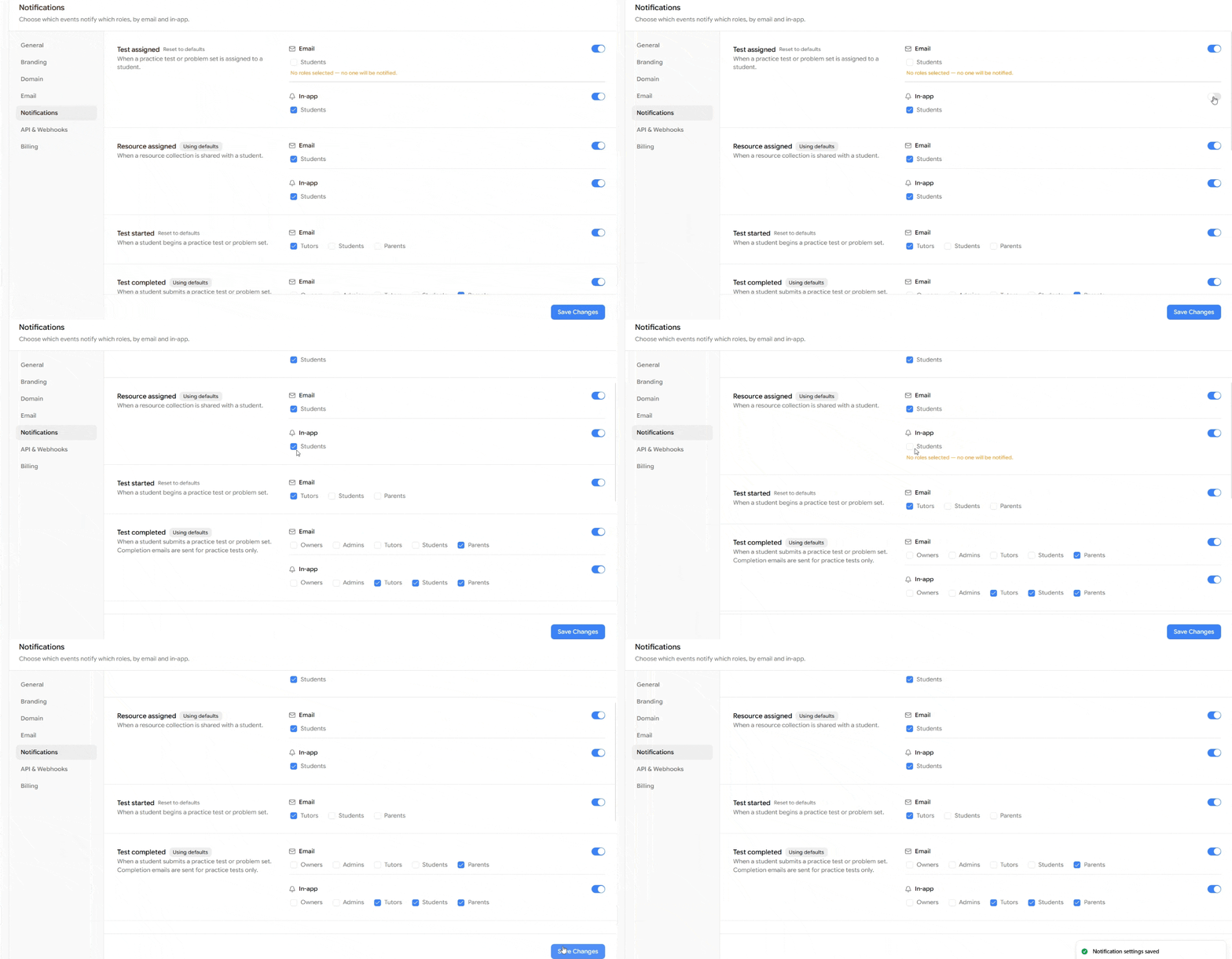
Each event has a toggle for Email and a separate toggle for In-app. Both follow a simple on/off configuration.
When a channel is toggled on, you can select which roles receive that notification by ticking the relevant checkboxes. When a channel is toggled off, or when it's on but no roles are selected, the system displays a confirmation message such as "No one is notified" or "No roles selected so no one will be notified."
Before assuming an event is covered, check that the toggle is on and the right roles are ticked.
Using Defaults and Resetting
Each event carries a status label next to its name. When you haven't touched a particular event, it shows "Using defaults" meaning it's running on EdisonOS's preset notification behavior. The moment you make a change to that event, the label switches to "Reset to defaults." Clicking "Reset to defaults" reverts that event back to its original preset configuration, and the label returns to "Using defaults" once more. This gives you an easy way to experiment with settings and roll back to the standard behavior whenever needed.
Configurable Events
Here are the events you can configure, along with how their channels behave:
Test assigned - Triggered when a practice test or problem set is assigned to a student. Both Email and In-app can be toggled on or off, with Students as the notified role.
Resource assigned - Triggered when a resource collection is shared with a student. Both Email and In-app are available, again with Students as the recipient.
Test started - Triggered when a student begins a practice test or problem set. For this event, you can choose between Tutors, Students, and Parents as recipients. For instance, you might enable Email and tick only Tutors so that the tutor is alerted the moment their student starts working, while leaving Students and Parents unchecked.
Test completed - Triggered when a student submits a practice test or problem set. This is the most flexible event, because notifications can be controlled for every profile type: Owners, Admins, Tutors, Students, and Parents. A useful detail here talks about completion emails are sent for practice tests only. You can mix and match per channel; for instance, Email might notify only Parents, while In-app notifies Tutors, Students, and Parents.
License granted - Triggered when a student is granted a student license. When a student is registered and given access to a program through a license whether for a duration of 1 month, 3 months, or 12 months that registration is what drives this notification's behavior. In other words, the alert fires based on the license being assigned to the registered student. Email can be left off, while In-app can notify Students.
Added to a group - Triggered when a tutor is assigned to a group. Both Email and In-app can notify Tutors.
Upcoming test reminder - A reminder sent 24 hours before a scheduled practice test or problem set starts. Email and In-app can both be configured, with Students and Parents as selectable recipients. Note that if you enable a channel but leave all roles unchecked, you'll see the warning that no one will be notified and a reminder to tick at least one recipient.
Saving Your Changes
After adjusting any toggles or role selections, click Save Changes in the bottom-right corner to apply your configuration. Until you save, your adjustments won't take effect.
Quick Reference Table
Event | Trigger | Channels | Selectable Roles |
|---|---|---|---|
Test assigned | A practice test or problem set is assigned to a student | Email, In-app | Students |
Resource assigned | A resource collection is shared with a student | Email, In-app | Students |
Test started | A student begins a practice test or problem set | Email, In-app | Tutors, Students, Parents |
Test completed | A student submits a practice test or problem set (emails for practice tests only) | Email, In-app | Owners, Admins, Tutors, Students, Parents |
License granted | A registered student is given a 1, 3, or 12-month license | Email, In-app | Students |
Added to a group | A tutor is assigned to a group | Email, In-app | Tutors |
Upcoming test reminder | 24 hours before a scheduled test or problem set starts | Email, In-app | Students, Parents |
Conclusion
Notification Preferences give you granular, per-event control over how your academy communicates. By combining the Email and In-app toggles with role-level checkboxes, you can ensure that each group from Owners down to Parents only receives the alerts that matter to them. Review each event's toggles and recipients carefully, remember that an "off" toggle (or one with no roles selected) means no one is notified, lean on "Reset to defaults" whenever you want to return to the standard setup, and save your changes once everything is set the way you want.