
15.17 How to Give a Student Additional Test Attempts
If a student has used all their attempts on a practice test, you can let them retake it by raising their attempt limit. The change applies only to the student you edit, so everyone else's settings stay the same.
Steps to follow:
Select the program. In the left sidebar, open the program switcher (for example, SAT) and choose the program that contains the test.
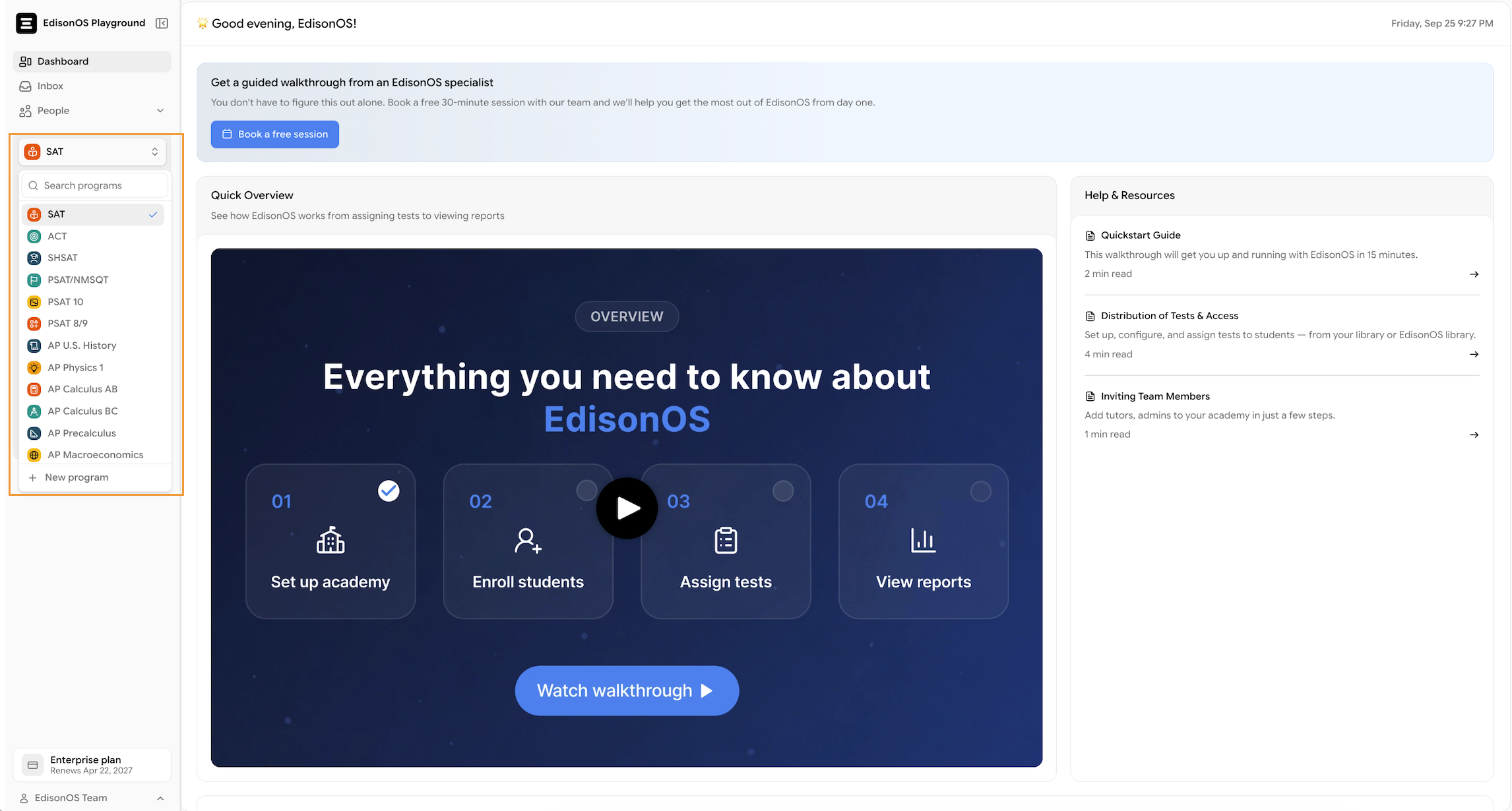
Open the test. Go to Practice Tests and click the test you want to update.
Go to the Enrolled Students tab. You'll see every student enrolled in the test. The Attempts column shows how many attempts each student has used out of their limit (for example, 1 / 1).
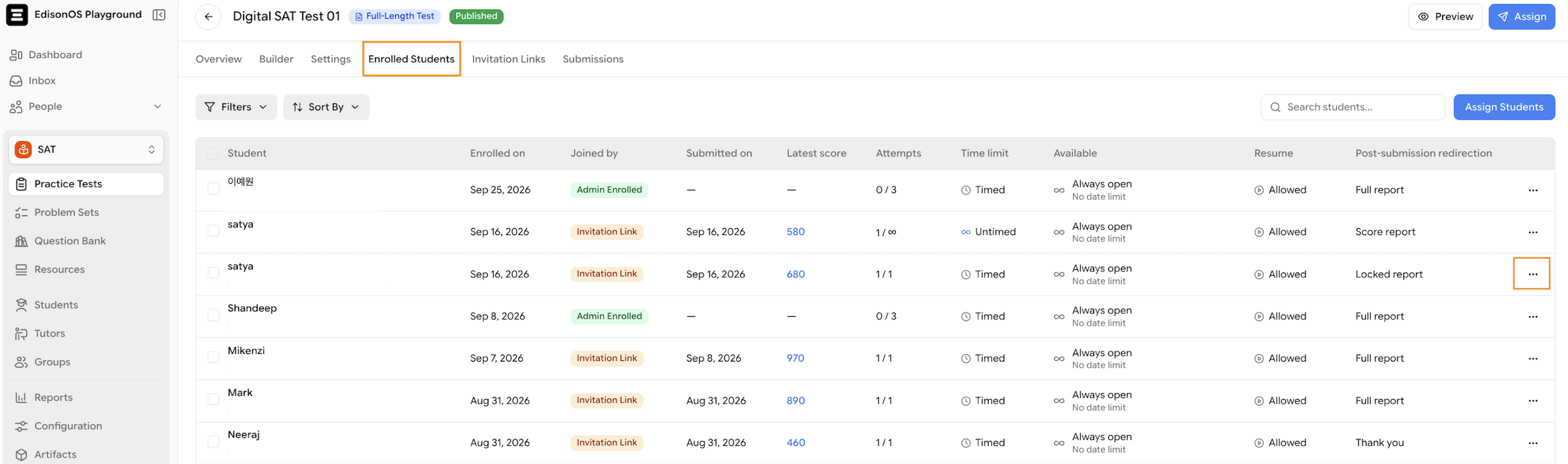
Edit the student's allotment. Find the student, click the three dots (⋯) at the end of their row, and select Edit.
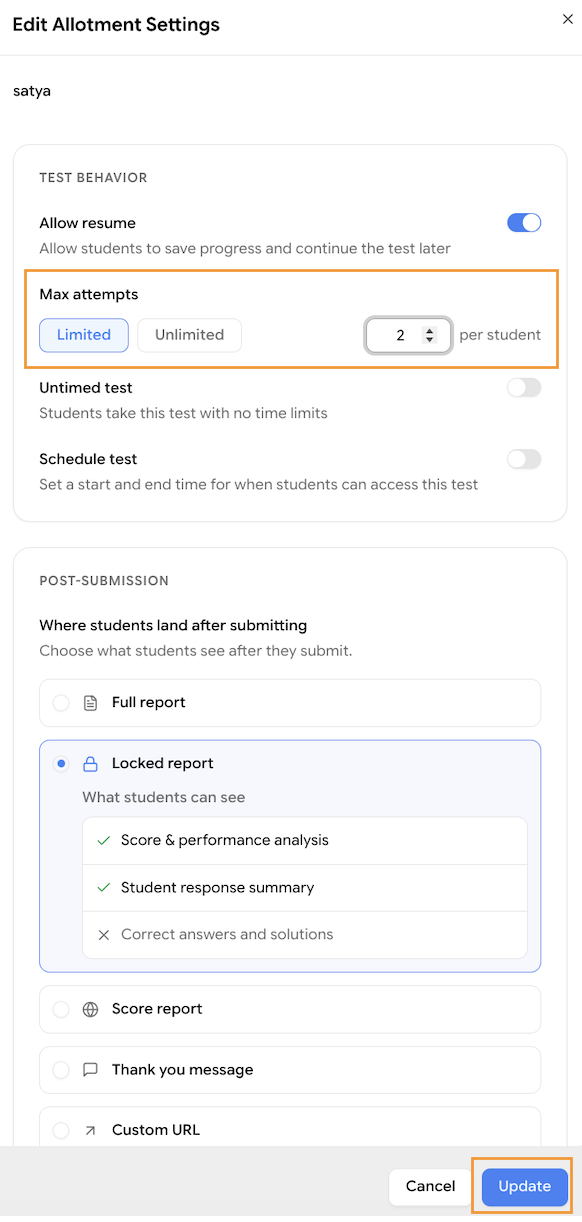
Set the new attempt limit. In the Edit Allotment Settings window, under Test Behavior → Max attempts, keep Limited selected and enter the total number of attempts you want the student to have. If you'd rather not cap retakes, choose Unlimited instead.
Click Update. A confirmation message saying "Allotment updated" will appear, and the student's Attempts column will reflect the new limit (for example, 1 / 2).
The student will now see the option to retake the test from their dashboard.
Good to know:
Max attempts is a total, not an addition. If a student has used 1 of 1 attempts and you want to give them one more try, set Max attempts to 2, not 1.
Previous attempts are kept. The student's earlier submissions and scores stay in the Submissions tab. The Latest score column updates after they submit their new attempt.
Other settings are in the same window. While editing, you can also change resume permissions, timing, scheduling, and what the student sees after submitting. Check these before clicking Update so you don't change anything by accident.