
8.4 Parent Portal
The Parent Portal gives families their own login to view their child's reports across every program the student is enrolled in. Setup is a two-step process: create the parent profile, then link the student.
Adding a Parent
Parents live under People → Parents in the left sidebar. The page lists every parent in your academy, their linked students, join date, and status.
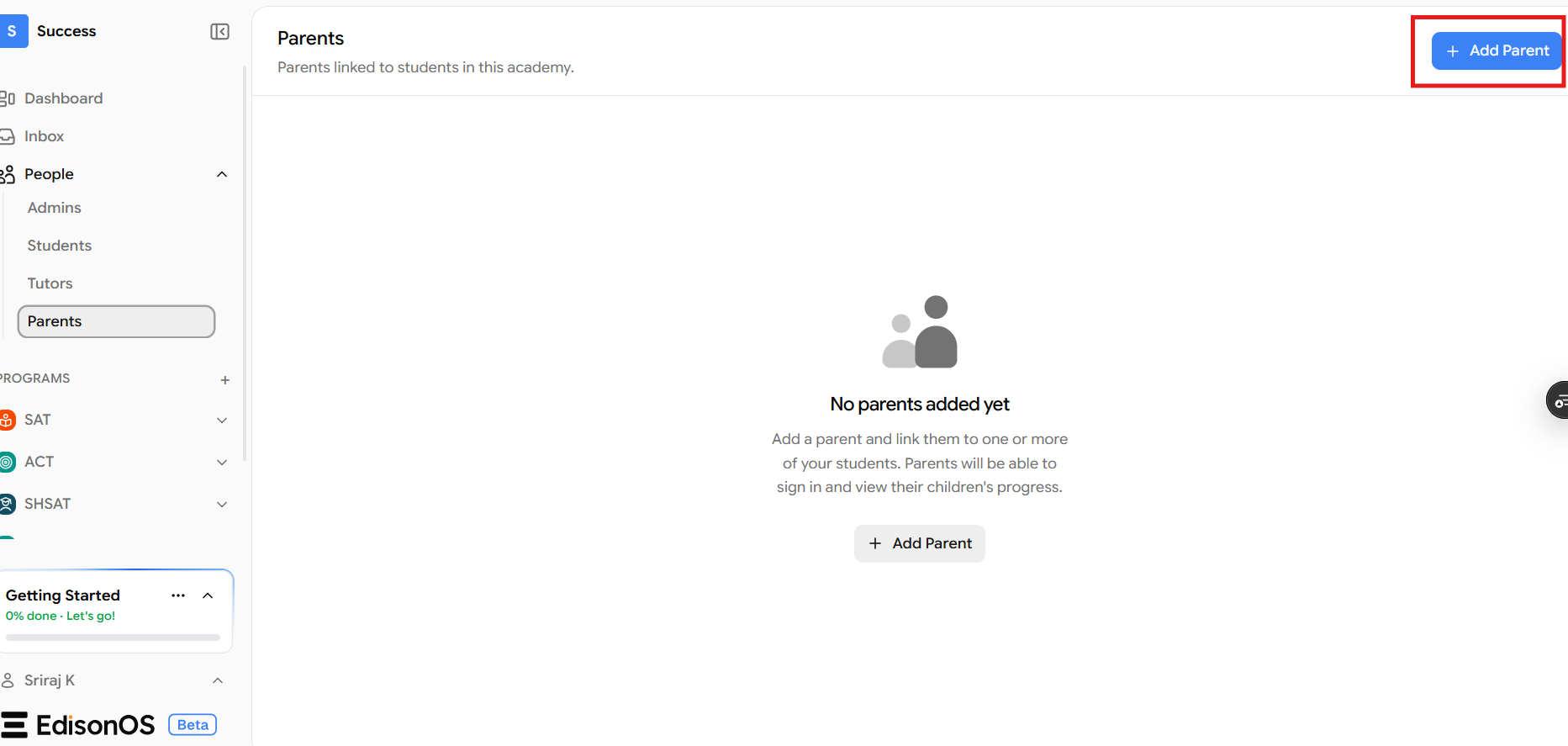
Click + Add Parent in the top right. A dialog asks for two fields:
Full name - how the parent's name appears on the profile and in communications.
Email - the address the parent will use to sign in and where notifications are sent.
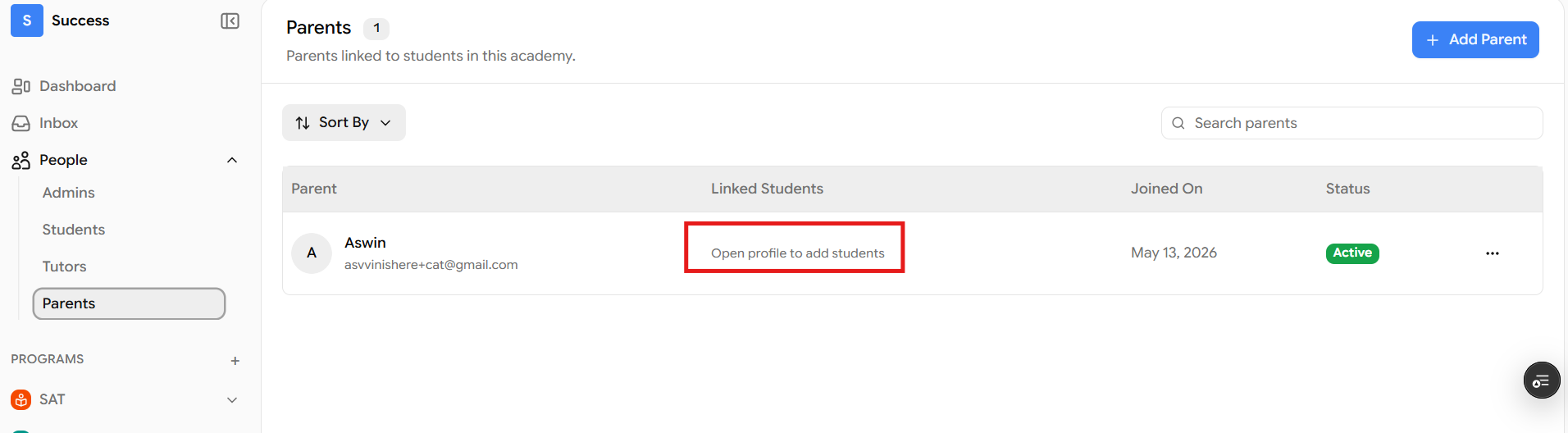
Click Add Parent to save. The parent appears in the list as Active, but with "Open profile to add students" in the Linked Students column step two is still pending.
Use an email address the parent regularly checks to stay updated on student progress.
Linking a Student to the Parent
Click the parent's name to open their profile. You'll see two tabs Students and Profile.
On the Students tab, click + Add Student, pick the student, and set the Relationship (Guardian, Father, Mother, etc.). You can link multiple students to the same parent useful for siblings.
Back on the Parents list, the Linked Students column now shows the student's name, confirming the link.
Link siblings to one parent account
If a family has more than one child in your academy, link all of them to the same parent profile one login, one inbox, clean switching between children inside the portal.
How Parents Sign In
Parents sign in at the same URL as your platform no separate app or parent-only link. They use the email you entered when creating the profile, and the platform routes them to the parent view automatically.
What Parents See in the Portal
After logging in, the parent sees their student's performance mirroring the key sections of the Student Profile.
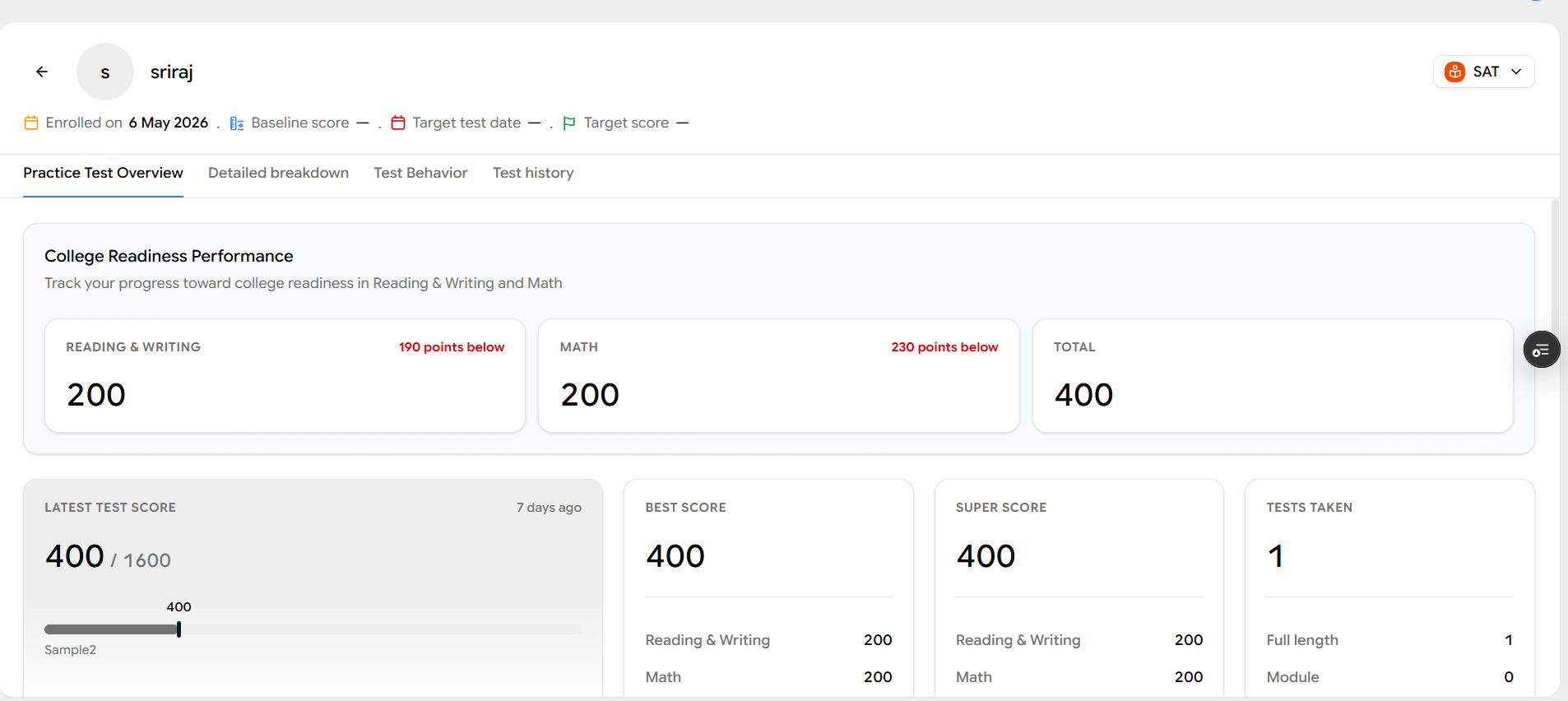
The parent view includes Practice Test Overview, College Readiness Performance, Detailed Breakdown, Test Behaviour, and Test History the same data you use to plan sessions. If the student is enrolled in multiple programs (e.g., SAT and ACT), the parent can switch using the program selector in the top right. If multiple students are linked, they can switch between children too.
The parent view is read-only
Parents can view reports and progress, but can't assign tests, change accommodations, or modify the student's profile safe to share with families, no risk to your setup.
The Practice Test Overview relies on baseline score, target score, and target test date from the Student Profile. Fill these in before the parent logs in so their first view feels complete rather than half-empty.
Conclusion
Once a parent is added, linked, and signed in, they have ongoing visibility into how their child is progressing across every program. Set it up early it cuts down on update emails and builds trust with families between sessions.