
7.8 How to Assign a License to a Student?
Students with an assigned license can take unlimited tests and problem sets without consuming Credits. Although Credits may still be displayed in the platform, licensed students will not use those credits while taking tests.
Before You Begin
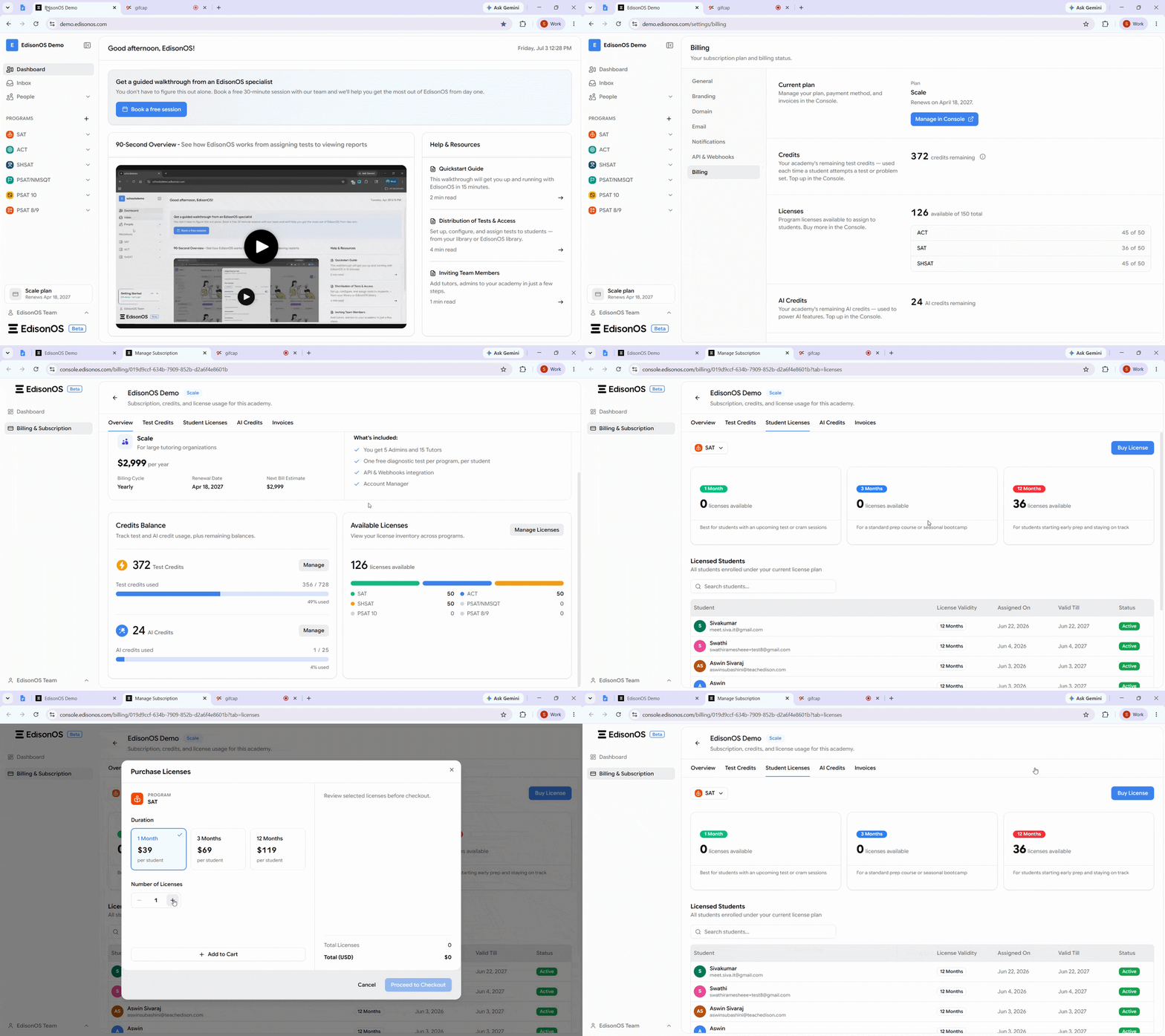
Purchase the required number of licenses from the Console App before assigning them to students.
Purchase Licenses
Go to Your plan → Billing → Manage Console.
Open Billing & Subscription → Manage Licenses.
Purchase the required number of licenses for your academy.
You must purchase licenses before you can assign them to students.
Assign a License to a Student
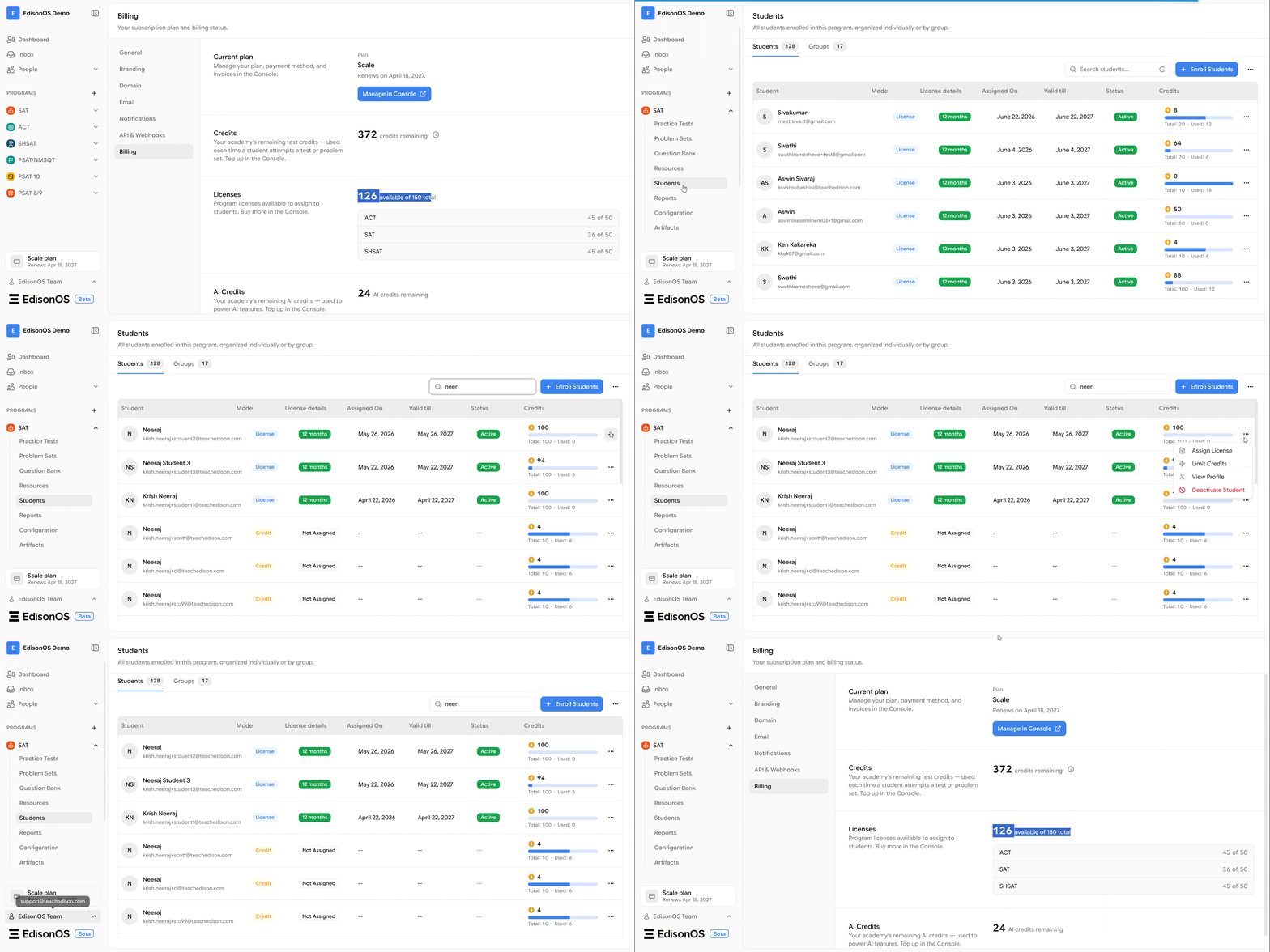
Once licenses are available, you can assign them to individual students.
Open the required Program and navigate to the students tab.
Search for the student by name.
Click the three-dot menu (⋯) next to the student's name.
Select Assign License.
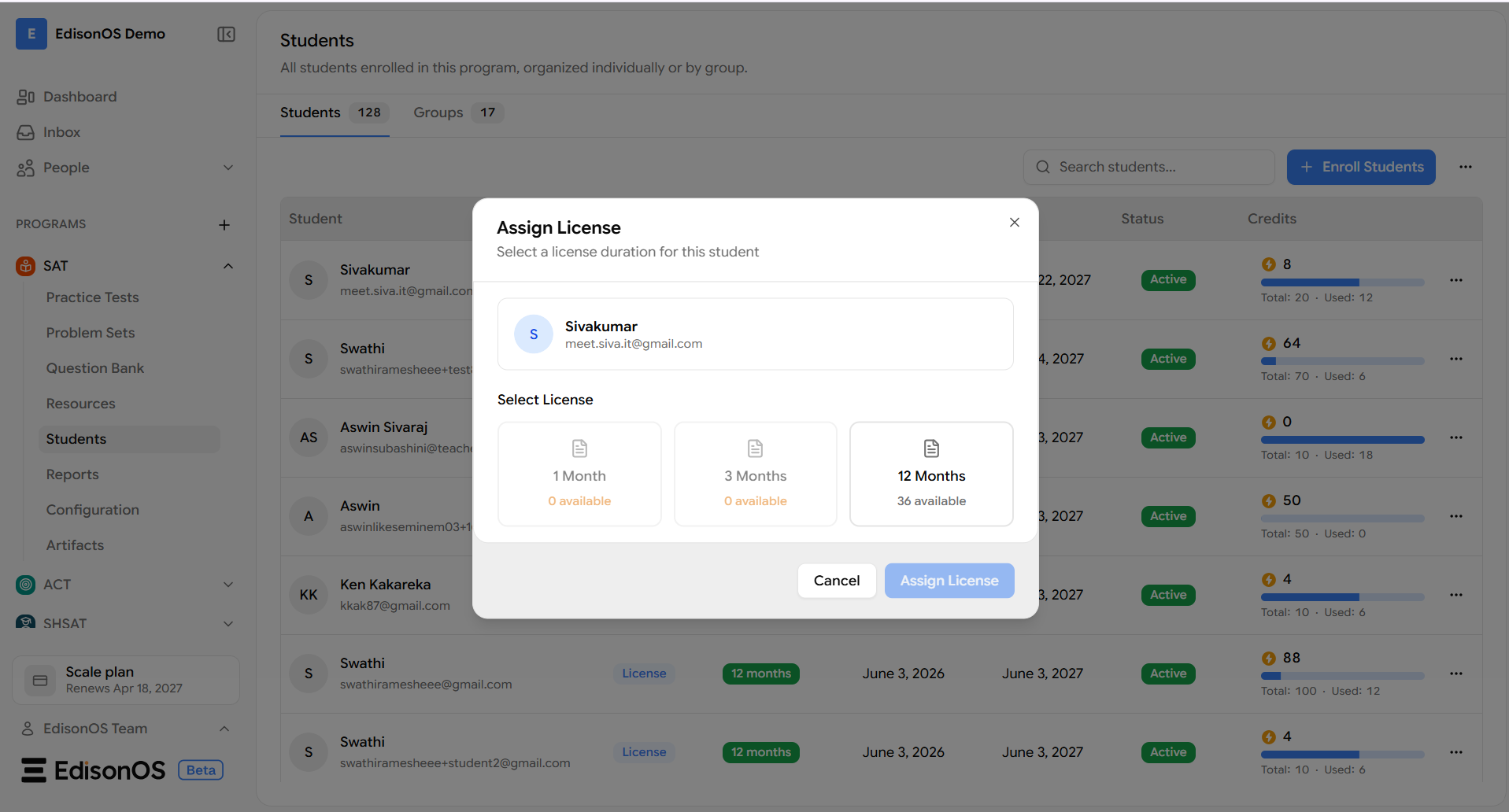
Choose the required license duration based on your available plans (for example, 1 Month, 3 Months, or 12 Months).
Click Assign License to apply the license immediately.
After a license is assigned, the student can continue taking tests and problem sets without consuming Credits, even if Credits are still displayed on the platform.
Bulk Assign Licenses and Test Credits
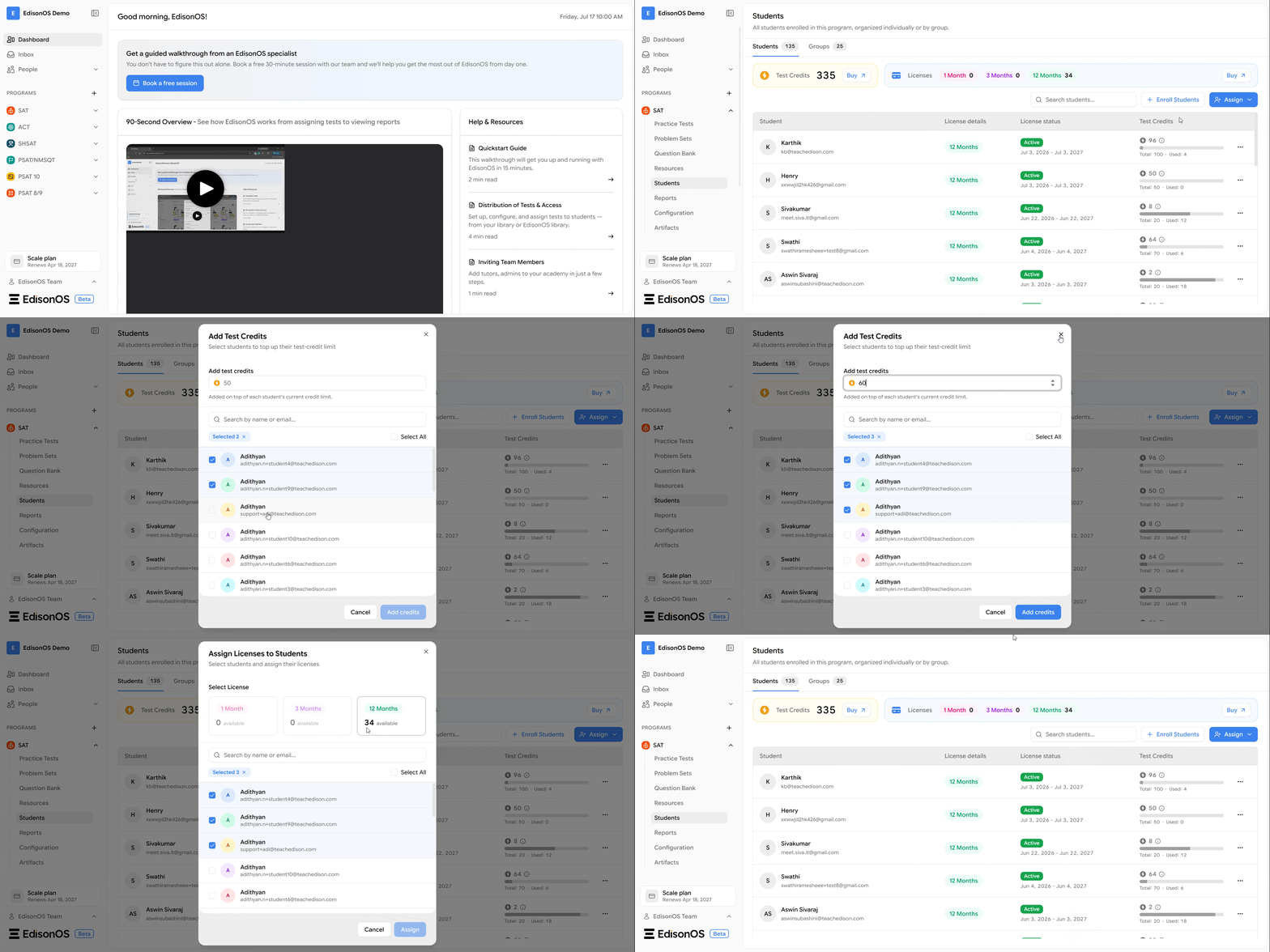
Assign licenses to students and manage their test credit limits from the Students tab within a program.
You can assign licenses to one or more students, set test credit limits, or update credit limits for multiple students using the bulk edit option.
Per Student License History
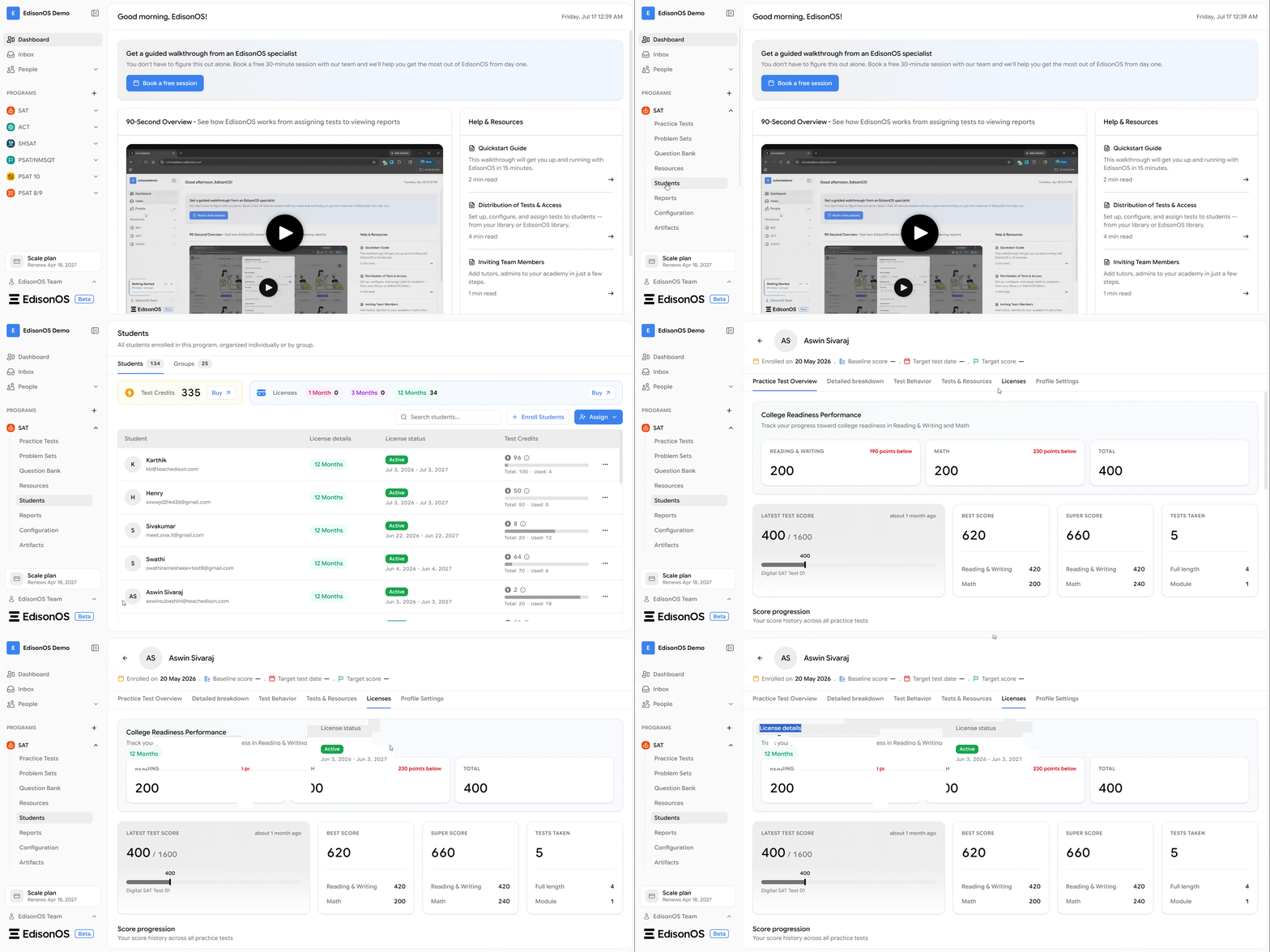
Academy administrators can now view the license history for an individual student from the Licenses tab on the student's details page.
The Licenses tab displays the student's license history, making it easy to review previously assigned licenses.
Navigate to: People → Students tab → Select a Student → Licenses
Available License Plans
When you click Assign License, the available license plans purchased for your academy are displayed.
Select the license duration that you want to assign to the student.
The available license durations may include:
1 Month – Grants access for 1 month.
3 Months – Grants access for 3 months.
12 Months – Grants access for 12 months.
Each license plan also displays the number of available licenses remaining for that duration.
If a plan shows 0 available, all licenses for that duration have already been assigned, and you must purchase additional licenses before assigning more students.
Once you select an available license duration, click Assign License to apply the license immediately.
Manage Student Credits
You can also manage the Credit balance for individual students from the same Students page.
Search for the required student.
Click the three-dot menu (⋯) next to the student's name.
Select Credits.
Increase or decrease the student's Credit balance as needed.
Save your changes.
Licensed students do not consume Credits while taking tests or problem sets, even if a credit balance is displayed. Credit adjustments apply only to students using the credit-based model.