
7.1 Enrolling Students
Student enrollment in EdisonOS is done at the academy level through the People section. Enrollment directly ties a student to one or more specific programs, which determines what tests, problem sets, and content they can access.
How to Enroll a Student
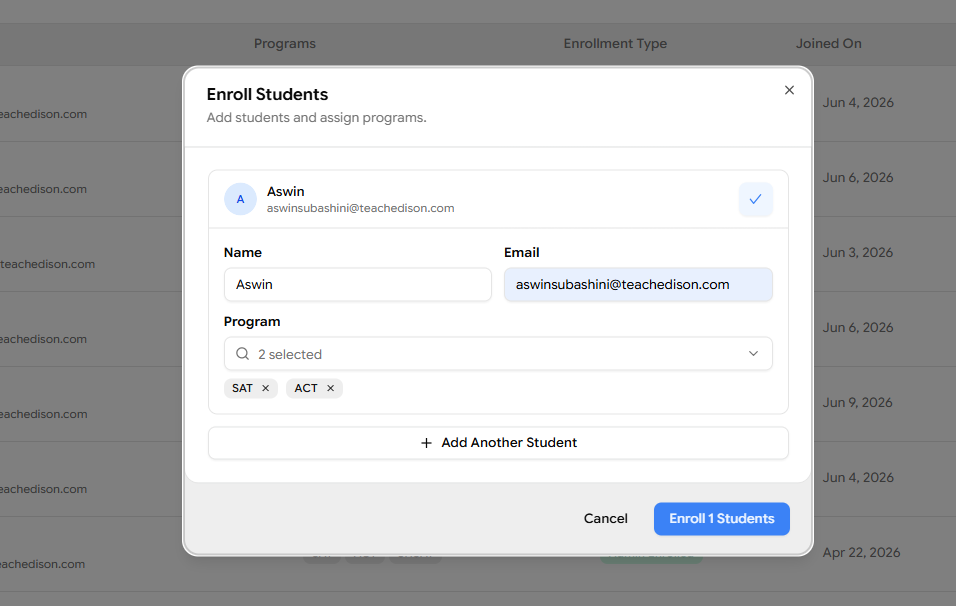
Click on the People tab in the main navigation.
Select Students from the sub-menu.
Click Enroll Students.
Fill in the required fields:
Field | Description |
|---|---|
Full Name | The student's full legal or preferred name |
Email Address | Used for login and all system notifications |
Program(s) | Select one or more programs like ACT, SAT, SHSAT, or other programs |
Click Enroll Student to confirm.
To enroll multiple students at once, click Add Another Student after entering a student's details. This will add a new row, allowing you to enter additional student information without leaving the current screen.
The student will be immediately enrolled into all selected programs and will receive a welcome email with login details.
Program selection at enrollment is critical. A student enrolled in SAT will only see SAT-specific content, tests, and problem sets. If a student needs access to multiple programs (e.g., both SAT and ACT), select all relevant programs during enrollment.

To assign additional programs to an enrolled student, click the More menu (⋮) corresponding to the student and select Add Programs. You can then choose the program(s) you want to assign.