
3.4 Curriculum & Tags
The Curriculum & Tags section lives under Configuration for each program. It gives administrators a read-only view of the curriculum hierarchy tied to that program, and a separate area to create and manage custom tags that can be applied to questions, folders, practice tests, and problem sets.
Think of curriculum as the backbone it defines how topics are structured while tags add a flexible layer of metadata on top, letting you slice your library any way you need.
The Curriculum Tab
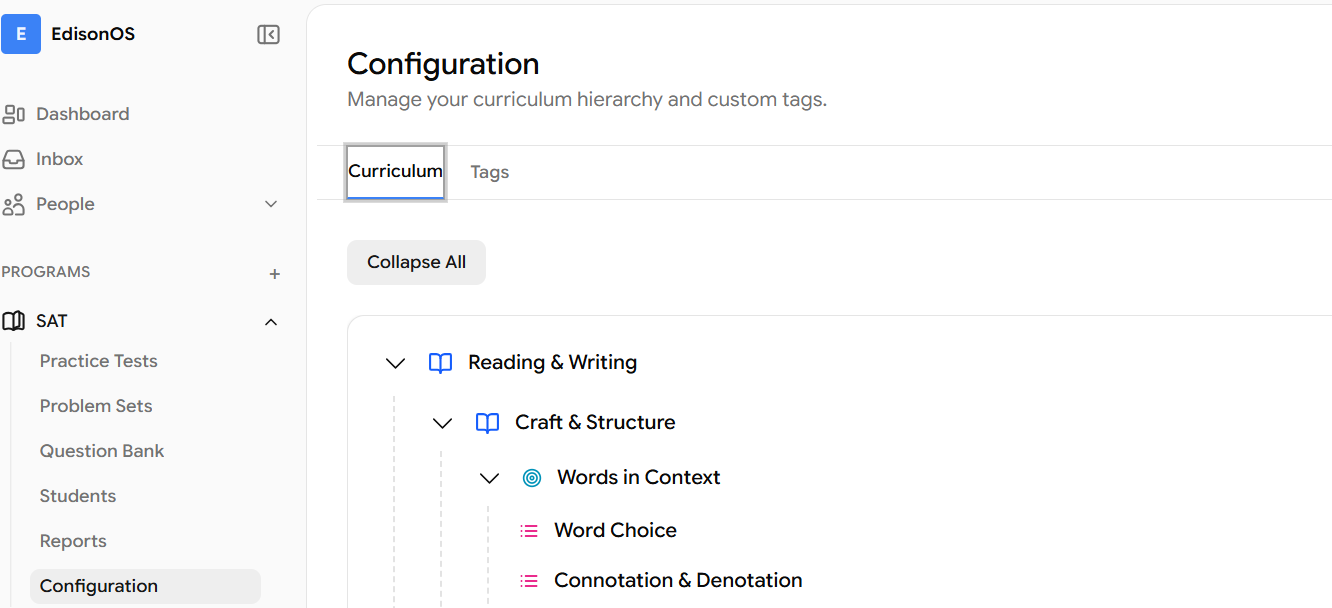
When you open the Curriculum tab, you'll see all the modules associated with your program. For example, SAT shows Reading & Writing and Math. The hierarchy is read-only, meaning it mirrors the official structure used across the EdisonOS question library.
The curriculum structure cannot be edited. It replicates the exact program framework that all library-based questions follow, ensuring your content stays aligned to the official curriculum.
Click Expand All to reveal the full hierarchy at once, or click any individual section to drill into it. Each level follows a consistent structure:
Module → Domain → Skill → Sub-skill
The Tags Tab
Tags are custom labels you create to add flexible, program-specific metadata to your library content. Unlike the curriculum hierarchy, tags are fully under your control you name them, describe them, and choose what type of content they apply to.
Note that custom tags cannot be applied to EdisonOS library content and are only available for content within your own library.
When creating a tag, you'll specify three things: a name, an optional description, and a category. The category determines where the tag can be used:
Category | Where it applies |
|---|---|
Question | Applied to individual questions in the library |
Folder | Applied to folders within your question bank |
Practice Test | Applied to full practice tests |
Problem Set | Applied to targeted problem sets |
Passage | Applied to passages within your library |
Tags are program-specific. Tags created under SAT are only available within your SAT program, keeping each program's metadata clean and focused.
How to Create a Tag
Go to Configuration from your program's left-hand navigation and click the Tags tab.
Click Create Tag, a modal will appear with fields for name, description, and category.
Enter a Tag Name (e.g. "Algebra Basics" or "Official Test") and an optional description to clarify how it should be used.
Select a Category from the dropdown: Question, Folder, Practice Test, Problem Set or Passage.
Save the tag and it will now be available to apply anywhere in your library within this program.